Searching on the Android App or Mobile Web Browser
You can modify your search using filters.
To modify search criteria, tap the Filter button.
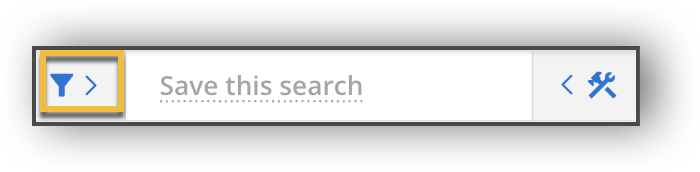
Filters display on an expandable/collapsible panel, and they are organized into sections based on relevance (eg., all location filters are grouped together).
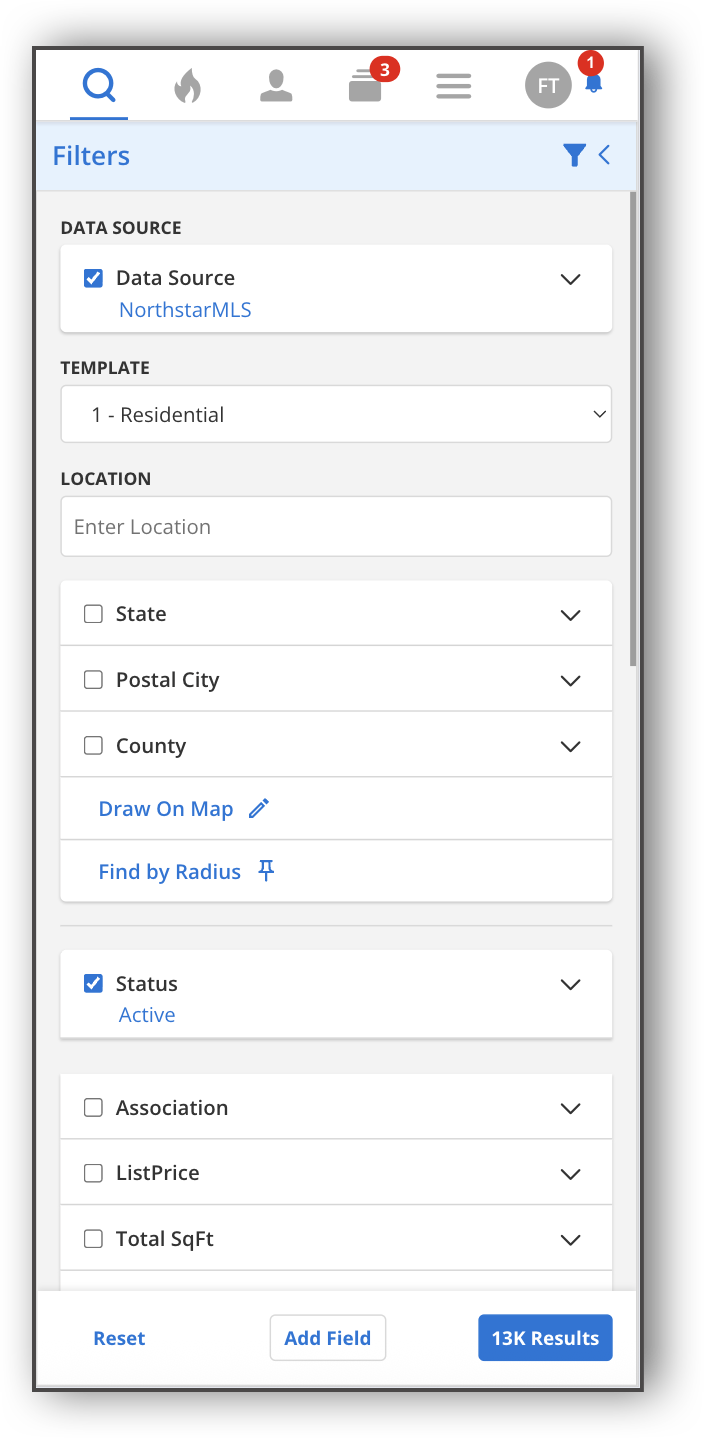 |
Each filter has a checkbox next to it, and the default filters for the search template are checked. You can use the checkboxes to modify your search using multiple filters at once. Check filters you want to include, and uncheck filters you want to exclude, from a search. Unchecked boxes will not filter or affect search results.
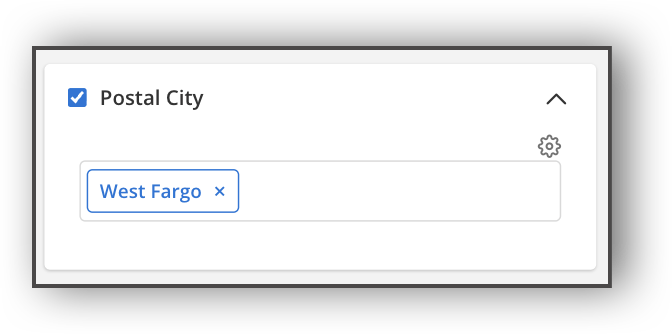
You can also modify a filter by expanding it. To do this, tap the chevron  next to each filter to expand it. Tap the chevron again to collapse the filter.
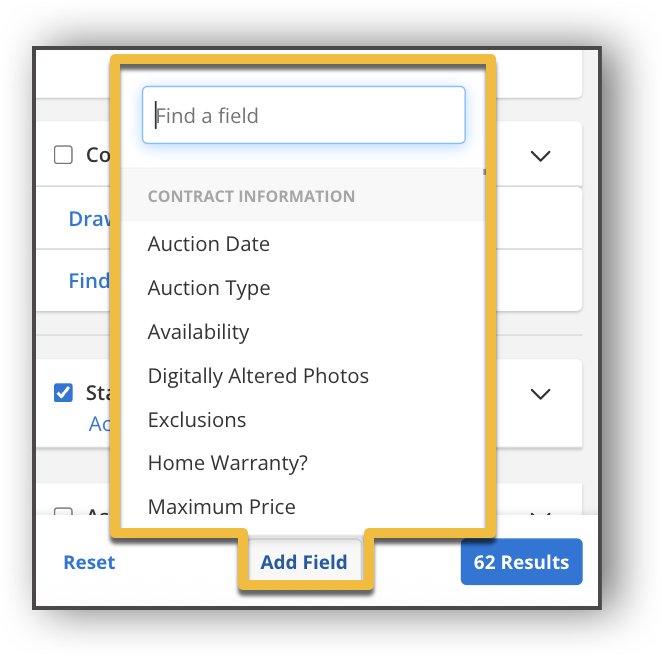
To add a filter, tap Add Field. Start typing a field name or tap a field name in the list.
If your MLS participates in data sharing with other MLSs, you can filter by MLS.
Note
To specify the MLSs that are selected by default, go to General Preferences in the desktop version of Flexmls.
Adjust Filters
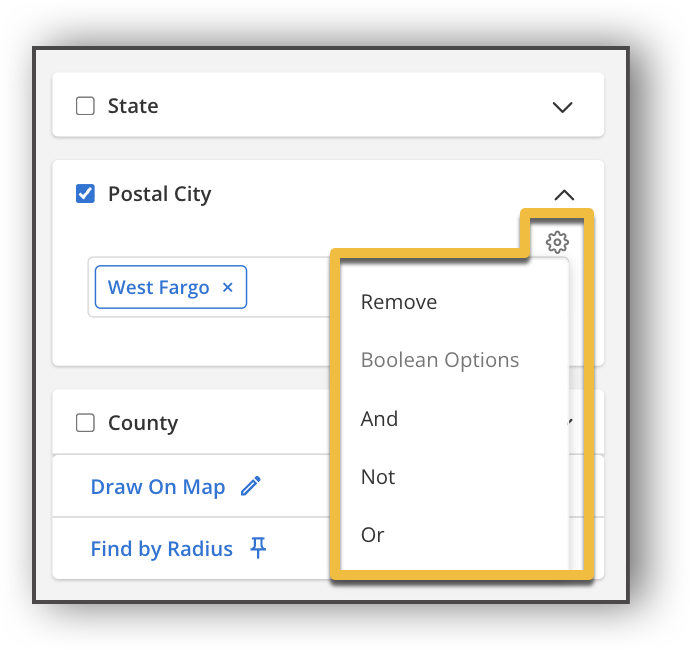
In the Flexmls app for Android and on the mobile website, to disable a field, remove a field, or apply an operator (and, or, between, etc.) to a field, tap the Settings  icon to the right of the field name.
Filter by Drawn Shapes and Map Overlays
To use a saved overlay to filter your search, you can enter a location in the Location field and select a saved overlay from the dropdown menu. Alternatively, you can select an overlay from the Overlays field. Any shapes that you draw on the map appear as filters in the Drawn Shapes field.
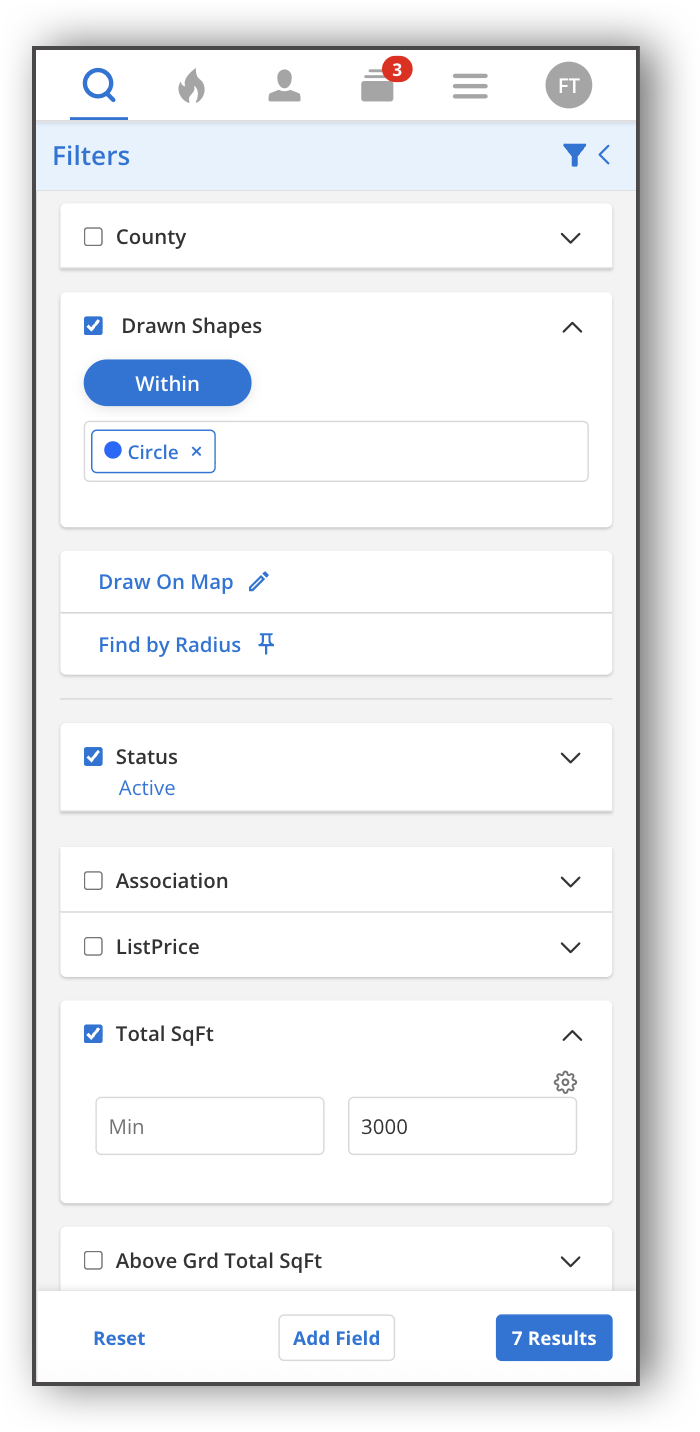 |
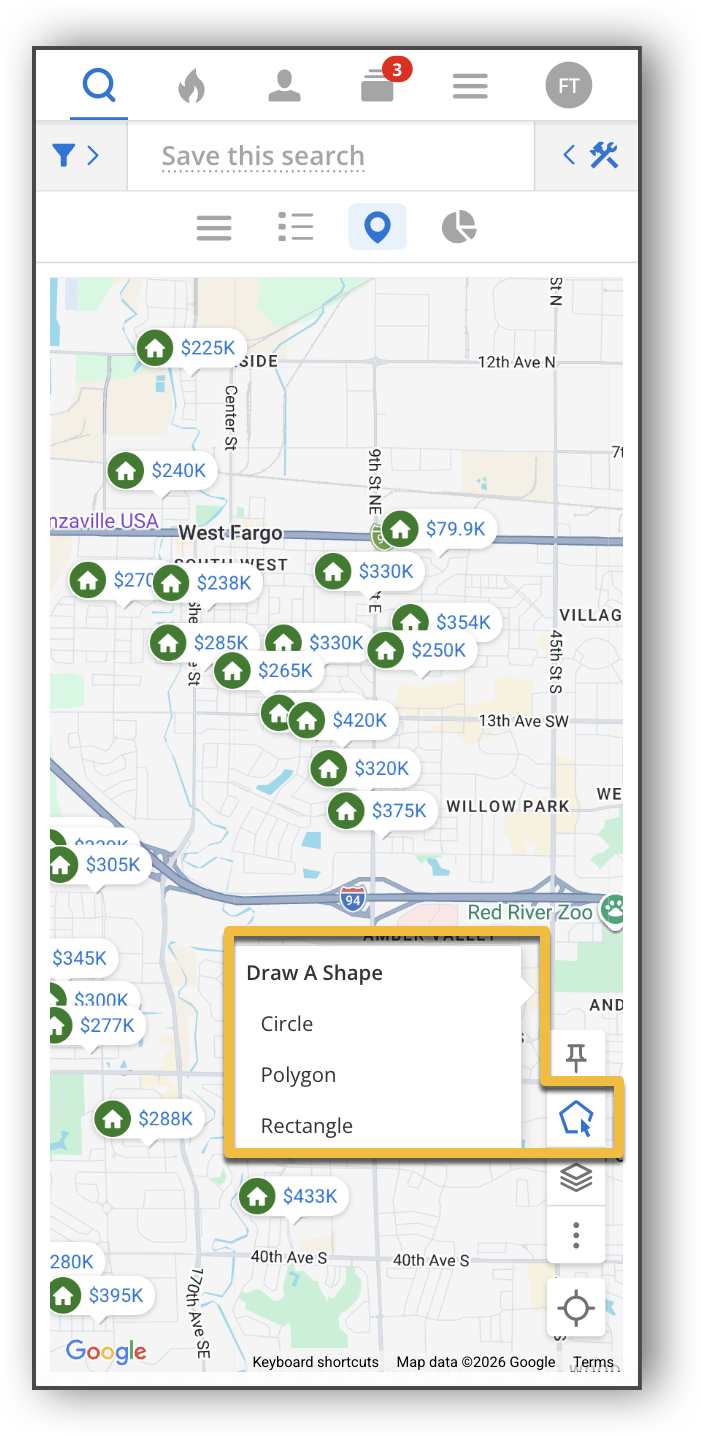
There is also an option on the filters panel called Draw on Map. Clicking this option takes you straight to the map and opens the map drawing tool. Here, you can choose to draw a circle, rectangle, or custom polygon.
You can access this same search filter while in the Map view by tapping the Draw icon.
 |
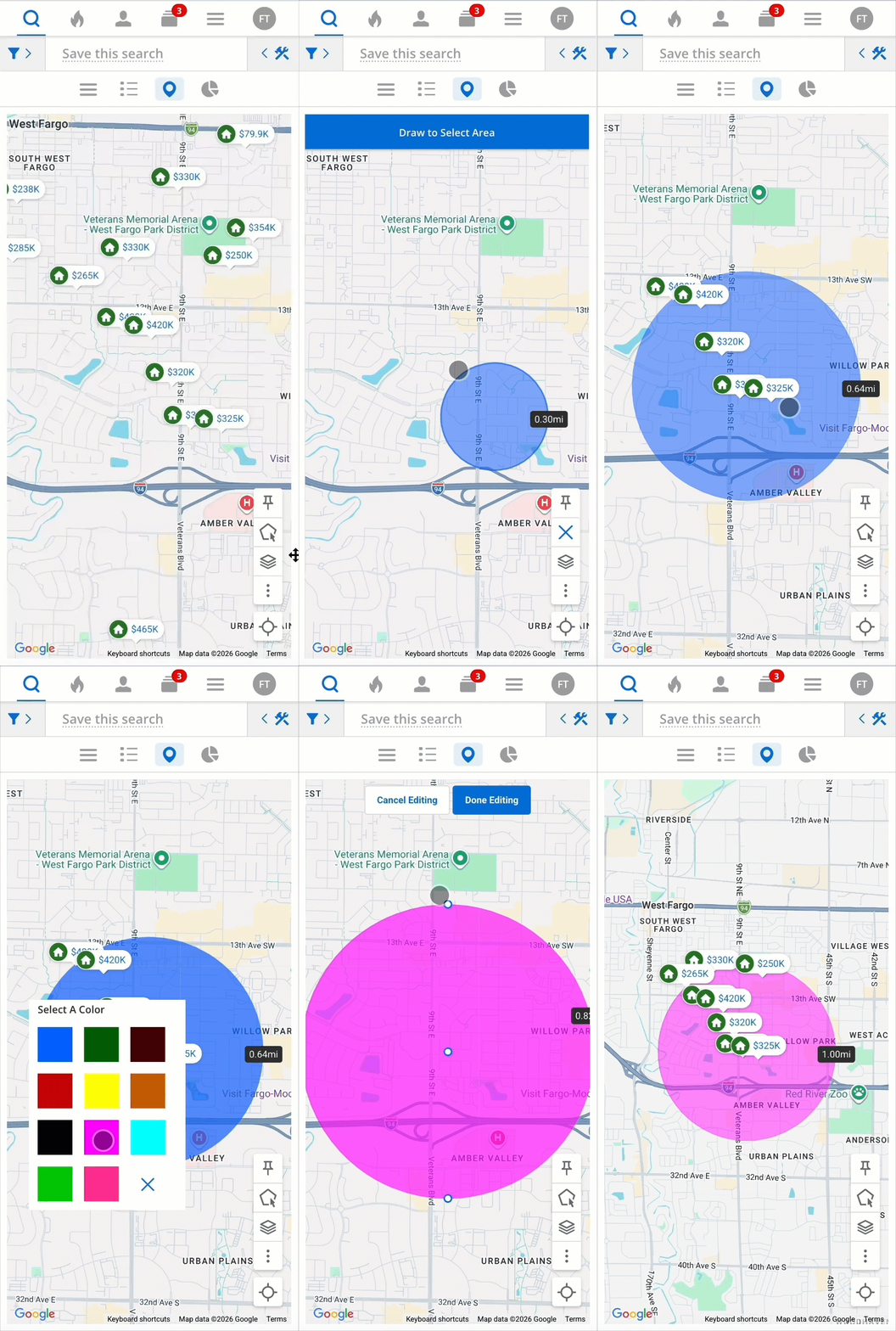
When drawing a shape, you can pan and zoom the map as you draw. If you have chosen to draw a circle or rectangle, tap the area where you want the shape to be, then drag the shape to make it bigger or smaller. If you have chosen to draw a custom polygon, draw the shape one segment at a time by tapping to start and stop each segment. Then close the shape by tapping the starting point again.
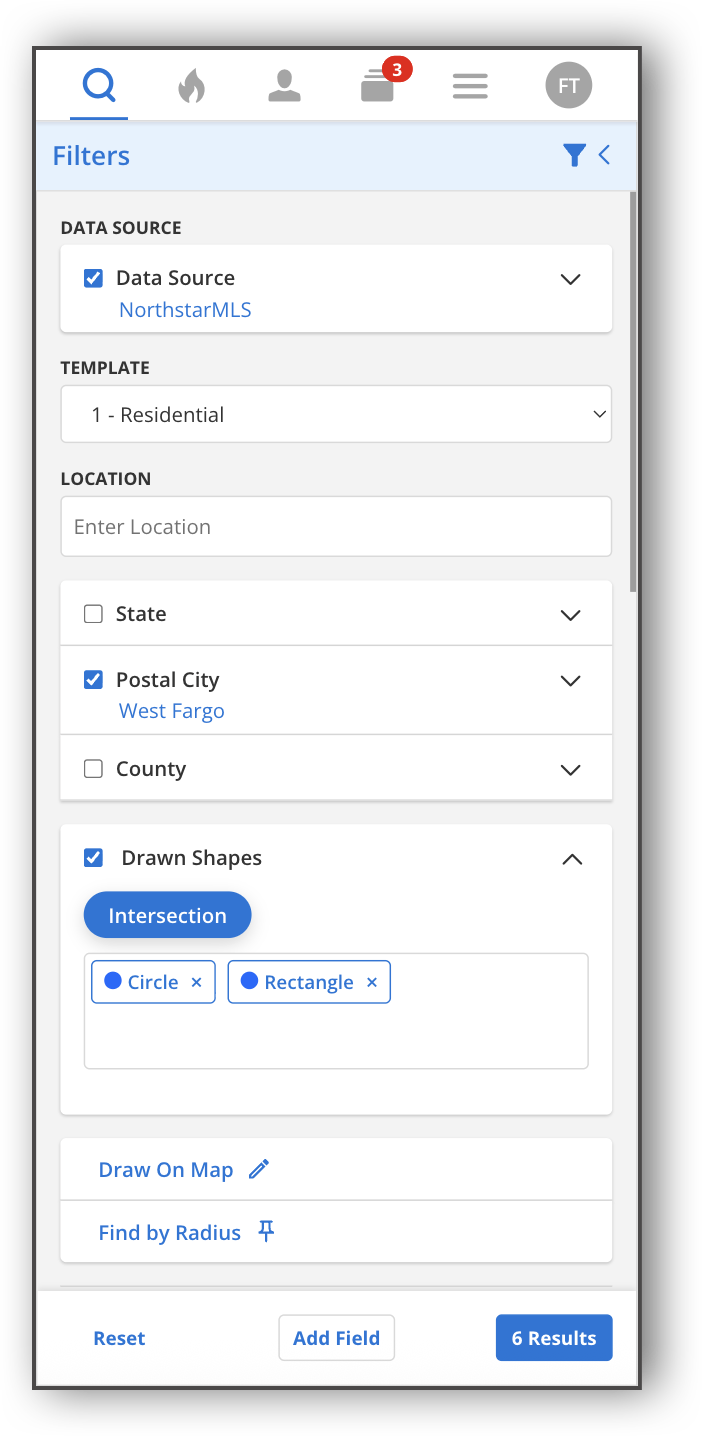
You can further modify this search filter by specifying if you want the search results to display listings within or outside of your drawn shape or map overlay. If you have multiple drawn shapes or overlays, you can also specify if you want your search filters to display listings that are within the overlapping drawn shapes or map overlays.
 |
You can edit a drawn shape or map overlay. Tap the shape to make changes, such as changing the color, shape name, or shape size. Tap Edit Shape to drag the shape bigger or smaller. Tap Delete Shape to delete the drawn shape altogether.
 |
Clicking on each filter in the Overlays or Drawn Shapes field highlights the corresponding overlay on the map. To delete a filter, click the X next to the filter name. Filters in the Location or Overlays field are saved, and you can select them again after deleting them. However, if you delete a Drawn Shape filter, you will need to re-draw the shape if you want to recover that filter.
Radius Searching
You can also do a radius search in the Android app or mobile web browser. In the Map view, tap the pin icon. From there, you can type a specific address and then specify the radius you would like to search from that address. You can use the arrows to increase or decrease the radius, or you can type in the number of miles. Once you have specified the radius you would like to search, tap Confirm Address. Your search results will display listings within the radius you have selected.
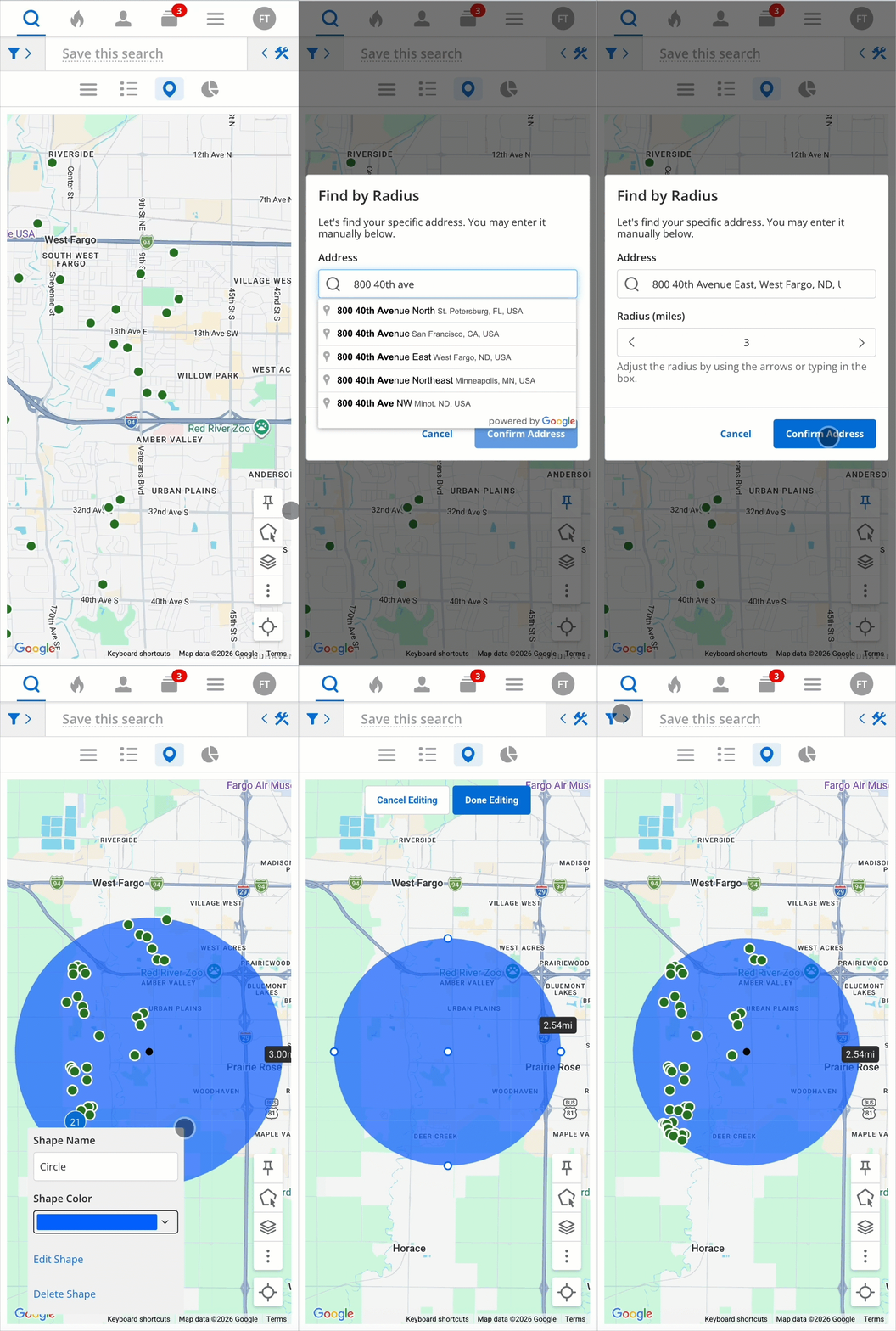 |
From there, you can edit the radius search. Tap the circle to make changes to the shape, such as changing the color, shape name, or shape size. Tap Edit Shape to drag the shape bigger or smaller. Tap Delete Shape to delete the radius search altogether.
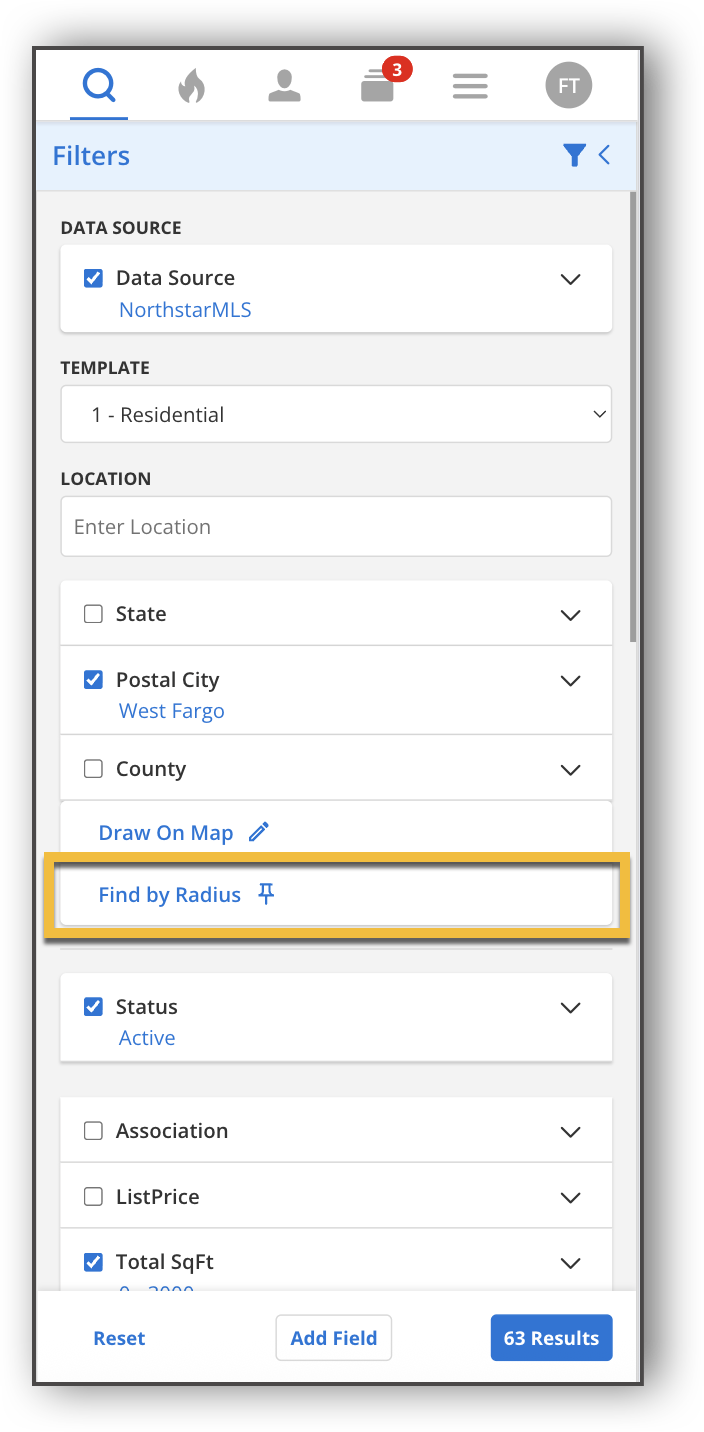
You can also access the radius search from the search filters page, by tapping the Find by Radius search filter.
 |
Search Templates
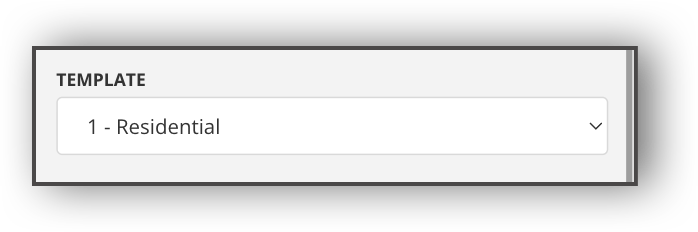
All Quick Search templates created in Flexmls are available when using the Flexmls app or mobile website. To select a different template, tap the drop-down list at the top of the page.
Save a Search
You can name and save a search using the Save This Search option. In the top bar labeled "Save This Search," type in the name you want to call your search. You will then be able to access the search from your Saved Searches.

View Search Results
Tap View Results to view listings that match your search criteria. Tap Reset Filters to clear your changes to search criteria.