Add a Constraint to a Field
Click Constraints under Main Listings on the Admin menu to create or modify reasonableness constraints, which are limits or rules for the data that can be entered in a field. Constraints can help improve the accuracy of the data entered into your system.
When you apply a constraint to a field, an information bubble is displayed next to the field. Hovering over the information bubble displays information about the constraint.
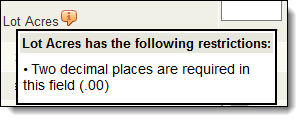
If the user enters prohibited data in a constrained field, an error message will be displayed when they move to the next field. If the user is not allowed to override the constraint, they will not be able to save the listing until these errors have been resolved.
Tip
The following Guided Help tour is available for this function in Flexmls. When you click on a link, an instance of Flexmls will open in a new browser tab and instruction bubbles will guide you through the process.
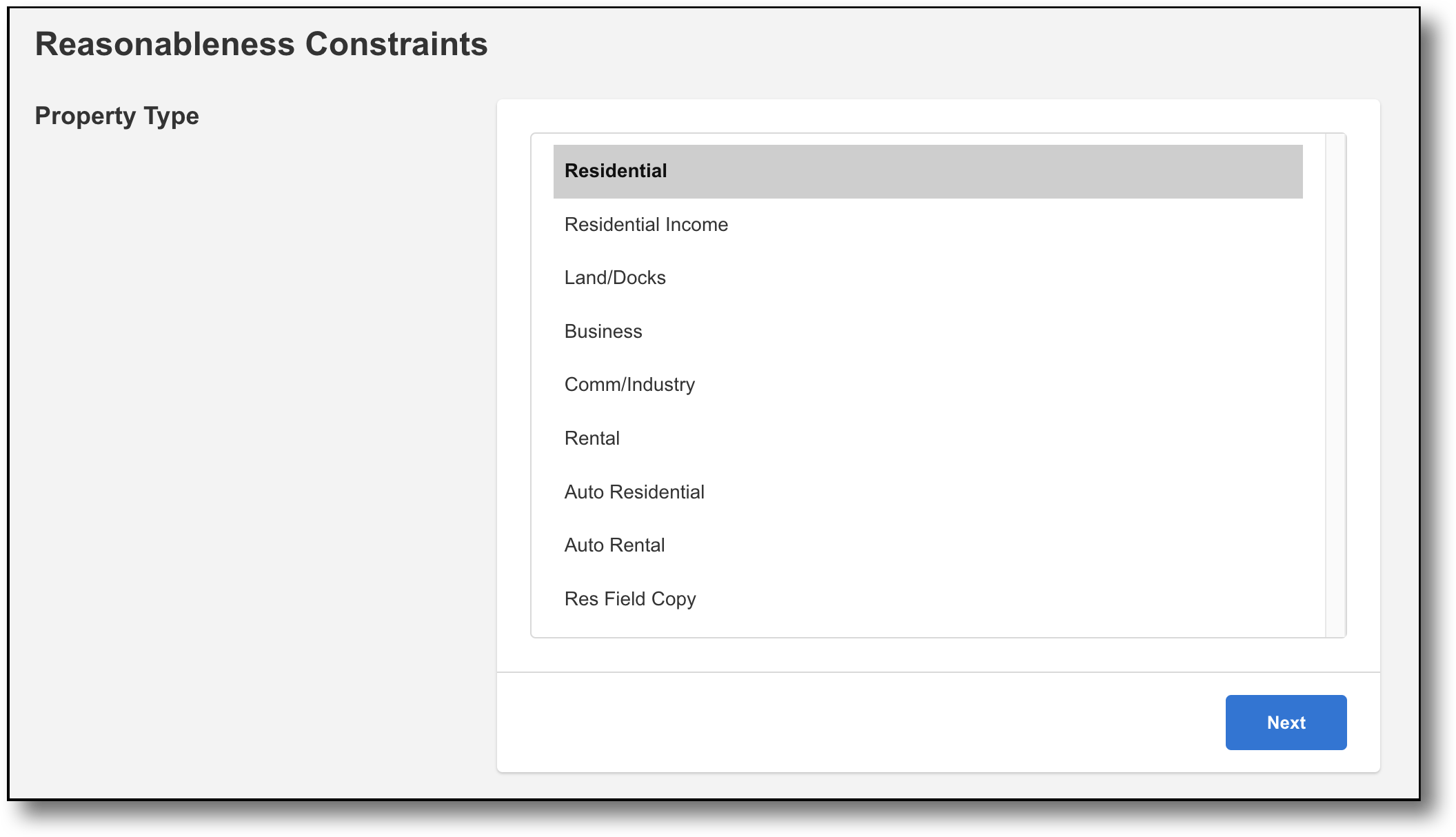
Begin by selecting the property type for which you want to set constraints, then click Next.
Note
Click the Print button at the top or bottom of the page to display a printer-friendly version of the constraints for the selected property type.
Click the + (plus sign) next to a field type or group name to expand the list of fields.
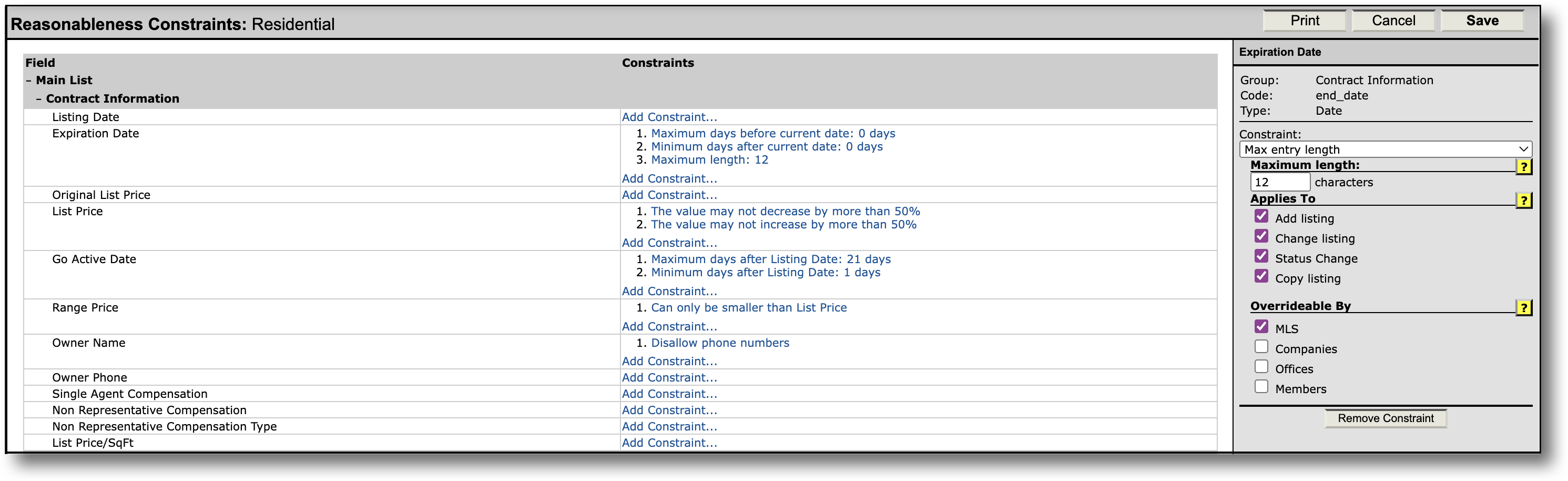
To create a constraint, click Add Constraint next to the field that you want to constrain. (To delete an existing constraint, select it and click Remove Constraint.)
In the right pane, select the type of constraint from the drop-down list. The available types depend on the data type of the selected field. For more information about the available constraints, see Constraint Types.
Click the check box for each function where you want to apply the constraint. For example, if you set a minimum value constraint on list price, the rule could be applied when adding a listing, changing a listing, changing a listing's status, or copying a listing.
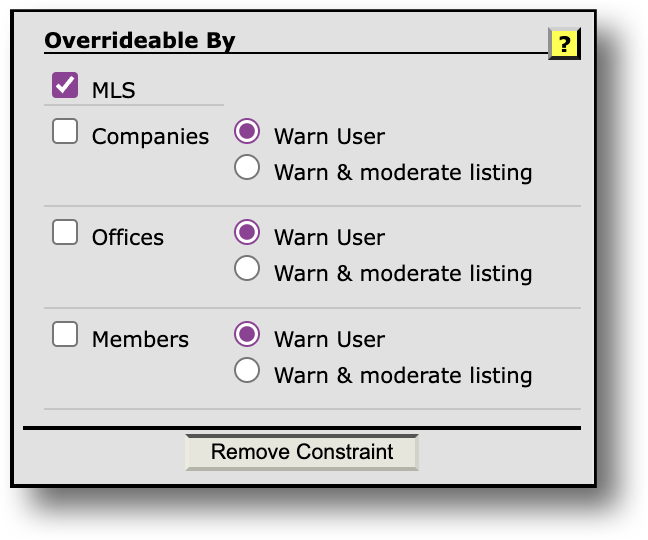
If necessary, specify the user role that can override the constraint. You can select the MLS, companies, offices, or members.
If the user has the ability to override the constraint, they will be notified that there is a constraint, but they will be able to save a listing that violates it. If the user does not have the ability to override the constraint, they will not be able to save a listing that violates the constraint.
If the moderated listings module is enabled in your MLS, you can select Warn User or Warn & moderate listing. Your selection determines what happens when a user in the role attempts to add information to a listing that violates the constraint. If you select Warn User, the user will receive an error message notifying them about the constraint violation. If you select Warn & moderate listing, the incomplete listing will be held for review by administrators.
For more information about moderated listings, see Listings in Moderation.
Click Save at the top or bottom of the page to finish adding or changing a constraint.