Add a Listing with Auto Assistant
Your members can use Auto Assistant to pre-populate fields in the listing input form. When your members use Auto Assistant, their listings will be saved as incomplete once the listing data is auto-populated. Members can make changes or add data to the incomplete listing before publishing.
Note
Auto Assistant is being rolled out in phases as of Fall 2025. If your MLS does not have this feature yet, it will be coming soon.
To add a listing with Auto Assistant, navigate to the Add Listing page by going to the Flexmls menu and clicking Add Listing under the Add/Change section.
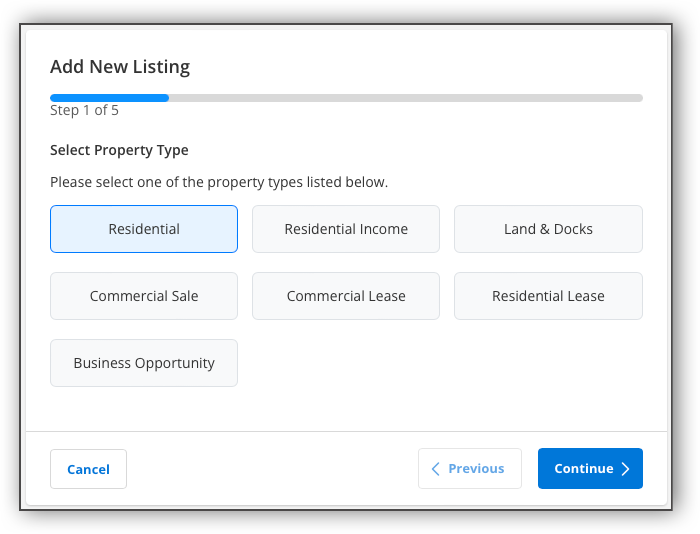
When members use Auto Assistant, a progress bar shows how many more steps need to be completed before the listing fields are pre-populated and members can edit their incomplete listing.
Select a property type, and click Continue.
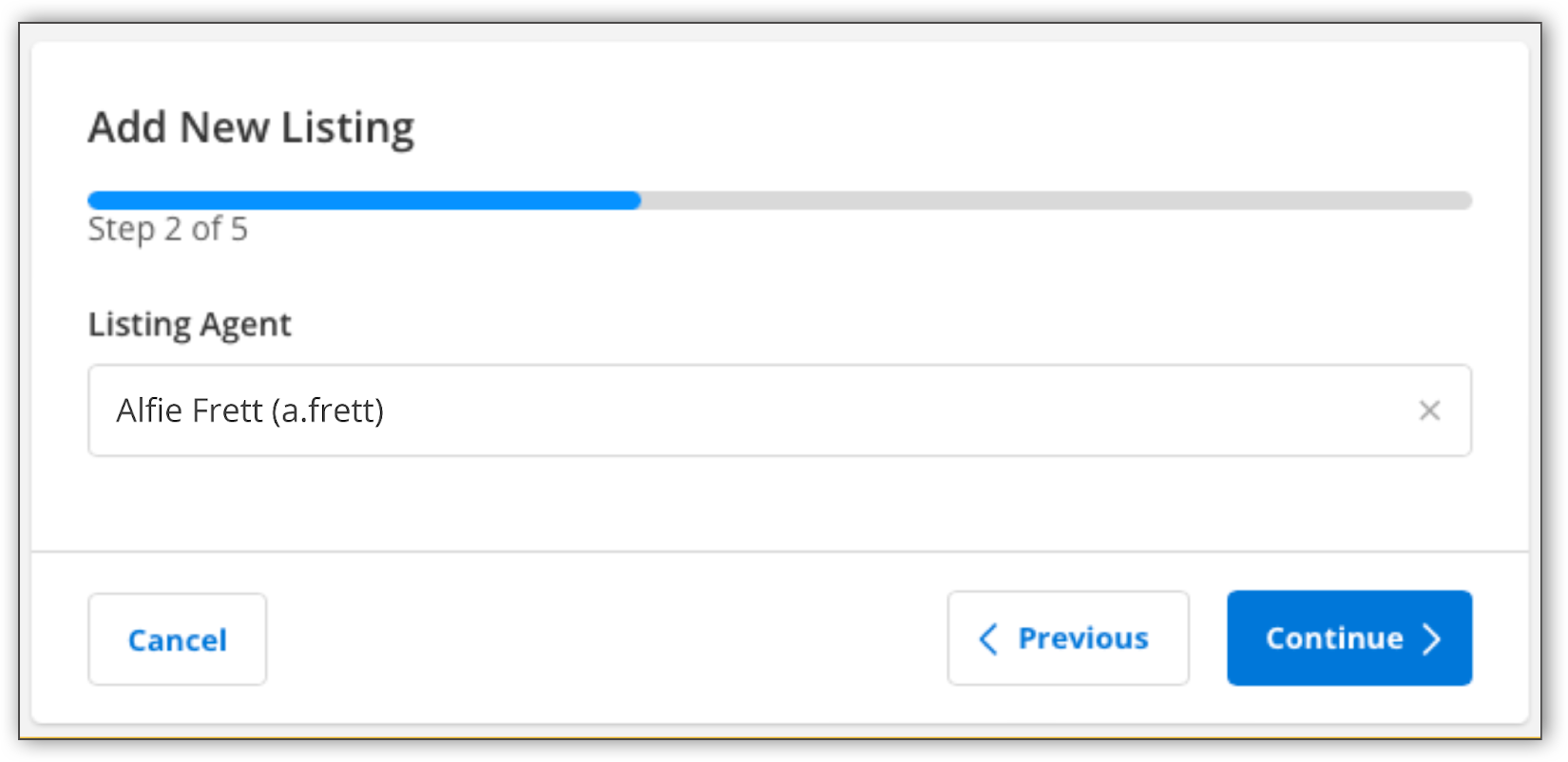
If an agent is adding a listing on behalf of another agent and is not logged into Flexmls as themself, they can select the listing agent. If an agent is logged into Flexmls as themself, this step will not appear, and they will automatically be entered as the listing member on the listing.
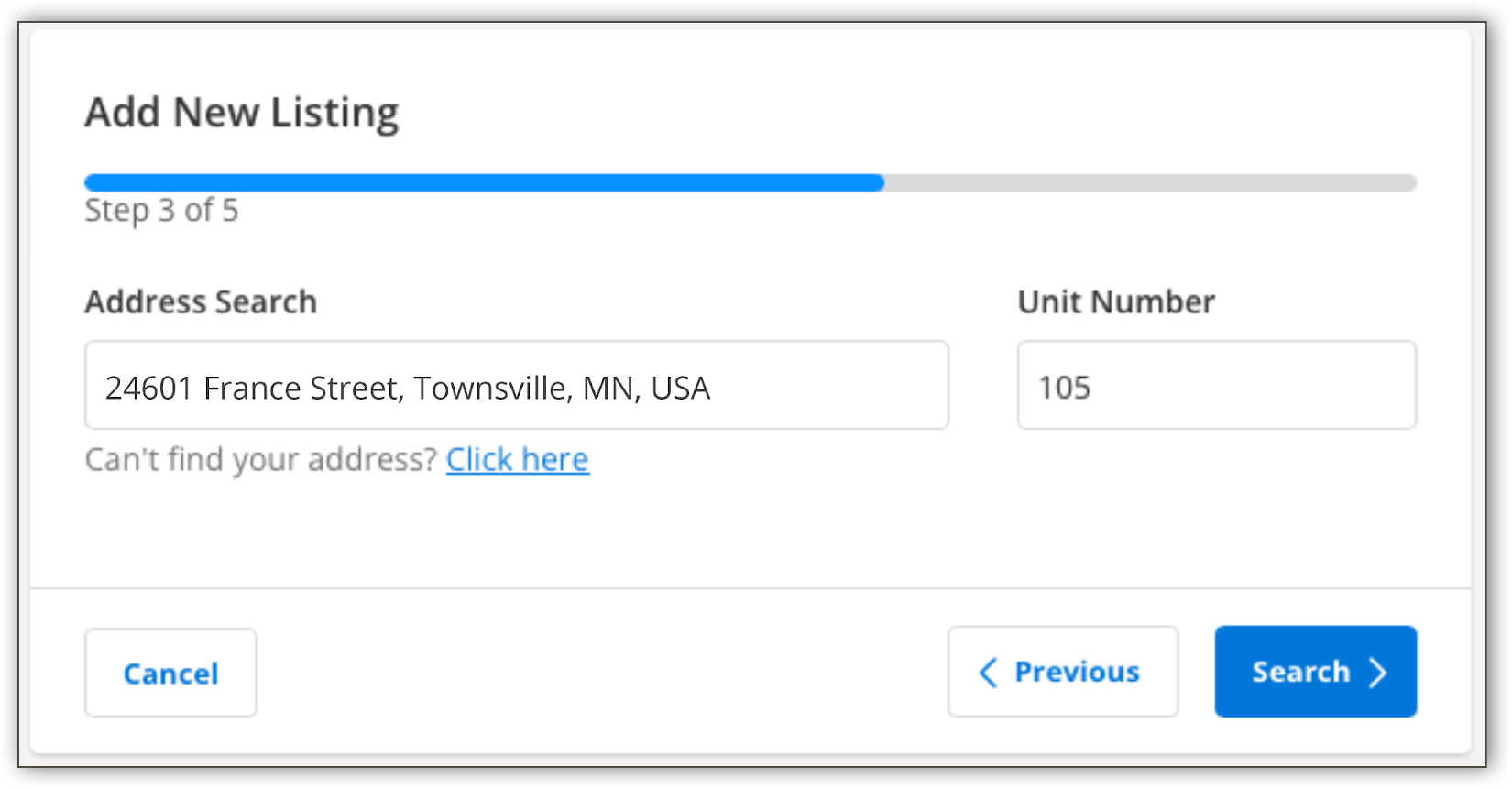
Use the search bar to search the listing address. If a member cannot find the address, they can enter the address manually using the Click Here option. Once the listing address has been entered, click Search.
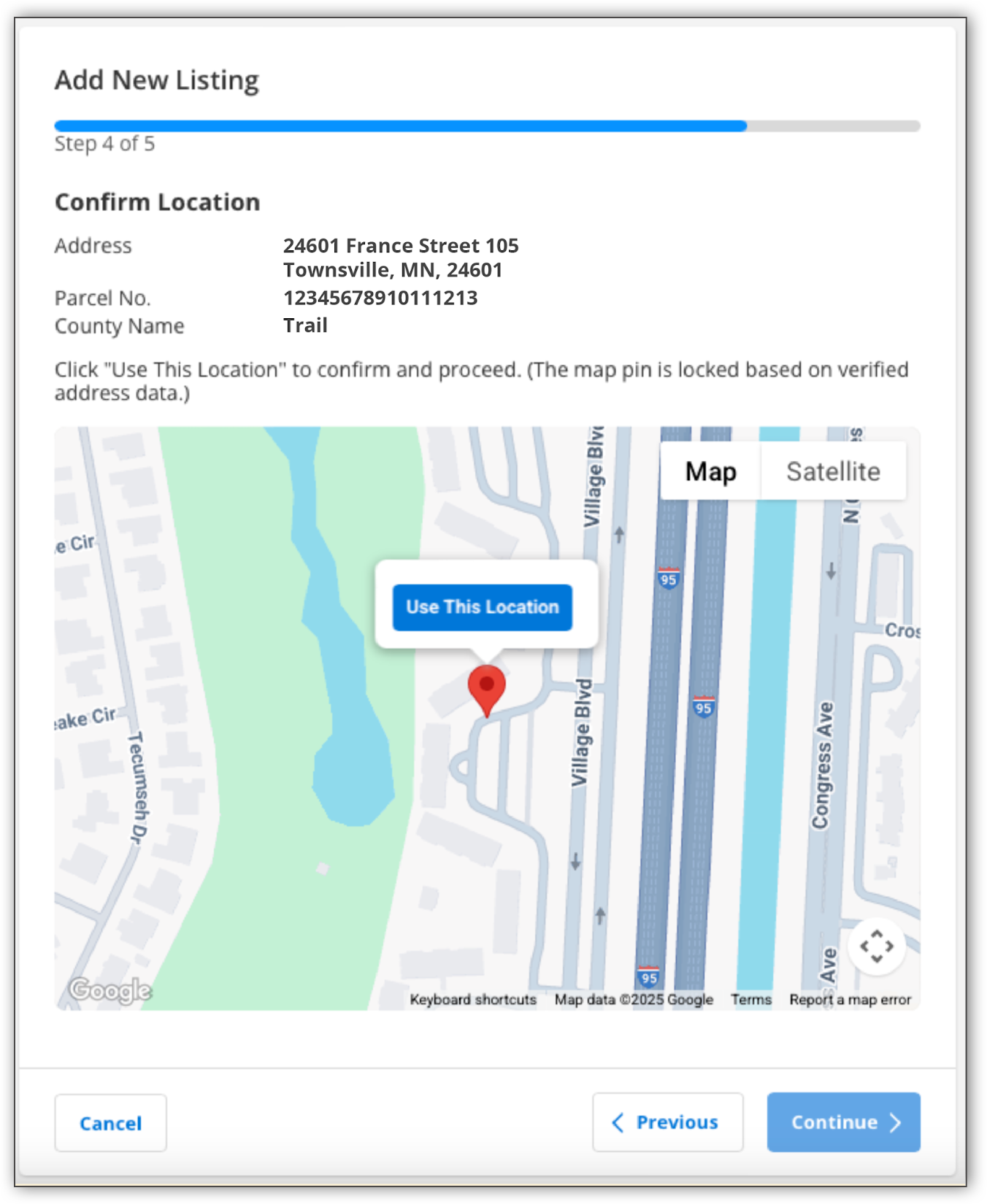
Verify that the listing address is correct. To confirm the geo location, click Use This Location. Click Continue to proceed.
After members confirm the listing address and geo location, Auto Assistant displays the listing data found. Members can use the checkboxes to select the data that they want auto-populated in the listing input form.
MLSs can choose to have the option to copy listing data from a previous listing. If you select this option, Auto Assistant will detect the most recent off market listing, and you can use this listing to auto-populate listing data. If you want to see the listing details that will be copied over, you can view the previous listing information by clicking on the MLS # link.
Note
If Auto Assistant detects a previous listing and tax data, and if members have selected both options, the tax data will take precedence and pre-populate any duplicative information.
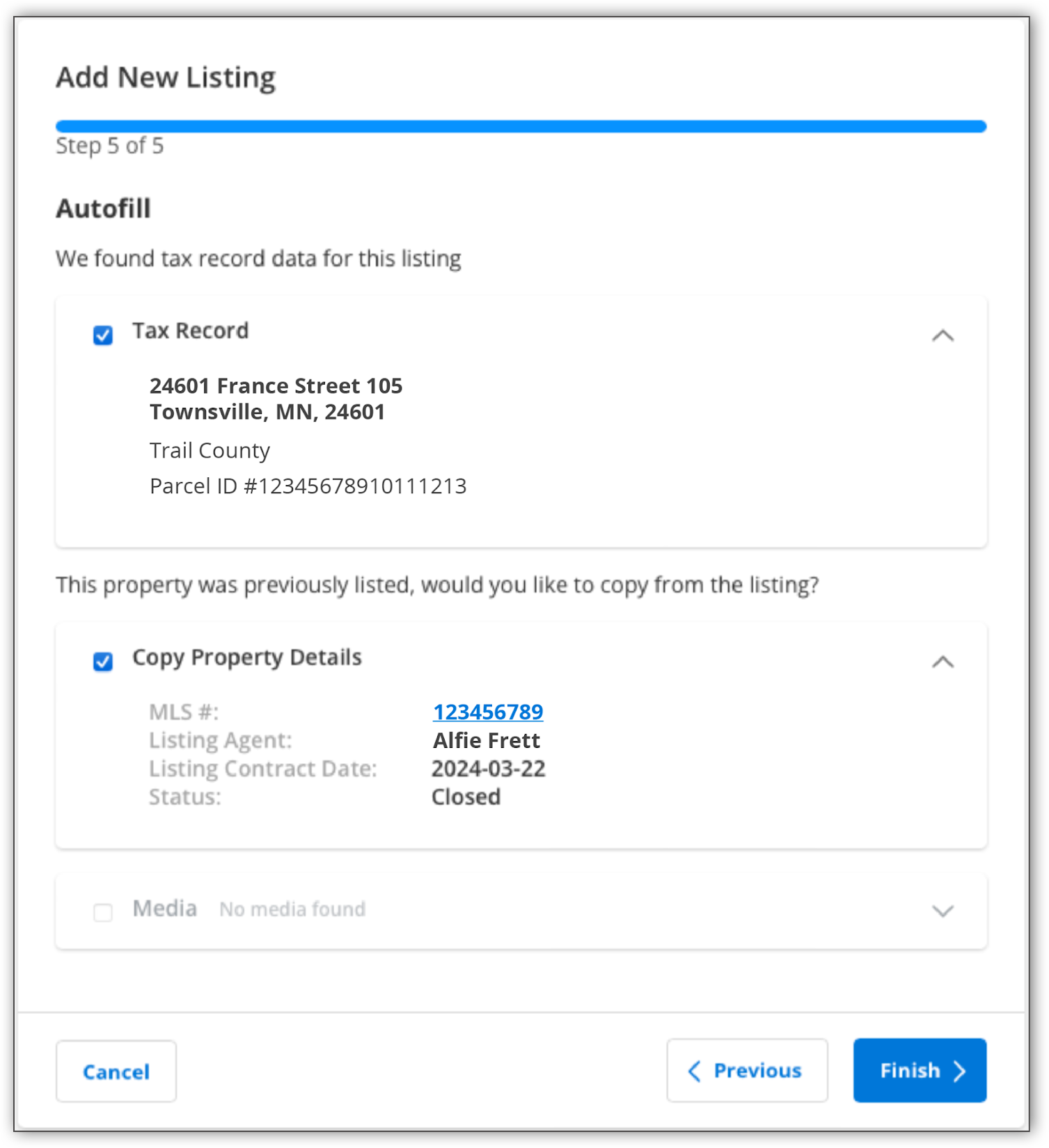
Once members have made their selections, they can click Finish. This auto-populates their listing data and saves their listing as incomplete. After members click Finish, they are taken to the Change Incomplete Listing page, where they can confirm the auto-populated listing data and make additional updates to the listing input form before publishing their listing.
Note
If any location fields with related scrolls are auto-populated through Google Maps or tax records, Auto Assistant will automatically add any missing values to the appropriate scroll lists. For example, if Google Maps returns a city value that is not already in the City list, Auto Assistant will create that city value and, if a related scroll exists between City and County, will associate it with the correct county. The new value then appears in the Related Scroll module.
Important
The agent is still responsible for checking the accuracy of the data, regardless of the source. Before publishing a listing, review all entered data and ensure that it is correct.