Add Help Text to Any Field
The MLS administrator can add help text to any Main List or Detail field in Flexmls. You may want to add help text when your members need more information about a particular field. For example, you can use help text to explain the type of data to enter or to remind members about an MLS rule.
Help Text Display Options
Help text can be displayed in a popup or below the field.
When help text is displayed as a popup, members will click a question mark next to the field to open a popup window with more information. This option is typically used for longer descriptions.
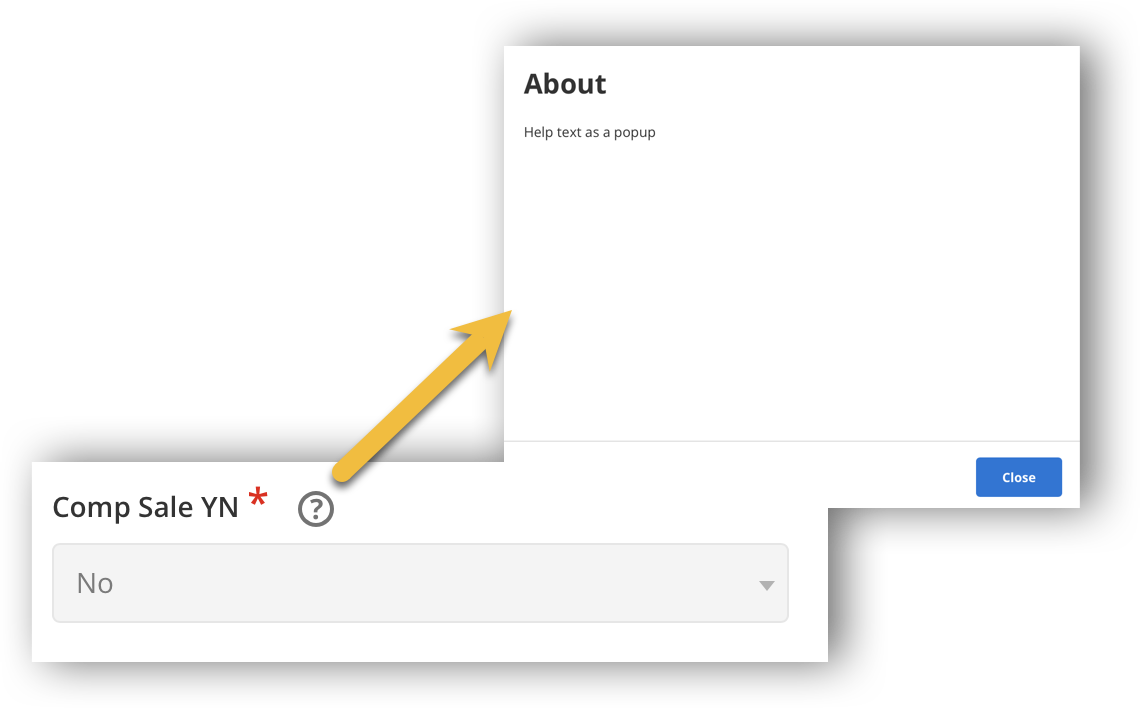 |
Help text can also be displayed below the field.
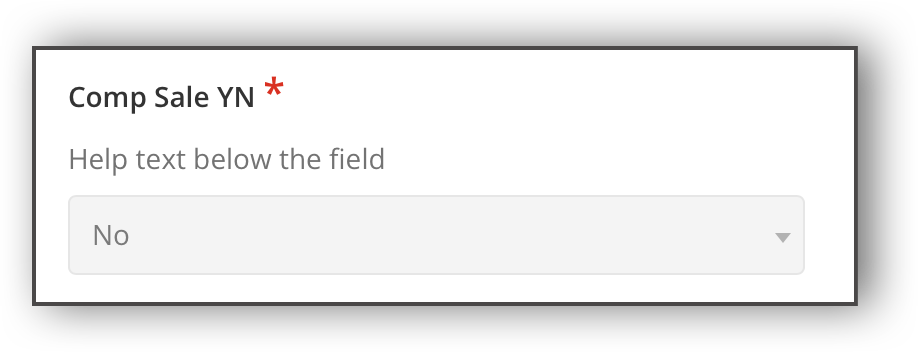 |
Note
There is also an option to display the help text to the right of the field. If you select this option, the help text will still display below the field due to the formatting of the listing input form on New Listing Maintenance.
Follow the steps below to add help text to a field that appears on the Main Fields tab of listing entry.
Click Fields - Main Listings under Main Listings on the Admin menu.
Select a property type and click Next.
Locate the field that you want to add Help Text to, then click Add Help Text.
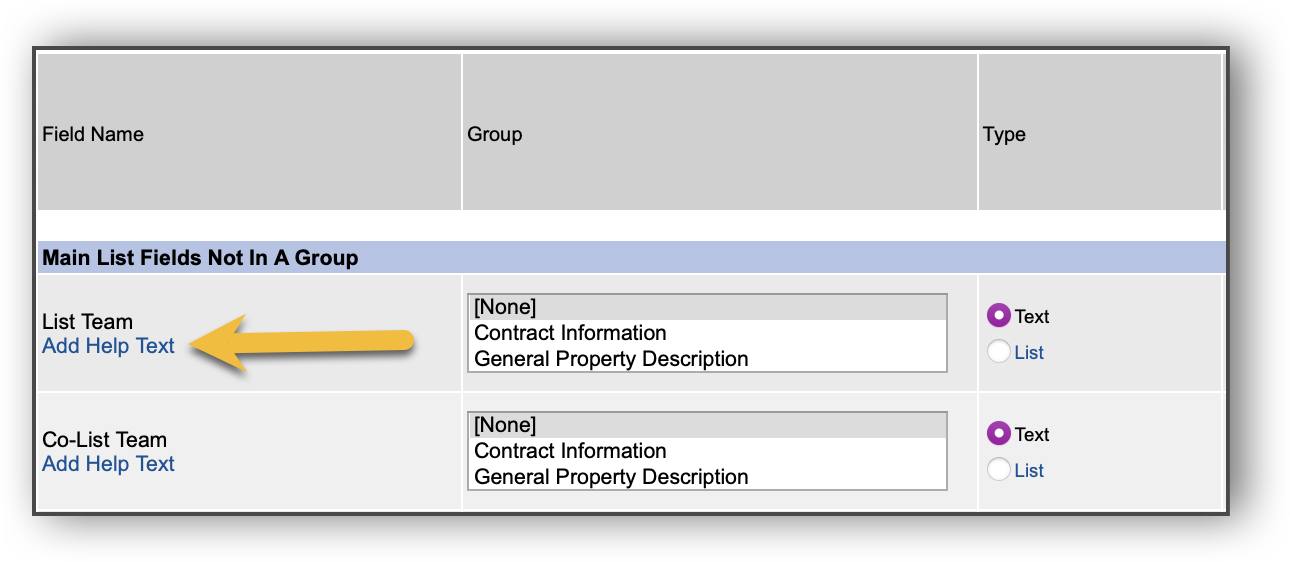
Type the help text in the editor window. You can apply formatting to the text or add images as needed.
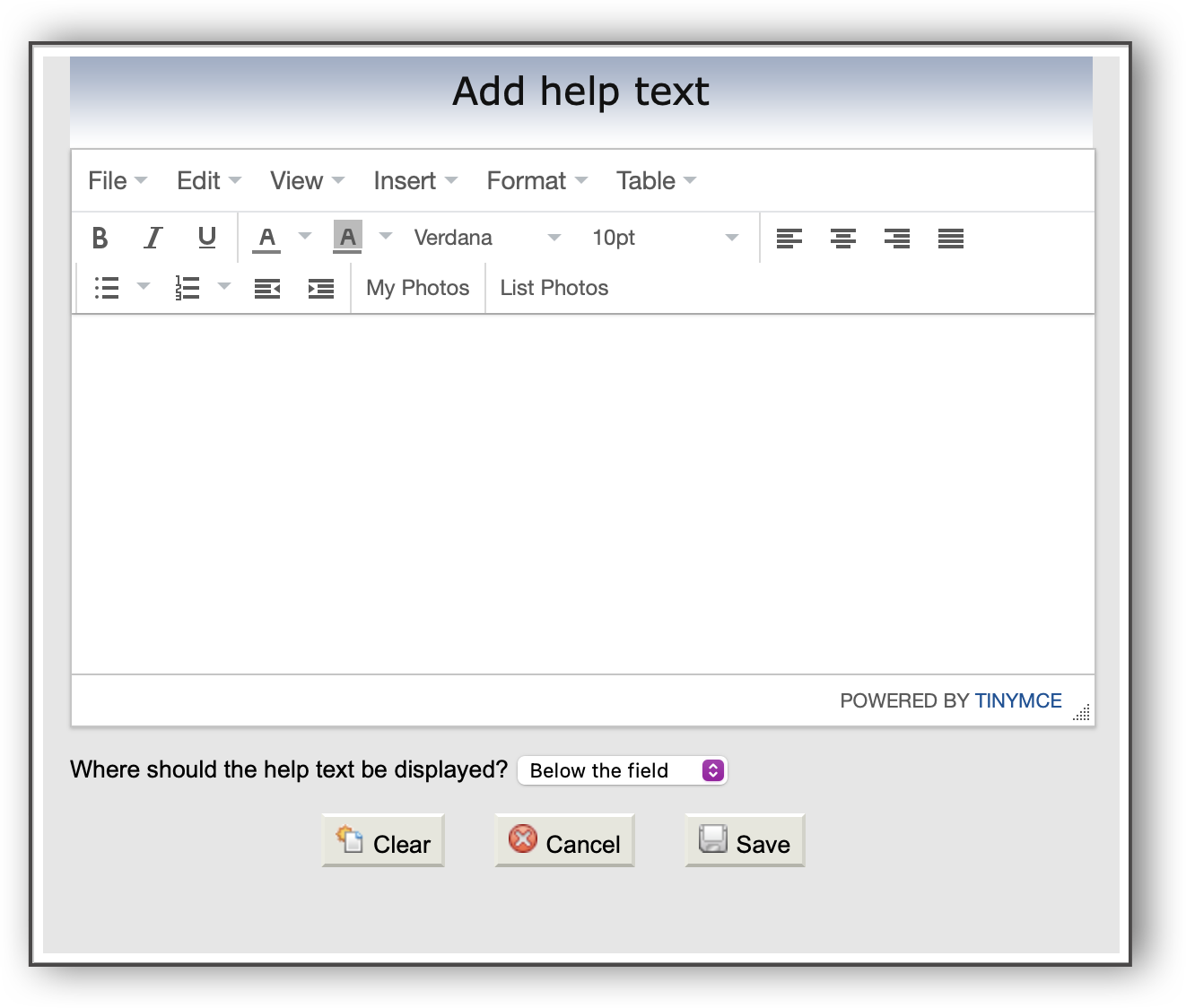
Select a display option: As a popup, Right of the field, or Below the field.
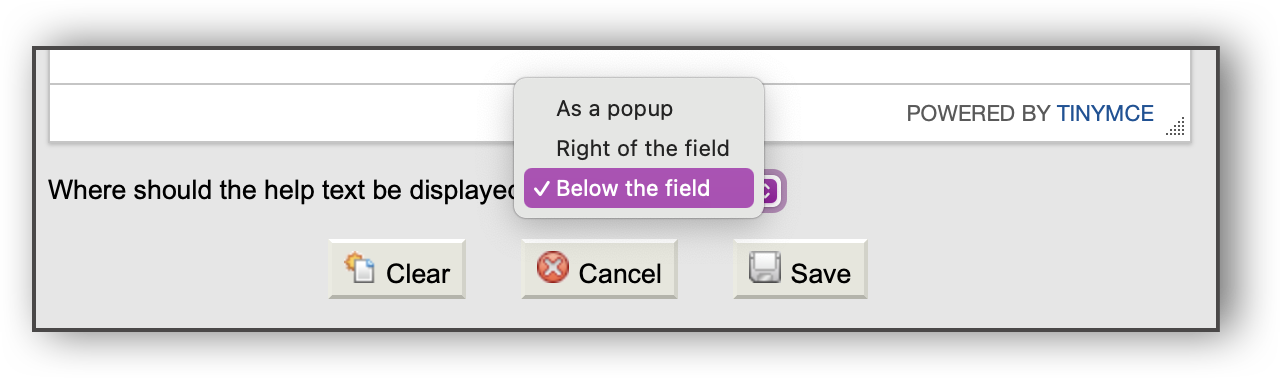
Click Save to apply your changes.
Follow the steps below to add help text to a field that appears on the Details tab of listing entry.
Click Fields - Details under Details on the Admin menu.
Select a property type and click Next.
Locate the field that you want to add help text to, then click on the field name.
Type the help text in the editor window. You can apply formatting to the text or add images as needed.
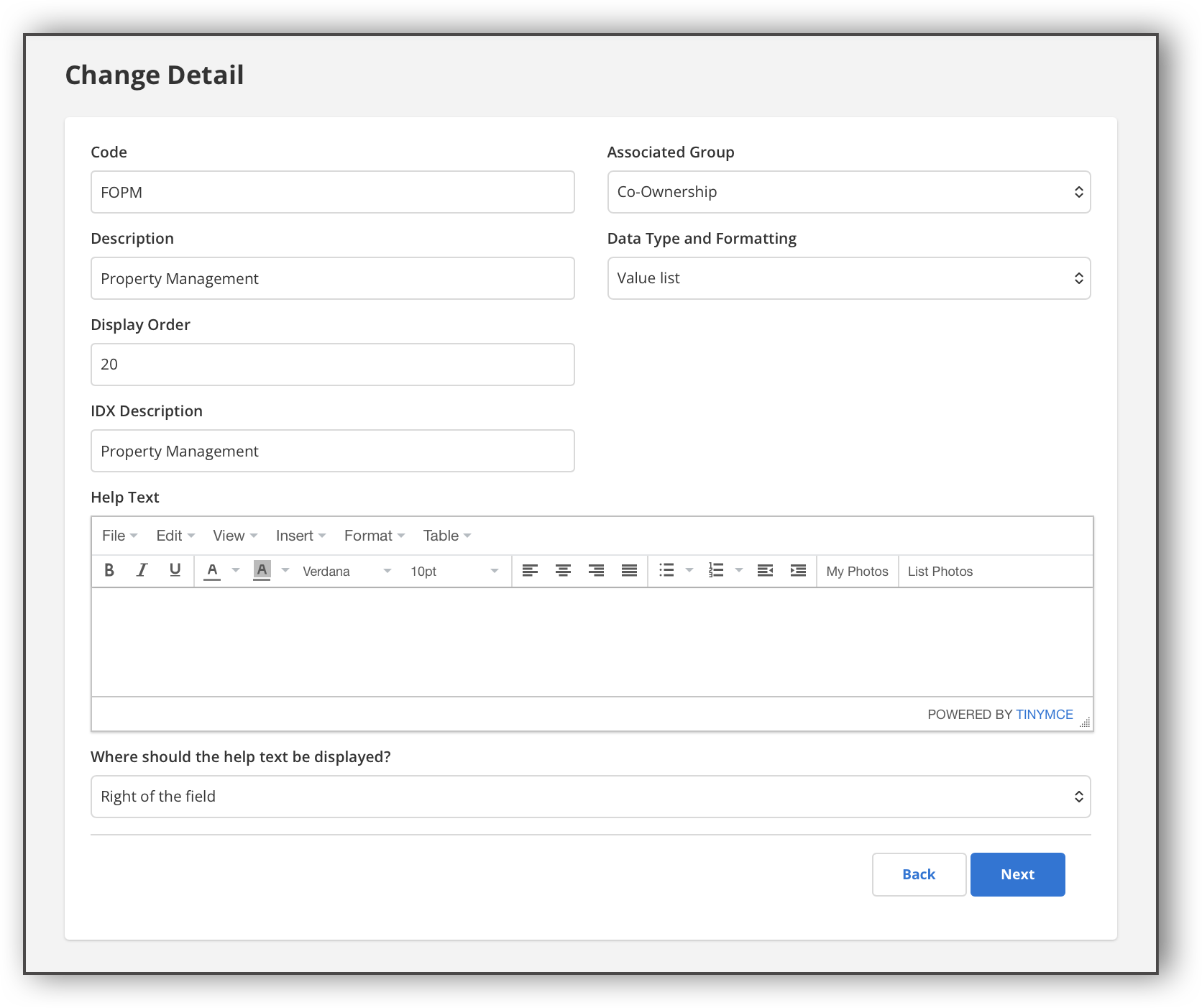
Select a display option: As a popup, Right of the field, or Below the field.
Click Next to save your changes.