Add or Change a Detail Field
This topic describes how to modify the fields that are available on the Details tab in listing entry.
Note
When determining where a field should be placed (Main Fields tab or Details tab), keep in mind the differences between main fields and detail fields.
Fields that accommodate multiple selections are typically set up as detail fields. (For example, an Appliances field group where the user can select check boxes for one or more items.)
Only main field changes are tracked in detail in listing history. Specific changes are not tracked for detail fields.
Only main fields can be used for sorting on the search results page. Make sure that key sort fields are located on the Main Fields tab.
Click Fields - Details under Details on the Admin menu. Select a property type and click Next.
Click a field name to edit properties of an existing field. To add a new detail field, click Add New Detail at the top or bottom of the page.
Enter information about the detail field.
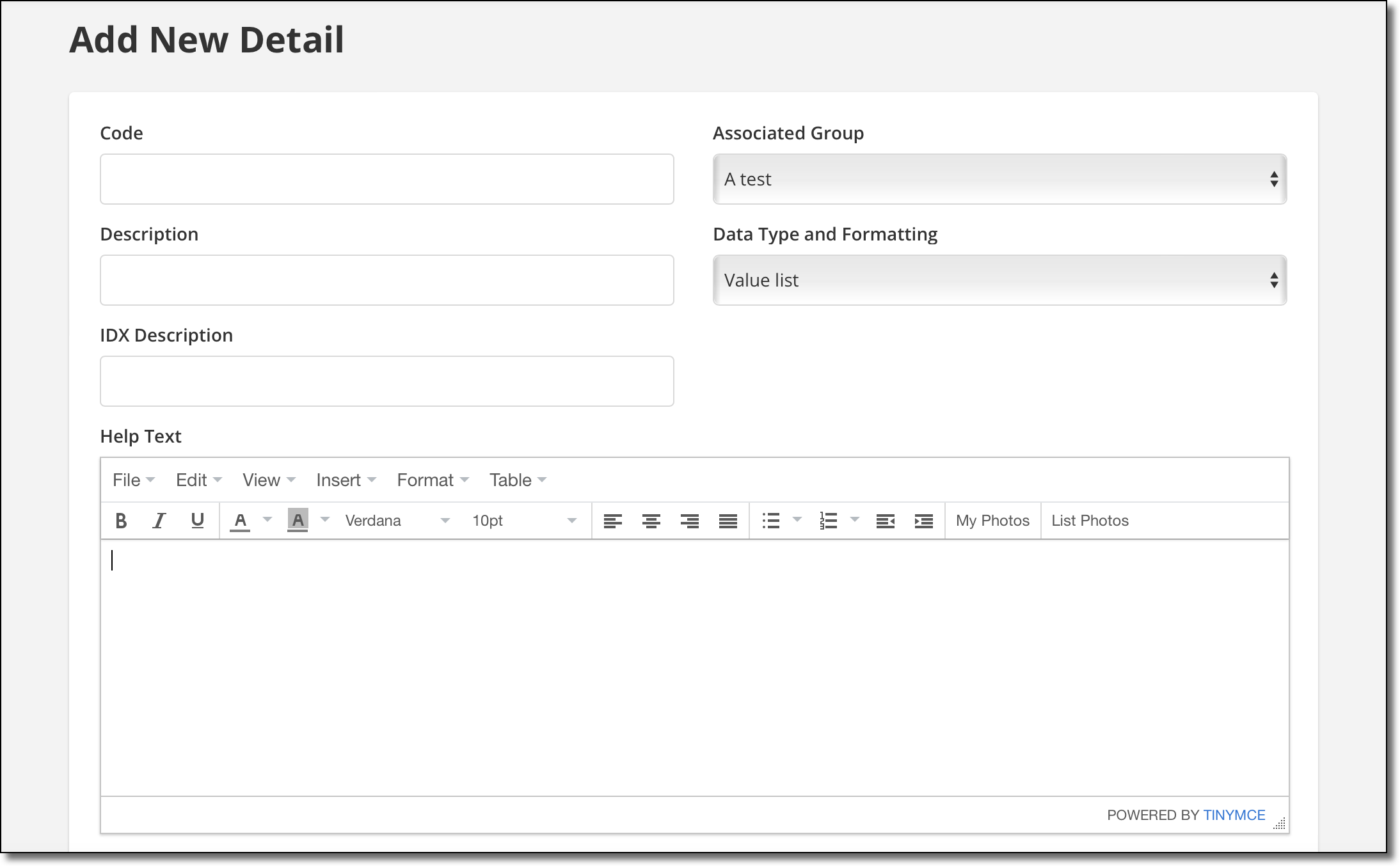
Code – A unique code that is used to identify the detail field in the database.
Description – The name of the field. This is the value that users will see in listing maintenance and on reports.
IDX Description – The name of the field for IDX links. In most cases, the IDX Description is the same as the Description.
Associated Group – The detail group that will contain this field.
Note
To add, remove, or rename a field group, contact the Flexmls Customer Success team (cpr@flexmls.com).
Data Type and Formatting – The type of data that will be entered in this field. The following options are available:
Value list - The field will be a drop-down list of options. (Before you can add items to the list, you must finish creating the new field.)
Yes/No field - The field will be a check box.
User-input text data - The field will accept alphanumeric data up to 20 characters.
User-input numeric data (comma) - The field will accept numbers only, formatted with commas.
User-input numeric data (integer) - The field will accept numbers only, with no formatting.
User-input date data - The field will accept dates. If you select this option, you can also set a default date range for searches.
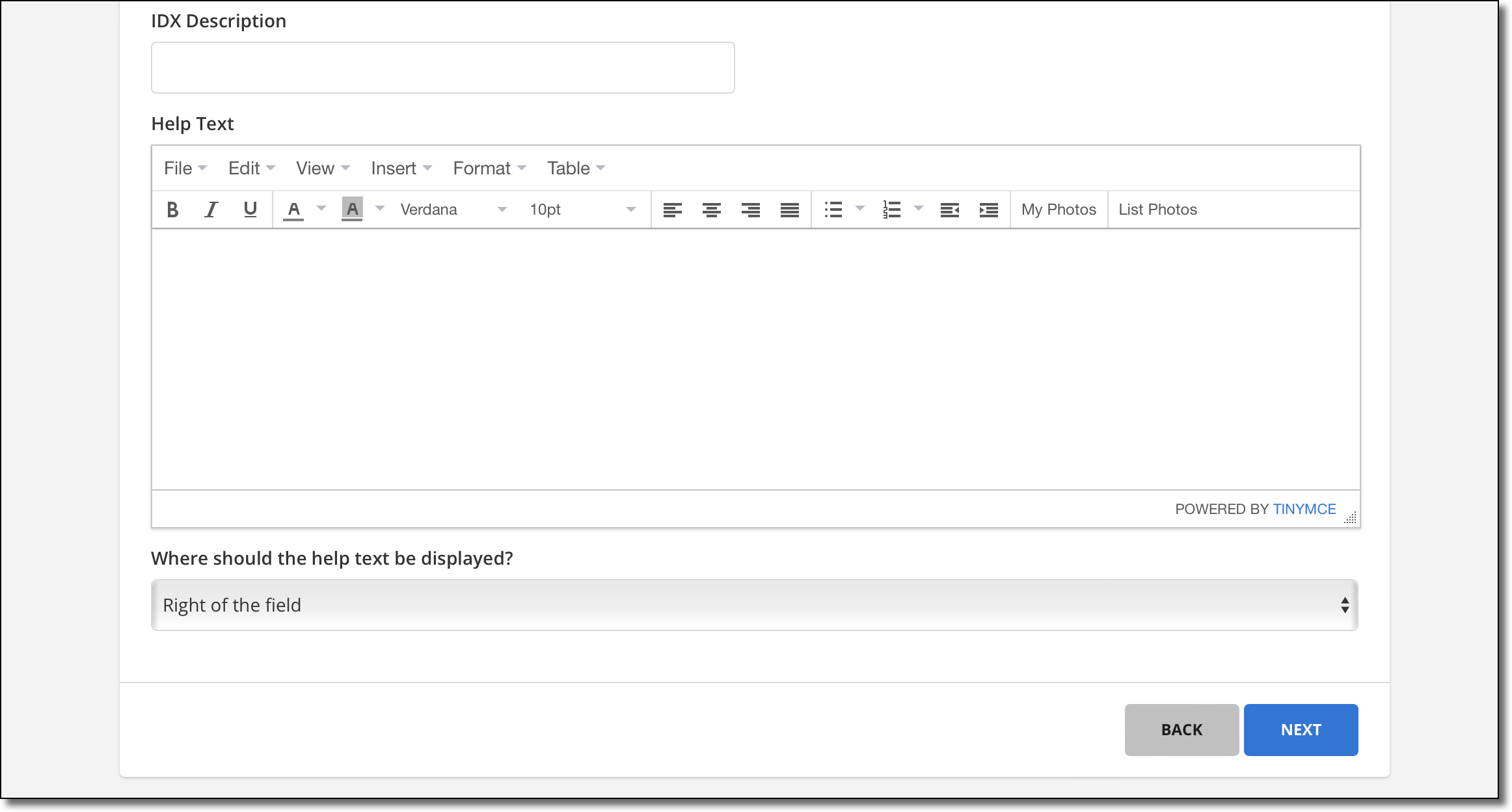
Help Text – If needed, add help text that explains what users should enter in the field. For more information about help text, see Add Help Text to Any Field.
Where should the help text be displayed? – If you specified help text, select where it will appear in relation to the field (to the right, below, or as a pop-up).
Click Next to save the field and return to the Edit Details page.