Coming Soon Status
FBS can enable a Coming Soon status to allow listings to be entered with a future listing date. The Coming Soon status enables your members to enter a listing into the MLS before it is available for showings.
Coming Soon listings are not automatically included in email subscriptions, on IDX websites, or on syndication sites like Realtor.com until they reach their Start Showing Date. Coming Soon listings are available through Confidential RETS feeds, so services such as showing managing services, back office systems, and tax systems receive the data. Coming Soon listings can be displayed in client portals and can be included in manual emails to clients.
Implementation
The Coming Soon status requires RETS notice (5 business days) before it can be implemented. Contact the Flexmls Customer Success team (cpr@flexmls.com) to get started.
You will need to select a user-defined date field to use for the Start Showing Date on Coming Soon listings. Choose a field that is available for all property types, even if some property types will not use the Coming Soon status.
FBS can set up constraints on the Start Showing Date to help make sure that Coming Soon listings follow MLS rules. For example, your MLS might require that Coming Soon listings be entered only within a certain number of days before the Start Showing Date. FBS could set up a constraint that requires the Start Showing Date to be at least one day after the current date and not more than 15 or 30 days after the listing date.
The status name for Coming Soon listings can be customized. The standard name for the status is Coming Soon, but your MLS can request an alternate label.
Add a Listing with Coming Soon Status
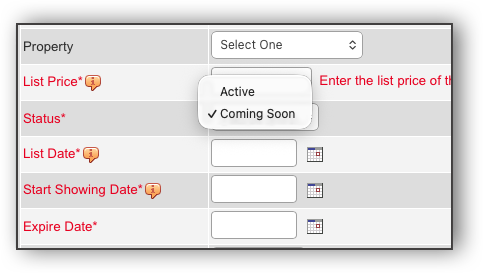
If your MLS uses the Coming Soon status, a status selector will appear on the Main Fields tab when entering a new a listing. The default status is Active, and you can change it to Coming Soon. If the listing is set as Coming Soon, a required Start Showing Date field will be displayed.
Note
Listings that are Active in the MLS cannot be moved to the Coming Soon status. If a Coming Soon listing was mistakenly added as an Active listing, you will need to delete and re-add the listing.
Most often, MLS rules do not allow members to extend the Start Showing Date once the listing has been added to Flexmls. If you want to extend the Start Showing Date, try the following process. Go to Menu > Change Listing, enter or click your list number, and click Listing Information.
If the Start Showing Date appears on the Main fields tab, you can edit it and save the listing.If the Start Showing Date is not present on the Main fields tab, you will need to contact your local MLS office in order to request a change to the date.
Note
If a coming soon listing hits its expiration date, that listing automatically moves to an Expired status.
Change a Coming Soon Listing to Active
On a Coming Soon listing's Start Showing Date, the status will automatically change from Coming Soon to Active. The listing will be syndicated, sent to IDX websites, and sent to clients in subscription emails.
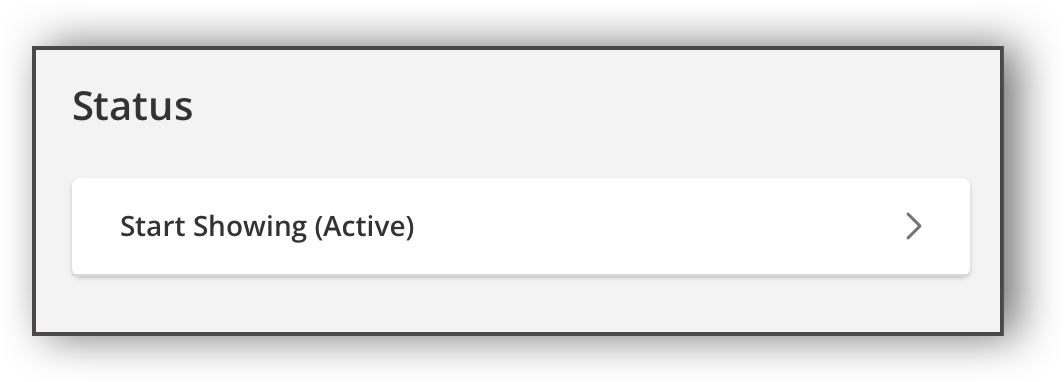
To change a Coming Soon listing to Active before the Start Showing Date, use the Start Showing (Active) status change option on the Edit Listing page. When you change the status by using this option, the listing becomes a regular Active listing.
How to Find Coming Soon Listings
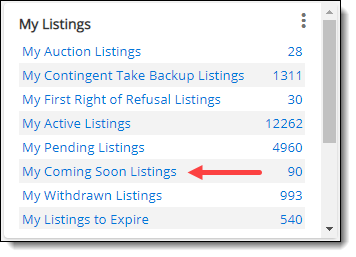
When the Coming Soon status has been enabled, the status will appear on the dashboard in multiple locations where statuses or events are displayed. For example, the My Listings gadget will display a row for My Coming Soon Listings.
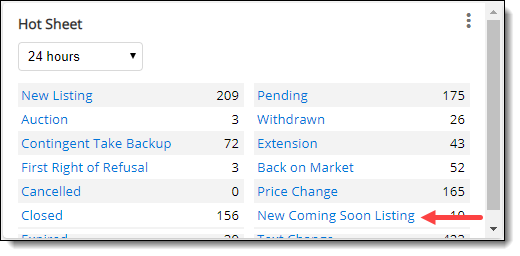
The Hot Sheet dashboard gadget will contain a link to new Coming Soon listings.
You will also be able to add the Coming Soon status in Quick Searches.
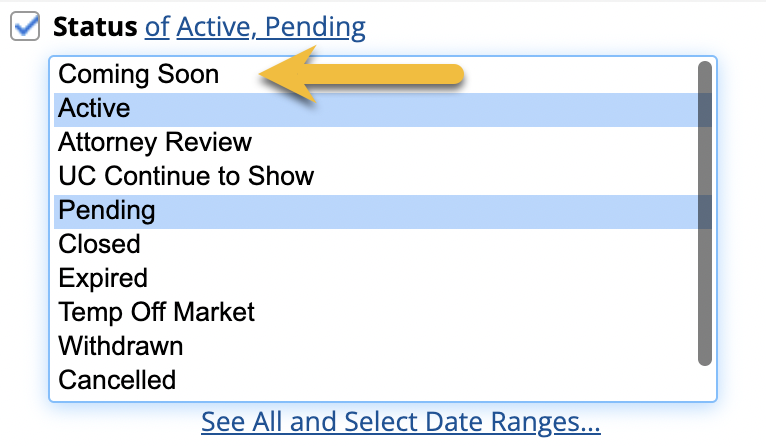
The following settings are used to configure the Coming Soon status in an MLS. For information about setting up Coming Soon status, contact the Flexmls Customer Success team (cpr@flexmls.com).
Some days on market (DOM) settings also affect Coming Soon listings. For more information, refer to the MLS Preferences PDF.
Use the following date field for the Coming Soon (H) status and enable the same (start_showing_field pref) (FBS Staff Only) - This FBS-only preference is used to enable the Coming Soon status for an MLS. Select a user-defined date field that is available for all property types (even if some property types will not use the Coming Soon status). The selected date field will become the Start Showing Date field, where users can enter a future start date for a listing.
Label to display for Coming Soon (H) recent major change status events (FBS Staff Only) - This FBS-only preference is used to specify the major change event label when a listing enters Coming Soon status.
Default Start Showing Date this many days in the future (FBS Staff Only) - This FBS-only preference controls the default Start Showing Date for Coming Soon listings.