Creating an API Key
To create an API key, previously you had to first create a user, enter your developer and company details, and then click into that user to add an API key for them. Now, you will need to create the API key first, then invite a developer to accept it. The following is a detailed walkthrough of the new process to create an API key via the Credential Manager.
Log into the Spark Platform as an MLS admin.
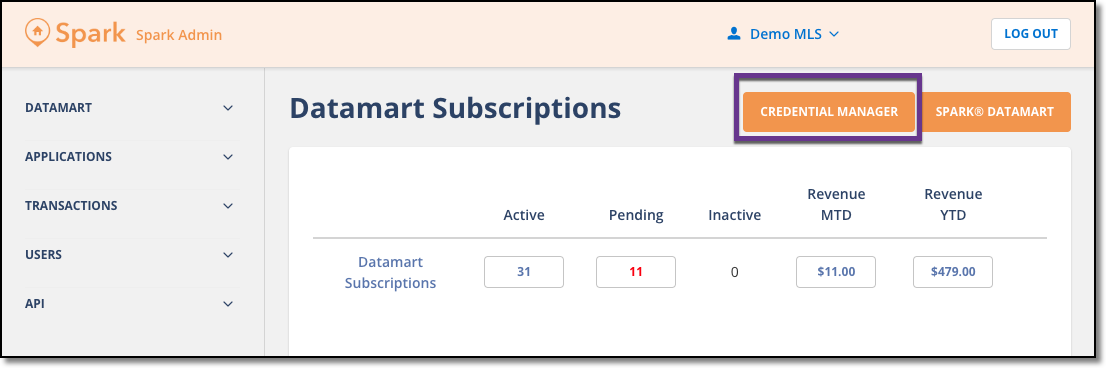
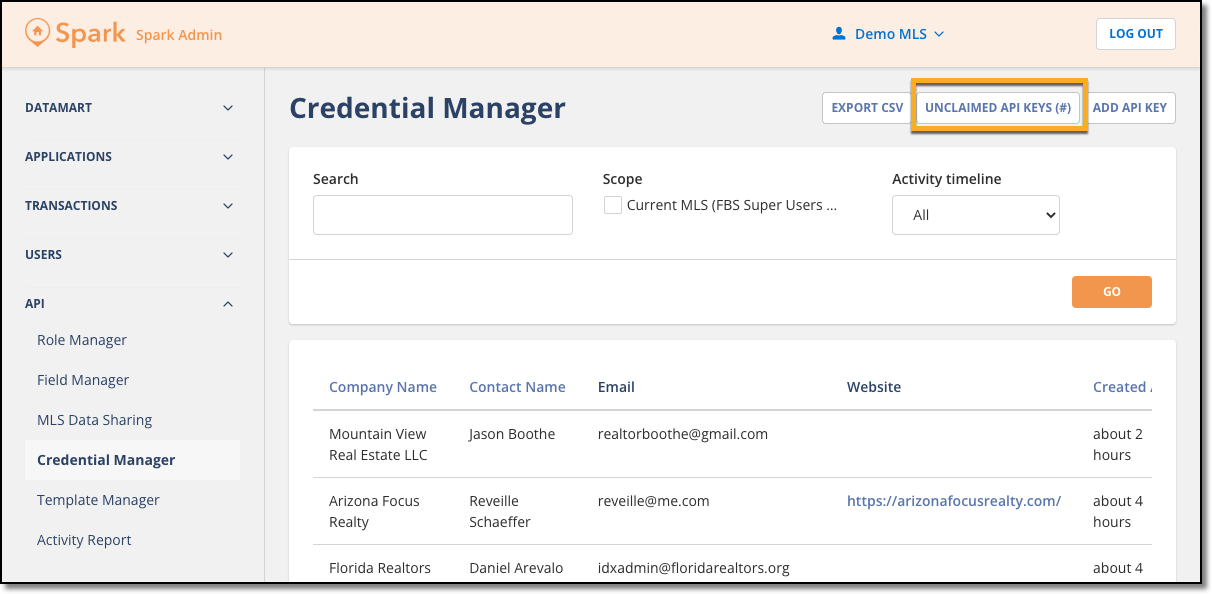
Click into the Credential Manager via the button near the top right or from the lefthand nav bar (API > Credential Manager).
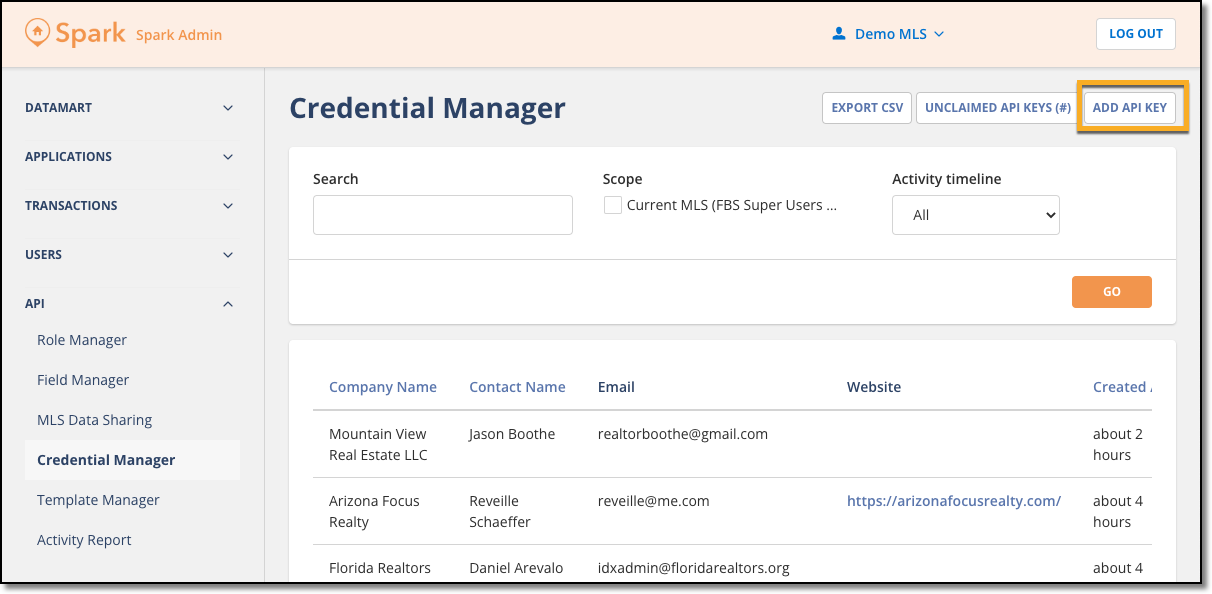
Click the Add API Key button in the top right and create an API key as normal.
Once the API key is configured as desired, click Save at the bottom of the page.
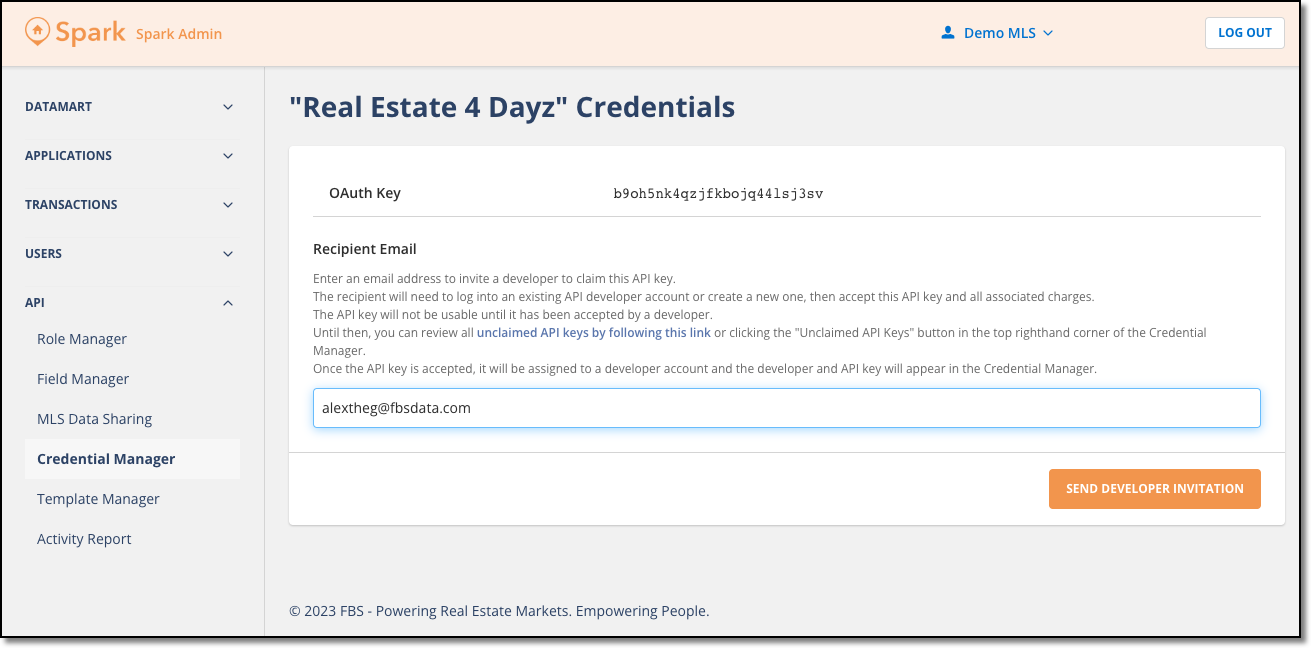
On the next page, enter an email address for the recipient of the API key and click Send Developer Invitation.
Note
While the API key is still unclaimed, you can review and edit it by clicking the Unclaimed API Keys button in the top right of your Credential Manager homepage.
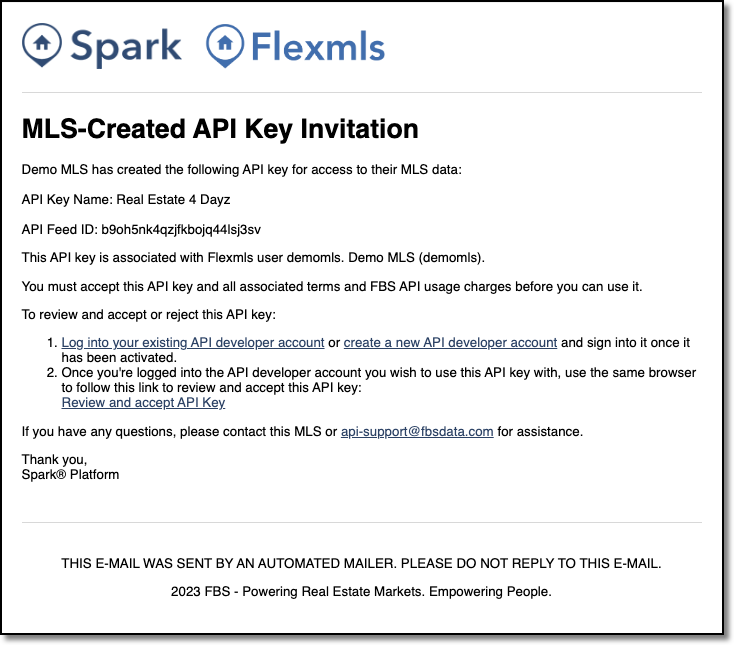
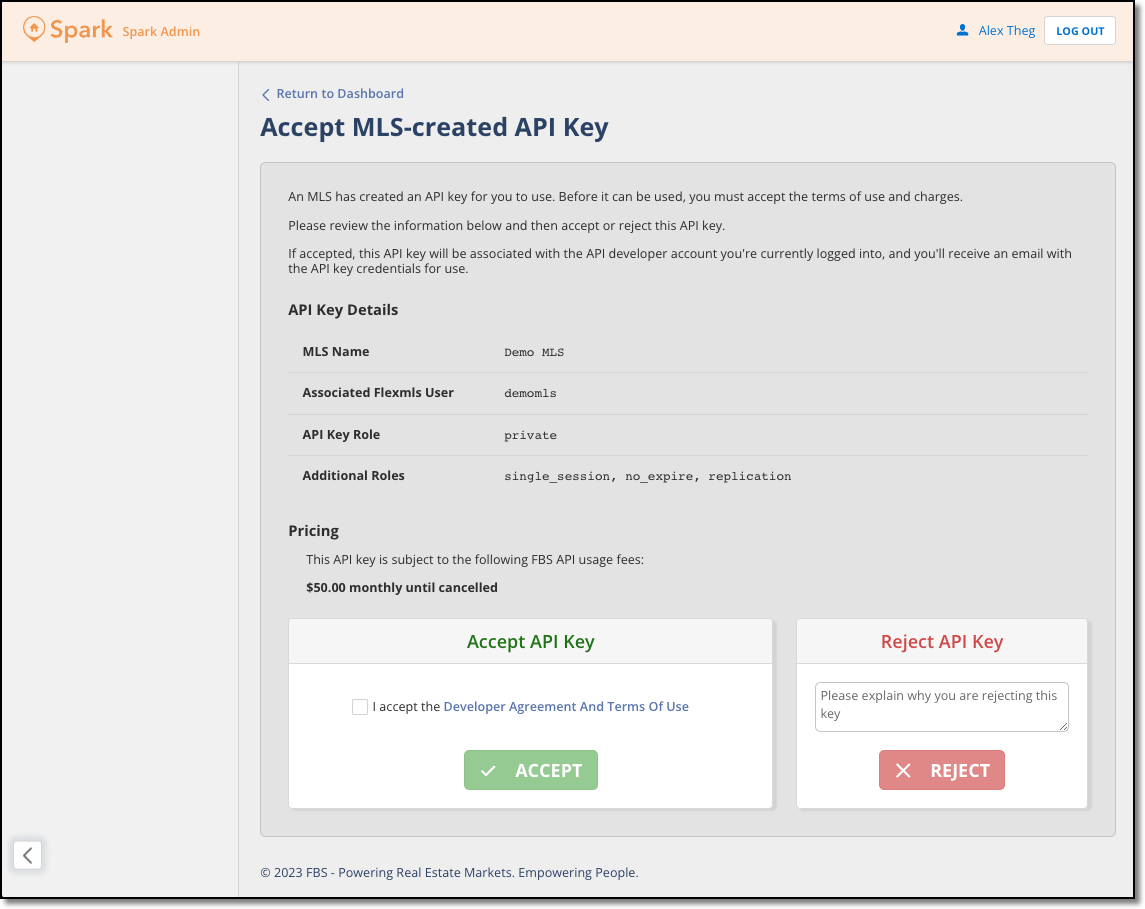
The API key recipient will need to create an API developer account with us or log into an existing one, then use the link in their email to accept our TOU MLS Member Terms of Use, any MLS license terms set on the data plan, and the associated FBS API usage fees ($50/mo).
Note
If a developer rejects the API key, the API key will be deleted. To send a new invitation, simply create another API key using this process, and send a new email.
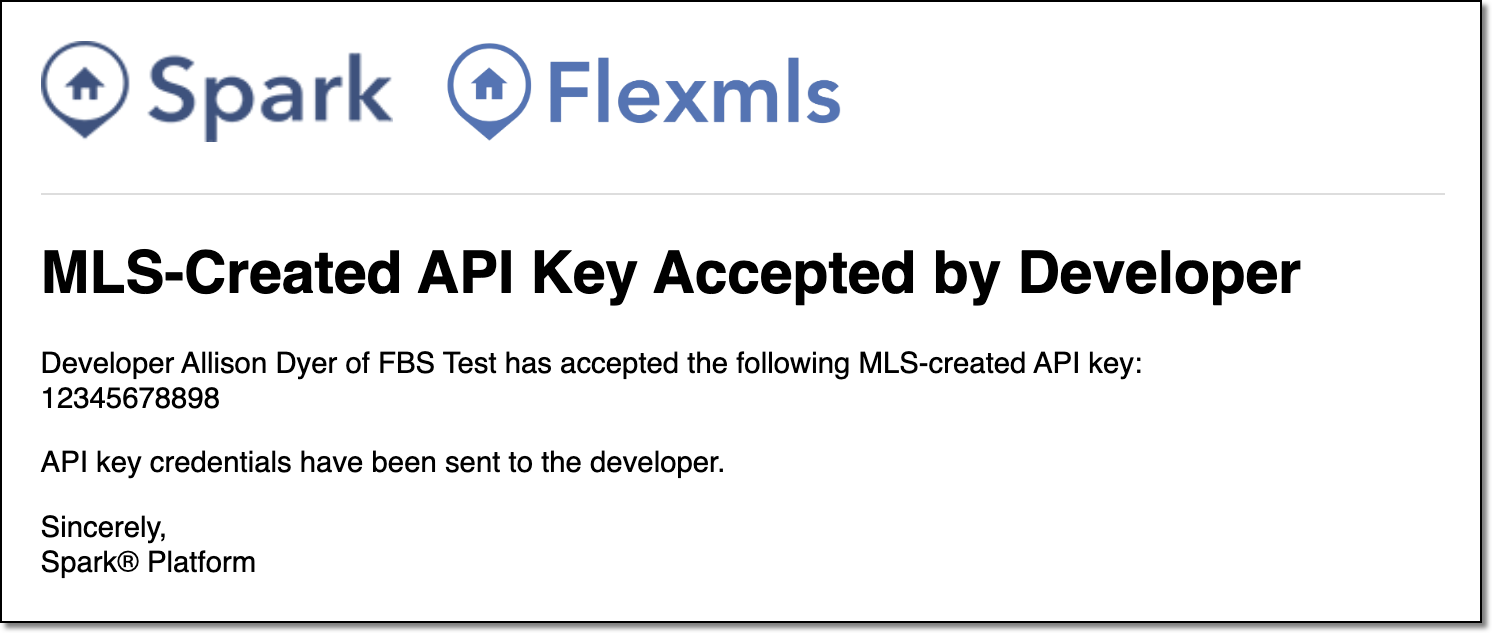
Once the API key has been accepted by a developer, it will move from the Unclaimed API keys identity to the developer’s identity, and the developer will appear in your Credential Manager identity list. You can click into the developer’s account and manage the API key from there.