Enable the MCP Server
The Flexmls Model Context Protocol (MCP) server allows MLSs to connect their Flexmls data to AI assistants like ChatGPT or Claude through a secure channel. This allows members to ask questions about MLS-specific data (such as marketing activity, listing searches, and their own listings) directly in the AI assistant of their choice, without having to switch between applications. Members can use a natural-language model to get specific answers in real-time from their AI assistant, all based on data from their MLS, with the same controls and permissions that MLSs have already decided on in Flexmls.
Because data security is critical, the MCP server is designed with strict data safeguards. If you enable the MCP server for your members:
Users will never have access to data that they wouldn’t already have access to in Flexmls.
Contact and account identity data are structurally inaccessible.
The MCP Server does not store or cache any Flexmls data.
Data handling after delivery is governed by the AI platform’s own privacy policy.
To enable the MCP server for your members, complete the following steps:
In the Flexmls menu, navigate to the General section and select Admin AI Settings.
In the AI Settings page, use the toggle to enable the MCP server for your members.
To enable the MCP server, admins must accept a Terms of Use agreement. After accepting, choose one of these two access modes:
Available to all users by default: All members see the AI Settings item in the menu and have the ability to activate it themselves.
Available only to specific users: No members see the AI Settings menu item until the admin activates it for that user individually by superusing into their account.
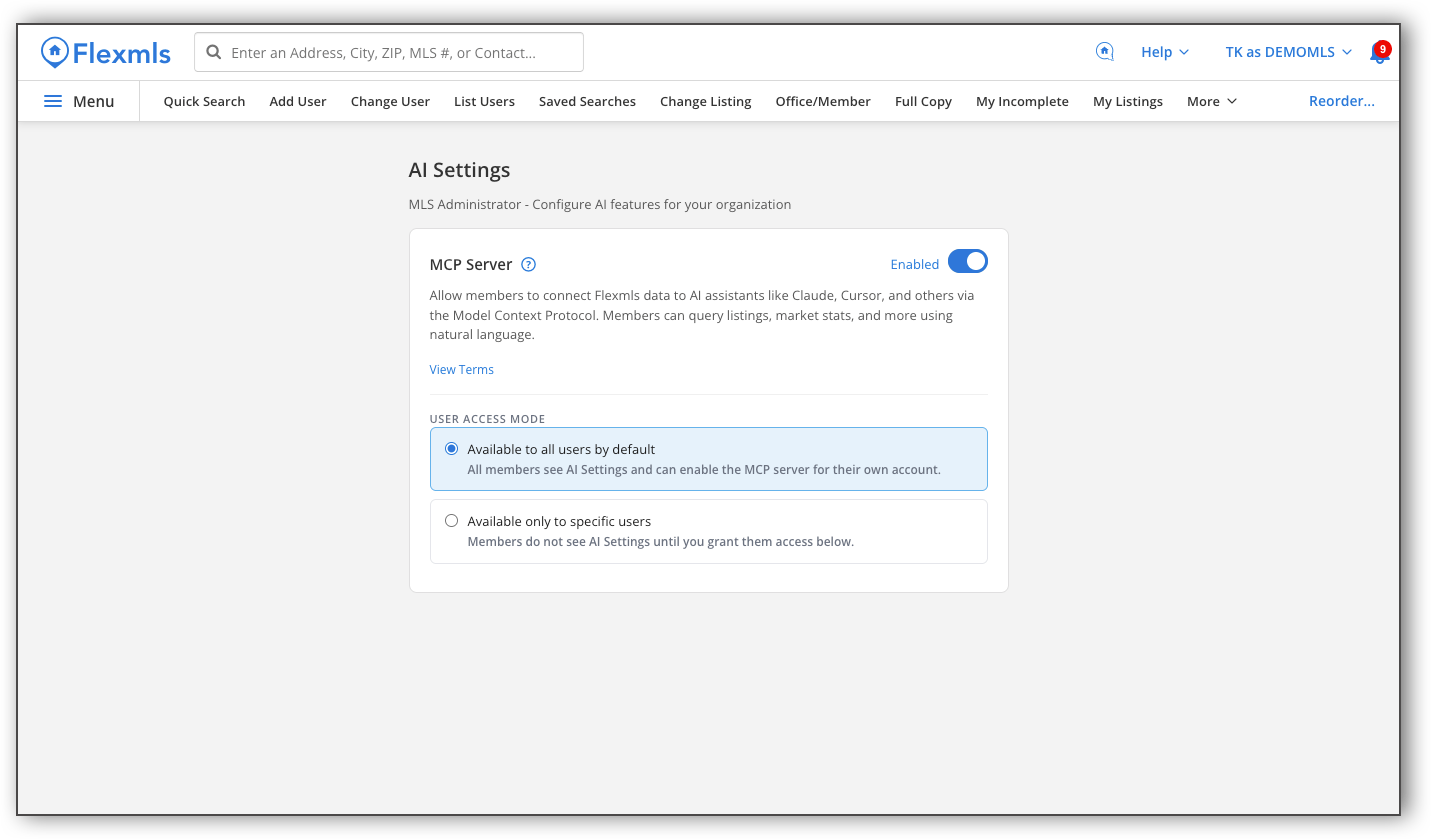
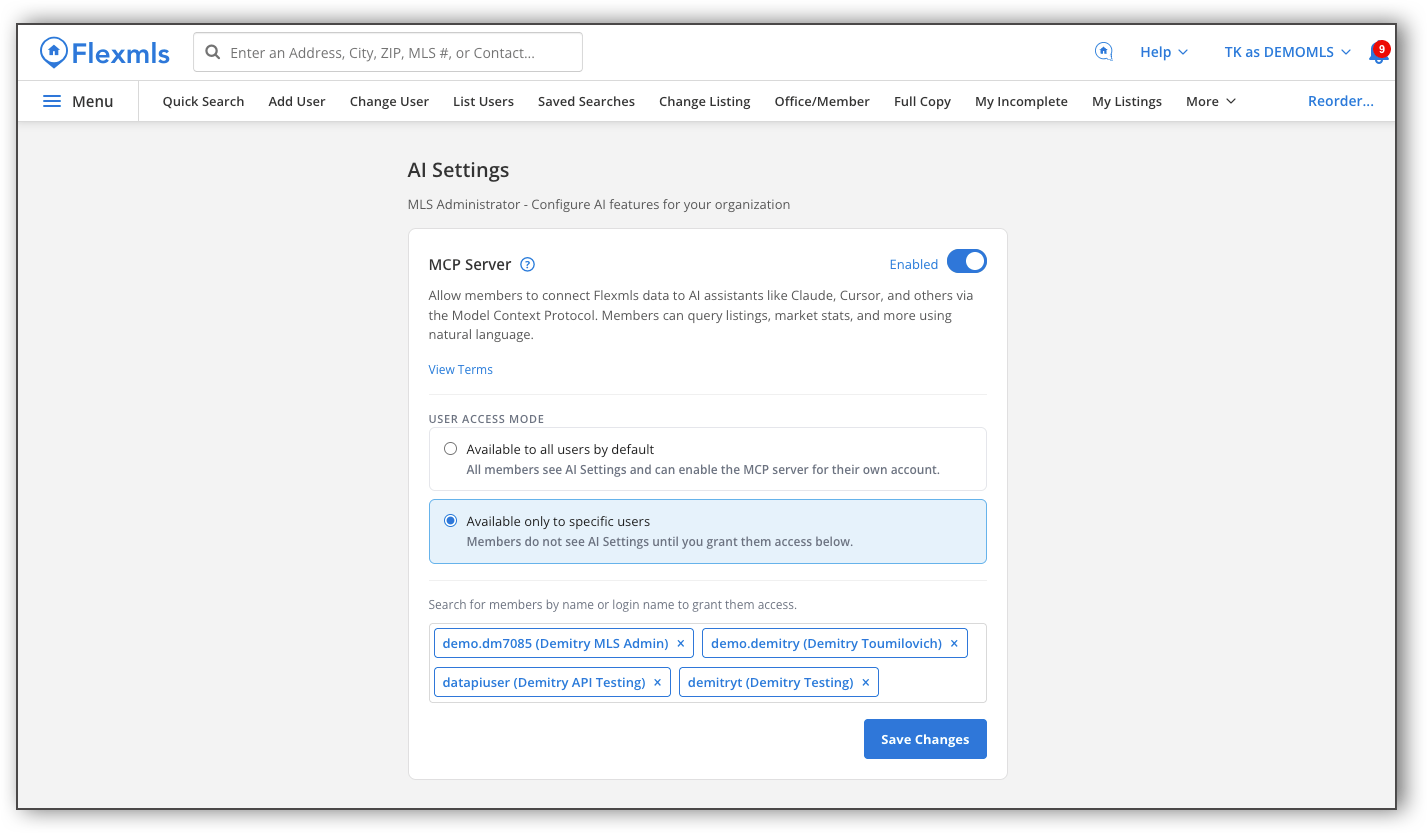
Once you have made your selections, click Save Changes.
Note
After enabling, the MLS can also disable MCP access for the entire MLS at any time, which immediately prevents all member access to the MCP server.
What Members Will See
Once the MLS enables the MCP server, members will see the AI Settings item in the Flexmls menu. Members must accept the same Terms of Use agreement before using the MCP server. After accepting, a setup guide shows members how to connect their AI client of choice. Members will be walked through the following steps for setup:
Add a new MCP server in your AI client: In your AI client’s settings, look for a “Connectors”, “MCP Servers”, or “Tools” section and choose to add a new MCP server.
Enter the Flexmls server URL: When prompted for a server URL or endpoint, enter the address below: https://mcp.fbsdata.com/mcp
Sign in with your Flexmls credentials: Your client will open a sign-in prompt. Log in with your normal Flexmls username and password to authorize the connection.
Note
If a user is superusing as another user, they cannot accept the Terms of Use agreement and cannot enable the MCP server. A user must either be logged in as themselves or be superusing in the root account in order to accept the Terms of Use and enable the MCP server.
Once members complete these steps, their AI client is connected and they can query Flexmls data in real time. Members can also turn off the MCP Server from AI Settings at any time.
Important
The MCP server delivers live Flexmls data accurately, but the AI client's interpretation, synthesis, and presentation of that data may contain errors. Members should verify AI-generated outputs — particularly listing details, market statistics used in client-facing materials, or any data that informs a transaction — against Flexmls directly.