Find (Office/Member Search)
Click Find under Users on the Admin menu to find contact information or listings for an office or member.
The first time you open the Office/Member Search page, the list of offices is displayed by default. Click the Members tab to search for members or click the Teams tab (if available in your MLS) to search for teams. The next time you visit the page, your selection will be remembered.
Search Options
Search box
At the top of the page, you can use the Search box to search the current tab by name, short ID, phone number, ZIP code, or email address (if allowed by your MLS).
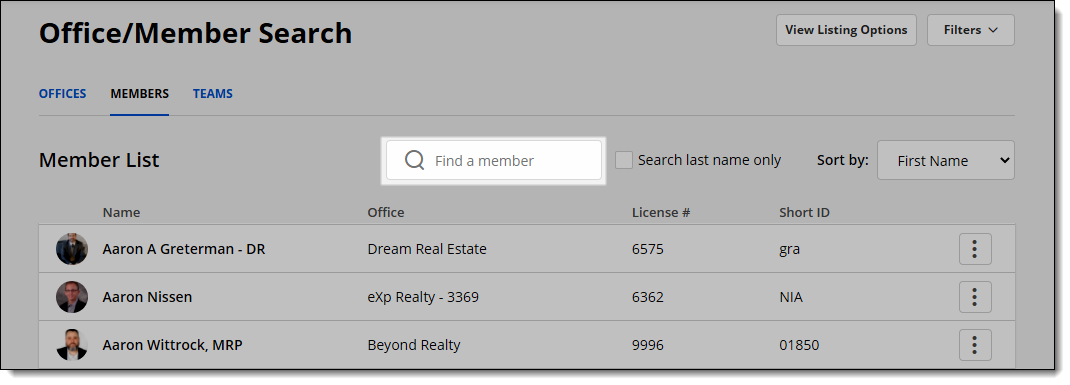
When you type text into the Search box, all available fields are searched by default. To search by member last name only, select the Search last name only checkbox.
Note
Your search is remembered for 10 minutes. If you navigate away from the page and come back within 10 minutes, the last search will run again automatically. After 10 minutes, your search is cleared.
Sort by
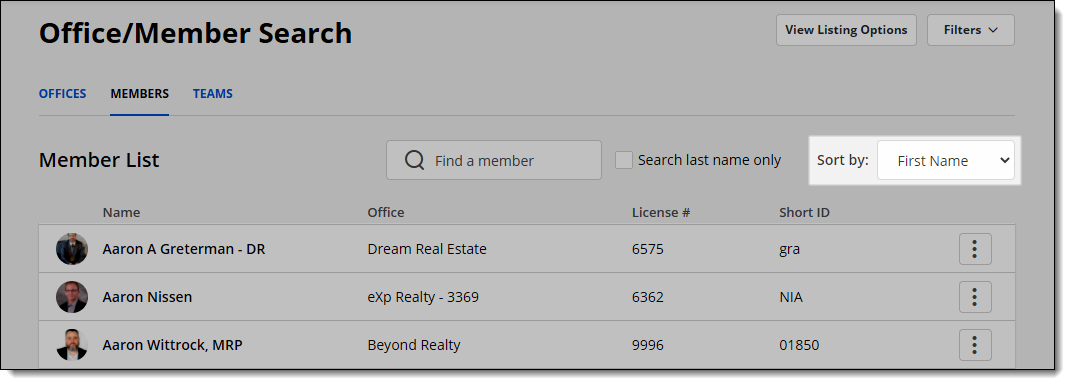
Next to the Search box, click the Sort by menu to sort the list. By default, every tab is sorted alphabetically by name. You can also sort the Members tab by office name, and you can sort the Teams and Offices tabs by city. If you select a different sorting option, your preference will be saved, and that sorting option will be used the next time you go to the page.
Filters
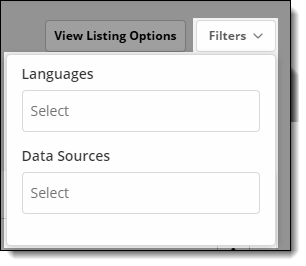
Click the Filters button at the top right to further customize your search results. You can filter by member languages or include members from data share MLSs in the search (if available in your MLS).
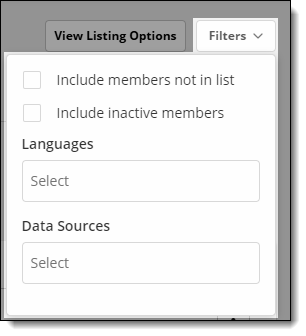
Administrators can select to include “not in list” or inactive members. If inactive or "not in list" members are shown, they will be marked with an exclamation point icon.
View Office, Team, or Member Profile Information
Click on an office, member, or team to view profile information. When you view an office profile, tabs for Office Members and Office Teams will be available. When you view a team profile, a Team Members tab will be available. Click a member name in any list to view that member’s profile information.
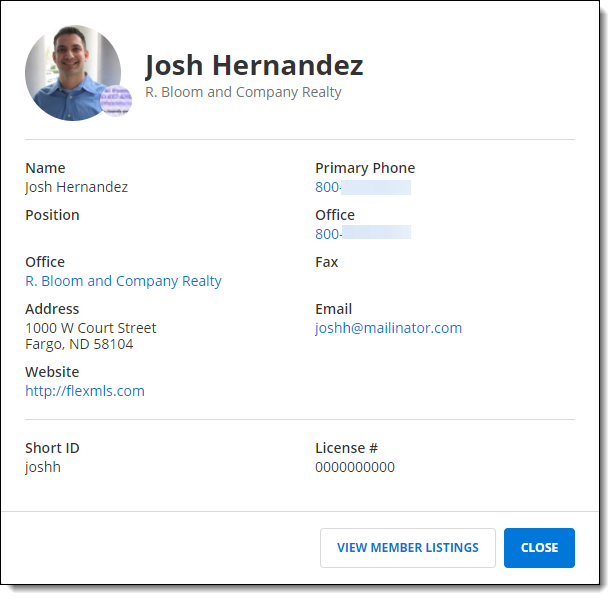
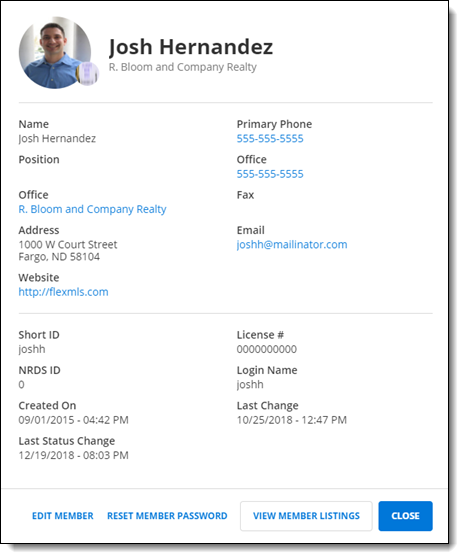
MLS administrators can edit the office/member or reset their password from the details page. An administrator can also view additional information, such as the NRDS ID, the login name, the date created, and the last time the user account was changed.
View Listings
If your MLS allows listings to be viewed from the Office/Member Search page, you can click the More (three vertical dots) menu to view listings for the selected office, member, or team. If you have access to edit offices, members, or teams, you will also see an Edit option in this menu. (Options will vary based on the tab that is selected.)

Click the View Listing Options button at the top of the page to set your preferences for viewing office, member, or team listings. Select the transaction roles (listing member, co-listing member, selling member, co-selling member) and listing statuses you want to include by default.
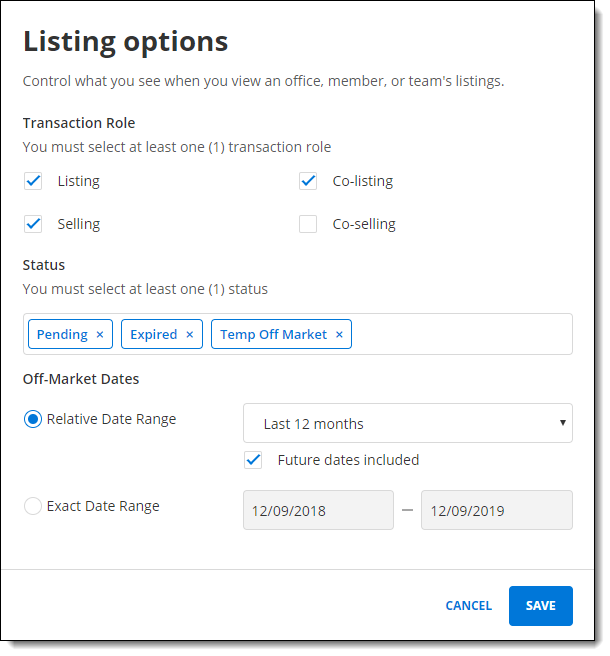
If your MLS allows searching off-market listings from the Office/Member Search, and you select an off-market status such as Expired or Closed, you can also select a date range. Click Exact Date Range to set specific start and end dates for the date range. Click Relative Date Range to set a date range that is relative to the current date, such as In the last month, Last 6 months, Year to Date, or Last 12 months. Click Future dates included to include off-market dates up to 10 years in the future. For example, if you select In the last month and Future dates included, the date range will start one month before the current date and end 10 years in the future.
Click Save to save changes to your settings. These settings will be used every time you use the Office/Member Search.
The MLS administrator can modify the information that can be viewed through Office/Member Search by using the following MLS settings.
Display of Office/Member Information Settings
For members, use the office email address/web address/address/phone/fax number from the office record instead of from the member record - When set to On, the office profile’s information will be used instead of the member’s information on listing reports, on business cards, and in office/member searches. These settings apply only to member accounts. If a member creates their own business card and manually types their own information, that action will bypass this setting.
My Profile Settings
Display license number in profile information - When set to On, the License Number and Office License Number fields are displayed in a member’s profile information on the Office/Member Search page. When set to Off, the License Number and Office License Number fields are not displayed.
Note
The name of this field depends on the input for the License Number Label setting.
Display short id in profile information (FBS Staff Only) - When this FBS-only setting is On, members can view the short IDs of other members in Office/Member Search. When set to Off, only administrative users can view member short IDs in Office/Member Search.
Search Settings
Allow listings to be viewed from the office/member search – When set to On, users performing an office/member search can view the listings of the members and narrow the search by listing or co-listing member. When this setting is Off, users will not be able to view listing information, but will only have access to agent information in an office/member search.
For office/member search, what data shares are searched by default? (FBS Staff Only) - This FBS-only setting controls whether offices, members, and teams from datashare MLSs are included by default in office/member searches. When set to Primary MLS Only, only the primary MLS is included by default for all users. When set to Primary MLS and all datashares, the primary MLS and all datashare MLSs are included by default for all users. If a member has already made selections in the MLS Sources field on the Office/Member Search filters page, this setting will not override their selections.
Allow all listings to be viewed from office/member search. If not enabled, the listing statuses will be limited to these RESO standard statuses: Coming Soon, Active, Active Under Contract, and Pending - When set to On, users performing an office/member search can view sold and other off-market listings of the members in their search. When set to Off, off-market listings will not be searchable from the office/member search.
Enable the office/member search to search email addresses – When set to On, users performing an office/member search can search using email addresses. When this setting is Off, users cannot search for an office or member by email address.
Display Designated Broker on Office/Member search – When set to On, the results on the office/member search will show the designated broker in the Office Information section.
Opt-in to Data Sharing in Office/Member search – When set to On, users can search data share MLSs by clicking the Options link on the office/member search page. This option is typically available only to MLS administrators. When this setting is Off, the user can search for offices and members in their own MLS only.