Mailtools Workflow for MLS Staff
The mailtools.flexmls.com site contains a series of tools that allows FBS and various MLS staff the ability to track most emails that are generated or sent out of Flexmls.
Note
The mailtools.flexmls.com site is not accessible anywhere in Flexmls, so please bookmark this page.
In order to gain access to the Mailtools site, the FBS hosting team needs to grant you access to it on a per username basis. Please do not distribute this site address to anyone else because if they have not been granted access to the tool, it will not load for them.
Once granted access to the site from FBS, Mailtools will follow your access to the Flexmls site. If your username is turned off in Flexmls, Mailtools will not be accessible.
As a security precaution, if your staff changes over time where people leave the employment of the MLS, please inform the FBS support team so we can deny them access to the site.
The Mailtools site is comprised of the following four sections that allow you a wide range of email tracking tools upon successful login to the site.
Sift - This tool allows you to track if an email attempt was made by Flexmls.
Lens - This tool allows you to track the opt in history of contacts email address. For Flexmls subscriptions, emails can only be sent to the contact if they agree to receiving them.
Muzzle - This is a partner tool of Sift in that it allows you to lookup if a contacts address is currently marked as suppressed. Unlike Sift, this tool can be used even if there has not been recent emails sent to the contact. Please note that Muzzle looks at the Flexmls user you are superused to and checks for email address suppressions as that user.
Prospecting - This tools allows you to lookup if a subscription was generated and which listings the subscription generated. Please note that the results on this page do not necessarily mean that an email was sent; Sift should be used to track email delivery.
Mailtools Workflow: Suppressions
Though you are certainly welcome to apply your own workflows, FBS's suppression removal process is based on a 30-day 3-strike process and is documented below. This means that we will lift email address suppressions that get applied (per the documented workflows) twice, educating the user on why their address stopped getting emails from Flexmls each time. If a third occurrence of their address getting suppressed happens within a 30-day time period, we reserve the right to not lift their suppression and report them to your MLS team. Inaction on bounced emails are considered abuse of the Flexmls email delivery system.
Suppressions happen so that Flexmls can legitimately and reliably send to real email addresses and stop sending to addresses that are not real or have fatal problems. If Flexmls continues sending to bad email addresses, this tells the world that we do not control or care who we send to. This legitimately makes us a spammer. This also quickly causes problems for Flexmls because the recipients' mail servers can then report us, causing our mail servers to end up on blacklists.
It is important to understand that the reason an address was suppressed to begin with was because Flexmls sent an email and the recipient's mail provider hard-bounced the email back to us. It is equally important to note that our suppression removal process is not an industry standard. Without proper explanation of this workflow, telling anyone outside of FBS or MLS staff that their address is suppressed, or that you see no suppressions applied, will not mean anything to the the user or their IT professional assisting with email delivery.
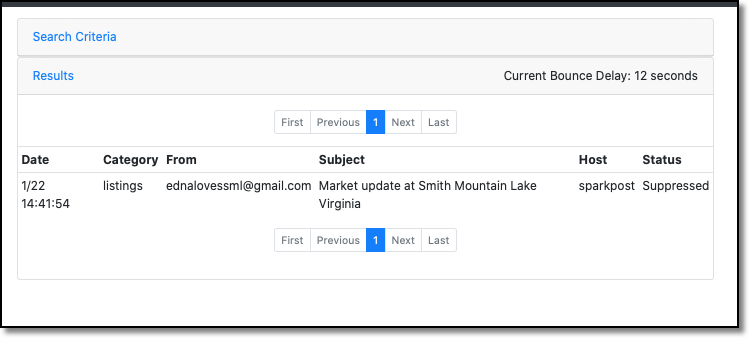
Using the Sift tab on mailtools.flexmls.com, run a search for the address in question that is not receiving emails from Flexmls. If the Status column column says Delivered, emails are being sent and accepted by the carrier we are emailing. If the Status column says Suppressed like in the screenshot below, go to Step 2.
Invalid Events
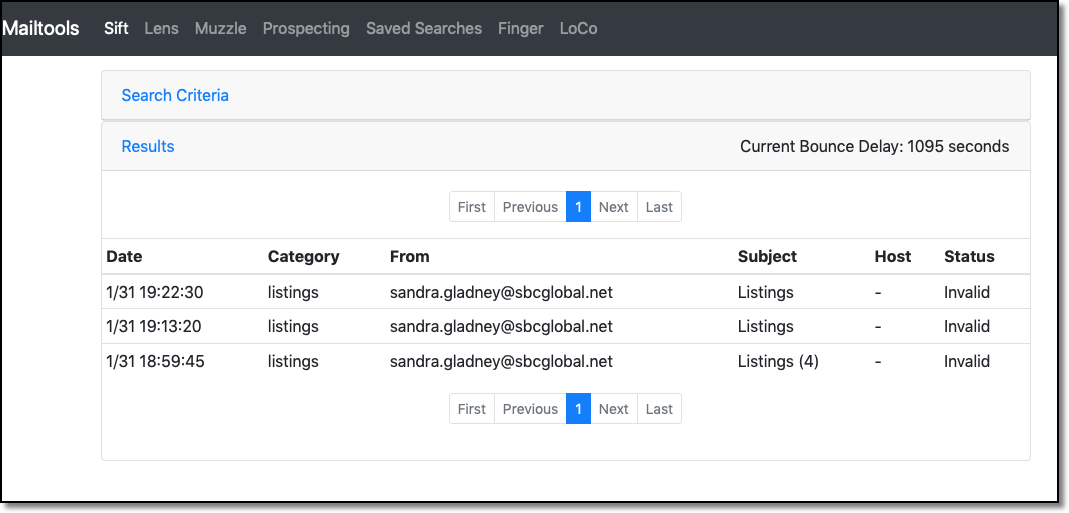
If you are checking Sift for the address and the status column shows Invalid, these are addresses that are suspected to be honeypots. These addresses are cannot be fixed within the Mailtools features. Please send an email to support@flexmls.com if you run into these cases.
In order for this process to work properly, you must superuse as the user who is either contacting you or initiating the sending, and who is contesting that an email address is not getting the emails that that address should be getting (for example, an agent sending to a home buyer/seller). Complete the following steps:
Superuse as the Flexmls user who is contacting you, and in the same browser, open Muzzle to perform a search on the email address in question.
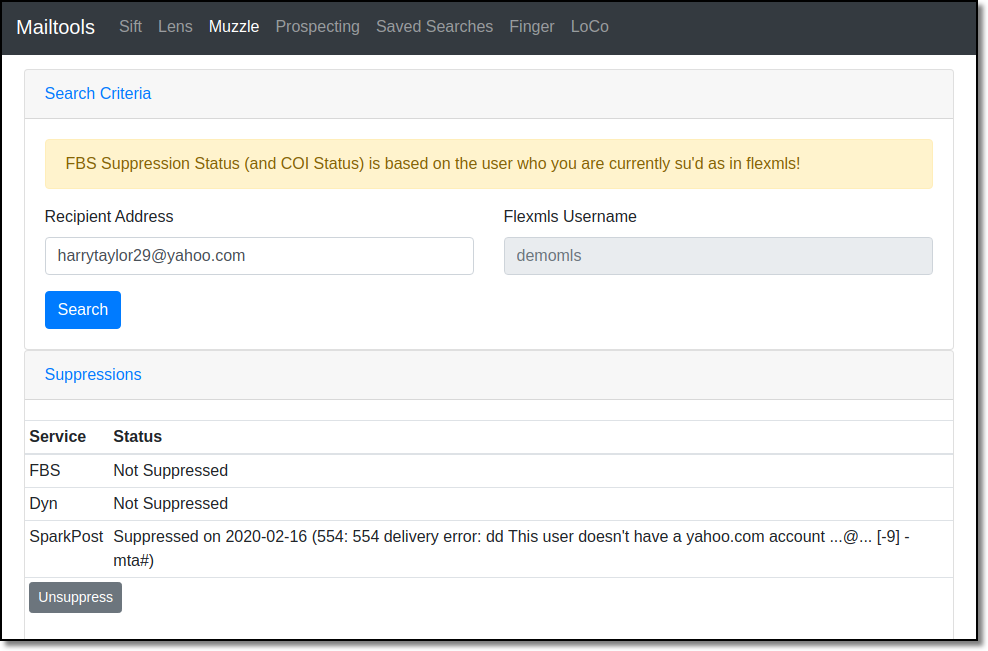
In the Suppressions section, look for a row that says "SparkPost". Ideally, this row should say "Not Suppressed," as this means that the emails attempting to be sent are not being held back on the Flexmls side.
The main suppressions you will encounter here are Bounced, Spam, or Unsubscribed. Each of these suppressions has a slightly different workflow for lifting the suppression. The workflows for each of these reasons are explained in the subsequent sections. Make note of the date that the suppression was applied, as this will help you determine the strike version to use below.
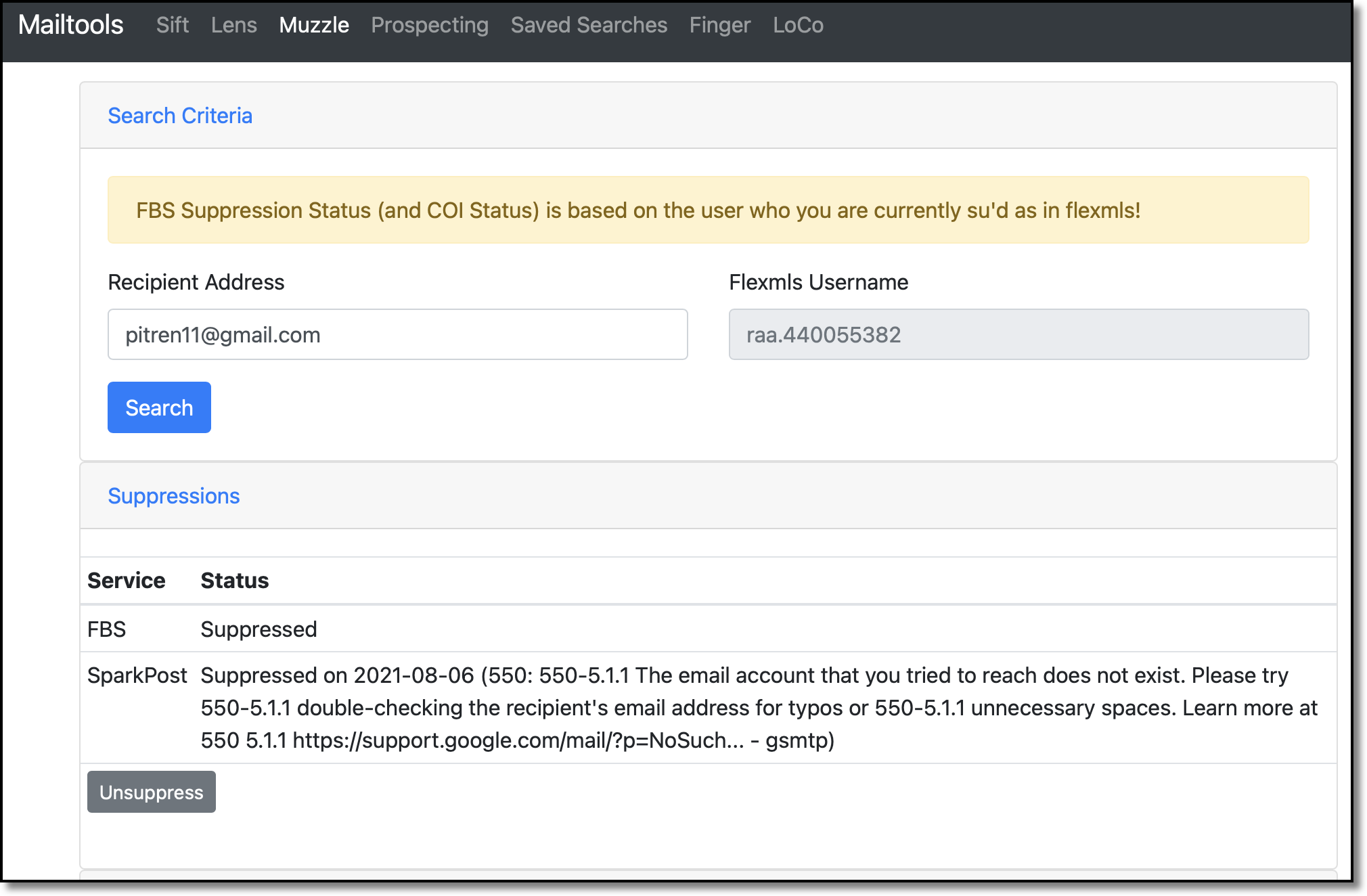
Bounced
Unlike the other two examples below, the Bounced suppression does not say "bounced" anywhere on it; however, an email was bounced because the address was not real. Other examples will be added in the future to make this example more prominent.
Spam
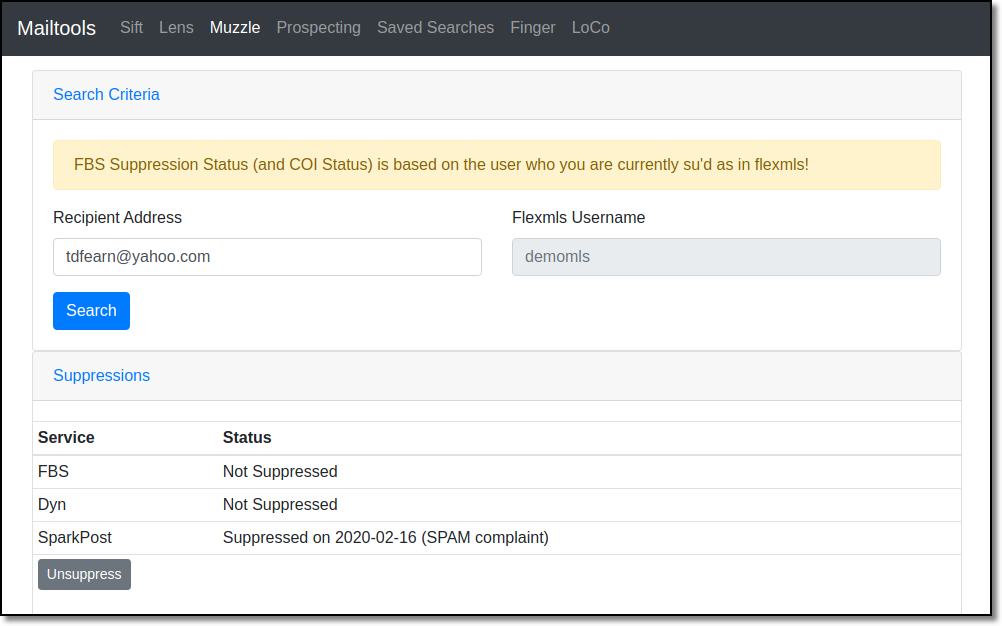
The example below shows that the reason for the suppression is from a Spam complaint, either from the user or their mail server.
Note
The convention for spam complaints is that they will only be sent out in response to a user manually designating a message as spam or junk. While this is ultimately determined by the mail provider, spam complaints should only be the result of user action as opposed to any system or blacklist generating a complaint.
Unsubscribed
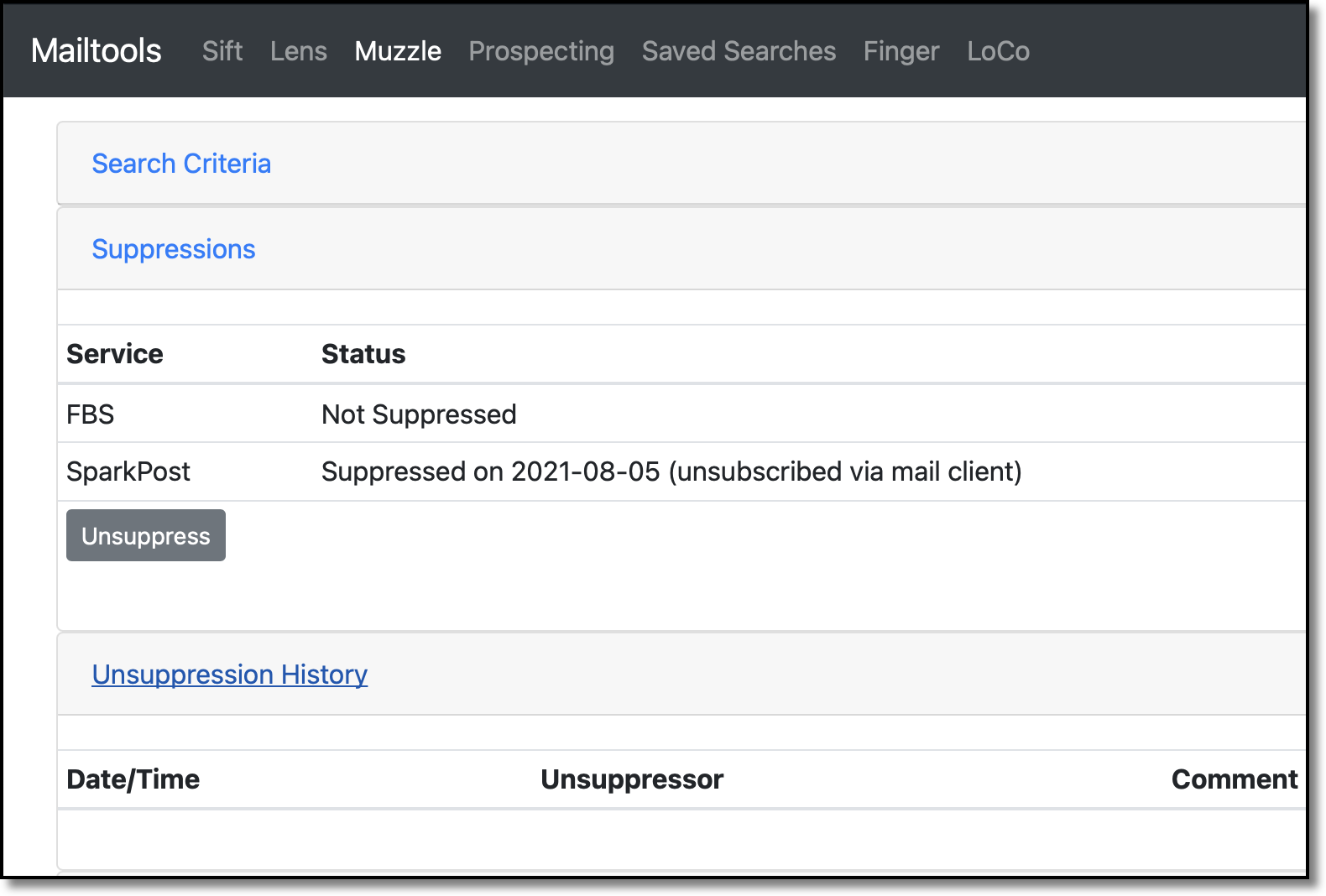
Unsubscribed events take place because the user clicked on an unsubscribe link from their mail client (not from the unsubscribe link that is in the Flexmls emails). Unlike Bounced and Spam events, Unsubscribed events do not count against our sending reputation, so the three-strike-rule workflow does not apply here. When you get to the steps of verifying if the user still wants Flexmls emails below, you will only see a Strike 1 template (explained below).
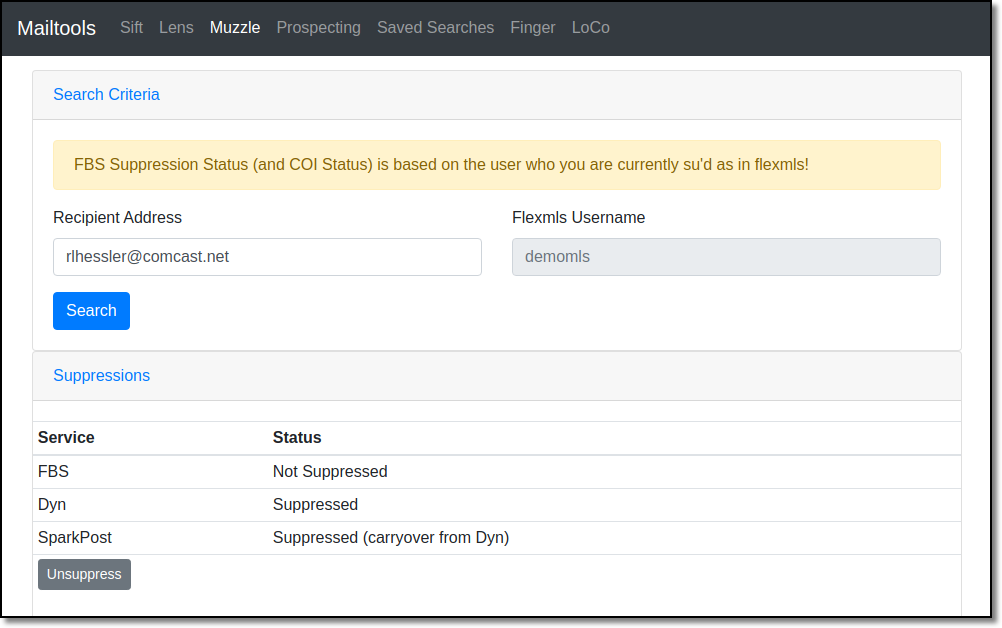
If the SparkPost row says "carryover from Dyn", you may lift the suppression and advise the user you are doing so. Since we no longer use Dyn as the authority of suppressions, and the reason for the suppression is now unknown, there is no need to send an education piece to the user.
Prior to using SparkPost to apply suppressions, FBS used a service called Dyn. If Dyn has suppressed the address previously, we migrate those same suppressions over to SparkPost, but we no longer have the reason they were suppressed. Therefore, we give those suppressions a new chance in the SparkPost engine, but only if we hear from someone informing us that the address in question is no longer receiving emails. If the user informing us presses for more information on why that email address is no longer receiving emails, you can accurately state that we do not know the reason it was suppressed, as it was an old suppression from over a year ago and we only keep logs back as far as 30 days.
If the SparkPost row says anything other than "carryover from Dyn," do not lift the suppression, and instead move on to Step 3.
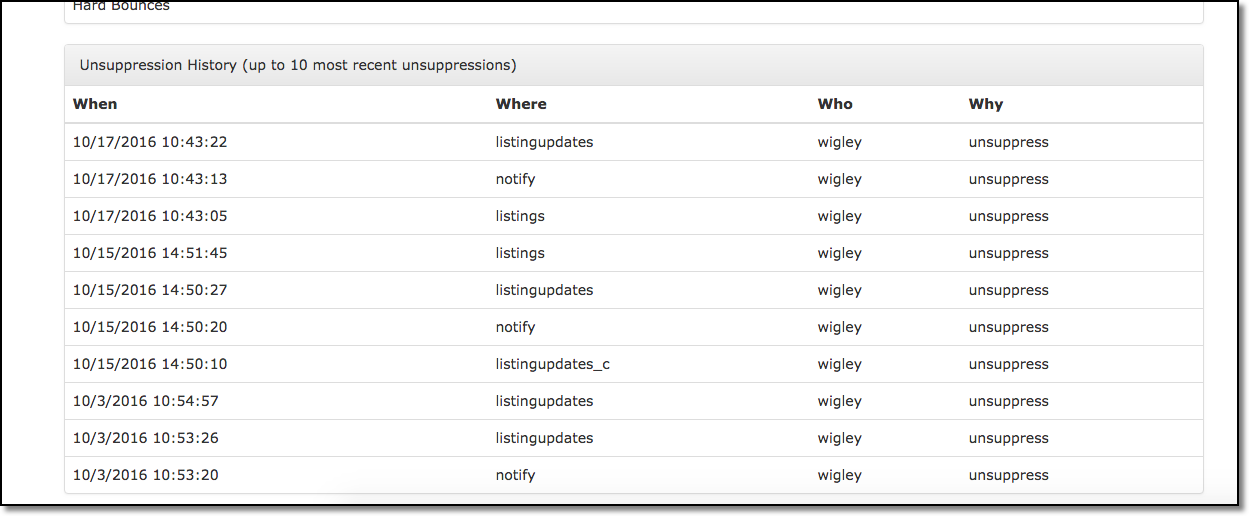
While you are on Muzzle and superused as the user who is doing the sending, check if the email address has been unsuppressed within the last 30 days. To do this, click on the Unsuppression History header to expand it. If the address has not had a suppression removal in the last 30 days, proceed to Step 4.
As previously noted, our suppression removal process is based on a three-strike system depending on whether or not we know the reason why the suppression was applied, as well as whether or not it happened in the last 30 days. The explanation for each strike is explained below.
Note
If a suppression has been lifted in the last 30 days, check the strike version in the notes. If it's a strike 0 or 1 notation, the user has already verified that their address is real and you can proceed to Step 5.
Strike 0: This strike iteration is used when we do not know the reason for the suppression—either because Muzzle doesn't reflect the suppression reason, or because the suppression happened more than 30 days ago, and as a result, we do not have the bounce reason to provide the user. If you can prove that the address is real, we can lift the address noting this reason.
Note
This strike iteration should never be used for Spam complaints, even if the suppression is over 30 days old.
Strike 1: This strike is used when we do know the reason for the suppression because we have a recent bounce or a complained event to show for it. This is the user's first warning that something potentially bad happened with their email provider, and they should take our advice to get it fixed. Most commonly, this will be used for Spam or Bounce complaints.
Strike 2: This strike is used when the user's email address gets suppressed a second time within a 30-day time period from the first strike warning. Send an email to the user educating them of the reason it happened again. Additionally, inform them that this is their last warning, as we will not lift the address again without some evidence that the user is taking actions to fix the problem.
Note
This strike iteration should not be used for Unsubscribes.
Strike 3: This strike should be used when the user still has not taken your advice from prior communications to them when lifting the suppression. Use your discretion when lifting a suppression a third time in the last 30 days, or contact an FBS Support team member for further direction. As a reminder, multiple suppressions in a short time period means that Flexmls has tried sending emails to someone's mail carrier (when they were not suppressed), and the mail carrier or the customer complained about the delivery—thus giving the mail carrier evidence that we are spamming them. It becomes far more difficult to get a mail carrier to trust that Flexmls is not spamming them if this cycle continues without correcting the root cause of the suppression.
The reasons for why an email address is suppressed can vary heavily. The reasons for email suppression also rely solely on the reasons the email carrier sends to our systems. As stated above, these reasons fall into three buckets: Bounced, Spam, and Unsubscribed.
Some examples of reasons from the email carrier include:
The email address does not exist (Bounced).
There is a problem with the email server we are sending to.
The customer has marked an email from us as spam, which suppresses emails on the Flexmls side.
Some email carriers have an Unsubscribe button/link that users can click, which can also cause a suppression.
Regardless of the reason, we need to verify that the email address is real so that we have evidence that the address works and should continue receiving our emails. If the address is not verified and we lift the suppression, whatever caused the suppression can repeat and negatively impact Flexmls email systems.
In order to prove the address is real and works, an email should be sent to the address in question from your own email account (even if they are emailing from it). Then, ask the recipient to reply to the email you have sent.
The reply from the recipient provides us with behind-the-scenes information that helps the FBS Hosting team. Additionally, it helps us verify that the email address in question can receive emails in general.
Note
The recipient of the suppressed email may not always reply from the same email address you sent your test email to. This is due to email forwarding and email domain names.
Send/reply to the email with the right template
We have a series of canned templates tailored to each core suppression we see. These email templates outline the education piece that the recipient needs to know (e.g., why their email was suppressed and how to prevent it from happening again).
Determining the correct email template to use depends on the reason the suppression was applied. It also depends on whether the email is for an agent or a contact.
Note
Some of the templates are formatted with REDBOLDEDCAPITALIZEDTEXT to alert you to switch out text to add in a name, an email address, and/or a bounce. The formatting of this text denotes that action is needed for that field. These templates are not meant to simply be copied, pasted, and sent. They will most likely need some modifications before you send.
Note
Email verification prior to lifting a suppression only needs to be performed if the bounce/suppression is over 30 days from today.
Below are some examples for this workflow:
If you are working a phone call with the following, compose a new message to the agent using the Agent Strike 1 Spam template.
An agent is not getting emails
The emails are suppressed because Muzzle shows a Spam reason
The agent has never had a suppression lifted before
If you are working a case with the following, compose a new email addressed to the contact with the agent CC'd, using the Contact Strike 1 Spam template:
An agent reports their contact is not getting emails
Muzzle shows the contacts address is marked as Spam
The contact has never had a suppression lifted before
If you are working a case call with the following, compose a new message choosing the Contact Strike 1 Unsubscribed template:
A contact is not getting emails
The email address is suppressed because Muzzle shows a Unsubscribed reason
The contact has had their address suppressed before for the same reason
The suppression has happened within 30 days
Once you have received an email response from the recipient to verify that the email address is real, and once the recipient has confirmed they still want to keep receiving FBS emails, you can then lift the suppression.
Note
Only lift the suppression if the recipient in question replies to our email. We cannot process suppression lifts based on the word of someone else. For example, we cannot lift a suppression if an agent says that their contact's address is real, because the contact may not want to get emails from the agent but has not told the agent. We can only take the word of the recipient for the email address in question.
To lift the suppression, complete the following steps.
Ensure that you are superused to the sending account before proceeding.
Search for the email address on Muzzle.
Click the Unsuppress button.
When prompted, enter into the comment box the strike number for this suppression when you lifted it, the role of the recipient, and the reason for suppression.
For example, if you are lifting a suppression because an agent marked an email as spam, your comment should say, "Strike 1 Agent Spam." These comments are important because they serve as records for suppressions, since we do not have a way to go back into our email logs to find out the reason for a suppression.
If the last strike happened over 30 days ago, the strike process should reset to 0 or 1, depending on the reason for the suppression (Bounce or Spam). The strike process never resets if the suppression reason was an Unsubscribed. Unsubscribed suppressions should always be noted as "Agent/Contact Unsubscribed" in the comments.
Note
We can only see the last 10 unsuppressions on Muzzle.