Map Constraint
Click Map Constraint under Main Listings on the Admin menu to narrow or refine the default map area for the MLS. To help improve mapping accuracy, a reasonableness constraint is in place to warn users if the location for their listing is outside the defined area. As a default, the map constraint for all continental U.S. accounts is set to the continental United States. Accounts outside of the continental United States have different default constraints.
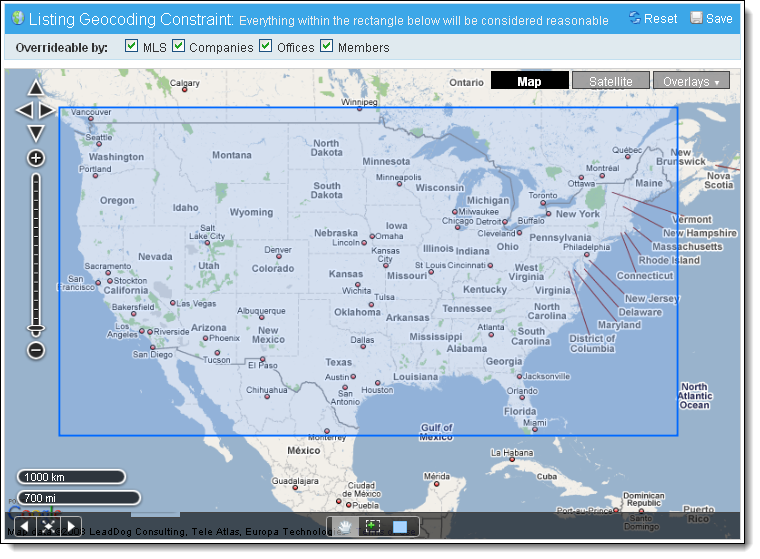
Use the zoom tools to locate the appropriate map area, then click the rectangle tool to outline the boundaries. Click once on the tool to select it, then click on the map to place the first corner of the rectangle. Move the mouse (without holding down the mouse button) and click a second time to close the rectangle. If you make a mistake, click the rectangle tool and draw a new rectangle or click Reset in the upper right corner of the page. Click Save to save the map area.
Above the map, use the check boxes to specify which member types can override the constraint. By default, all boxes are checked. This means that a warning will be given if a listing is mapped outside of the reasonable area, but the user will be able to proceed with listing entry.