Main Fields
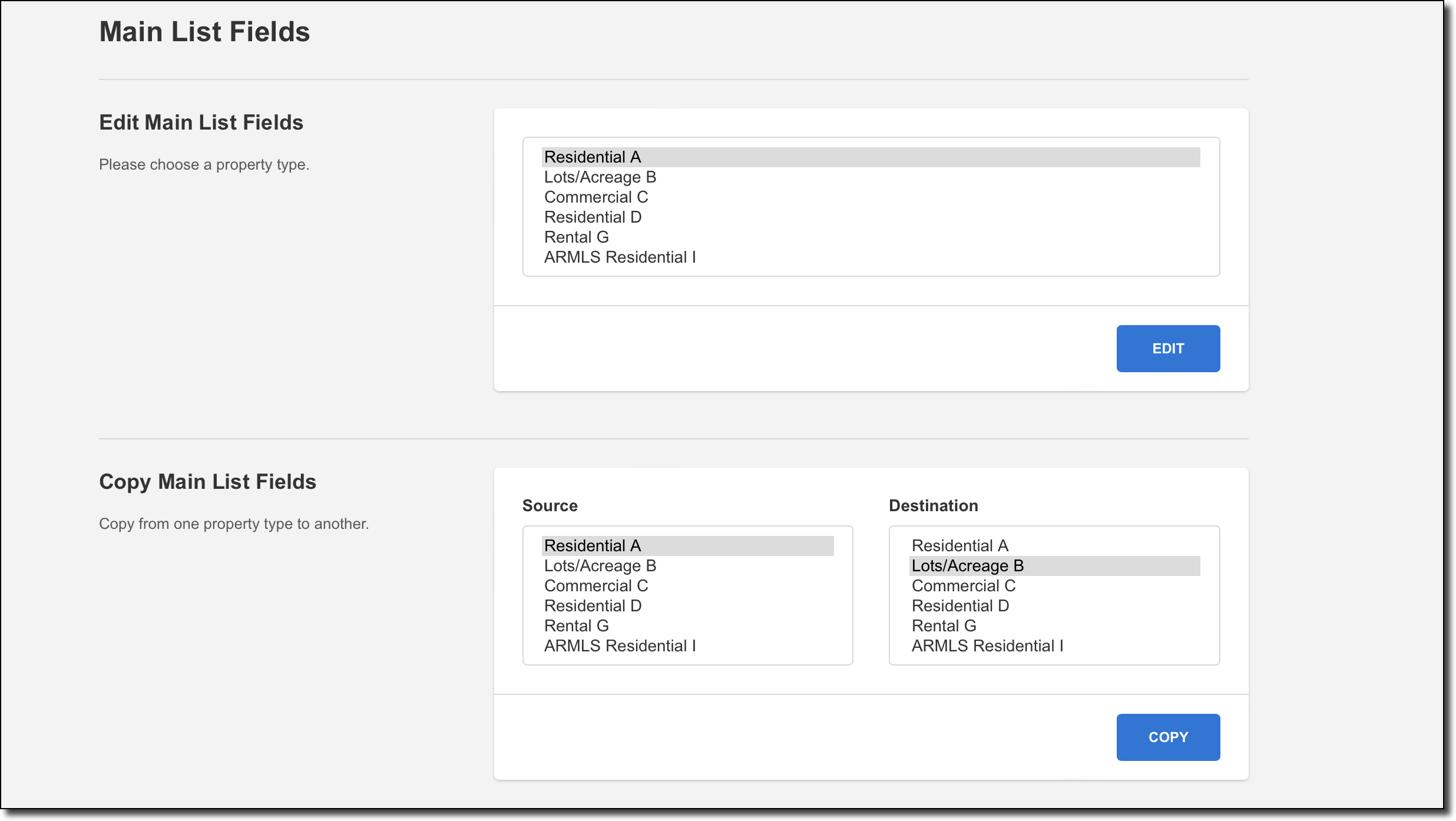
Click Fields - Main Listings under Main Listings on the Admin menu to modify the fields that appear on the Main Fields tab in listing maintenance.
Caution
Caution: Depending on your MLS Settings, certain field settings may be read-only to MLS administrators. Changes to those field settings can only be made by FBS Staff. If your MLS has access to make certain field changes such as changing or removing fields, be aware of the potential consequences of changing or removing fields. See Field Changes for more information.
To begin, select a property type and click Next.
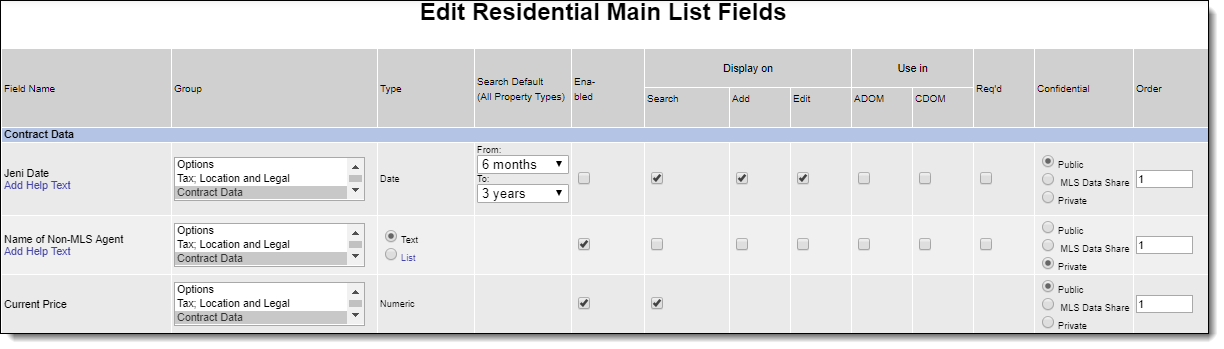
The following field attributes are available on the Edit Main List Fields page. Be sure to click Next at the bottom of the page if you make any changes.
Field Name – The label for the field. The field name cannot be changed from this page, but you can add or change the help text associated with the field.
Click the Add Help Text link (if no help currently exists) or the Edit Help Text link (if help exists) under the field to modify the help text that is displayed for the field on data entry pages. For more information about help text, see Add Help Text to Any Field.
Group – The group the field is displayed in when adding listings or viewing standard reports. To move the field to a different group, select the name of the group from the scroll list.
Note
To add, remove, or rename a field group, contact the Flexmls Customer Success team (cpr@flexmls.com).
Type – The data type of the field. If the field is a list, you can click on the List link and edit the available selections. To edit selections in the list, click on the list item to convert the item into an editable field. Click Save after making changes.
Note
For existing list items, do not edit the value; please contact cpr@flexmls.com who can help you make the changes without abandoning listing data or breaking saved searches.
Note
We recommend that you contact Technical Support before removing a List field or changing an existing List field to a Text field.
Search Default – If the field is a date, you can specify the default range to use when the field is included in a search.
Enabled – Indicates whether the field is in use. If a field is not enabled, it is not displayed in Flexmls.
Display on Search – Show the field when choosing search criteria. Any field that the MLS has marked to be not searchable will also be blocked from being used when sorting listings.
Display on Add – Show the field when adding a listing.
Display on Edit – Show the field when editing an existing listing.
Use in ADOM – Use the field when matching listings to calculate Agent Days on Market (if used by your MLS). To verify which fields are currently being used in ADOM calculations, click the ADOM column header.
Use in CDOM – Use the field when matching listings to calculate Cumulative Days on Market (if used by your MLS). To verify which fields are currently being used in CDOM calculations, click the CDOM column header.
Req’d – Indicates whether the field is required for entry when adding/editing a listing. On data entry pages, required fields are displayed in red text with an asterisk.

Confidential – Set the privacy level for the field. Fields marked Public will be available to all MLS members, portal users, and anonymous web visitors. Fields marked Private will be available only to members in the same MLS as the listing. Fields marked MLS Data Share will be available to members in the same MLS and data sharing MLSs, but will not be available to the public. (For more information, see MLS Data Sharing).
Order – The order of the field within its group.
To add a new field to the Main Fields tab, use the Custom Fields menu item. For more information, see Custom Fields.
Note
When determining where a field should be placed (Main Fields tab or Details tab), keep in mind the differences between main fields and detail fields.
Fields that accommodate multiple selections are typically set up as detail fields. (For example, an Appliances field group where the user can select check boxes for one or more items.)
Only main field changes are tracked in detail in listing history. Specific changes are not tracked for detail fields.
Only main fields can be used for sorting on the search results page. Make sure that key sort fields are located on the Main Fields tab.