Member Tracking Reports
Flexmls features a set of tools to help MLSs keep track of users who may be sharing their login information. Login sharing is a security risk that steals revenue from and violates the intellectual property rights of both the MLS and FBS.
Member tracking reports show information about the activity of all users in your MLS. To access member tracking reports, click Reports - Users under Users on the Admin menu. Then select Member Tracking Reports.
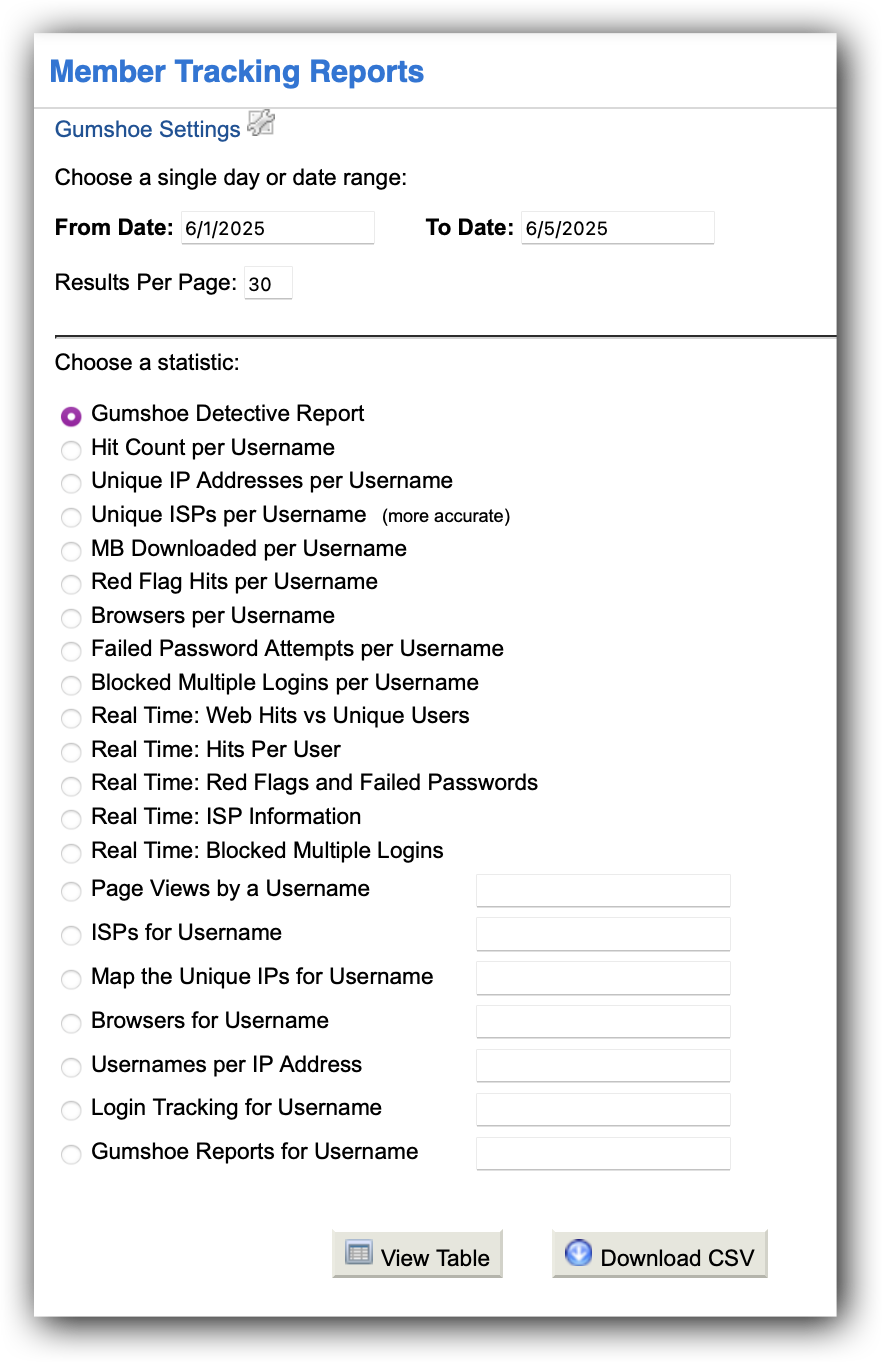
Many types of member tracking reports are available in Flexmls. Some are useful for gauging MLS trends; others are useful for catching malicious behavior.
A brief description of each report is provided in the table below. The help system in Flexmls contains more detailed information about all member tracking reports. If you have questions while viewing the Member Tracking Reports page, click the Help menu in the upper right corner, then click Help with this page.
Report | Description |
|---|---|
Gumshoe Detective Report | A summary of the data from all of the other member tracking reports. The Gumshoe application runs nightly, finding the unusual behavior from every report and calculating a score for every user. For more information, see Gumshoe Detective Report. |
Hit Count per Username | The number of page hits for every user. Users at the top of the list could be sharing an account or scraping data. |
Unique IP Addresses per Username | The number of unique IP addresses that each user has used to access Flexmls. Large numbers could indicate account sharing, but may also result from legitimate activity. |
Unique ISPs per Username | The number of unique Internet Service Providers that each user has used to access Flexmls. Can more accurately indicate account sharing than the unique IP Addresses report. |
MB Downloaded per Username | The number of megabytes of data downloaded from Flexmls by each user. Large numbers could indicate photo or data scraping. |
Red Flag Hits per Username | The number of red flag hits per user. Red flag hits usually indicate suspicious behavior. They can be caused by programs or scripts that access Flexmls without the use of a web browser for data scraping. |
Browsers per Username | The number of different web browsers and mobile devices a single user has been using to access Flexmls. |
Failed Password Attempts per Username | The number of failed password entry attempts for each user. A large number of failed attempts could mean that someone is attempting to break into a user's account. |
Blocked Multiple Logins per Username | The number of times a user has been denied access because someone was already logged into the account. (A duplicate login was blocked and the message "Another person has logged into your account" was displayed.) |
Real Time: Web Hits vs Unique Users | Real-time graph showing the number of hits and number of users for the entire MLS. Use this report to spot trends that might be questionable. |
Real Time: Hits Per User | Uses the same data as the Web Hits vs Unique Users report. The number of hits is divided by the number of unique users to calculate the average number of hits per user. |
Real Time: Red Flags and Failed Passwords | Real-time graph showing red flags and failed passwords for the entire MLS. Use this report to spot trends that might be questionable. |
Real Time: ISP Information | Real-time graph showing ISPs, IP addresses, MB downloaded, and users for the entire MLS. Use this report to spot trends that might be questionable. |
Real Time: Blocked Multiple Logins | Real-time graph of the number of users denied access to Flexmls because someone has already logged into the account. Use this report to spot trends that might be questionable. |
Page Views by a Username | The number of pages viewed by a specified user. |
ISPs for Username | The number of Internet Service Providers used by a specified user. |
Map the Unique IPs for Username | A map showing the locations of unique IP addresses for a specified user. |
Usernames per IP Address | List of the usernames that have logged in from a specified IP address. |
Login Tracking for Username | Detailed login/logout information for a specified user. |
Gumshoe Reports for Username | Historical Gumshoe Detective reports for a specified user over a period of time. |
Use the Tracking dashboard to view a synopsis of the Gumshoe Detective report and real-time graphs of other member tracking data. (Click on a username to view the detailed report.) This dashboard is available only to administrative users who have access to the member tracking reports. The gadgets can also be added individually to a custom dashboard. Use the drop-down arrow to further customize the information. You can review the graphs by week, day, or hour, and change your preferences for the default gadget view.
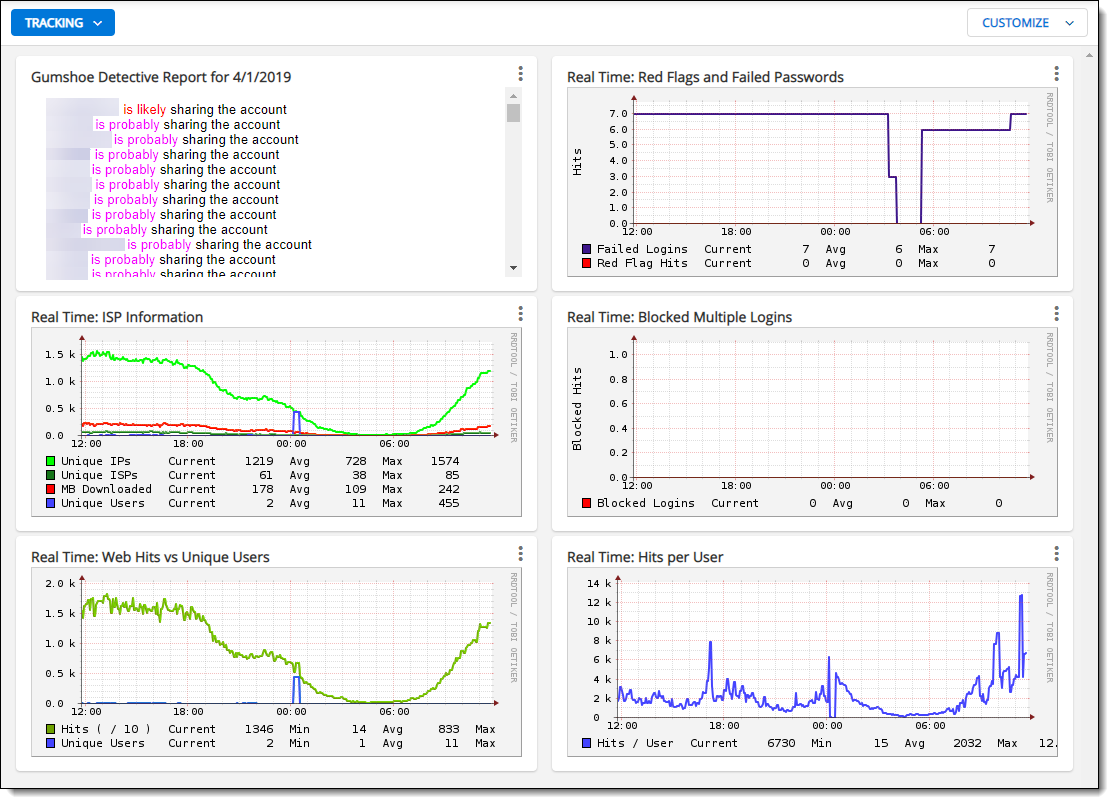
The Gumshoe Detective Report aggregates information from multiple member reports to show users who are likely sharing their login information.
This application runs every night and scans all the data from the rest of the member tracking reports. Gumshoe collects information about unusual user behavior from every report, then tallies up a score for each user.
This score is represented as a probability, which is the chance that multiple people are sharing an account (in column Sharing Probability). The probability will never be 100%, because many factors are used in this prediction.
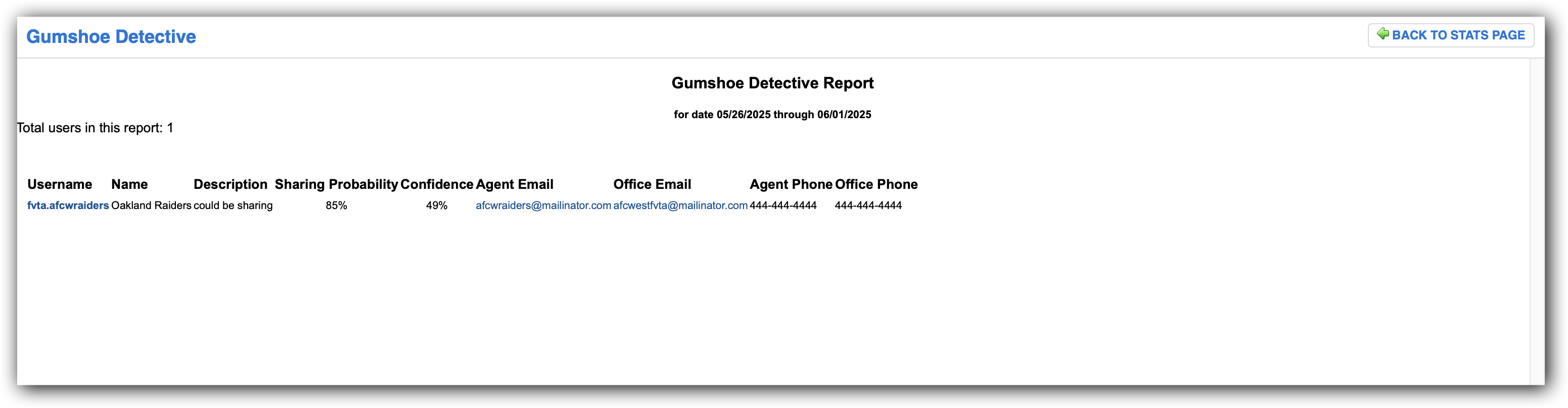
The Confidence column helps you gauge how conclusive the probability is. For example, if the Sharing Probability is 90%, but the Confidence is 50%, that means the score for this person is high but there wasn't much data available to create this score. More unusual behavior results in a higher confidence. Both statistics are represented as a plain English statement in the Description column. Someone with a 90% sharing probability but 50% confidence would have the description could be sharing, while someone with a 97% sharing probability and 95% confidence would have the description is very likely sharing.
Tip
The following Guided Help tour is available for this function in Flexmls. When you click on a link, an instance of Flexmls will open in a new browser tab and instruction bubbles will guide you through the process.
To see more detailed information about an individual user, click on that user in the Username column. The Detailed Report contains specific information about the type and location of the suspicious activity.
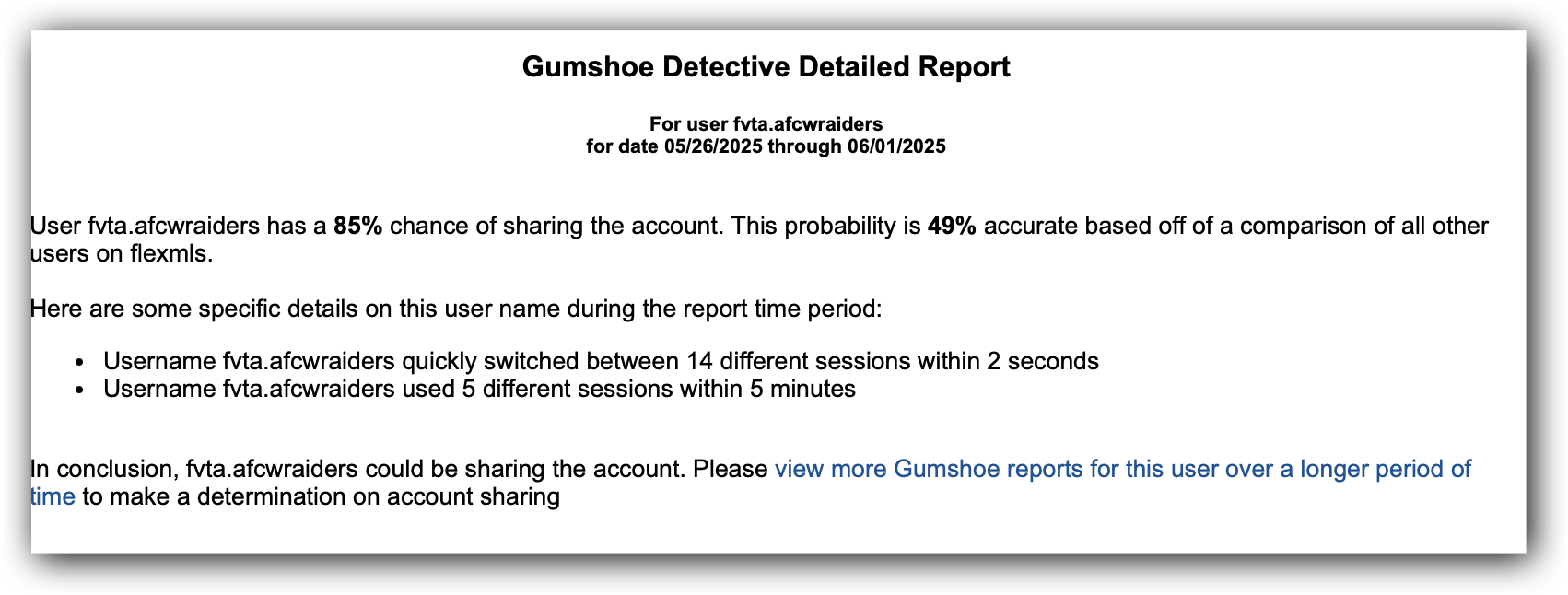
When multiple browsers have been used in a time period, click on the Details link to view more information. The detail page contains more information about those browsers (each browser is likely to identify a separate computer).