Reset a User's Password
The MLS administrator can reset the password for any member using one of the following methods.
Note
When an administrator resets a member's password, only the 8-character length requirement will be enforced. Other strong password criteria will not be enforced, and the password will be considered temporary. After an administrator reset, the member will be required to change their password immediately upon their next login to Flexmls, and all password requirements will be enforced. (Password reset is not currently forced on mobile.)
Password Reset
If you know the user's login name, you can reset their password using the Password Reset option under Users on the Admin menu.
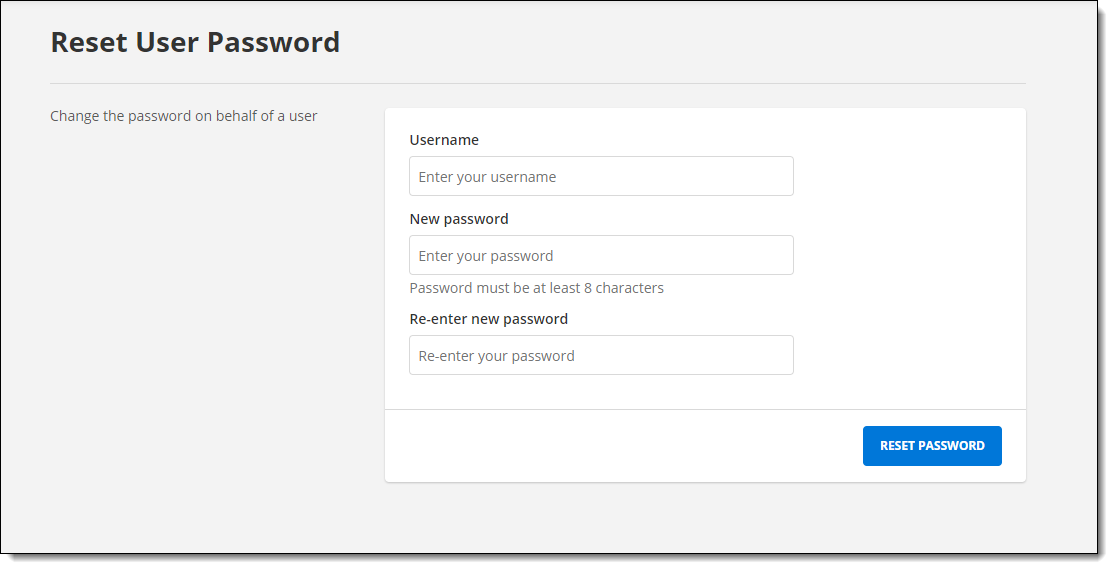
First, enter the user's login name. Then enter and reenter the new password. Click Reset Password to complete the process.
Office/Member Search
If you don't know the user's login name, you can also access the Password Reset tool from the Office/Member Search page. Perform a search for the member, then click on the member's name to display their information. Click Reset Member Password at the bottom of the member details page.
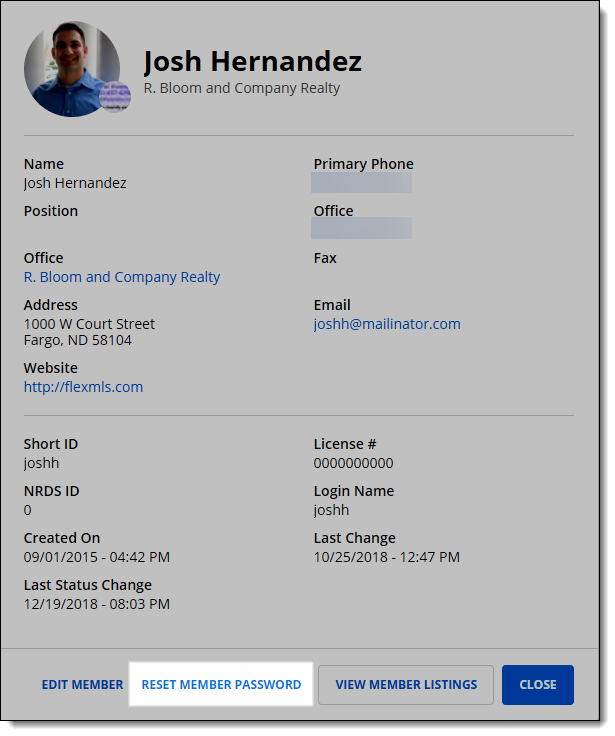
The Password Reset page will be displayed with the member's login name already filled in. Enter and reenter the new password and click Reset Password to complete the process.
Edit the User Account
You can also reset a user's password from the Change User page.
Click Change User under Users on the Admin menu to change the settings for an office or member. Click the Find button to list all members in your MLS or enter at least three characters to search for a specific member. Matches will appear in the box below the search criteria.
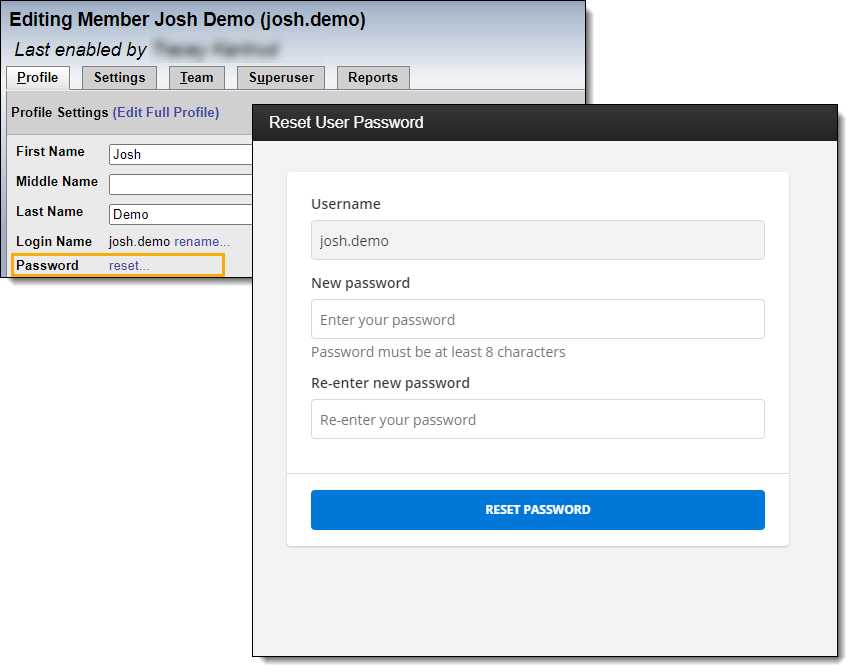
Select the user and click Edit or double-click on the user's name to open the Edit Member page. On the Profile tab, click the Reset link next to the Password field. Enter and confirm the new password, then click the Reset Password button.
Note
If necessary, you can also update the user's email address and other information on the Edit Member page. Be sure to click the Save button at the top of the page if you change something other than the password.
The following MLS settings are related to this feature. To view or change your MLS settings, go to the MLS Settings page under General on the Admin menu.
Number of days after which office and member Flexmls passwords expire - Select the length of time a user can use a password. For example, if this preference is set to 30, the system will prompt for a password change every 30 days. When the password expires, the "Password not working? Click here" link appears, where the user can click the link to reset the password. The expiration date will reset to the selected timeframe every time the password changes.
Provide a password reset warning this many days in advance of a user password expiring - This setting is available only if the setting Number of days after which office and member Flexmls passwords expire is set to something other than Never or One Time Only.
If set to 0, no advance warning will be provided. The system will let the user log in normally until their password expires.
If set to anything other than 0, the user will be presented with the option to change their password the selected number of days before the expiration date. For example, if set to 4, four days before the user's password expires, they will start to see a login message directing them to change their password. If the user wants to delay resetting their password, they can use the "Reset my password later" link below the password-change options. After the expiration date has passed, the user will be forced to reset the password.