Status Change
The Status Change option under Main Listings on the Admin menu enables you to select the fields that appear when changing a listing’s status. Use this option to ensure that correct and relevant information is gathered when changing listing status.
Click Status Change under Main Listings on the Admin menu.
Select a property type and status, and then click Next to add or edit fields. You can also copy status change field selections from one property type to another.
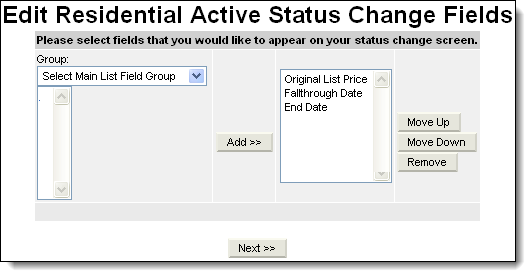
Click the drop-down list at the left to select a group of main or detail fields.
Select fields and click Add to include them on the status change page. Reorder or remove fields by using the buttons at the right.
Note
If the field list is blank or all fields are removed, the status change option will not be available. For example, if all the fields were removed from the residential/closed status change, the option to close a residential listing would no longer be available.
When you are finished making selections, click Next to confirm your changes.