Verify and Correct Days on Market (DOM) for a Listing
DOM is calculated automatically in Flexmls based on the dates when a listing goes on and off the market. If you suspect that the DOM value for a listing is incorrect, you can verify and adjust it.
For an introduction to DOM in Flexmls, see Days on Market Overview. If your MLS uses ADOM instead of standard DOM, see Verify and Correct Agent Days on Market (ADOM) for a Listing for troubleshooting steps.
How To Identify Status Change Events and Dates
Use a listing's history to identify status changes that affect days on market. To open listing history, go to the Change Listing page for the listing and click the History link. Make sure to click Show deleted events so that all events are displayed.
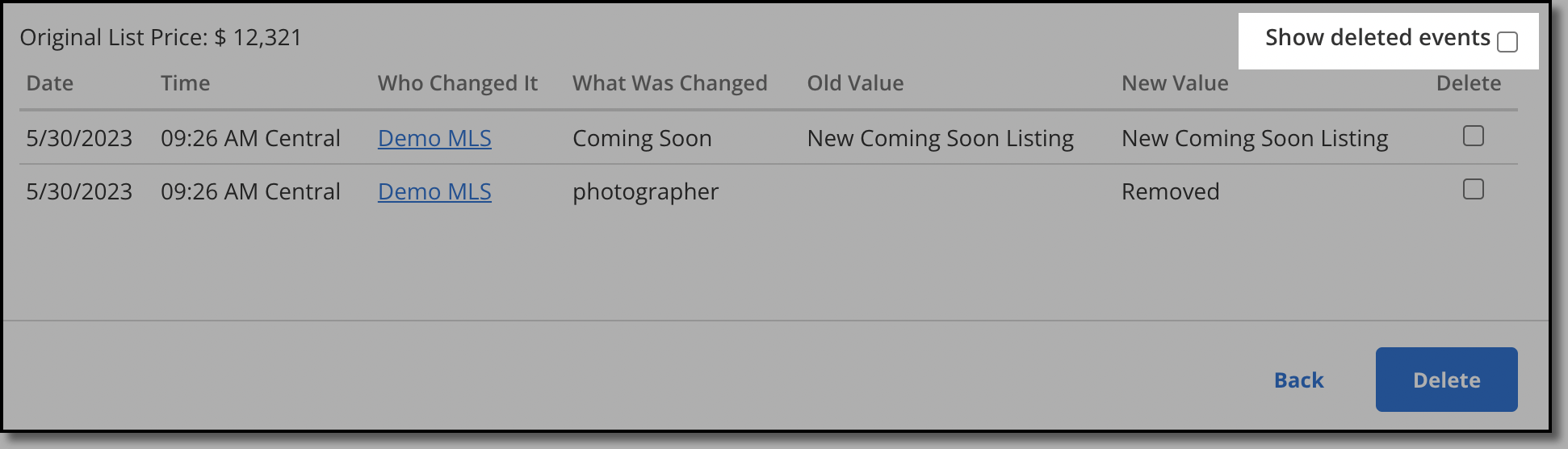
Press CTRL+F (Cmd+F on a Mac) and type "status" to find status change events. The following types of dates are relevant when calculating days on market.
Note
Make sure to use the dates entered by the member in listing data fields, not the dates when changes were made.
Date | Description |
|---|---|
Begin Date | The date when the listing originally became Active in the MLS. |
End Date | The date when the listing most recently went off the market (or the current date, for an Active listing). |
Off Market Dates | A date when the on-market listing changed to an off-market status during its lifecycle, such as Pending Date or Under Contract Date. |
On-Market Dates | A date when the off-market listing changed to an on-market status during its lifecycle, such as Fallthrough Date. |
Verify DOM Calculation
Generally, DOM is calculated by subtracting the number of days off market from the number of days on market for a listing. To verify DOM, you will need to calculate these two numbers using information from the listing's history.
Important
To understand exactly how DOM is calculated in your MLS, it is necessary to be familiar with the related MLS settings. Because many of these settings are visible only to FBS staff, contact the Flexmls Customer Success team (cpr@flexmls.com) if you have questions.
Use the following procedure to double-check the DOM for a listing.
Verify that the on-market and off-market dates are set correctly for the listing. Selecting the wrong date will cause DOM to be incorrect.
If the dates are correct, calculate the overall days on market between the begin date and end date for the listing. (We recommend using an online date calculator such as timeanddate.com to make this easier.)
If your MLS subtracts days off market from DOM, determine whether the listing went off the market and back on again during its lifespan. Calculate the number of days for each interval that the listing was off market.
Subtract the total days off market from the overall DOM number.
Note
If the listing is currently in an off-market status such as Expired, days off market will be subtracted from DOM when the listing changes to an Active status or a final status such as Closed or Canceled.
What If DOM Is a Negative Number?
Negative DOM can be a sign of a problem, but it can also be an expected result of the DOM calculation. For example, if your MLS allows users to enter dates in the past, negative DOM can occur. If a listing spends more time in off-market statuses than on-market statuses, and your MLS subtracts days off market from DOM, negative DOM can also result.
Adjust Days Off Market
If allowed by MLS rules, and if days off market are subtracted from DOM, the administrator can manually adjust days on market by changing the value in the Days Off Market field for a listing. Open the listing in edit mode, click Listing Information, click the Main Fields tab, and locate the Days Off Market field. When you save the listing, the days on market number will be updated accordingly.