Complete MCP Server Setup in Claude
To complete the MCP server setup in Claude, refer to the following steps:
Log into Claude with your credentials.
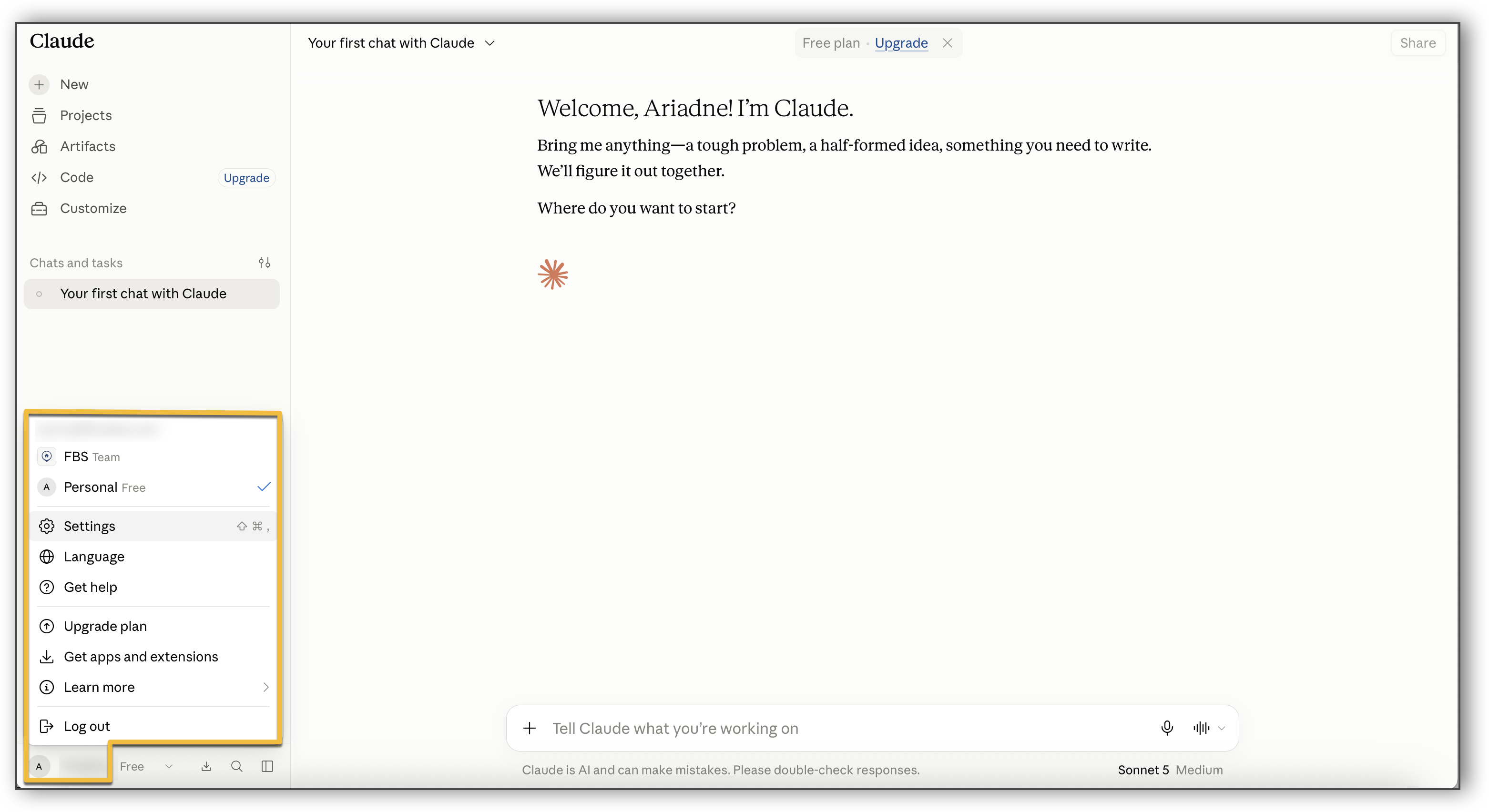
Click your username at the bottom left corner. Then, click Settings.
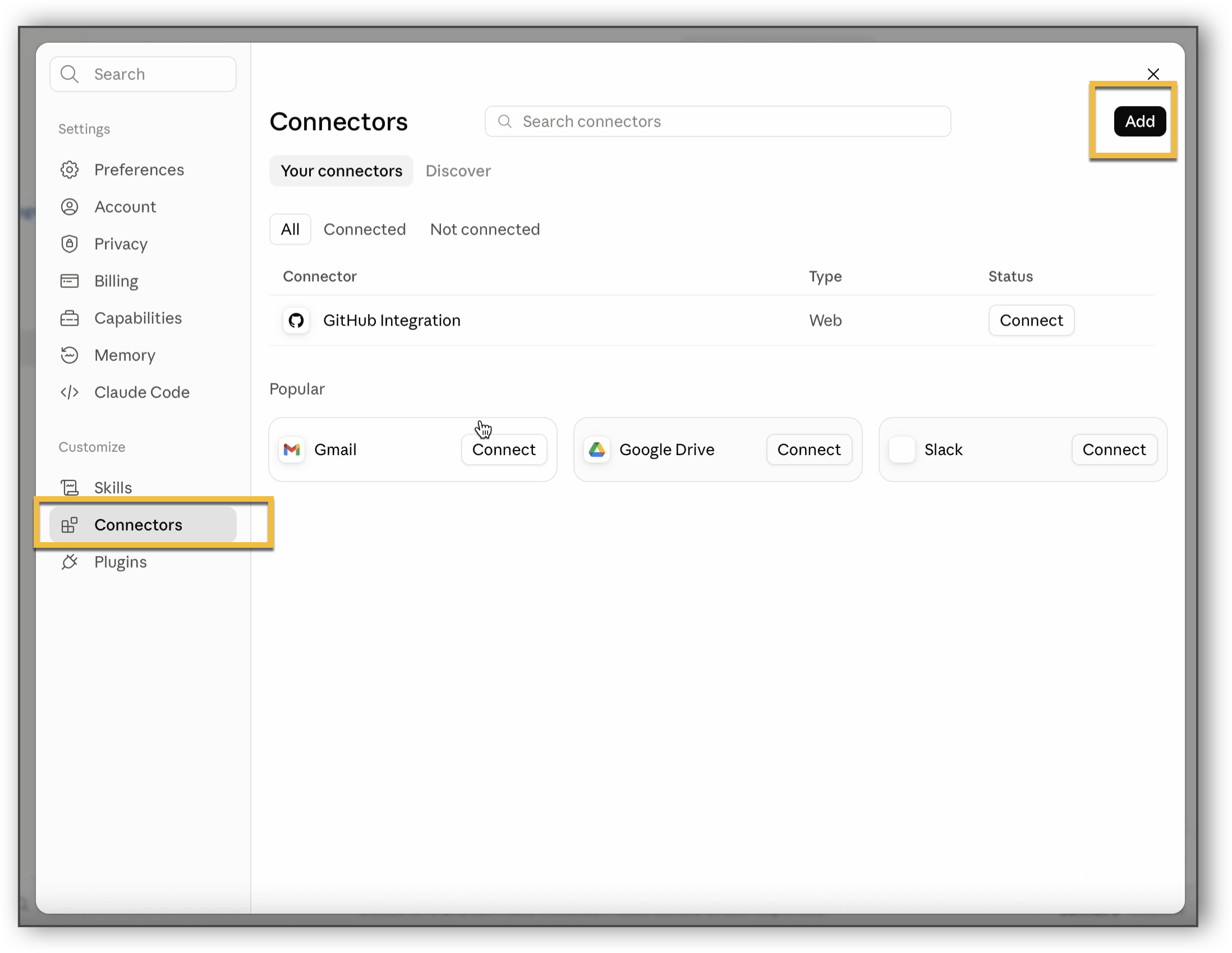
Under Customize, click Connectors. Then, click Add.
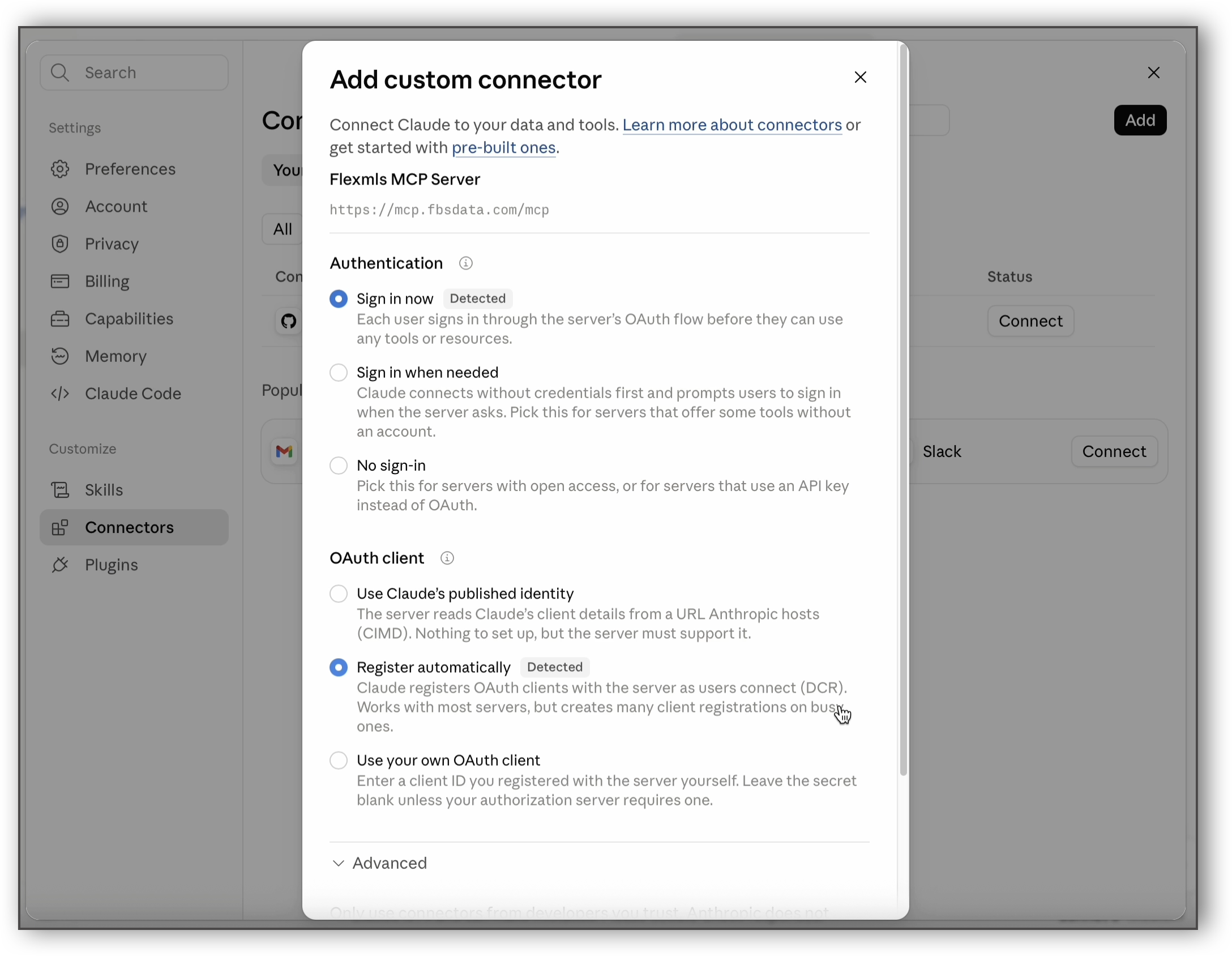
Enter a name for your connector and enter the Flexmls MCP server URL: https://mcp.fbsdata.com/mcp
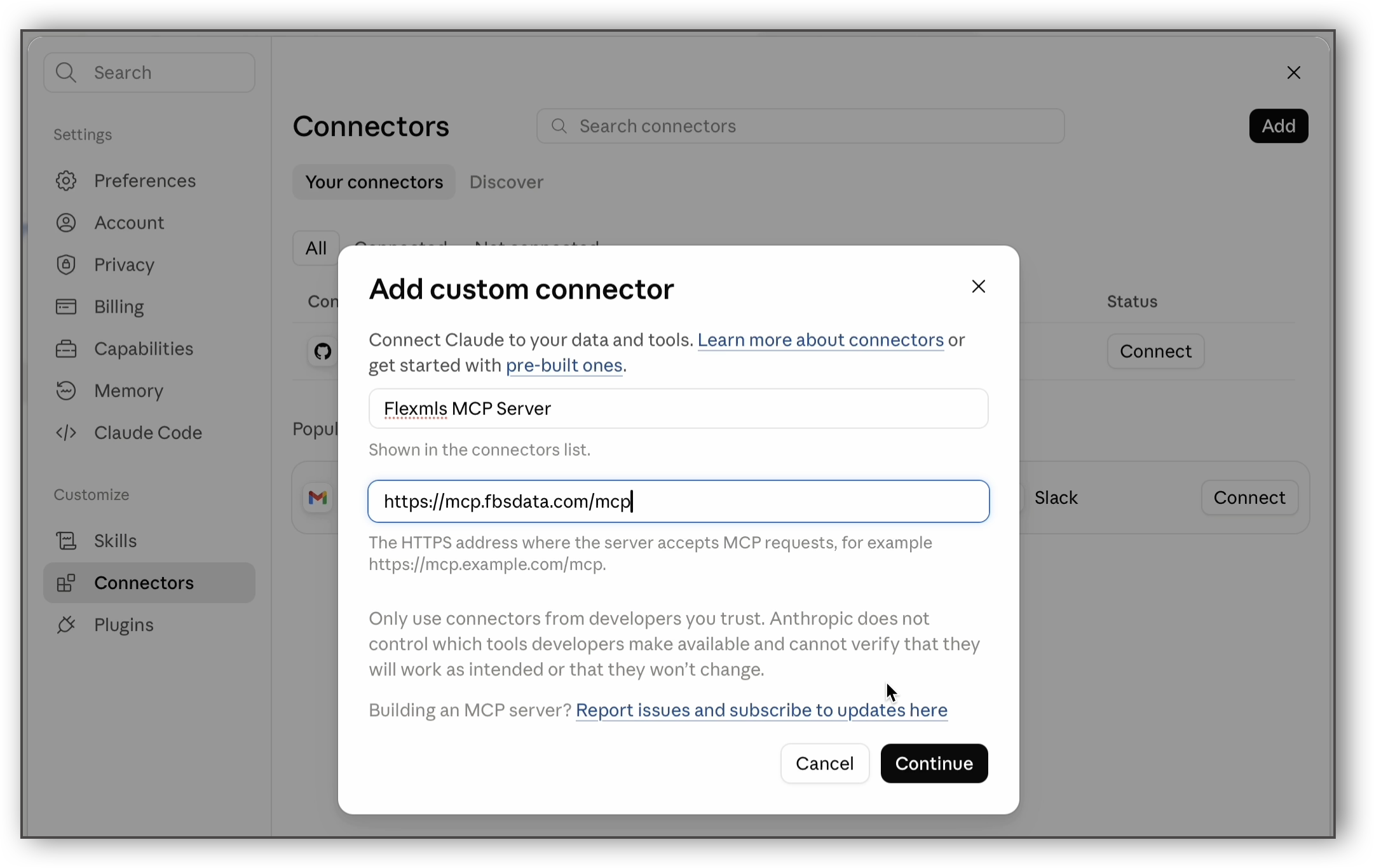
Click Continue. Then, scroll down and click Add in the Add Custom Connector pop-up window.
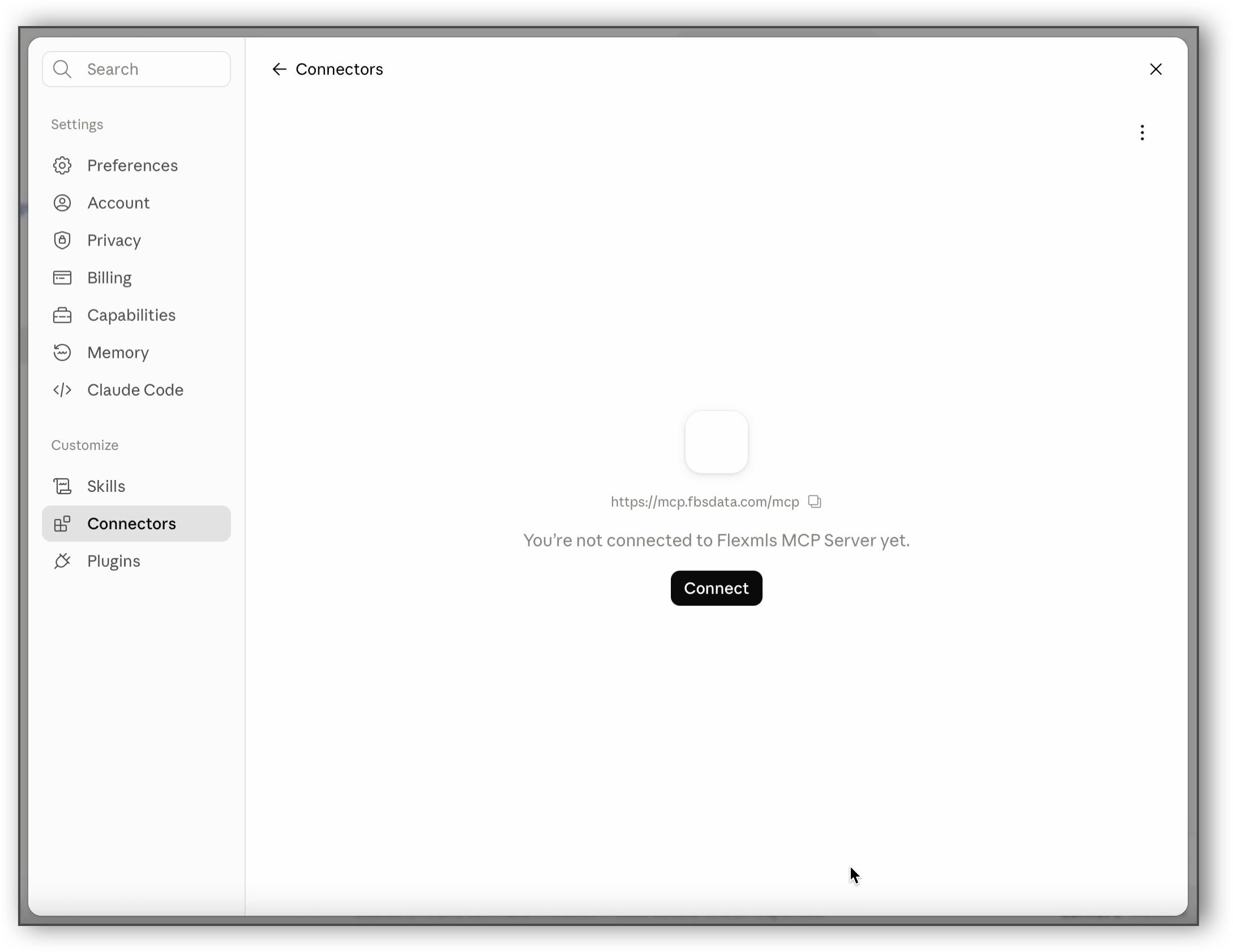
Click Connect to connect to the MCP server.
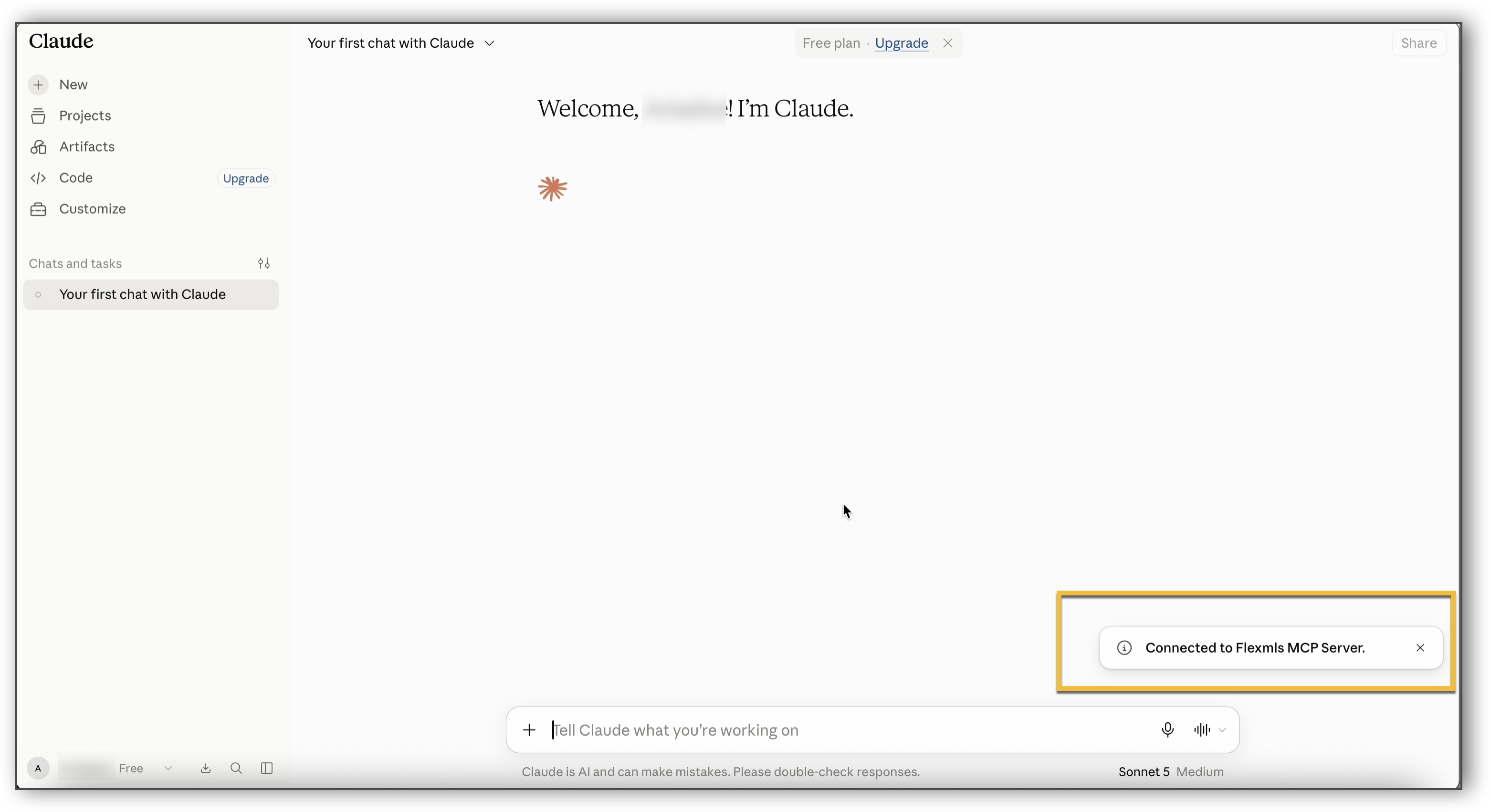
Once connected, a confirmation message will pop-up.
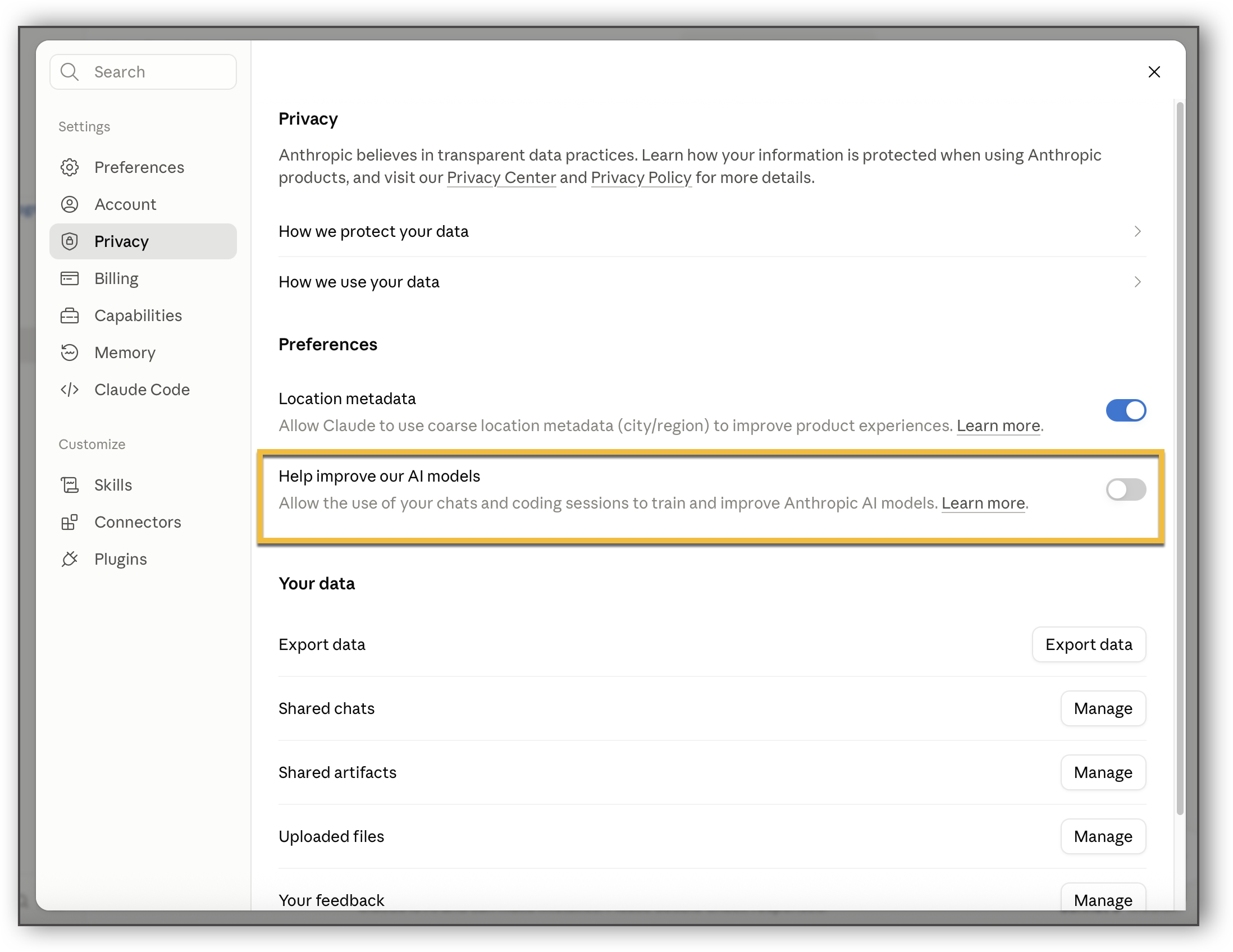
We recommend that you disable any settings that store your data in the AI client of your choice. To turn off data storage in Claude, complete the following steps:
Click your username at the bottom left corner. Then, click Settings.
Under Settings, click Privacy. Then, use the toggle to disable the "Help improve our AI models" setting.