Admin Email Routing
Click Admin Email Routing under General on the Admin menu to assign the email addresses that will receive notification emails sent to the MLS. You can assign different email addresses to different categories of MLS notifications. Any email address on the MLS profile will be available as a routing option. If the MLS includes multiple associations, you can specify notification email addresses for each association.
Some categories correspond to specific MLS settings. Other categories relate to the Gumshoe Settings found under the Member Tracking Report. If a category is not used by the MLS in the MLS settings, it can be left blank.
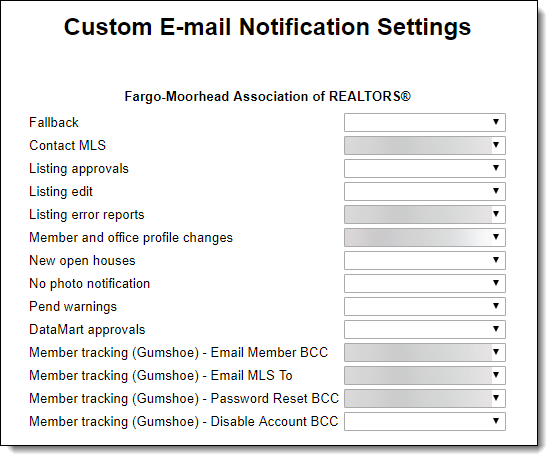
The following notification categories are available:
Fallback – Select the email address that will be used for any categories that are left blank. If the Fallback category is left blank, then the MLSs primary email address will be used for any categories that are left blank.
If there are multiple associations, each association can have its own Fallback email address. All blank options for that association will be routed to the association's Fallback address. If an association's Fallback option is blank, then the email notifications will be routed to the MLS email address for that category. If the MLS category is also blank, the Fallback address for the MLS will receive the notification emails. If the MLS has no Fallback address, then the emails will be routed to the primary email address for the MLS.
Contact MLS - If the MLS setting Display Contact MLS button next to Help button is set to ON, select the email address where notifications will be routed when users click Contact MLS.
Listing approvals - If the MLS setting Email MLS when Approving/Rejecting Listings is set to ON, select the email address where notifications will be routed for listing approval/rejection.
Listing edit - If the MLS setting Send an email to the MLS whenever a listing is edited is set to ON, select the email address where notifications will be routed when listings are edited.
Listing error reports - If the MLS setting Send an email with the Listing Error report to the primary email address for the following logins is set to MLS, select the email address where listing error report notifications will be routed.
Member and office profile changes - If any of the following MLS settings are set to ON, select the email address where profile changes will be routed.
Email Primary Association or MLS when agent changes system name
Email Primary Association or MLS when agent changes primary address
Email Primary Association or MLS when agent changes home address
Email Primary Association or MLS when agent changes primary phone number
Email Primary Association or MLS when agent changes primary email address
Email Primary Association or MLS when agent changes primary web address
Email Primary Association or MLS when an office changes system name
Email Primary Association or MLS when an office changes primary address
Email Primary Association or MLS when an office changes primary phone number
Email Primary Association or MLS when an office changes primary email address
Email Primary Association or MLS when an office changes primary web address
New open houses - Notifications to the selected email address
New open houses – If the MLS setting Email MLS when a new open house is added is set to ON, select the email address where new open house notifications will be routed.
No photo notification - If the MLS setting Require a minimum of one listing photo is set to anything other than Never, and the MLS option From begin date, automatically take action on listings that do not have at least one photo loaded is set to Email MLS, select the email address where No Photo notifications will be routed.
Pend warnings - If the MLS Setting Copy pended warning emails to listing agent's MLS is set to ON, select the email address where Pended Warning notifications will be routed.
DataMart approvals – Select the email address where Spark DataMart approval notifications will be routed.
Member tracking (Gumshoe) - Email Member BCC - If Enable Automatic Warning Emails to Members and BCC an MLS staff email address are both selected in the Gumshoe settings for the Member Tracking Report, select the email address to include in the BCC line when Warning notifications are sent.
Member tracking (Gumshoe) - Email MLS To - If Enable Automatic Warning Emails to Members and Enable Email Notifications to MLS Staff are both selected in the Gumshoe settings for the Member Tracking Report, staff can take a specific action after a set number of emails have been sent to a member. Select the email address where MLS staff notifications will be routed.
Member tracking (Gumshoe) - Password Reset BCC - If Enable Automatic Warning Emails to Members and Enable Automatic Password Reset are both selected in the Gumshoe settings for the Member Tracking Report, select the email address to include in the BCC line when Password Reset notifications are sent.
Member tracking (Gumshoe) - Disable Account BCC - If Enable Automatic Warning Emails to Members and Enable Automatic Account Disable are both selected in the Gumshoe settings for the Member Tracking Report, select the email address to include in the BCC line when Account Disable notifications are sent.