Default Map
Click Default Map under General on the Admin menu to set the map area that displays when no listings are present. For example, the default area would appear when beginning a map search or when viewing the map by clicking Flexmls Maps on the menu.
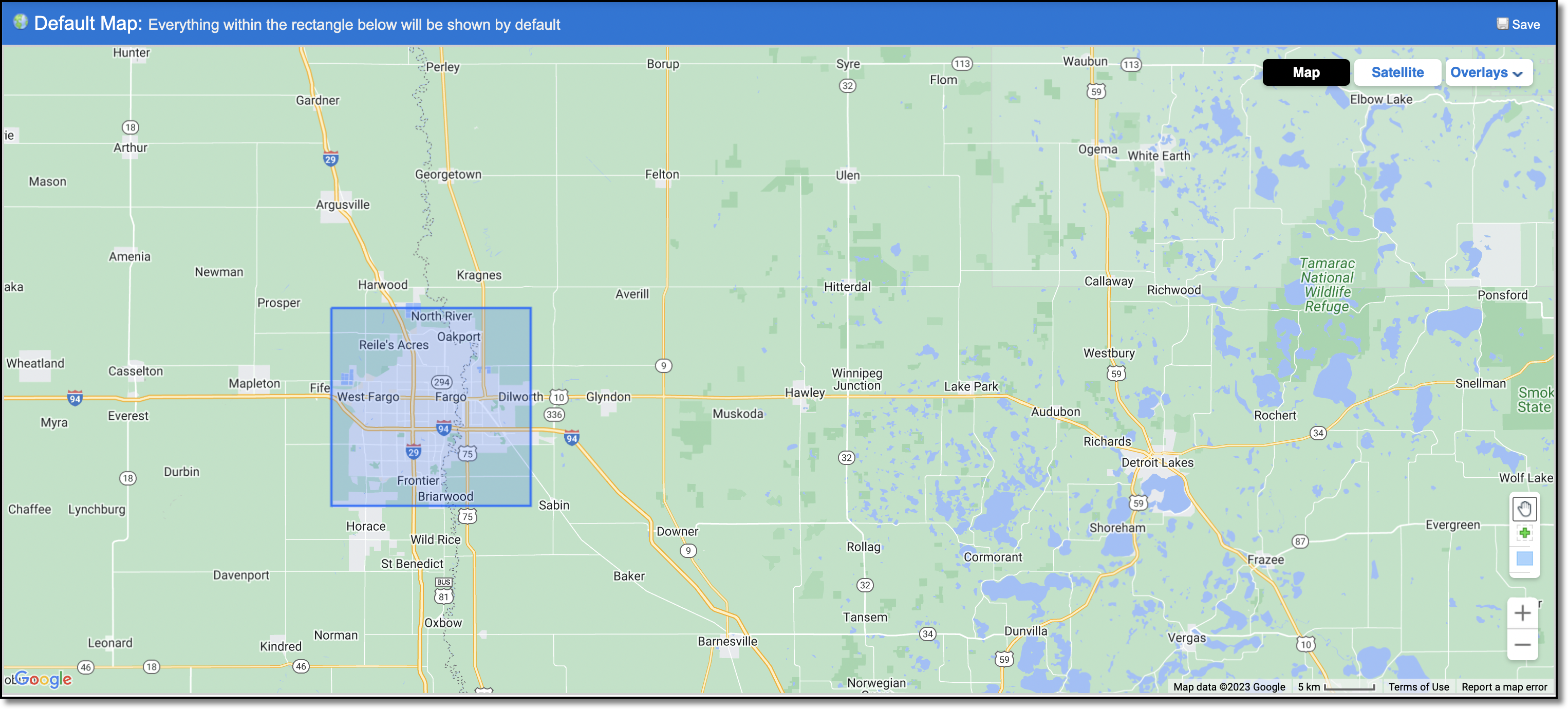
Adjust the map to the zoom level and location that you want to use, then click to select the rectangle tool at the bottom of the map. Click on the map to define the first corner of the rectangle, then move the mouse (without holding down the mouse button) to highlight the area to use as the default. Click again to complete the rectangle. If you make a mistake, click on the rectangle tool and draw a new rectangle or click the Reset button at the upper right. Click Save to save the default map area.