Contingent Status Overview
Contingent statuses are used to indicate that an offer has been accepted on a listing, but certain conditions must be met before the final sale. For example, the sale may be contingent on a home inspection or the sale of the buyer's existing home. When the conditions are met, the listing changes to Pending or Closed status. If the conditions are not met, the contract may "fall through," making the listing Active again.
In Flexmls, contingent statuses are typically sub-statuses of either Active or Pending. The following table summarizes the differences between Active and Pending contingent listings.
Note
This table describes the typical contingency setup. Your MLS may be configured differently than indicated here.
Active with Contingency | Pending with Contingency | |
|---|---|---|
Included in feeds | Yes | Yes |
Under Contract Date required | No | Yes |
Days on Market continue to accrue | Yes | No |
Expire on expiration date | Yes | No |
Active with Contingency (AWC) statuses are a sub-status of Active, and listings are treated similarly to Active listings. DOM is counted, because listings are considered to be on the market, and listings expire on their expiration dates. AWC typically means that showings continue and that backup offers will be accepted.
Apply an Active with Contingency Status
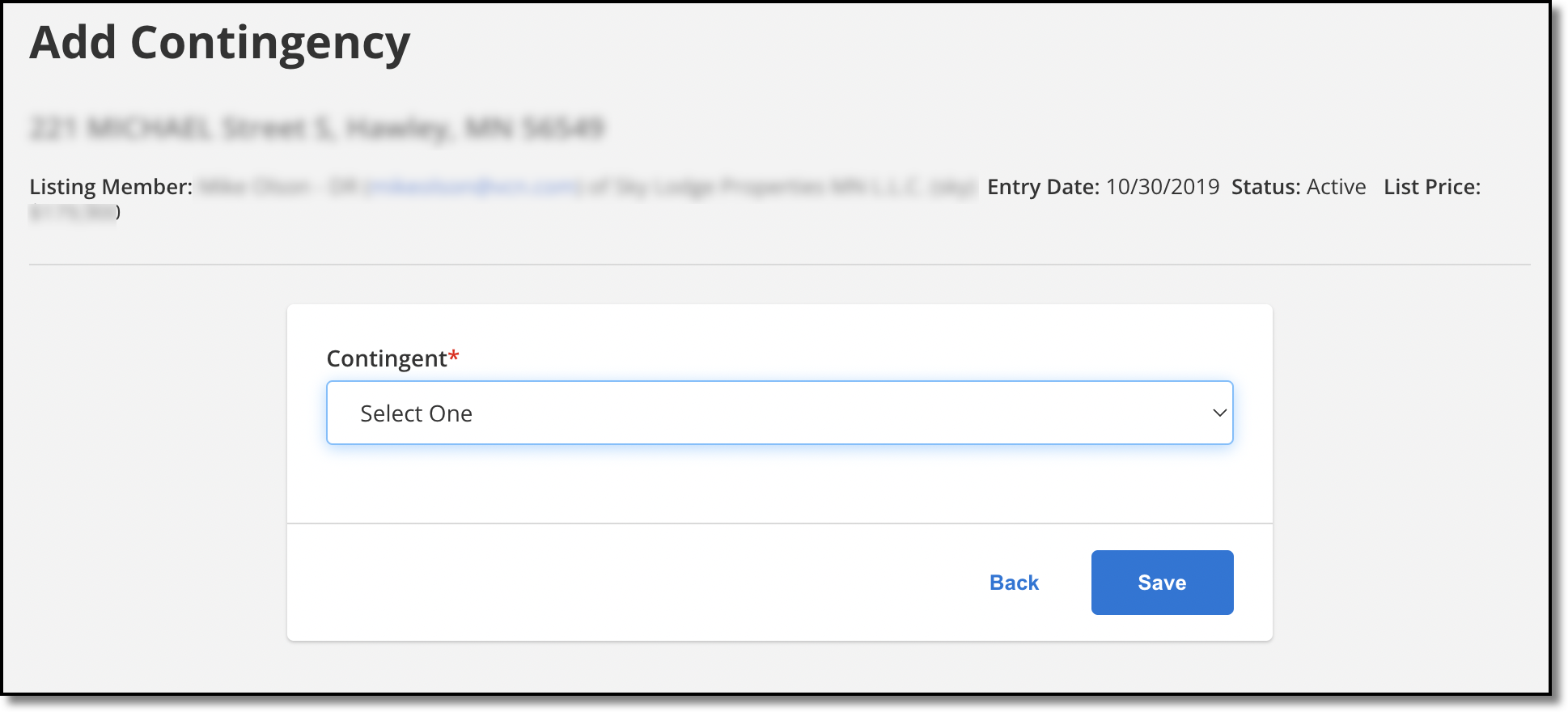
Active contingencies are applied via the Add Contingency button on the Change Listing page. (In your MLS, the word "Contingency" in the link may be replaced with the name of the contingent status. For example, the link might say Add Active Under Contract.)
Note
The Add Contingency button changes dynamically. If a listing already has a contingency, the button will say Remove Contingency. If the listing does not have a contingency, the button will be an Add Contingency button.
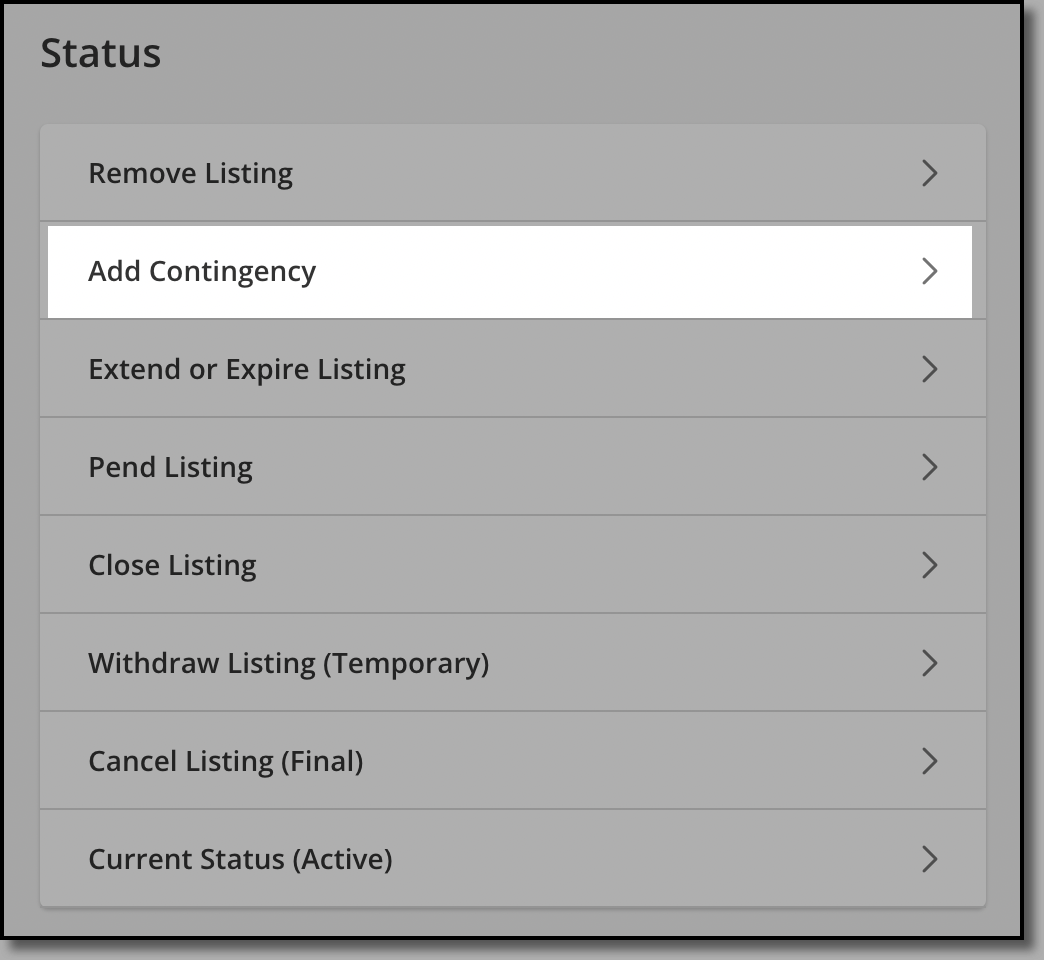
On the Add Contingency page, fill out the required fields and click Save. (Required fields will vary by MLS, but typically the Contingency field will appear.)
Change the Status of an Active Contingent Listing
To change or remove the contingency from an Active Contingent listing, click Remove Contingency. If you remove the contingency, contingent fields will be cleared, and the listing will change to Active status.
Note
The Remove Contingency button changes dynamically. If a listing already has a contingency, the button will say Remove Contingency. If the listing does not have a contingency, the button will be an Add Contingency button.
If contingencies have been met and the listing goes under contract, click Pend Listing.
If the purchase agreement has been fulfilled, click Close Listing.
Pending with Contingency (PWC) statuses are a sub-status of Pending, and listings are treated similarly to Pending listings. DOM is not counted, because listings are considered to be off the market, and listings do not expire. PWC typically means that the home is no longer being shown, and no additional offers are being accepted.
Note
Days on Market calculations depend on your MLS settings. If DOM continues to accrue on Pending listings in your MLS, DOM will also accrue on PWC listings.
Apply a Pending with Contingency Status
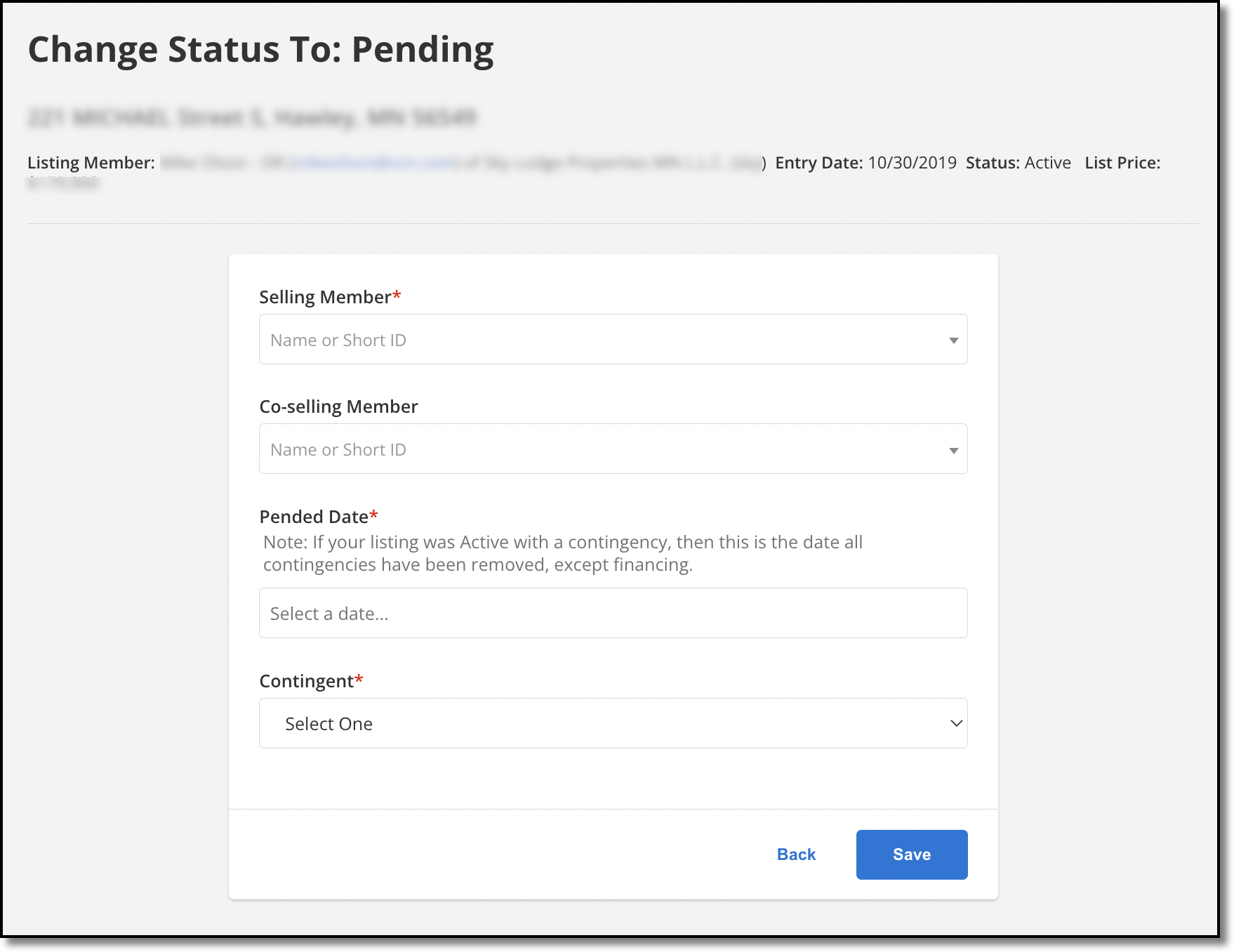
Pending contingencies are applied via the Pend Listing link on the Change Listing page.
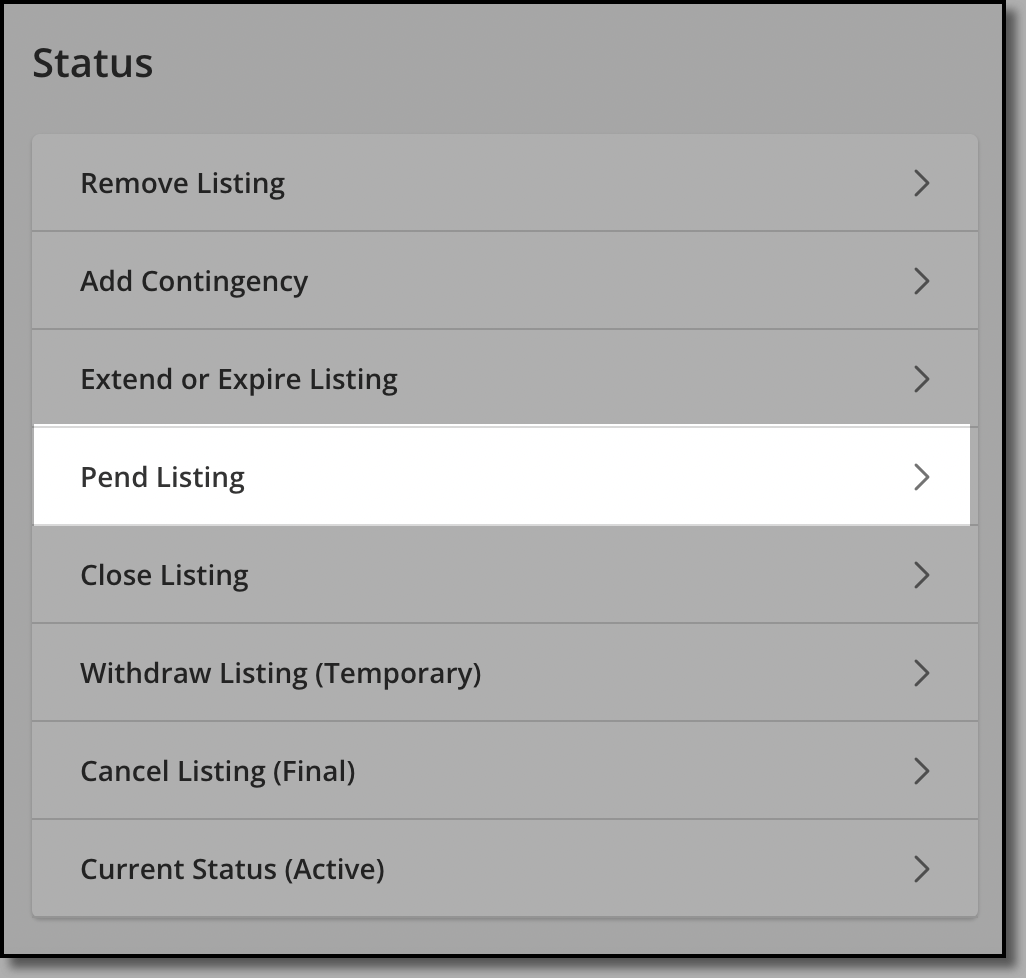
On the Change Status To: Pending page, fill out the required fields and click Save. (Required fields are marked with a red asterisk.)
Change the Status of a Pending Contingent Listing
To change or remove the contingency from a Pending Contingent listing, click Edit Current Status: Pending. If you remove the contingency, contingent fields will be cleared, and the listing will change to Pending status.
If the contract has fallen through and the listing is going back on the market, click Back on Market (Active) on the Change Listing page. Enter a Back on Market Date (sometimes called Fallthrough Date), if available in your MLS. Contingent fields will be cleared, and the listing will change to Active status.
If contingencies have been met and the purchase agreement has been fulfilled, click Close Listing.
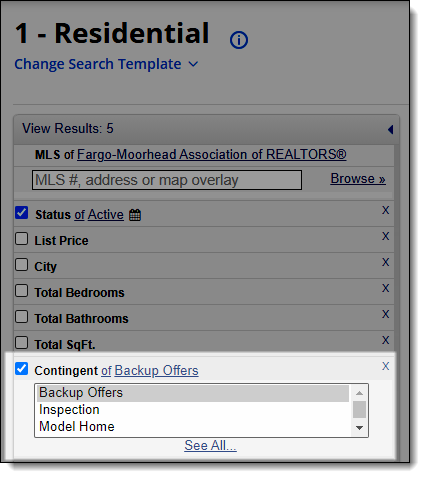
In Quick Search, both Active and Pending contingencies can appear as separate statuses in the list.
Active with Contingency | Pending with Contingency | ||
|---|---|---|---|
|
|
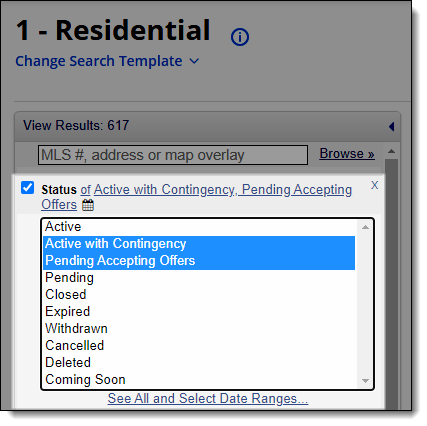
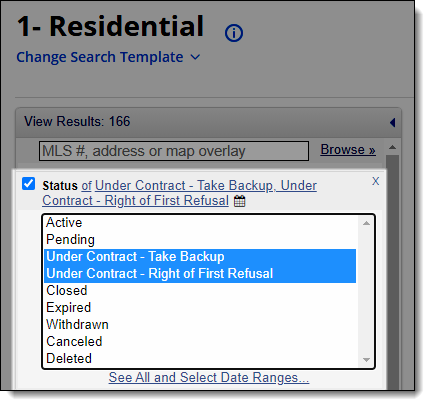
If contingencies don't appear as separate statuses, you can add the Contingent field to the search.