Define Listing Documents
The MLS administrator can define a list of document types that can be uploaded to listings.
Create a Detail Group for Documents
First, a detail group must be created with the type Document List. If this detail group does not exist in your MLS, contact the Flexmls Customer Success team (cpr@flexmls.com) to have it created.
Create a Document List
After the document group has been set up, use it to define the list of documents that can be uploaded to listings.
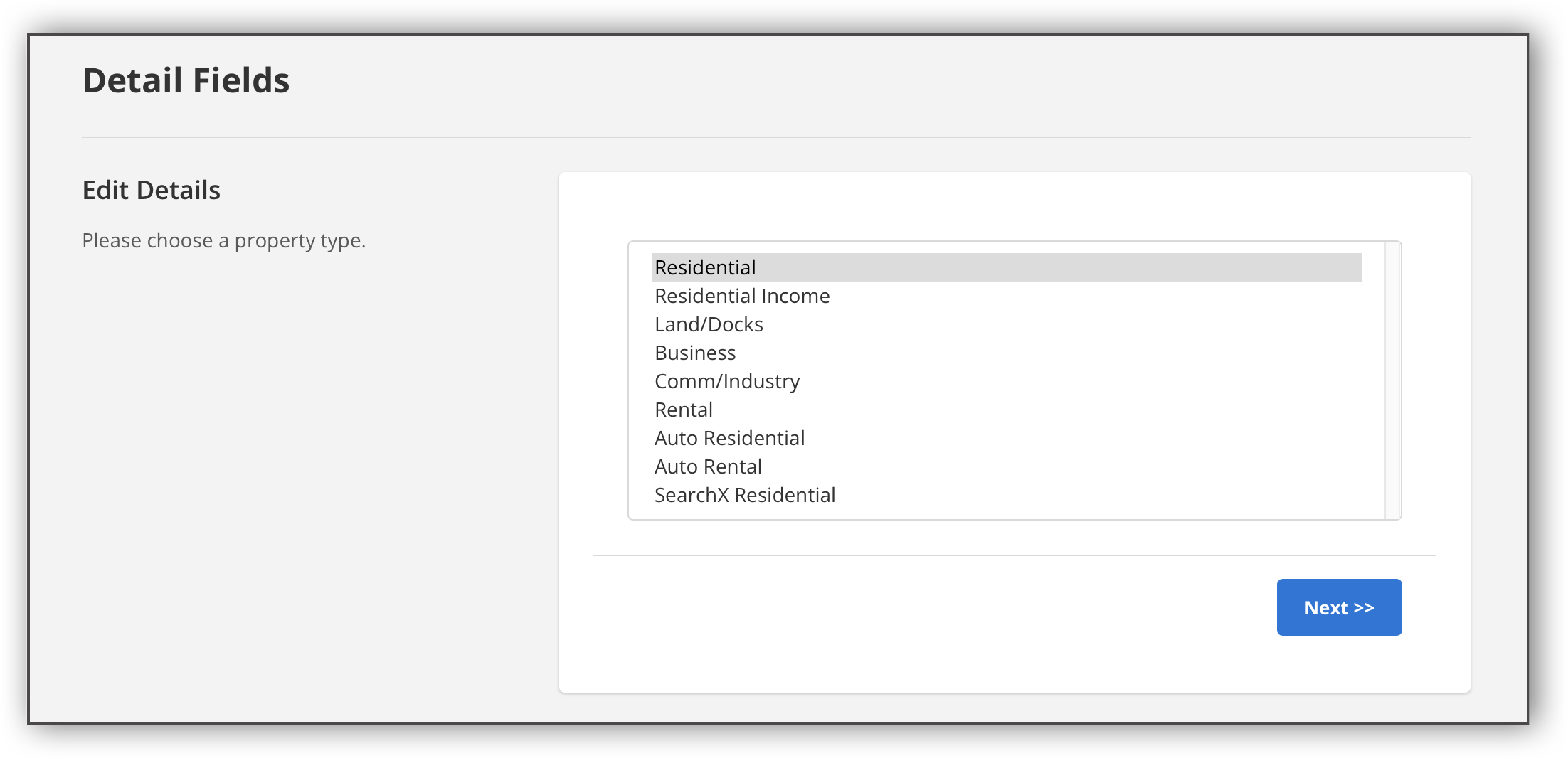
Click Fields - Details under Details on the Admin menu. Select a property type and click Next.
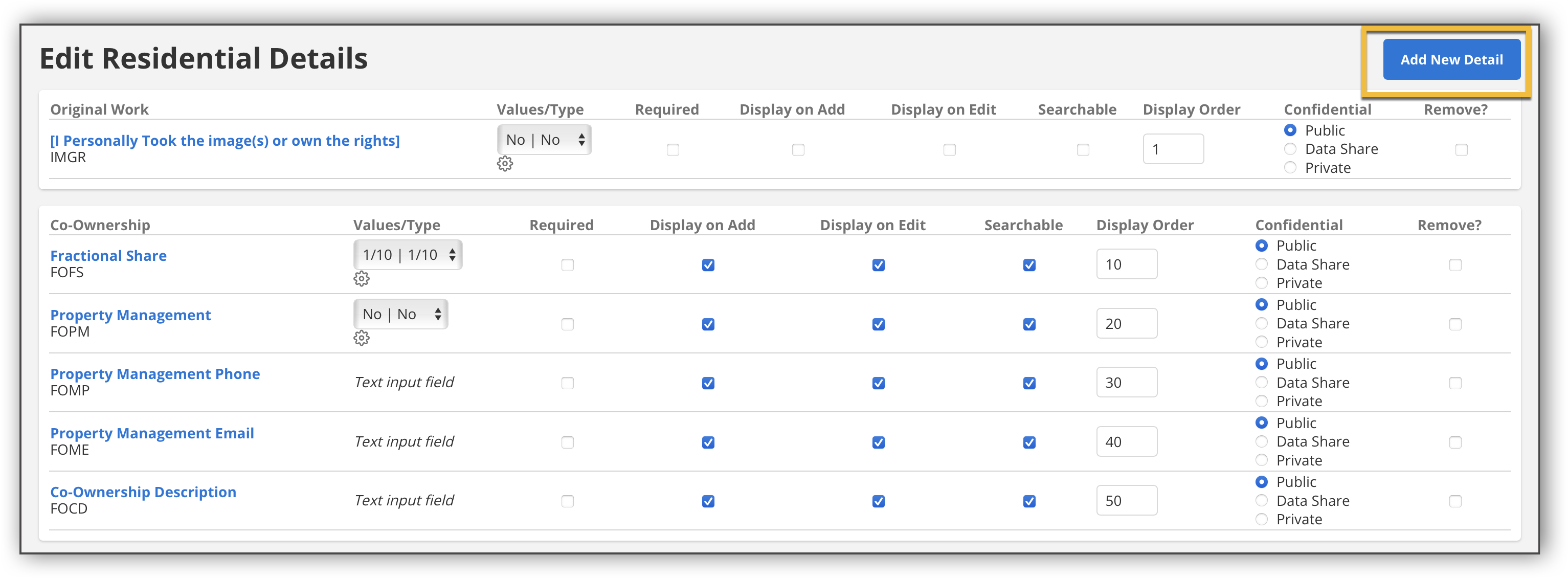
Click the Add New Detail button.
On the Add New Detail page, enter the document name in the Code, Description, and IDX Description fields.
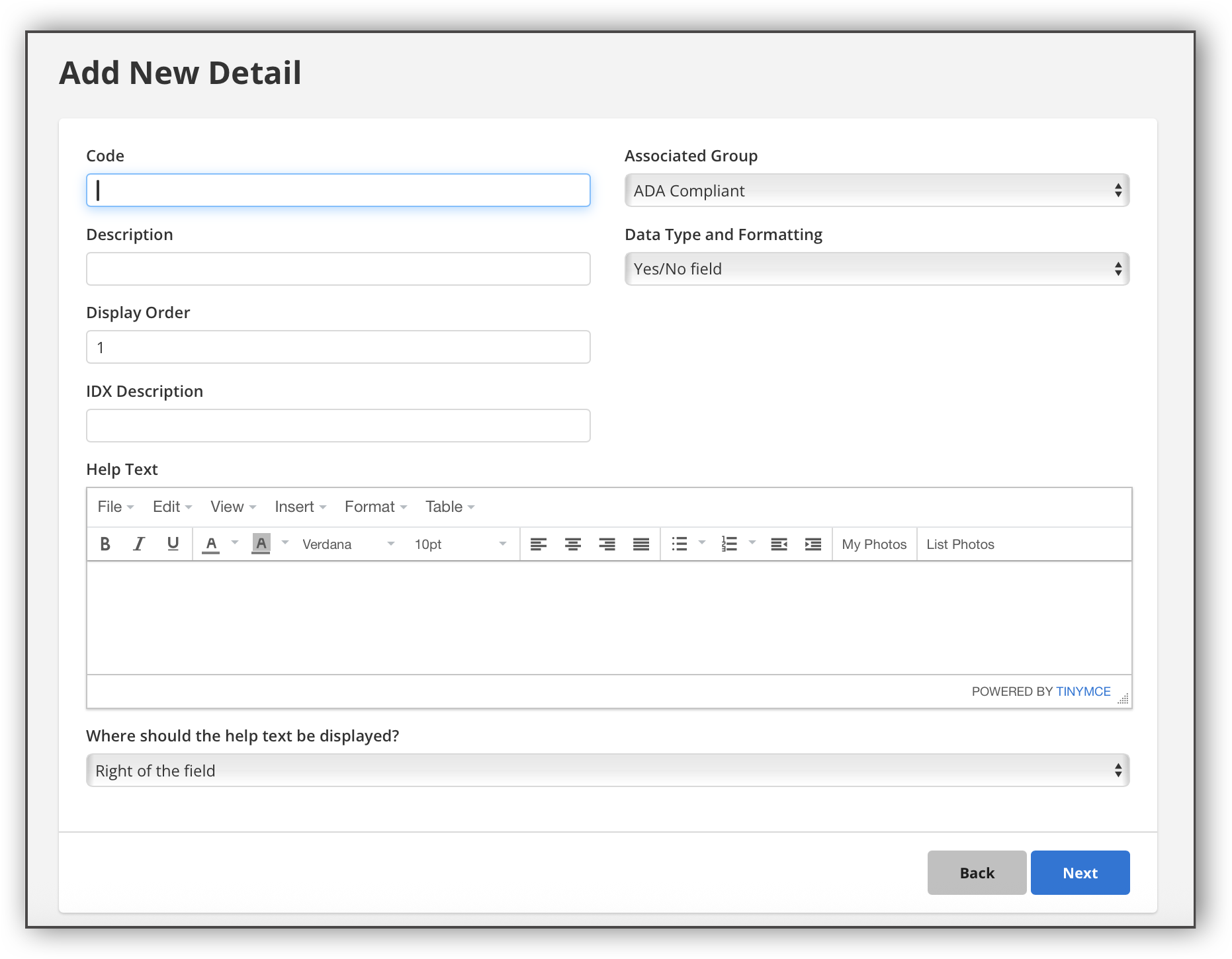
From the Associated Group list, select the document detail group.
In the Data Type and Formatting field, select Yes/No field.
Click Next at the bottom of the page to save the document.
Repeat this process for every property type and every document you want to add to the list.
Define Privacy Level and Set Required Documents
After you've set up the document list, you can set the privacy level of each document. You can also specify which documents are required before a listing can be added to the MLS.
Note
You can also set a default privacy level for documents that are not on the MLS-defined list, and you can specify whether users are allowed to change the default privacy level when uploading a document. These settings are in the Documents section of the MLS Settings page.
Click Fields - Details under Details on the Admin menu. Select a property type and click Next.
On the Edit Details page, scroll to locate the document detail group.
For each document, we recommend that you clear the checkboxes for Display on Add, Display on Edit, and Searchable.
In the Required column, specify whether members are required to upload the document before adding a listing to the MLS.

Not Required - The document is not required.
Conditionally Required (lead paint disclosure) - The document is required if the property was built before 1978.
Always Required - The document is required in order to complete the listing. Listings without the required document will not become available in the MLS until the requirement is met.
Note
A listing will not go live until all the required documents are uploaded. If a user attempts to change a listing where a required document is missing, they will see a message that says, "Before this listing becomes active on the MLS, you must upload the required documents for this listing."
In the Confidential column on the right side of the page, select the privacy level for each document.

The following options are available:
Public: The document can appear on public websites, in public or private email messages (if your MLS allows private emails), and to any MLS that your MLS shares data with.
Data Share: The document is available to data share MLSs, but is otherwise considered private.
Private: The document cannot be viewed on public websites, in public email messages, or through MLS data sharing.
Private System only list agent: The document can be viewed only by members who have edit permissions for the listing.
When finished, click the Update button at the bottom of the page.
The following MLS settings are related to this feature. To view or change your MLS settings, go to the MLS Settings page under General on the Admin menu.
Documents with names that do not match those the MLS has defined are by default - When a user uploads a document to a listing, they can type the name of the document or select from the predefined list for the MLS. This setting controls the default confidentiality level for documents uploaded to a listing, if the document name does not match those defined by the MLS. The following options are available:
Public - By default, documents are visible to any MLS members, portal users, and anonymous web visitors.
Private - By default, documents are visible only to members in the same MLS as the listing.
MLS data share - By default, documents are visible to members in the same MLS as the listing and to members of MLSs who participate in data sharing with the listing’s MLS. Documents are not visible on public-facing websites.
Selection Required - No default setting. The listing agent must select whether confidentiality level of the uploaded document will be set to Public, Private, or MLS data share.
Let the user select the confidentiality level of each listing document - If set to anything other than Off, the user will have the option to set the confidentiality level of listing documents. If set to Off, the confidentiality level of documents cannot be changed by the user.
The default value for unknown documents is set by the preference Documents with names that do not match those the MLS has defined are by default. For documents in the predefined document list, the default confidentiality may not be changed. To change the confidentiality, contact Customer Success at cpr@flexmls.com.
Using a setting other than Off, you can include the following confidentiality options for users to choose from:
Public and private only
Public and MLS data share only
Public, MLS data share, and private
Public, MLS data share, private, and edit permission
Public, private, and edit permission
Documents marked as Edit Permission are visible only to those who have permission to edit the listing; they are hidden from other members of the MLS, and from any public-facing sites.
Document upload: allow both PNG image and PDF documents (ON) or only allow PDF documents (OFF) - This setting controls the format of the documents that can be loaded into listings. If your MLS allows both PNG files and PDF files to be loaded as documents, turn the setting On. If only PDF files are accepted, turn the setting Off.
Allow upload of documents to listings - When set to On, members can upload documents to their listings. When set to Off, the Document option on the edit page does not appear, and members do not have the ability to upload documents.
Allow emailing of private documents - This setting controls the options for emailing private documents. The following options are available:
With private reports only - Private documents can be emailed only with private reports. Only public documents can be emailed with public reports.
With private or public reports - Private documents can be emailed with either private or public reports. When a member is emailing or printing reports, they will be able to select which documents to include.
Cannot be emailed - Private documents cannot be emailed with any report, whether public or private.