Gumshoe Settings
The Gumshoe Detective settings enable you to automatically escalate cases where the Gumshoe Detective report has found a high probability of account sharing. There are four levels of automatic escalation to choose from:
Send a warning email to inform the member that their account is in violation of the rules of your MLS.
Notify MLS staff after a few warning emails have been sent with no change in behavior. This option serves as a prompt to perform a manual action, such as calling the member, sending a letter, or manually disabling the account.
Automatically reset the member's password and send an email with the new password.
Automatically disable the account and send the member an email to notify them that their access to Flexmls has been disabled.
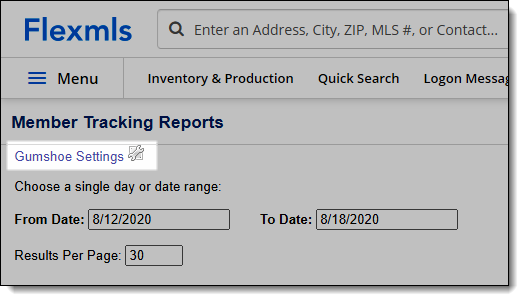
To access Gumshoe Settings, click Reports - Users under Users on the Admin menu. Select Member Tracking Report, then click the Gumshoe Settings link at the top of the page.
Select this option to automatically send warning emails to members who are in violation of the usage rules of your MLS. If you enable this option, use the following settings to customize the emails according to the needs of your MLS.
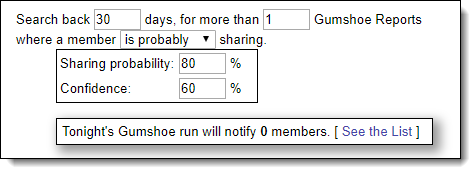
Search back ____ days
Specify the number of days in the past to search for violations. The longer the time period, the more accurate the results. Additionally, a member will receive only one warning for the specified time period. For example, if you set this option to 30 days, a maximum of 30 reports will be found, and the member will receive a maximum of one email for that 30-day time period.
for more than ____ Gumshoe Reports
Specify the minimum number of Gumshoe reports in the specified time period that should result in a warning. If a member has fewer reports than this number, they will not receive a warning email. For example, if this number is set to 15, a member with 10 Gumshoe reports in a 30-day period will not receive a warning. Setting this option to a higher number will warn fewer members. Setting this option to a lower number will potentially warn more members.
where a member _____ sharing.
Select the level of sharing that should be reported. The options include: is very likely, is likely, is probably, might be, and could be.
Each selection in the list corresponds to a sharing probability and confidence level. Changing your selection in the list will change the percentages below. Likewise, if you change the percentages, the system will automatically select the phrase (is likely, is very likely, etc.) that best matches the given percentages.
Sharing probability ____ %
Specify the minimum sharing probability that should result in a warning. In our example with 30 days and 15 reports, a lenient starting point would be a setting of 80 percent. For a member to receive a warning, they must be reported one out of every two days, with an 80% sharing probability score on each report. Accounts that do not satisfy these parameters will not receive the warning.
Confidence ____ %
Specify a confidence level. The confidence level shows how accurate we believe the sharing probability is, based on the amount of data available. If the confidence level is 50%, not much data was available to create the sharing score. If the confidence level is higher, more data is available and the user is more likely to be sharing.
Tonight's Gumshoe run will notify ____ members.
When you change the settings, the preview will update to show how many members currently fit the criteria. Click See the List to view the members who will receive an email on the next Gumshoe run. Click on a username to see the historical Gumshoe report for that member.
The example numbers are very conservative. Finding the right settings for your MLS will take a bit of experimentation. We recommend that you raise the number of days and lower the number of reports and probability until a few members show in the list. Then click on each person and determine if the historical behavior seems abnormal. In general, if a person is reported three times in the course of a month with a minimum sharing probability over 50 percent, their activity is suspicious and probably deserves a warning email.
Email template
You can configure the automatic warning email that is sent to members. For more information about the available options, see Gumshoe Email Templates.
Select this option to send MLS staff an email notification after a few warnings have been sent to a member. This option can serve as a prompt to perform a manual action, such as calling the member, sending a letter, or manually disabling the account. The setting Enable Automatic Warning Emails to Members must be selected to use this option.
Specify the number of emails that must be sent to the member before a notification is sent to MLS staff. The notification will contain the member's name, email, and phone number. Additionally, the email will include a link to the historical Gumshoe reports for that member.
To specify the MLS staff email address, click the link Click here to configure Email routing.
Select this option to automatically reset the password on a member's account if they are in violation of the usage rules of your MLS. You can reset the password after a few warnings have been sent, or immediately when the first warning email is sent. A notification of the password reset will be emailed to the member. The setting Enable Automatic Warning Emails to Members must be selected to use this option.
If you enable this option, specify the following settings according to the needs of your MLS.
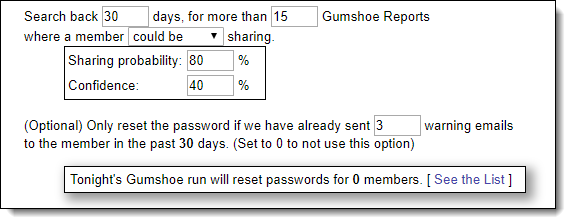
Search back ____ days
Specify the number of days in the past to search for violations.
for more than ____ Gumshoe Reports
Specify the minimum number of Gumshoe reports in the specified time period that should result in a password reset. If a member has fewer reports than this number, their password will not be reset. For example, if this number is set to 15, a member with 10 Gumshoe reports in a 30-day period will not have their password reset. Setting this option to a higher number will reset the passwords of fewer members. Setting this option to a lower number will potentially reset the passwords of more members.
where a member _____ sharing.
Select the level of sharing that should be reported. The options include: is very likely, is likely, is probably, might be, and could be.
Each selection in the list corresponds to a sharing probability and confidence level. Changing your selection in the list will change the percentages below. Likewise, if you change the percentages, the system will automatically select the phrase (is likely, is very likely, etc.) that best matches the given percentages.
Sharing probability ____ %
Specify the minimum sharing probability that should result in a password reset. For example, if the previous options are set to 30 days and 15 reports, a lenient starting point would be a setting of 80 percent. For a member's password to be reset, they must be reported one out of every two days, with an 80% sharing probability score on each report. Accounts that do not satisfy these parameters will not have their passwords reset.
Confidence ____ %
Specify a confidence level. The confidence level shows how accurate we believe the sharing probability is, based on the amount of data available. If the confidence level is 50%, not much data was available to create the sharing score. If the confidence level is higher, more data is available and the user is more likely to be sharing.
(Optional) Only reset the password if we have already sent ____ warning emails to the member in the past ____ days. (Set to 0 to not use this option)
Specify the number of warning emails that must be sent before a member's password is reset. If this option is set to a number greater than zero, passwords will be reset only on accounts that have received at least the specified number of emails. If the option is set to zero, this rule is not applied.
Tonight's Gumshoe run will reset passwords for ____ members.
When you change the settings, the preview will update to show how many members currently fit the criteria. Click See the List to view the members whose passwords will be reset on the next Gumshoe run. Click on a username to see the historical Gumshoe report for that member.
Email template
You can configure the password reset email that is sent to members. For more information about the available options, see Gumshoe Email Templates.
Select this option to automatically disable a member's account if they are in violation of the usage rules of your MLS. You can disable the account after a few warnings have been sent, or immediately when the first warning email is sent. A notification email will be sent to each member whose account has been disabled. When a member's Flexmls account is disabled, they also lose access to the Spark API. The setting Enable Automatic Warning Emails to Members must be selected to use this option.
Search back ____ days
Specify the number of days in the past to search for violations. We recommend setting this to a larger number than the automatic warning email criteria. (For example, if an automatic warning is set at 30 days, you may want to disable an account if it continues to receive warnings at 90 days.)
for more than ____ Gumshoe Reports
Specify the minimum number of Gumshoe reports in the specified time period that should result in a disabled account. If a member has fewer reports than this number, their account will not be disabled. For example, if this number is set to 15, a member with 10 Gumshoe reports in a 30-day period will not have their account disabled.
where a member _____ sharing.
Select the level of sharing that should be reported. The options include: is very likely, is likely, is probably, might be, and could be.
Each selection in the list corresponds to a sharing probability and confidence level. Changing your selection in the list will change the percentages below. Likewise, if you change the percentages, the system will automatically select the phrase (is likely, is very likely, etc.) that best matches the given percentages.
Sharing probability ____ %
Specify the minimum sharing probability that should result in a password reset. For example, if the previous options are set to 90 days and 45 reports, a lenient starting point would be a setting of 80 percent. For an account to be disabled, the member must be reported one out of every two days, with an 80% sharing probability score on each report. Accounts that do not satisfy these parameters will not have their passwords reset. Setting this option to a longer time period means that more users will match the criteria.
Confidence ____ %
Specify a confidence level. The confidence level shows how accurate we believe the sharing probability is, based on the amount of data available. If the confidence level is 50%, not much data was available to create the sharing score. If the confidence level is higher, more data is available and the user is more likely to be sharing.
(Optional) Only disable the account if we have already sent ____ warning emails to the member in the past ____ days. (Set to 0 to not use this option)
Specify the number of warning emails that must be sent before a member's account is disabled. If this option is set to a number greater than zero, only accounts that have received at least the specified number of emails will be disabled. If the option is set to zero, this rule is not applied.
Tonight's Gumshoe run will disable ____ members.
When you change the settings, the preview will update to show how many members currently fit the criteria. Click See the List to view the members whose accounts will be disabled on the next Gumshoe run. Click on a username to see the historical Gumshoe report for that member.
Email template
You can configure the notification email that is sent to members. For more information about the available options, see Gumshoe Email Templates.
You can customize the email templates that are used by Gumshoe features that send emails to members.
First, enter a From Name and From Address. If a member replies to a Gumshoe email, their response will be sent to the email address that you specify here. If you do not want to receive member replies, use the address noreply@flexmls.com. This address accepts emails and deletes them.
If needed, select to add a blind carbon copy (BCC) address to email notifications sent from Gumshoe. The BCC address will receive a copy of the emails sent from the system, but it will not be displayed on the member email. To specify the MLS email address that receives blind carbon copies, click the Configure email routing link to open the email settings for Gumshoe reports. For automatic warning emails, you can also send a carbon copy (CC) to the email address of the member's office.
Next, enter a subject line for the email. Try to use a phrase that will get the member's attention and won't be treated as spam. You can use template variables to personalize the subject line.
Use the editor to compose a body for the email. When Gumshoe sends a message, it can replace variables in the email template with specific member information, such as the member's full name or Flexmls username. The tag format is very similar to the tag format used by the Flexmls Custom Report Editor. Variable names must be in all upper case letters, surrounded by two sets of curly braces, like so: {{WORD}}. The following variables are available.
Variable | Description |
|---|---|
{{USERNAME}} | The member's Flexmls login name. |
{{FULLNAME}} | The member's first, middle, and last name. |
{{FIRSTNAME}} | The member's first name. |
{{MIDDLENAME}} | The member's middle name. |
{{LASTNAME}} | The member's last name. |
{{NRDSID}} | The member's NRDS ID number. |
{{EMAIL}} | The member email address where the message is being sent. |
{{PHONE}} | The member's phone number. |
{{ADDRESS}} | The member's mailing address. |
{{OFFICE.NAME}} | The name of the member's office. |
{{OFFICE.EMAIL}} | The office's email address. |
{{OFFICE.PHONE}} | The office's phone number. |
{{OFFICE.ADDRESS}} | The office's mailing address. |
{{GUMSHOE.FACTS}} | A bulleted list of Gumshoe report information about a user. |
{{GUMSHOE.PERCENT}} | The sharing probability setting for the email notification. |
{{GUMSHOE.CITIES}} | A comma-separated list of cities in the member's Gumshoe data. (Used in GUMSHOE.FACTS.) |
{{GUMSHOE.OS}} | The number of operating systems in the member's Gumshoe data. (Used in GUMSHOE.FACTS.) |
{{GUMSHOE.BROWSERS}} | The number of browsers in the member's Gumshoe data. (Used in GUMSHOE.FACTS.) |