Launch Dashboard
The Launch Dashboard provides a way to access MLS-provided apps and services to members in one single sign-on dashboard.
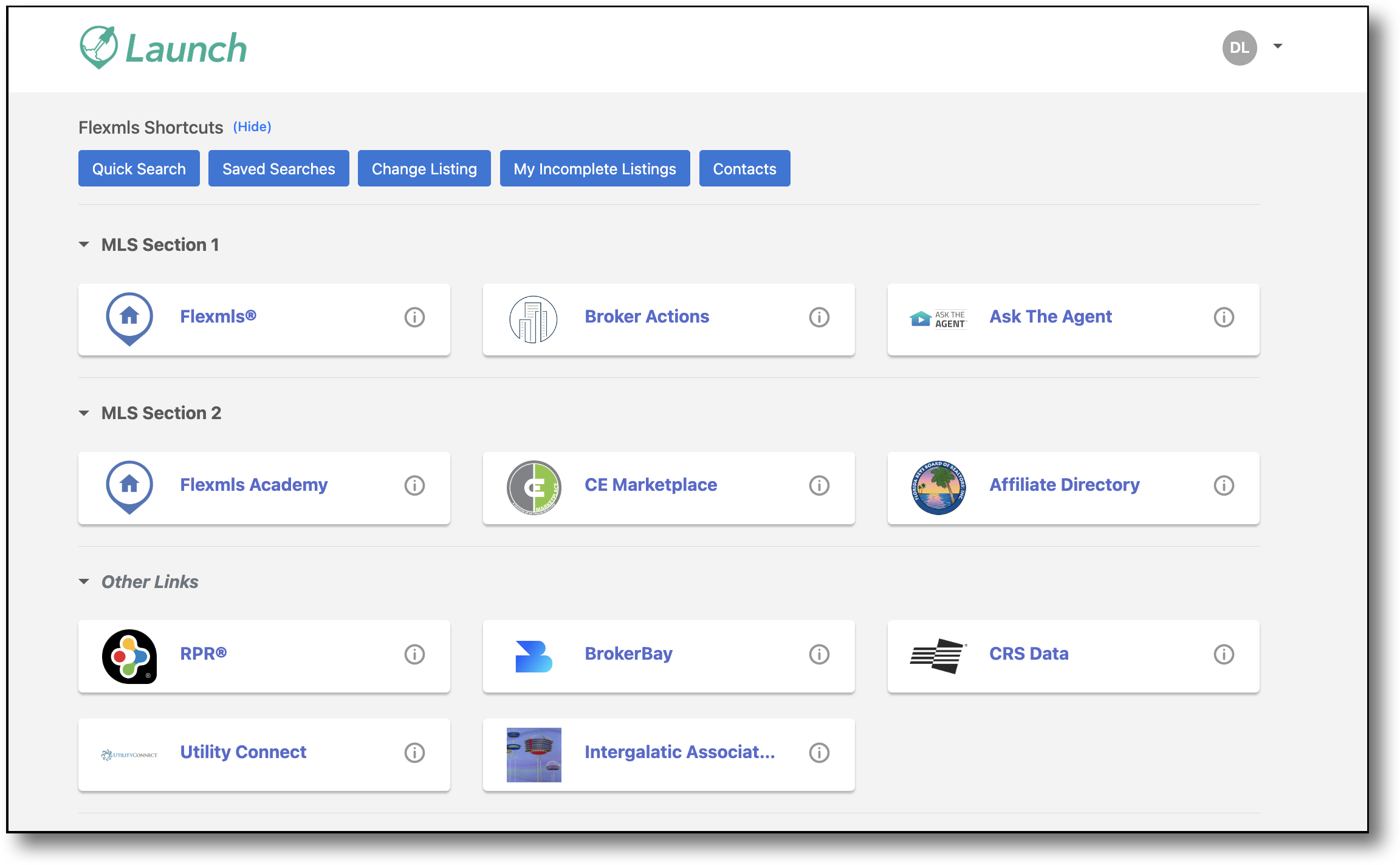
With the Launch Dashboard, you get:
Single Sign-On: The Launch Dashboard allows for a single sign-on for the day. With the single sign-on, you are able to navigate through all your MLS and Association services without needing to log in to each one separately. Simply click on the desired tile that corresponds to the app or service you want to access the resources you need.
Explore Comprehensive Services: Discover the full range of services provided by your MLS and Association. Click on the informational icon on any tile to learn about the offerings.
Stay Informed: Remain up to date with the latest news from your MLS and Association through informative pop-up messages.
Customize your Workspace: Tailor your dashboard to fit your preferences. Arrange the tiles on your screen in whatever order suits you best.
Flexmls Shortcuts: Five shortcuts, including links to Quick Search, Saved Searches, Change Listing, My Incomplete Listings, and Contact Management, take you directly to those screens in Flexmls without having to first navigate to Flexmls through its dashboard tile on Launch. If you don't want the shortcuts to display, you can select “hide” button, which will collapse the shortcuts section from the current view. Flexmls Shortcuts are currently only available on desktop.
MLS and Association Admins can view and export Launch usage statistics from the Activity Reports tab on the Admin page. This functionality can be used to evaluate app usage and improve ability to evaluate ROI on products offered.
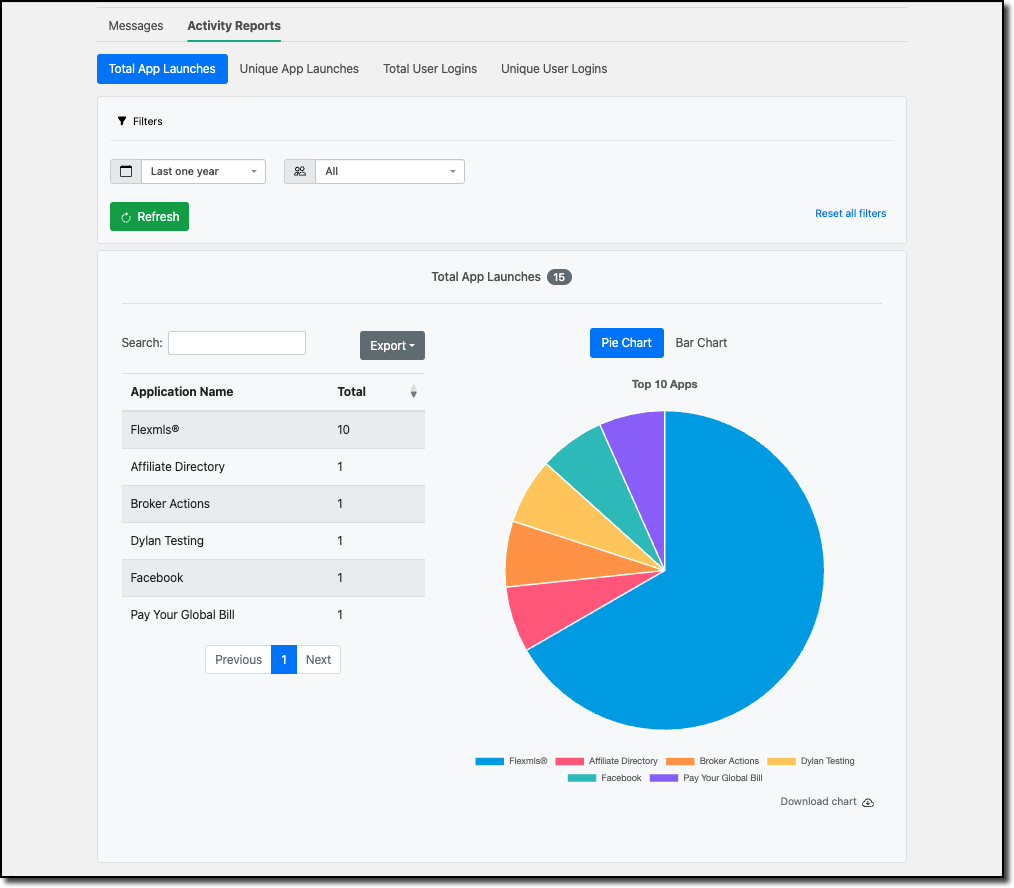
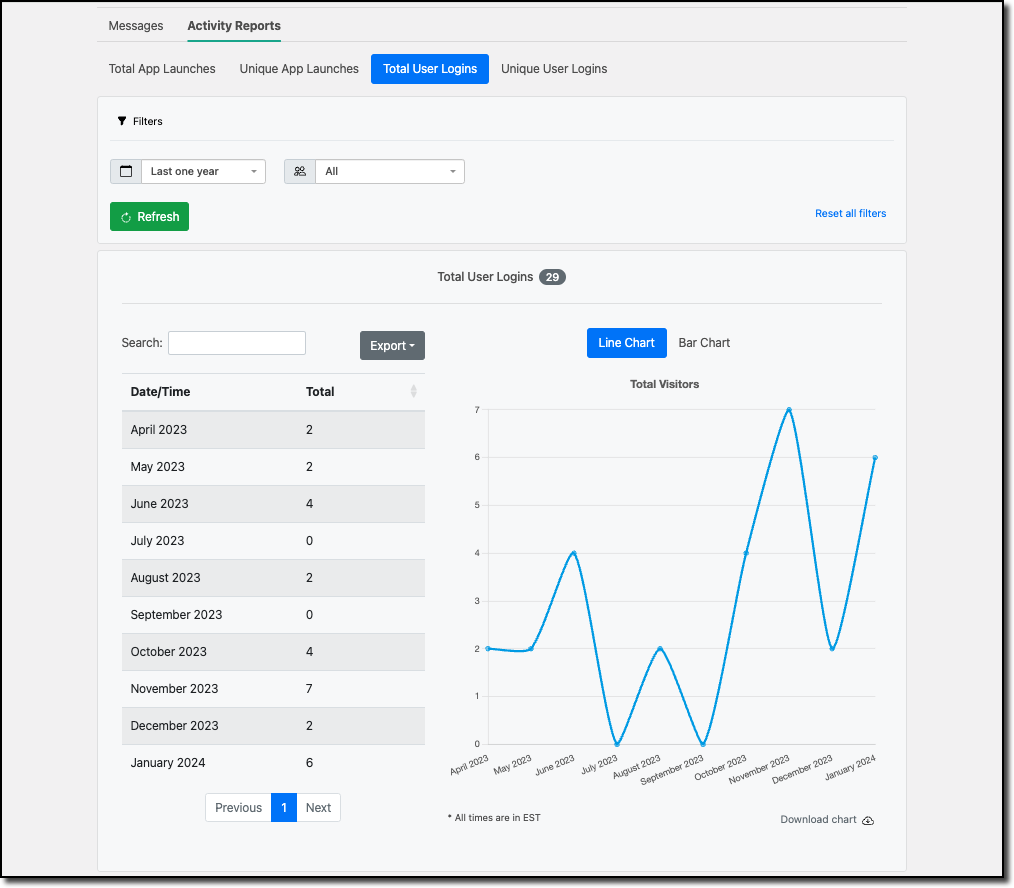
The usage data is broken down into four reports: Total App Launches, Unique App Launches, Total User Logins and Unique User Logins. You can filter the reports by time frame and member type, and you can export them in various formats. Timeframe filters include: today, last 24 hours, last 7 days, last 30 days, last 90 days, and last one year. Data can be exported as Excel, CSV, or PDF. You can also download visual charts (pie, bar, and line graphs).
To access these reports, click the profile icon in the upper right corner. Select Admin from the dropdown, and navigate to Activity Reports.
Note
In the reports, unique refers to each member’s activity being counted just once. For example, if a member has multiple app launches in the selected timeframe, they are counted as just one unique app launch.
Below are some sample reports:
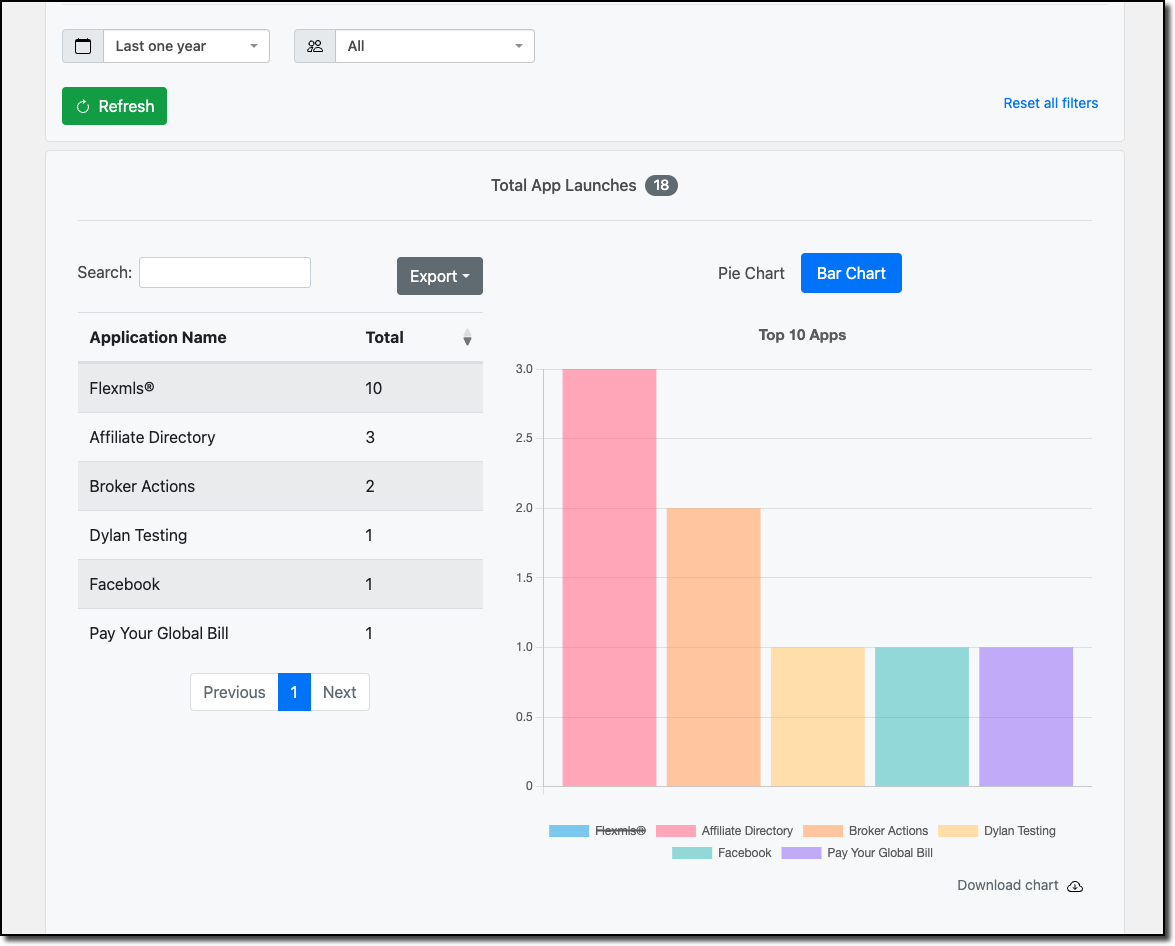
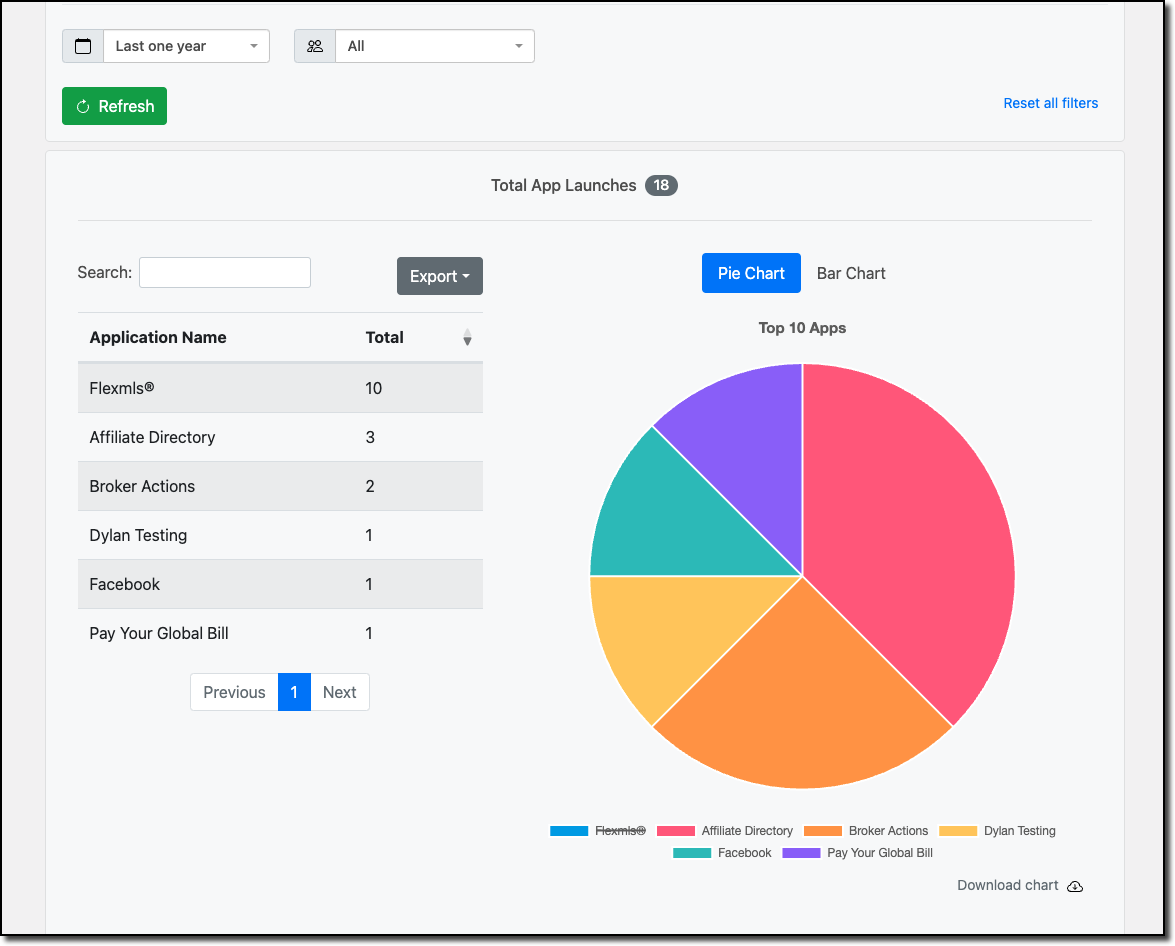
With the App Launch Stats, you can click the name of any app in the legend to remove it from the analysis.