Spark Template Manager
Use the Spark Template Manager to create custom templates when the built-in API roles do not meet your needs. When you assign an API key to a developer, the Spark API role determines the operations that can be performed and the data that is returned via that API key. For more information about the standard API roles, see Roles in the Spark Developer Documentation.
Note
Before creating custom templates, we encourage you to contact api-support@fbsdata.com to discuss your use case and confirm that a standard API role will not meet your needs.
If you need to create a custom template, you must use the RESO Web API. Custom templates cannot be used with the Spark API. For more information, see RESO Web API Overview and Spark API in the Spark Developer Documentation.
The Template Manager can also be used to view and export reports that show API fields and their corresponding field names in Flexmls, the Spark API, the RESO Web API, and RETS.
Create or Edit an API Template
To access the Template Manager, as the MLS root user, sign in to the Spark Platform administrator dashboard at https://sparkplatform.com/appstore/admin.
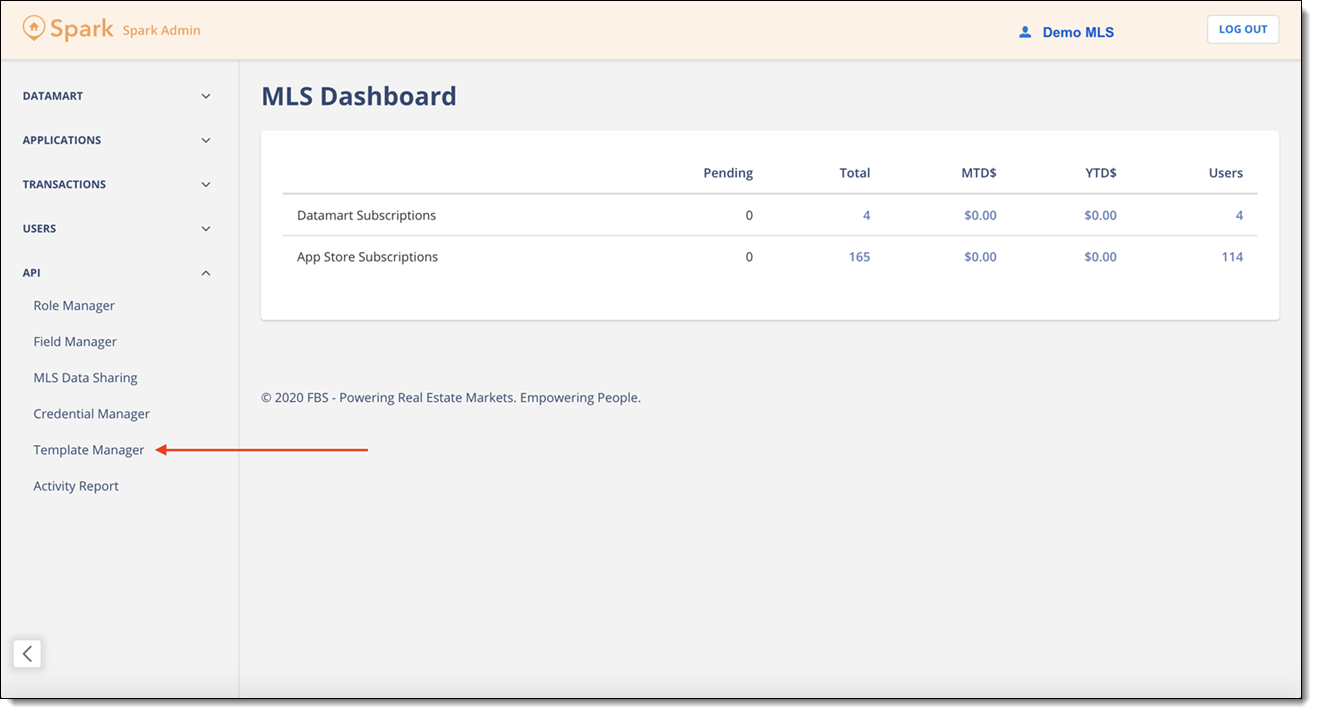
Click the API link in the navigation pane, then click Template Manager. The Template Manager page shows existing templates that have been configured for your MLS.
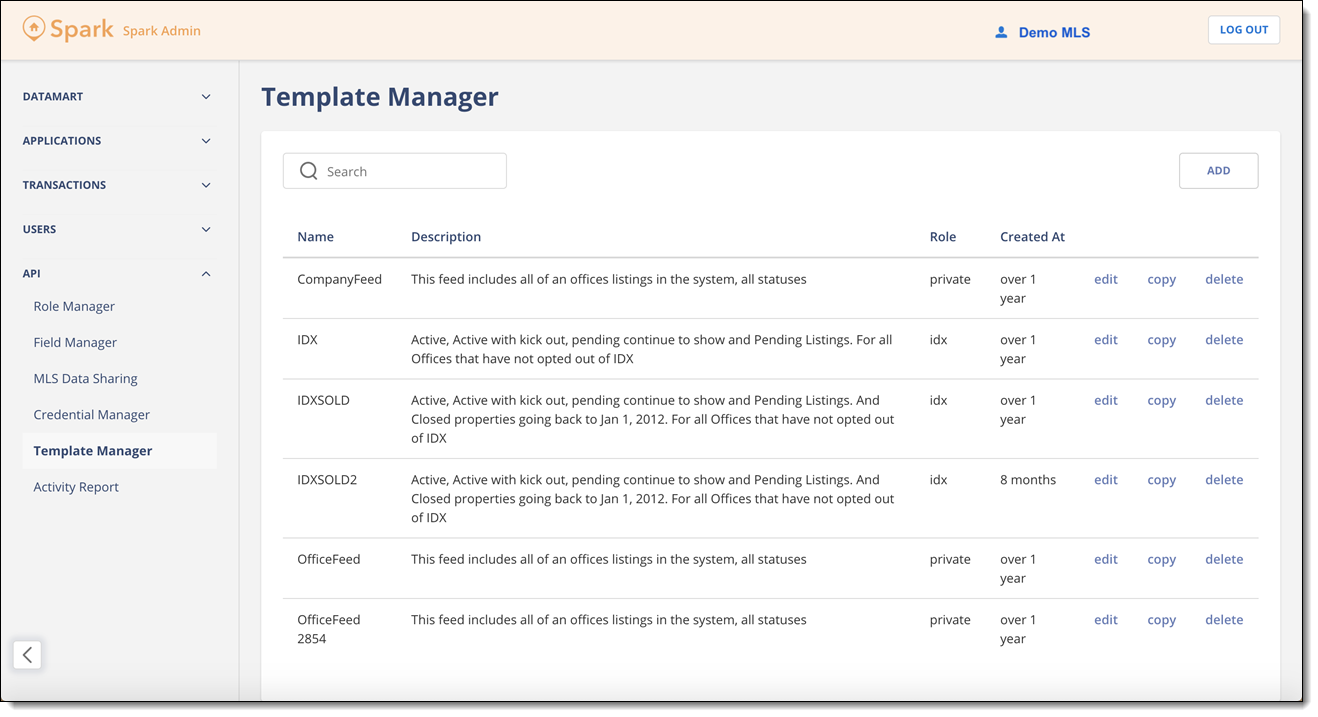
To create a new template, click the Add button in the upper right corner. To edit, delete, or make a new copy of an existing template, click the applicable link on the right-hand side of the page.
On the General tab, enter or change general information about the template.
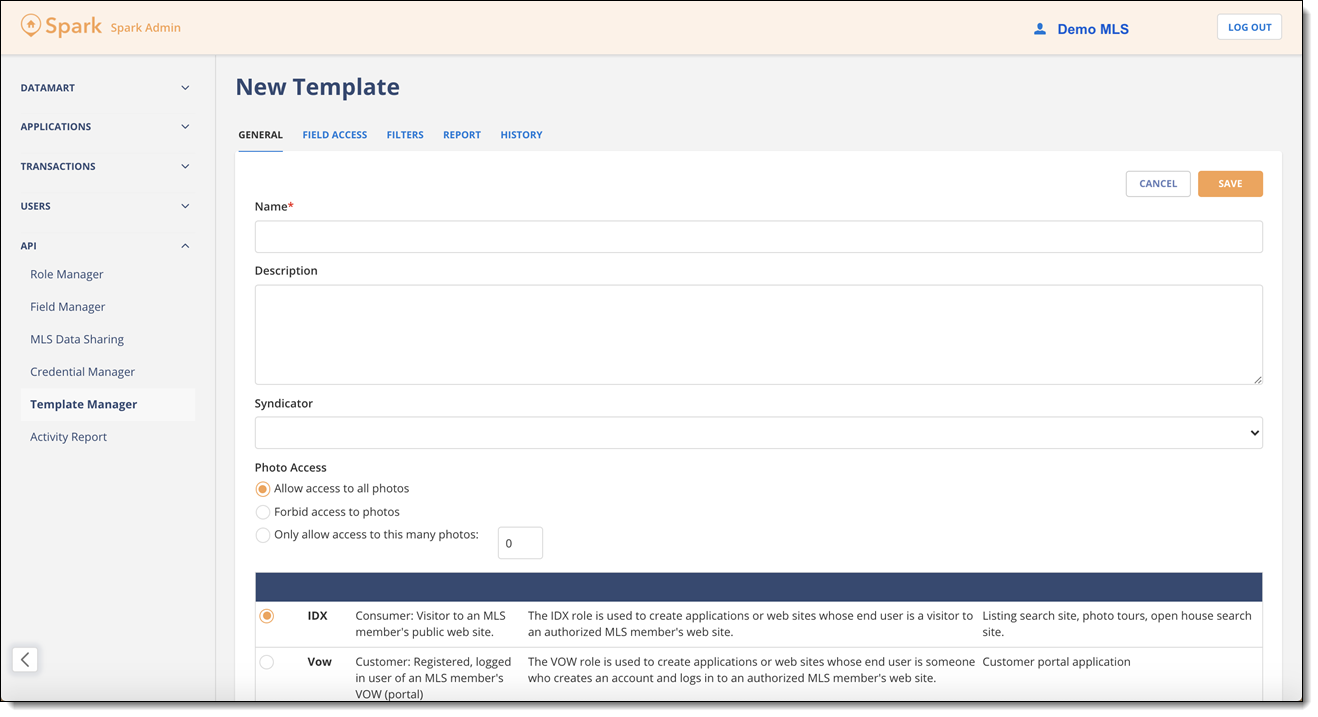
If you are creating a new custom template, enter a name and description, and select a standard role to use as the basis for the custom template. API keys based on this template will have access to the same fields as the selected standard role unless otherwise specified. There is also an option to set access to photos.
Note
The Syndicator field should be left blank.
Use the Field Access tab to specify the individual fields that are accessible to API keys based on this template.
In the selection box at the top of the page, select the RESO Web API service and property type for which you're modifying permissions. These RESO Web API services include Property, Member, Office, and Open House.
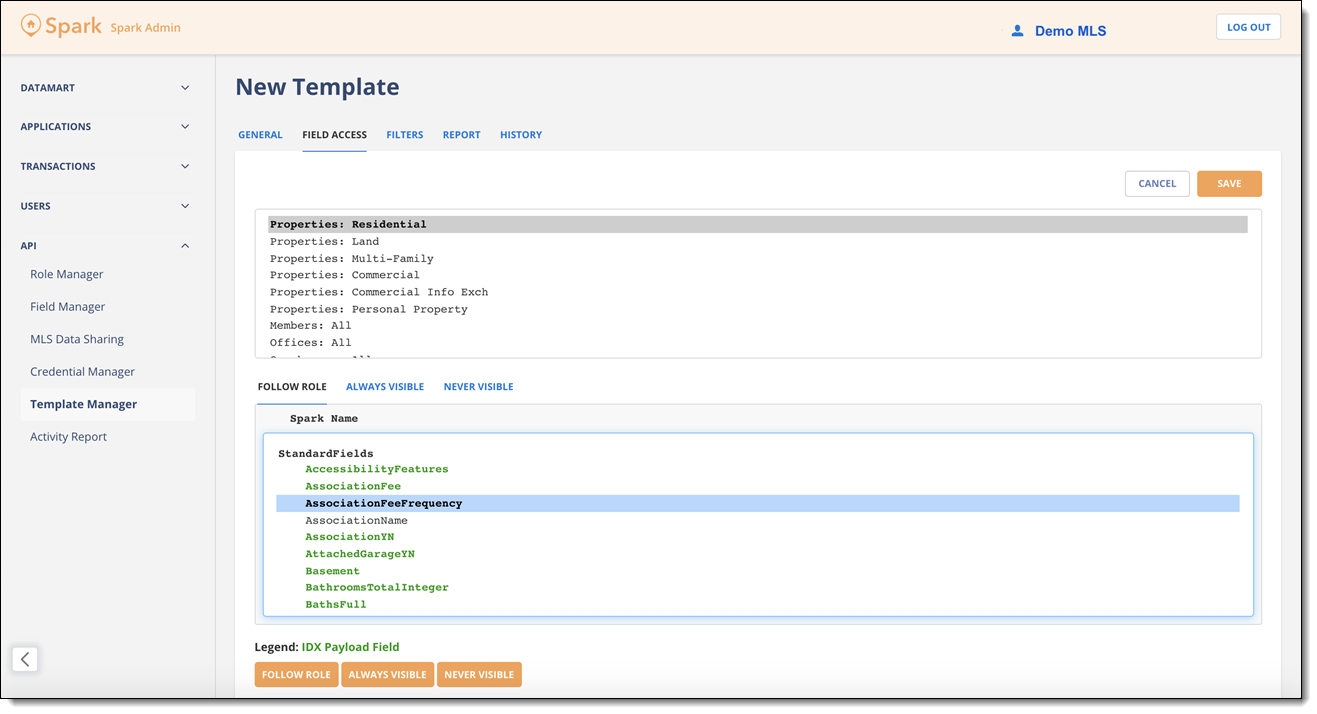
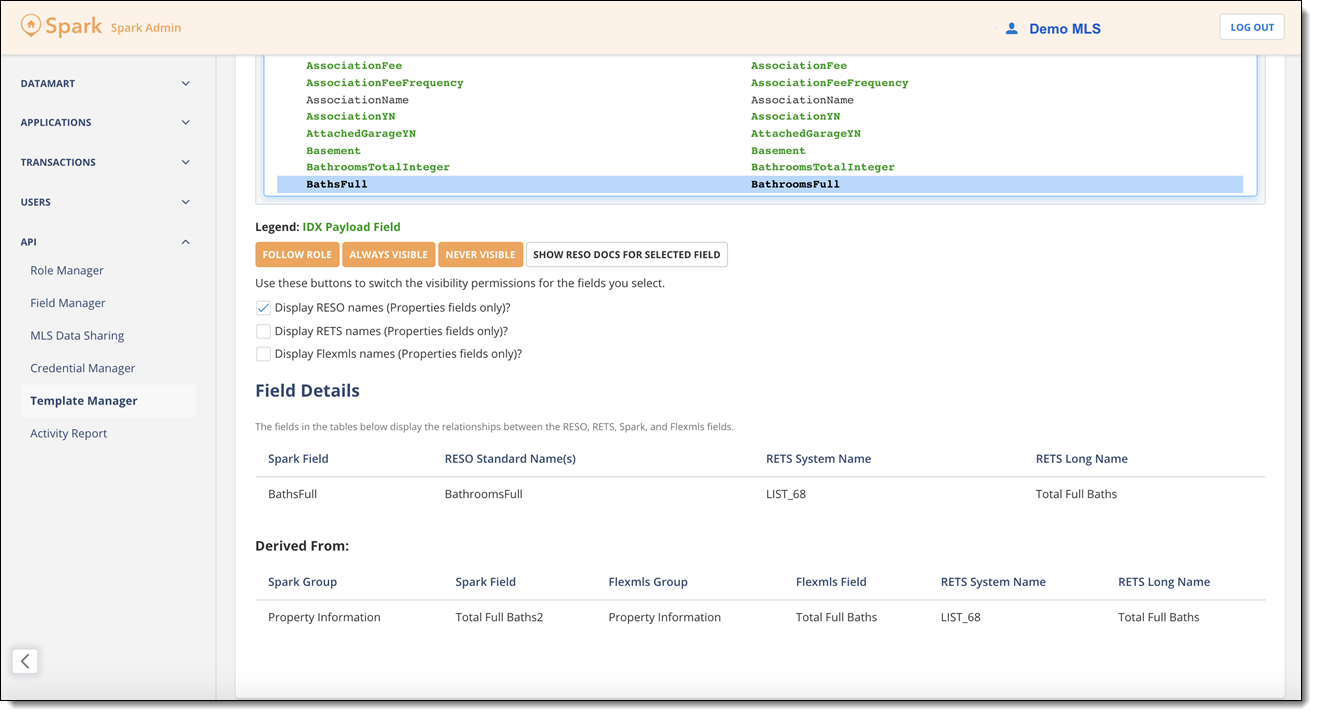
The second selection box contains the list of RESO Web API fields that can be included in the API service's response. (Be aware that this list may not display all fields that are included in the payload.) To modify permissions for an individual field, select it and click the applicable button below. The following options are available:
Follow Role - The field's accessibility is determined by the standard role that the template is based on. Fields are set to Follow Role by default.
Always Visible - The field is always accessible to API keys based on this template.
Never Visible - The field is never accessible to API keys based on this template.
To view the RESO Data Dictionary definition for the selected field, click the Show RESO Docs for Selected Field button.
Below the field list, use the checkboxes to toggle between RESO standard names, RETS names, and Flexmls labels for fields, when available. Not all RESO Web API fields have a 1:1 mapping to RETS or Flexmls fields, so some will be blank.
Additional details for the selected field are available under the Field Details heading at the bottom of the page.
Use the Filters tab to set up custom filters for the Member, Office, and Property services. Filters can be used to prevent access to listings from specific offices or agents, to prevent a member's information from being accessed via the API key, and more. When API keys based on a custom template make requests to any of these services, these filters are applied behind the scenes.
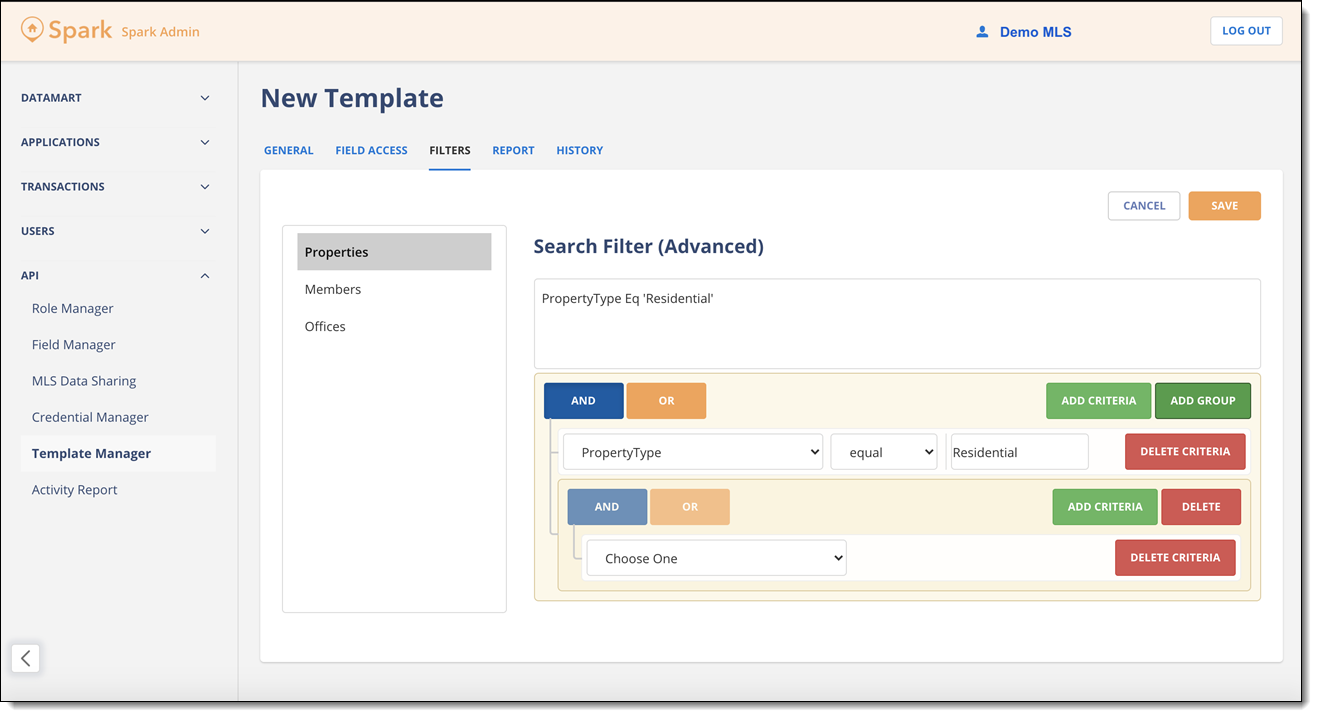
First, select the RESO Web API service to add a filter to: Property, Office, or Member. Then use the dropdown menus to specify the fields and values to filter on. Click the Add Criteria button to add more filtering criteria. Click the Add Group button to group filter criteria and add logical operators (AND/OR).
On the Report tab, you can compare field names across Flexmls, RETS, and the APIs. You can review, customize, and export the report in .csv format. On the left, select the property types to include in the report. On the right, select the columns to include in the report.
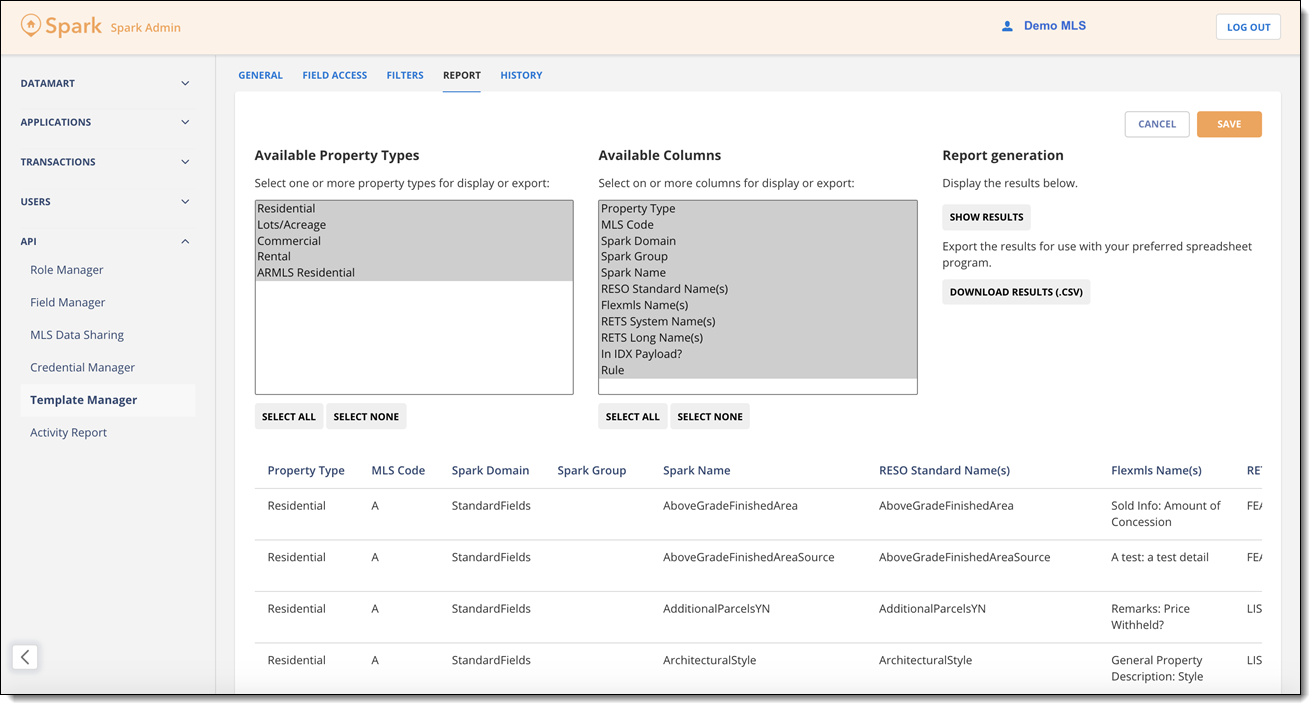
This report can be particularly useful for finding API fields' corresponding Flexmls fields, or for helping developers and vendors transition from RETS to the RESO Web API.
The History tab shows a record of changes to the template, including when it was created and any subsequent modifications.