Listing Entry Assistants
If a member employs an assistant for listing data entry, you can grant the assistant limited access to Flexmls by enabling the Listing Entry Assistant user type.
Listing entry assistants can create or edit incomplete listings on behalf of an MLS member. They can add or modify general listing information, photos, videos, virtual tours, and documents for a member's incomplete listings. However, a listing entry assistant cannot submit a listing to the MLS, delete an incomplete listing, or make changes to a member's Active listings.
The following FBS-only MLS settings control the Listing Entry Assistant user type. Contact the Flexmls Customer Success team (cpr@flexmls.com) to turn on this user type in your MLS.
Enable the Listing Entry Assistant (FBS Staff Only) - When this FBS-only setting is set to On, the Listing Maintenance Assistant setting is available on the Edit Member page. Users of this type can upload photos, create and edit incomplete listings, and add or remove virtual tours, videos, and documents on behalf of an MLS member. When this MLS setting is set to Off, the Listing Maintenance Assistant user setting is not available on the Edit Member page.
Restrict the Listing Entry Assistant setting to just the MLS logon (FBS Staff Only) - When this FBS-only setting is set to On, only the MLS root account can designate a member as a Listing Maintenance Assistant on the Edit Member page. When this setting is Off, any user who can add/change members can use the Listing Maintenance Assistant setting on the Edit Member page.
Set Up a User as a Listing Entry Assistant
When the Listing Entry Assistant user type has been enabled in MLS settings, a new option becomes available on the Settings tab of the Edit Member page.
Click Add User under Users on the Admin menu.
After entering the required information for the user, click the Settings tab. Scroll to the setting called Listing Maintenance Assistant.
To make the user a listing entry assistant, click the radio button next to Yes: This user may only add and edit incomplete listings; no other system access is provided.
Note
When set to Yes, this setting overrides all other brokerload settings. No matter what else is selected in the user's settings, the user will not have access to any other functions in Flexmls.
When Listing Maintenance Assistant is set to Yes, the Agents Assisted field becomes available. Start typing and then select the name of the agent that the assistant will work on behalf of.

Note
The listing entry assistant will be able to edit the same listings as the members that you select here. If a member has access to edit listings for an entire office or company, a listing entry assistant working on their behalf will also be able to edit incomplete listings for the entire office or company.
Click Save when you are finished making changes.
What a Listing Entry Assistant Sees in Flexmls
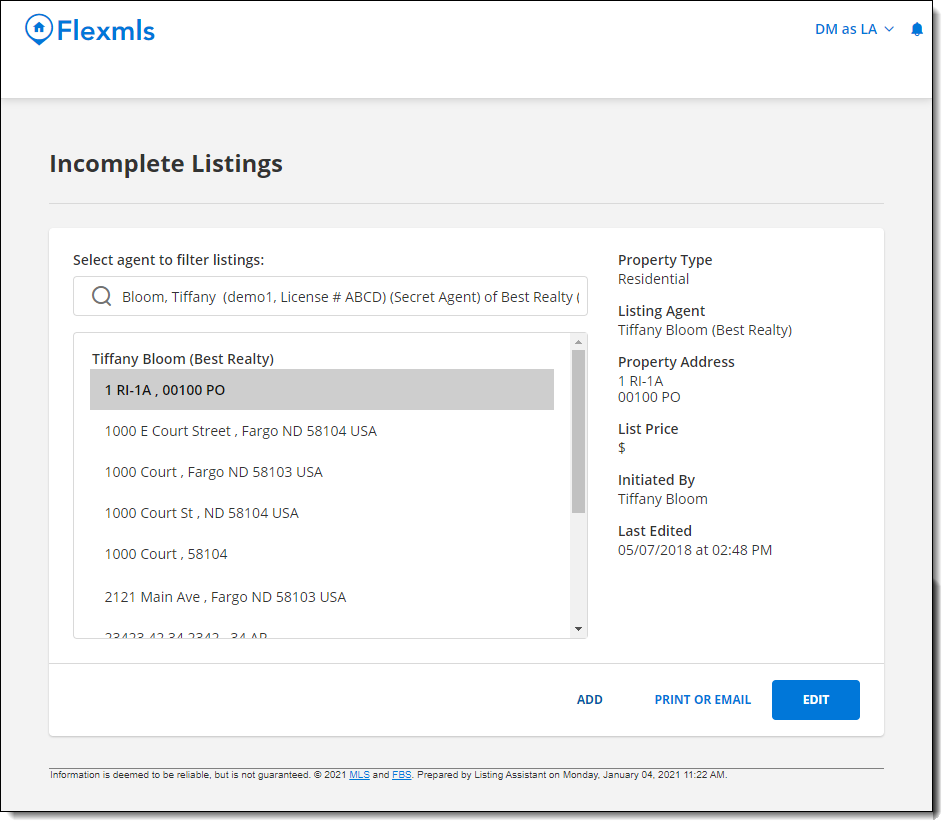
When a listing entry assistant logs in to Flexmls, the Incomplete Listings page will be displayed automatically. The user will not see the Flexmls menu.
Add a Listing
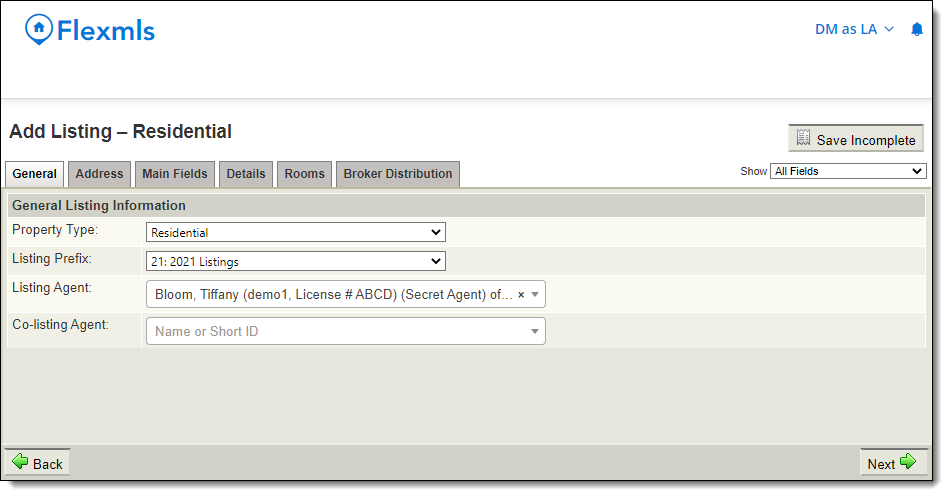
To create a new listing, the user can click Add on the Incomplete Listings page. The Add Listing page will be displayed. The Save Incomplete button will be available, but not the Add Listing button.
Change a Listing
To modify an incomplete listing, the user must first type the agent's name into the search box on the Incomplete Listings page. After an agent has been selected, the user can select a listing and click Next.
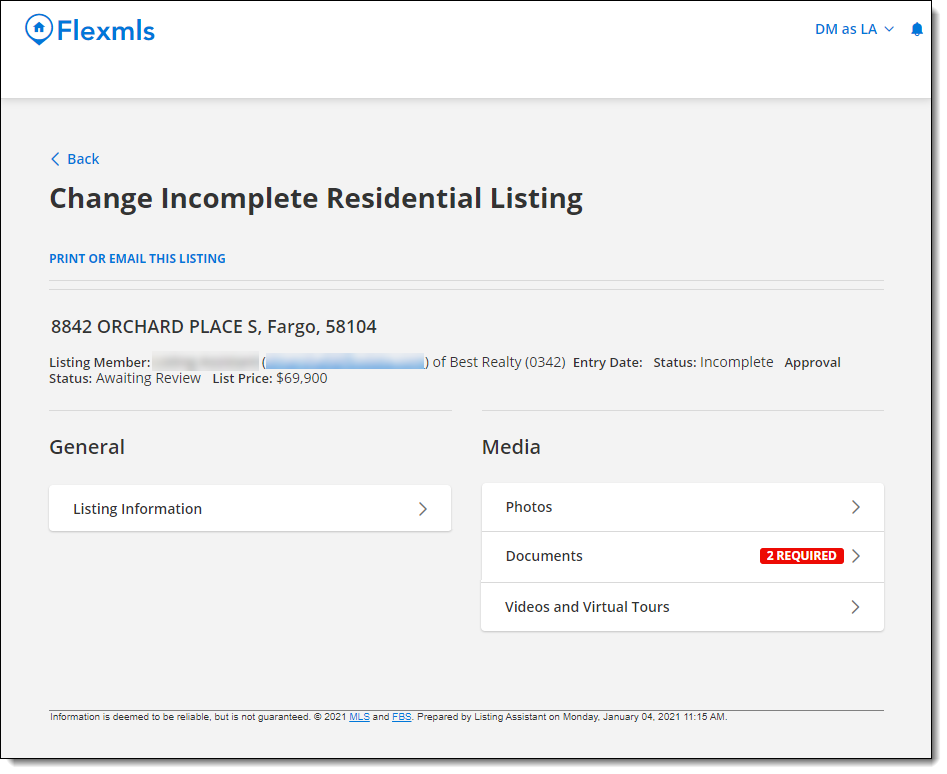
The Change Listing page for the listing will be displayed. The listing entry assistant will only be able to see and change information in the General and Media sections of the page.