Member Designations
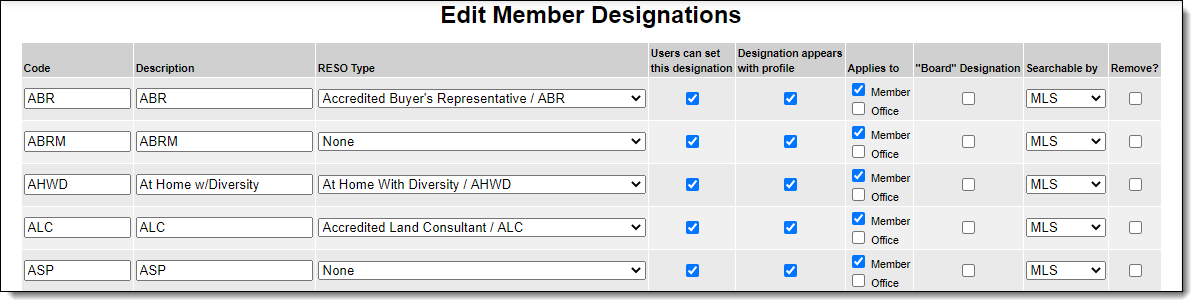
Click Member Desig. under Users on the Admin menu to create or modify designations, which allow your members to list professional accomplishments and certifications in their profiles. Additionally, some features of Flexmls allow you to display or send a message just to members with certain designations.
Add a Designation
To create a new member designation, click Add new user designation.
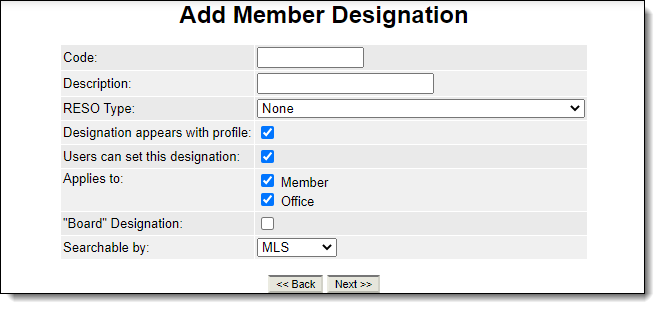
Enter the following information:
Code - A unique alphanumeric short code for the designation. If your MLS allows showing designations next to a member's name, this code is used.
Description - Long name of the designation.
RESO Type - Select the corresponding RESO member designation. Mapping your member designations to RESO designations makes the data accessible via the Spark API and provides better consistency of member data across MLS systems.
Note
Do not map more than one member designation to a RESO Type. If multiple member designations could potentially be mapped to the same RESO Type, we recommend that you map the best match only. Then either remove the others or set their RESO Type to None.
Designation appears with profile - Show the designation when viewing a member's profile.
Users can set this designation - Users can apply this designation to themselves using the My Profile page. If this option is not selected, an MLS administrator must apply the designation to members.
Applies to - Select whether the designation can be assigned to members, offices, or both.
"Board" Designation - Allow the MLS administrator to filter the Billing Report by members with this designation.
Searchable by - Select the user types that can filter user lists by this designation. By default MLS is selected, which means only MLS administrators can search by this designation through the Office/Member Roster report. Select Members to allow MLS members and MLS administrators to search by this designation through the Office/Member Roster report. Select Public to allow searching by this designation on IDX roster links. If you select Public, members and MLS administrators can also search by this designation.
Click Next to save the designation.
Edit or Remove a Member Designation
To make changes to a member designation, modify the information displayed on the Edit Member Designations page, then click Update. To remove a member designation, click the check box in the Remove column and click Update.