MLS Intranet Management
Use the MLS Intranet to share documents or other files with your members. Members can access the files you place here by clicking MLS Intranet under the Daily Functions section of the menu. You can also include links to Intranet documents in MLS messages on the dashboard.
Note
You can upload many types of files to the Intranet. Keep in mind that your members will need to have the appropriate software installed on their computers to open the files that you upload. If you load a file that requires a program that a user does not have on their computer, the user will not be able to open it. (For example, if you upload a Microsoft Word document, only someone who has Microsoft Word installed on their computer can open it).
Upload a Document to the MLS Intranet
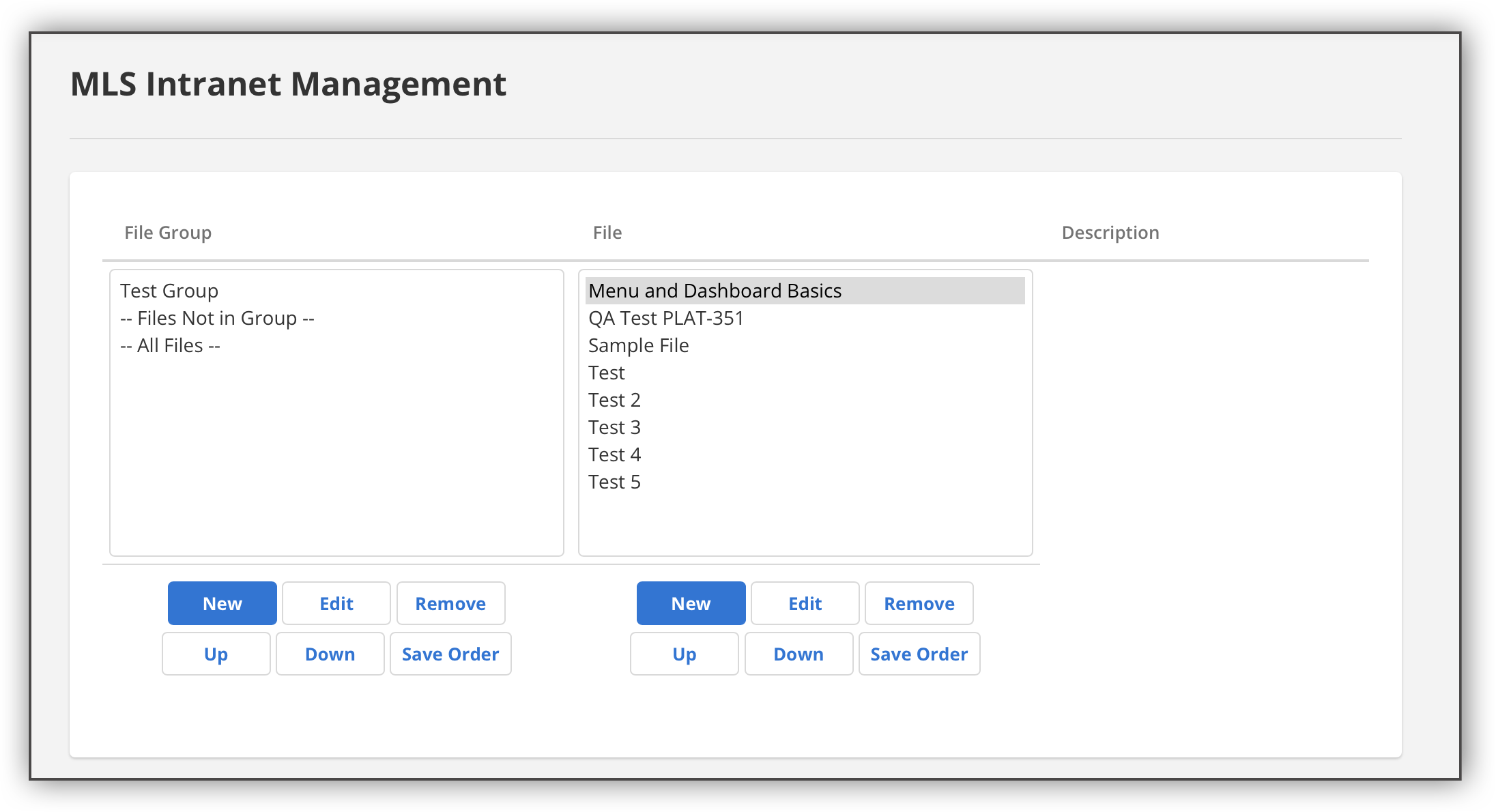
Click MLS Intranet Management under General on the Admin menu.
To organize the files, you can create groups for related documents. In the File Group pane, click New to create a new group. Enter a description and click Next.
To change the group or attachment for an existing file, or to rename a group or file, select the item and click Edit. You can also change the order in which items appear or remove any group or file. To view a file, select it from the list and use the Click to view link in the Description pane.
To upload a file, click New in the File pane. Enter a description and select a group for the file, if applicable. Click Next to open the File Uploader.
Note
The upload process requires that your browser allow pop-ups on the Flexmls site. If you do not see the File Uploader, your browser is likely blocking pop-ups.
Browse to the file that you want to upload. After the file has been uploaded, click Finish to return to the MLS Intranet page.
Note
Documents are limited to 15 MB.
Link to a Document on the MLS Intranet
Use the following procedure to obtain the link to a document that you have uploaded to the MLS Intranet.
Note
In order to view files on the MLS Intranet, members must be signed in to Flexmls.
Click MLS Intranet Management under General on the Admin menu.
Click on the file that you want to link to.
In the Description pane, right-click on the Click to view link and select Copy link address. The link address (URL) will be copied to your clipboard.
Paste the URL into your message.