Scout AI Assistant
Flexmls offers an in-system AI assistant called Scout, available to admins with an MLS or Association broker load. Scout is also available for MLS-wide access as a premium add-on.
You can use Scout to ask questions and get answers based on live MLS data. Scout can offer information on listings, market stats, contact history and activity, MLS rules, and more. Additionally, Scout has access to Flexmls help articles, so you can ask questions and get answers on various functions and features in Flexmls.
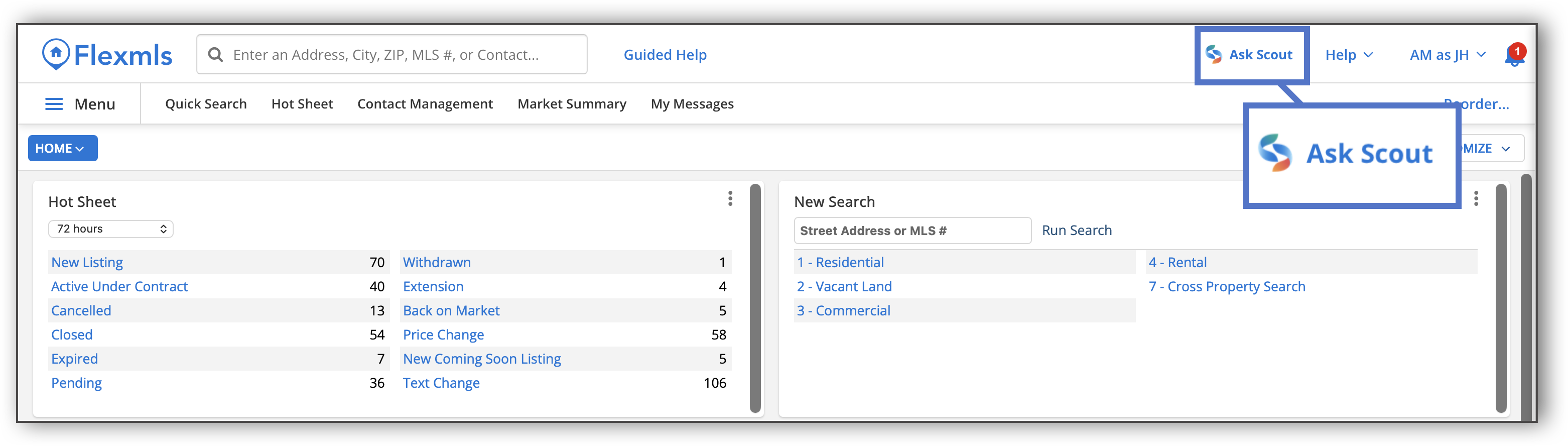
To use Scout, click the icon at the top right corner of the screen in Flexmls.
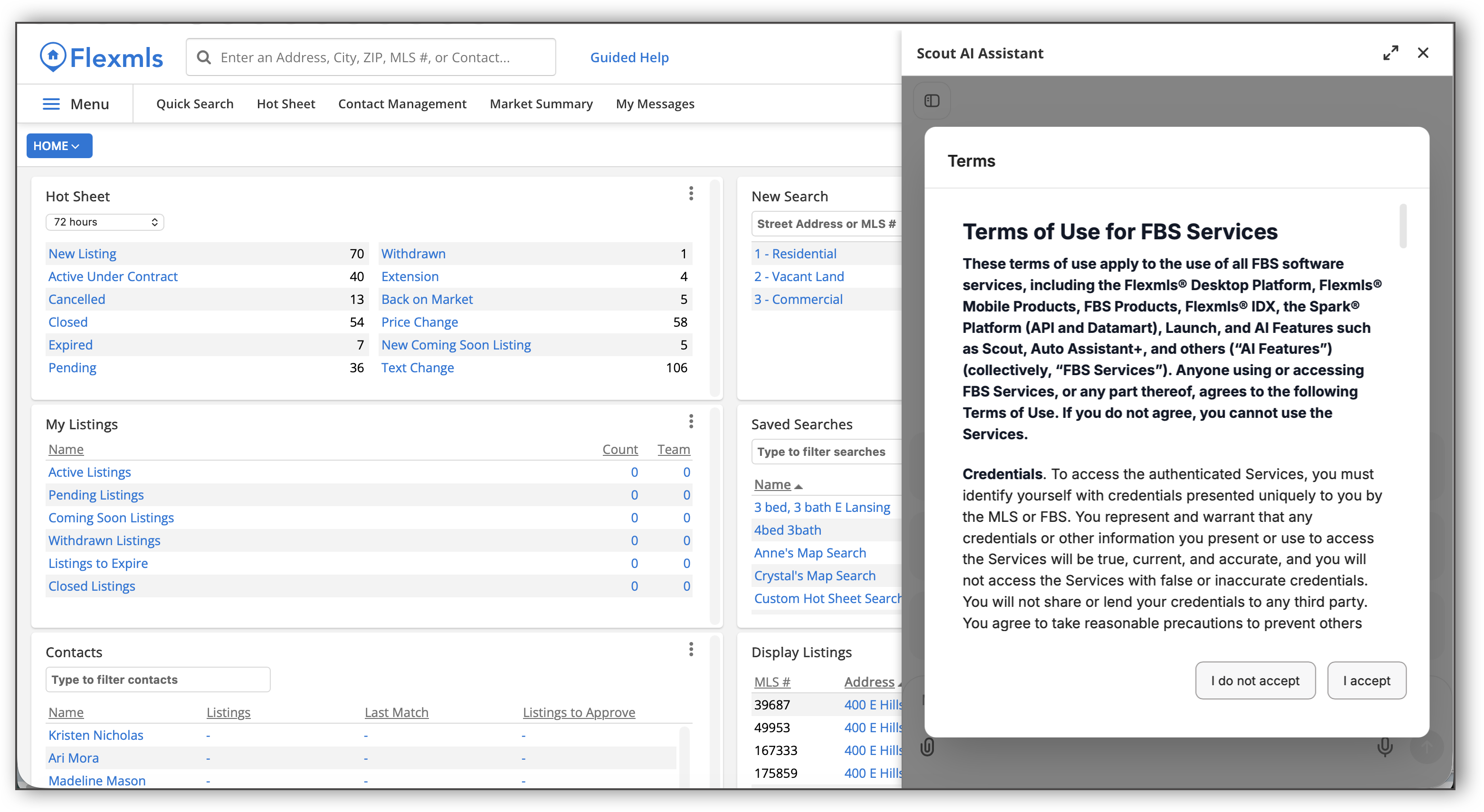
A panel opens on the right side of the screen. The first time you open Scout, the standard Flexmls Terms of Use will display in the panel. Accept the Terms of Use in order to use Scout.
Once you have accepted the terms of use, you can begin using Scout. In the Scout panel on the right side, type your question in the text box, and hit Enter on your keyboard or click the Send button.
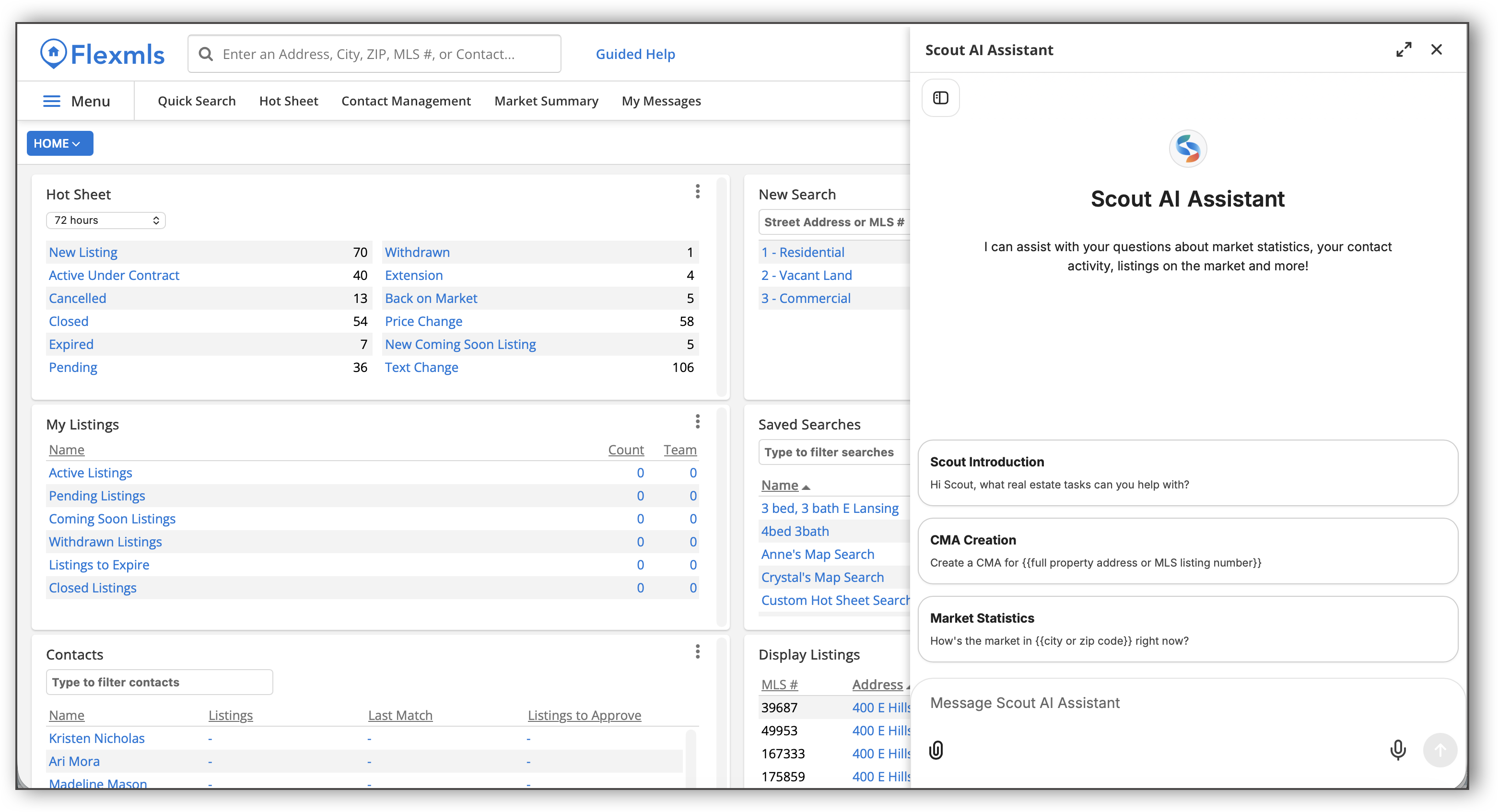
You can use the paper clip icon at the bottom left corner of the panel to upload attachments.
To expand the Scout panel to full screen, click the full screen  icon at the top right corner of the panel. To close Scout, click the X icon at the top right corner of the panel. You can still access your Scout chat history after closing Scout. To do so, click the Scout icon at the top right corner of the screen. The panel will display your Scout chat history.
Some sample questions you can ask Scout include:
What are my total closed sales this year?
Show me listings my contact Sarah viewed in the last 30 days.
What are the average days on market for single family homes in my area this month?
How do I run a CMA in Flexmls?
What are my MLS’s rules around photos?
You can also ask Scout to generate downloadable reports that you can share with your client. For example, you can ask Scout to create a CMA that you can share with your client. Scout will generate a downloadable CMA report that you can view and share.
For more information on using Scout, refer to the video tutorial below:
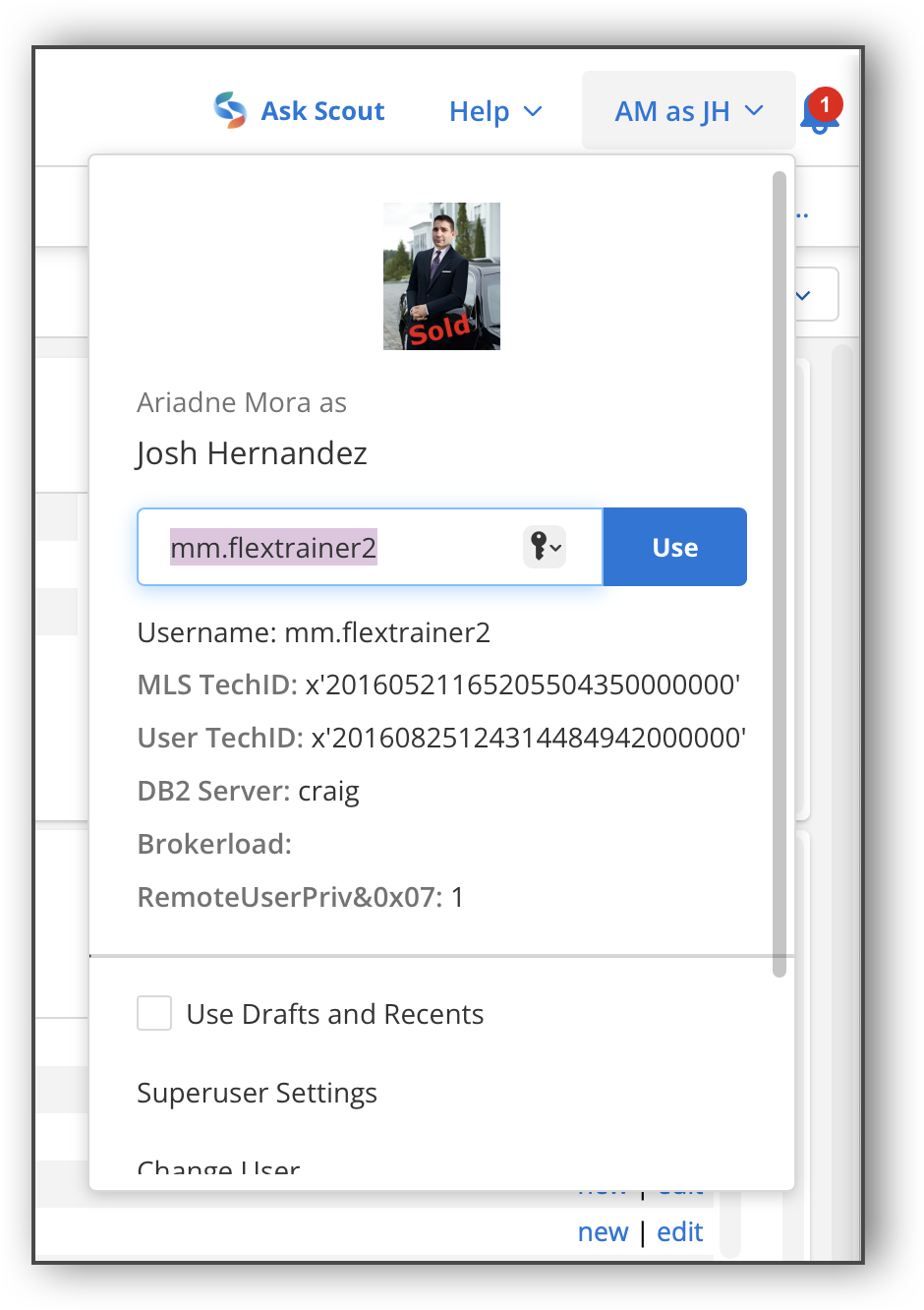
Admins are able to superuse in Scout the same way you superuse in Flexmls. To superuse in Scout, open the profile menu. In the user field, type in the user who you would like to superuse as. Once you have entered the user, Scout will honor that superuser when you chat with Scout.
 |
When you are superusing:
All previous chat history is read-only.
You can start a new chat, but that will only be a temporary chat. Your chat will not be saved in the chat history side panel.
Once you stop superusing as that user, that chat will disappear and will never be visible to the end user.
You are using that user's tokens.
Note on usage: Scout launches with a high per-member monthly usage cap and a small concurrent-message limit (users are able to have three different Scout chats going at once), so there is a stated limit from day one that almost no one will reach. If a user happens to run out, they’ll receive a message saying they are out of tokens and when it resets.
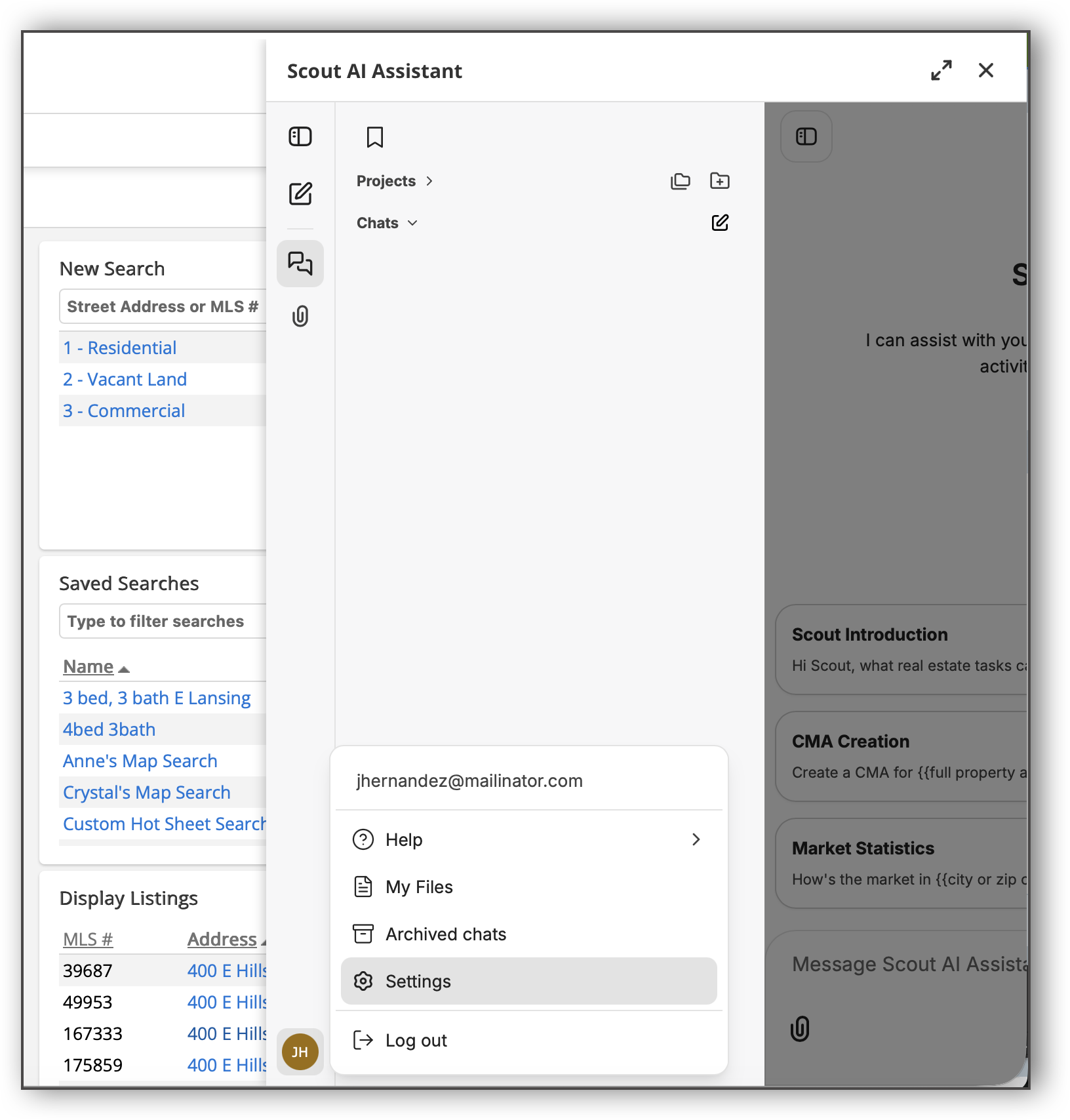
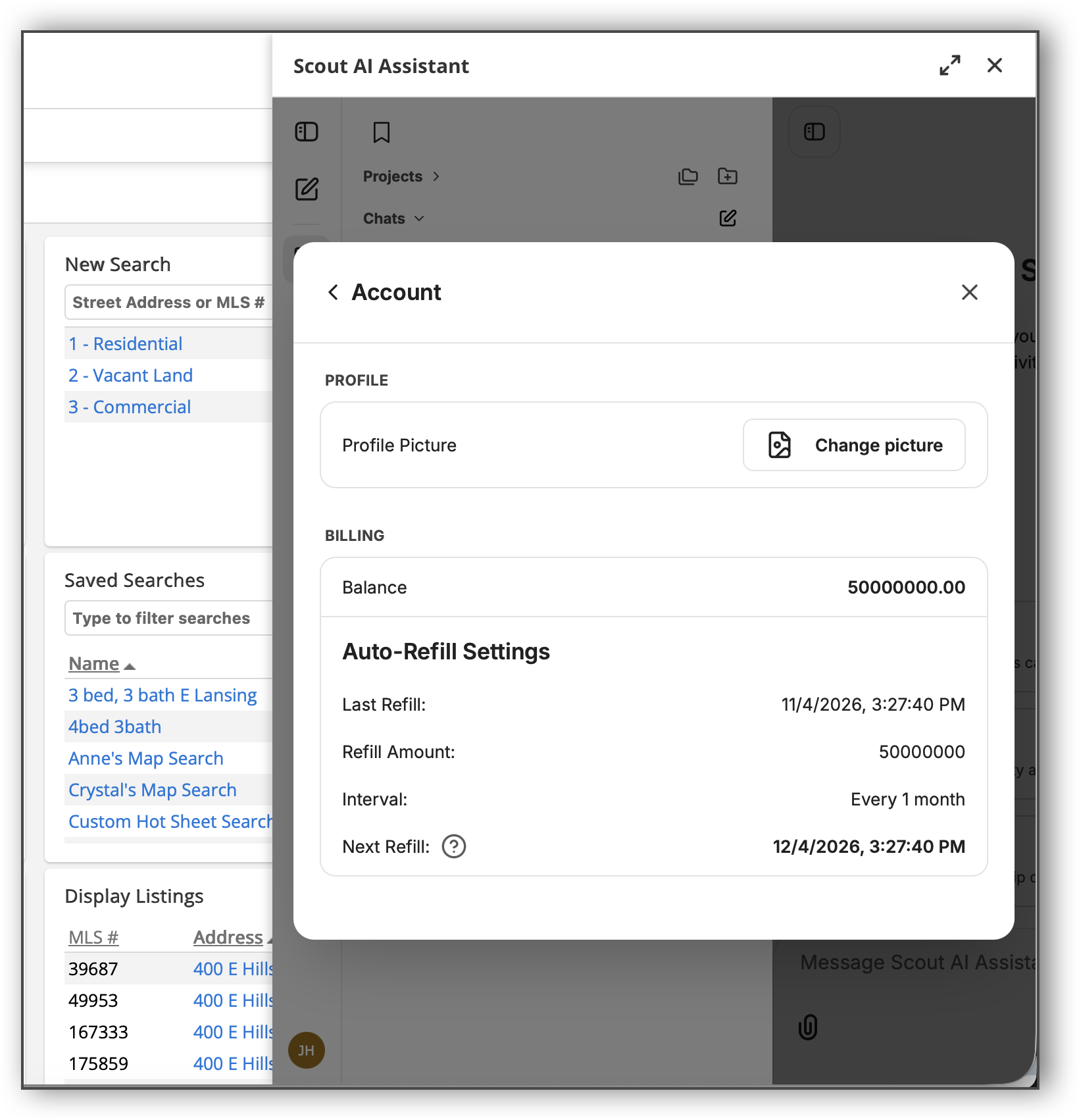
Anyone can check their balance inside Scout under their profile. In the bottom left corner of the Scout panel, select your profile and click Settings > Account.
 |
Your balance displays in the Account section, along with auto-refill settings.
 |
For a list of frequently asked questions about Scout, refer to the Scout AI Assistant: FAQs help page for admins.
If you would like to enable Scout for your members, reach out to the Flexmls Sales Team.