Set up a Broker Tour/Caravan
Depending on your MLS settings, broker tours/caravans may be available in your MLS. Broker tours are created for agents and brokers to view properties, and are managed by a tour administrator. (Terminology for broker tours may vary in your MLS.) Members can add their listings to broker tours, but only a Broker Tour Administrator can create new broker tours/caravans or edit their details. The MLS administrator designates users as Broker Tour Administrators.
Navigate to the Flexmls menu. Under the Users section, click Change User.
Click the Settings tab.
In the Broker Tour/Caravan Administration field, select Yes.
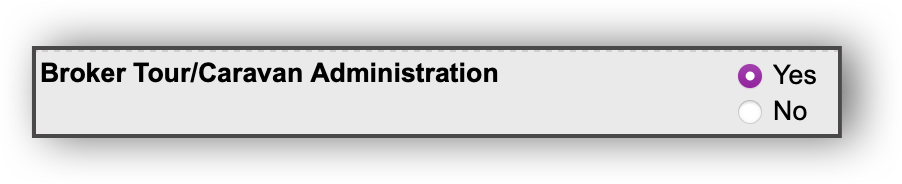
Click Save.
Navigate to the Flexmls menu. Under Add/Change, click Broker Tours/Caravans.
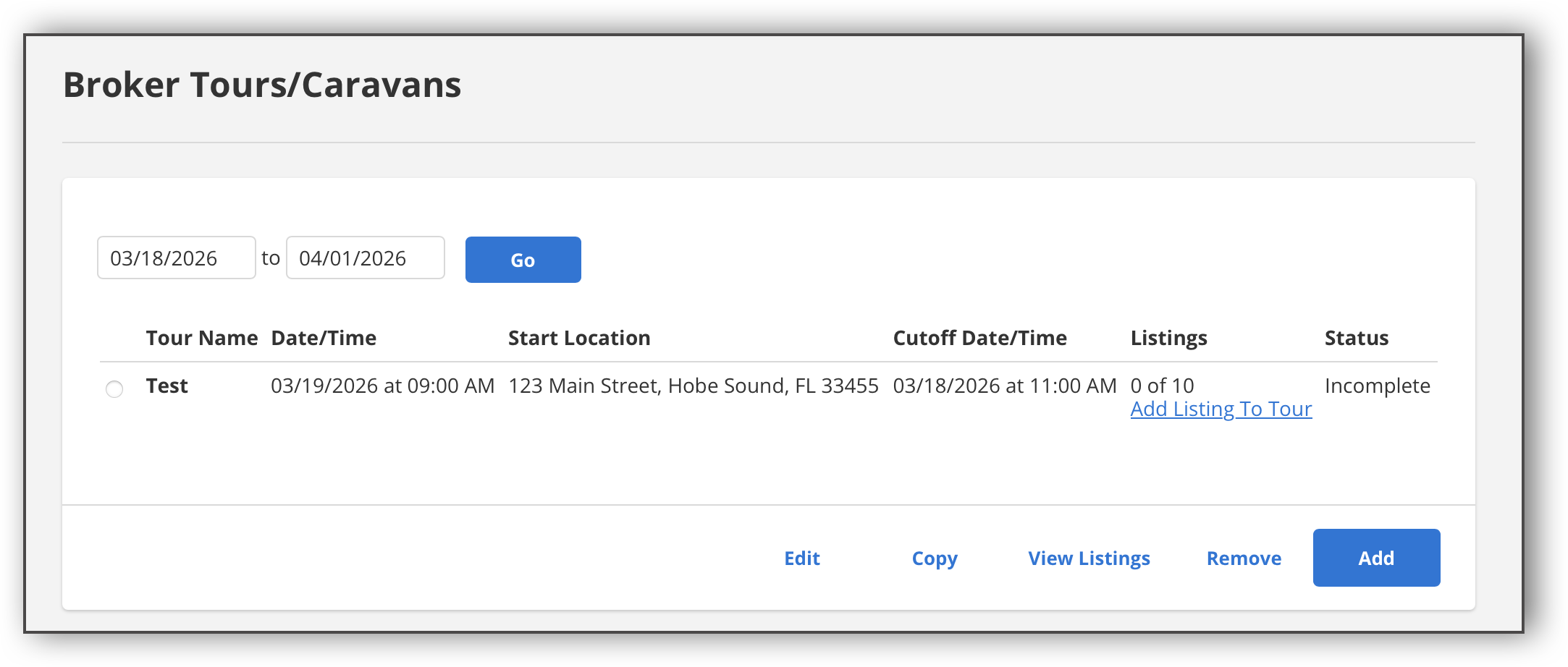
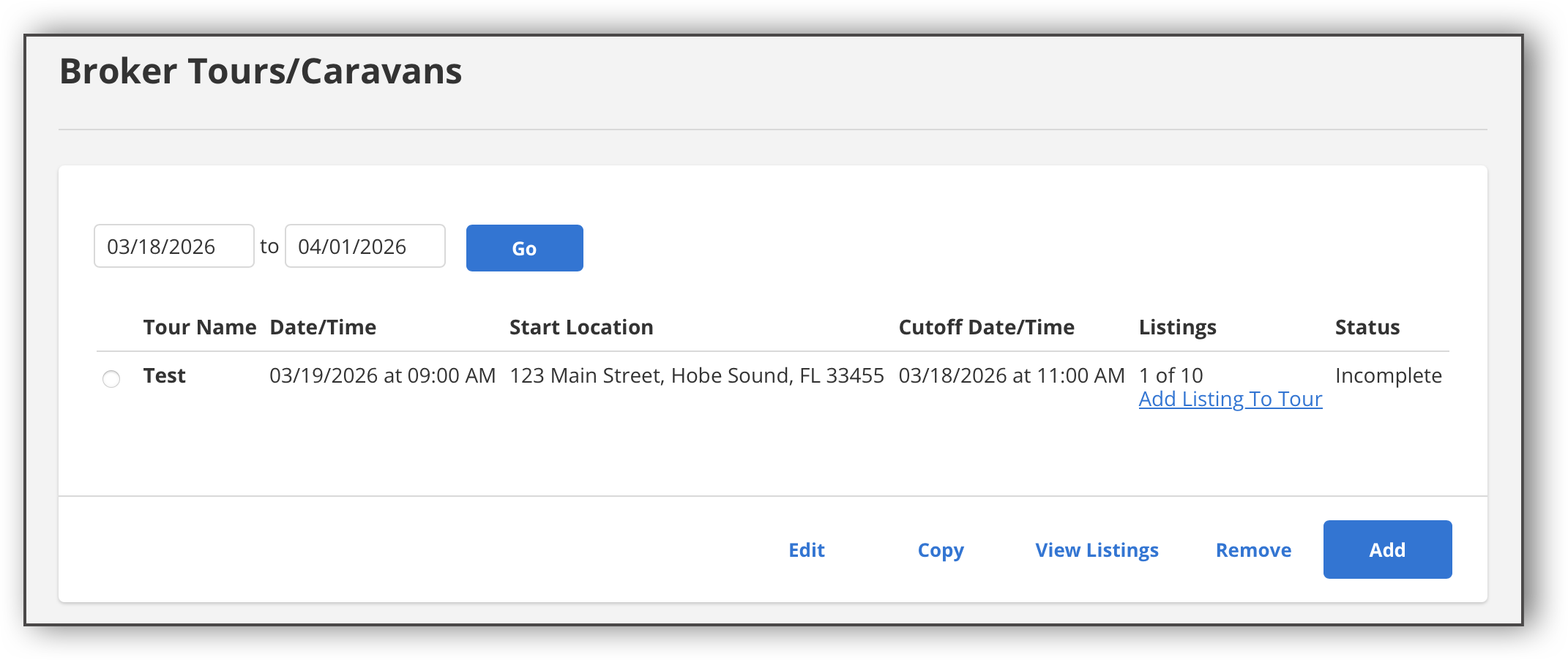
In the Broker Tours/Caravans page, click Add.
Enter the Broker Tour/Caravan information. Depending on your MLS, you may see a field where you can enter or select the zip code, area, or city. The cutoff date and time is used to specify the deadline for adding listings to the tour. You can also specify the maximum number of listings allowed on the tour.
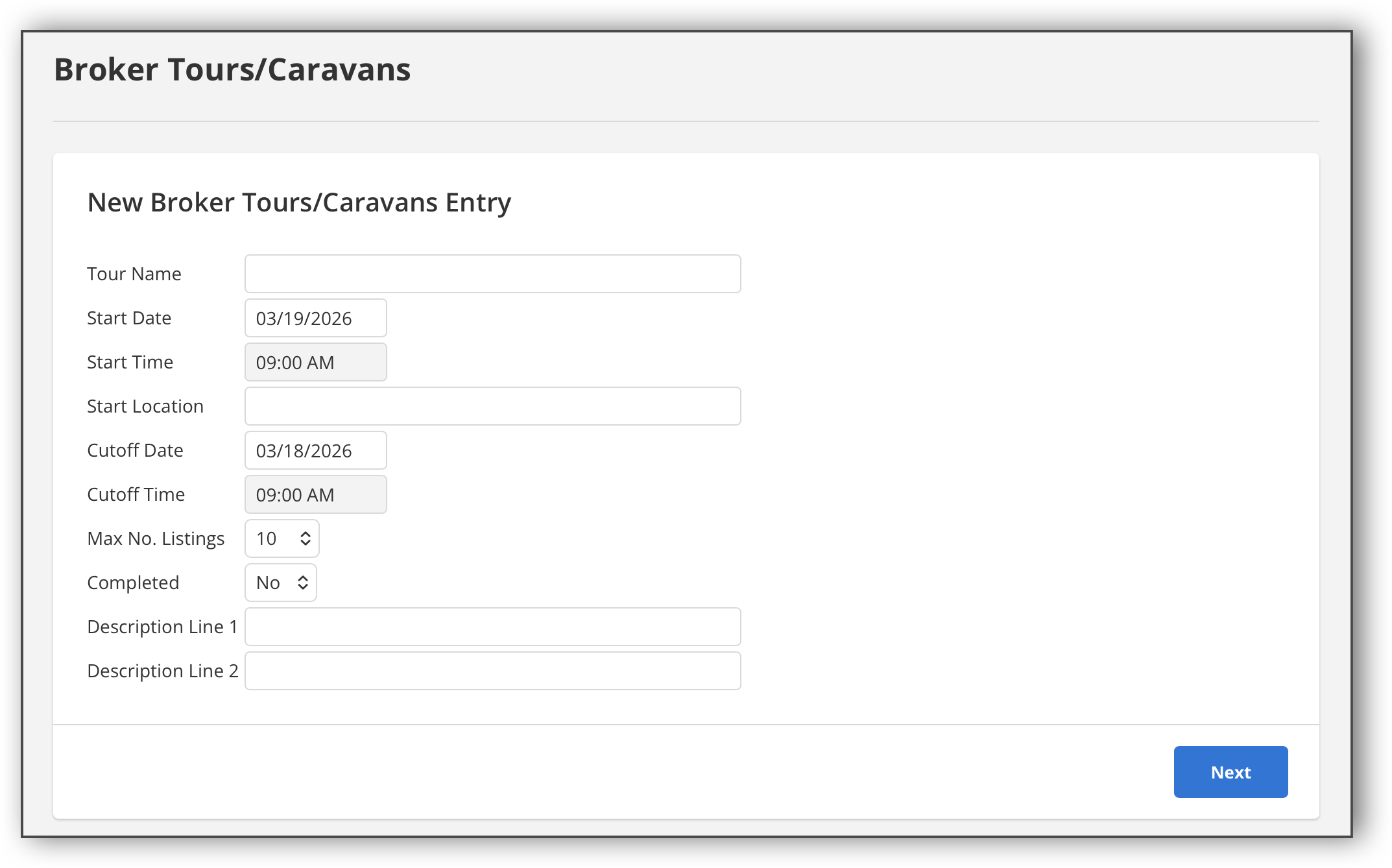
Click Next.
From here, you can add listings to the Broker Tour/Caravan. Under the Listings column, click Add Listing to Tour.
Enter the MLS number and comments, if needed.
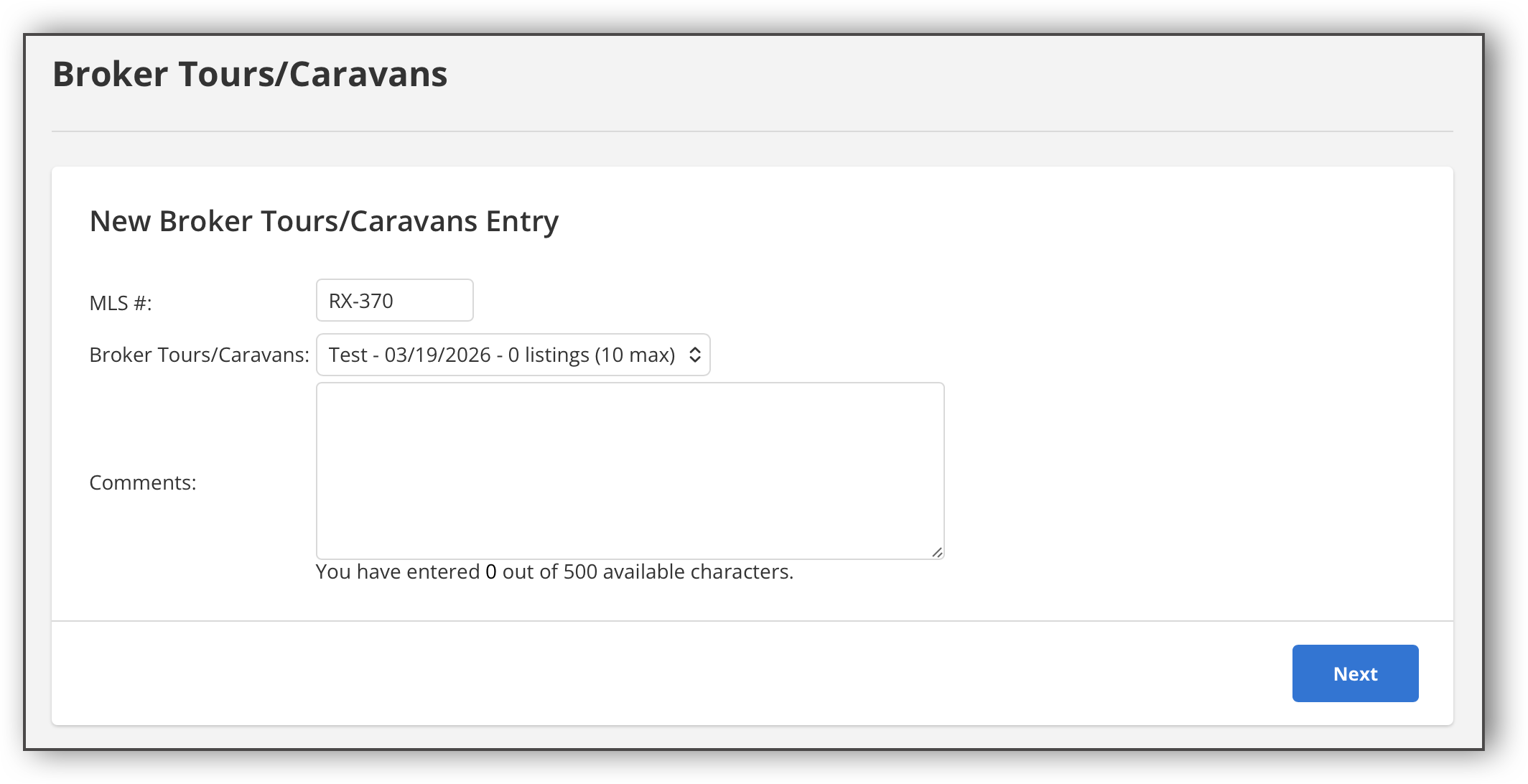
Click Next. The Listings column in the Broker Tours/Caravans page will update to show the listing you have added.
Repeat steps 5-7 until you have added all the desired listings to the Broker Tour/Caravan.