Auto Assistant+: AI-Detected Features from Photos
If your MLS participates in Auto Assistant+, you can access the Artificial Intelligence (AI) detected photo feature functionality. This functionality auto-populates features, detected by AI in the photos you upload, directly into your listing.
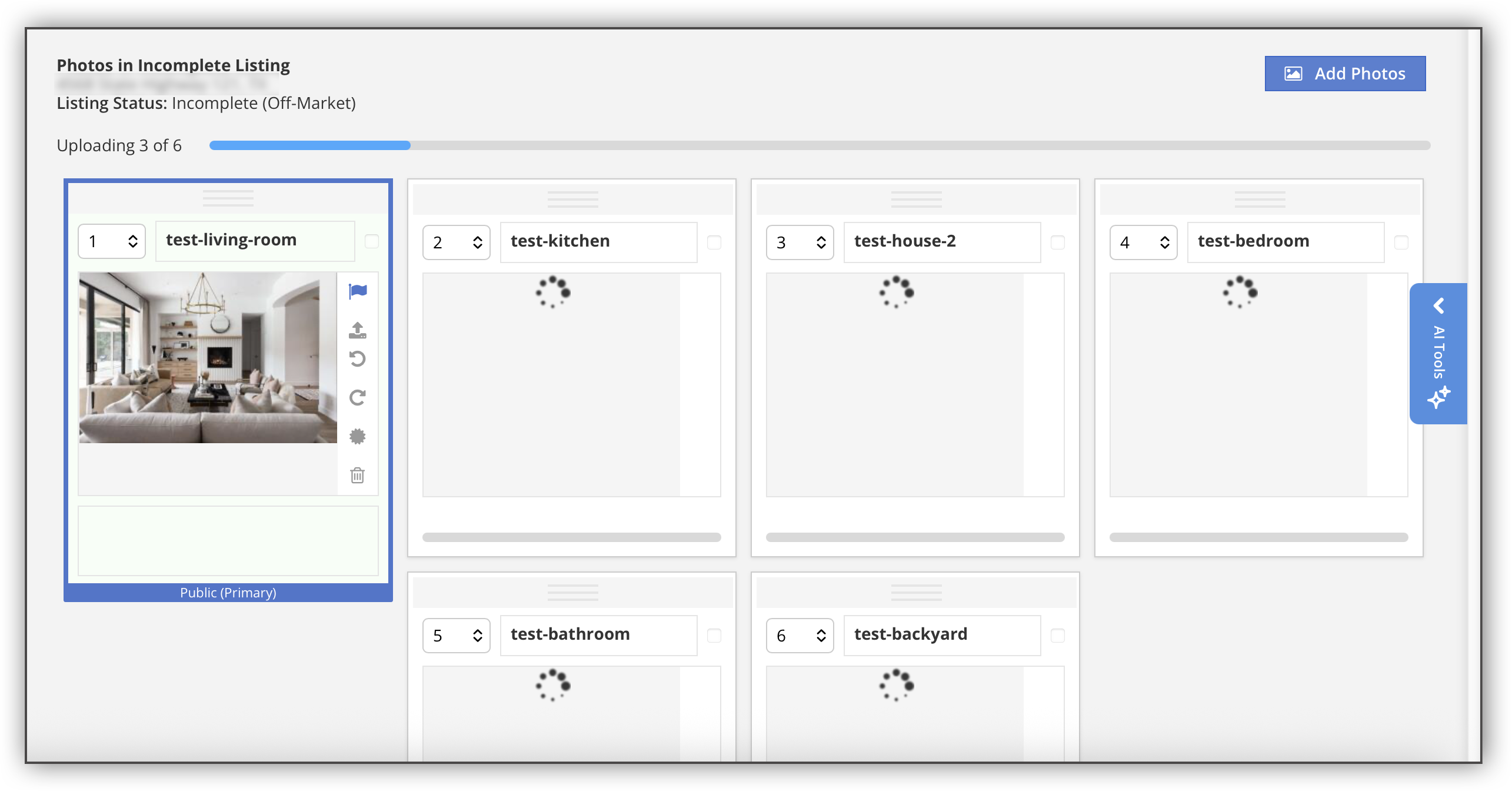
To use the AI-detected features from photos in Auto Assistant+, navigate to the Media section of the listing input form. Click Photos to be taken to the Photos section, where you can add and edit listing photos. Then, click Add Photos to add photos to your listing. Once you have uploaded at least five photos, the AI detection will begin automatically. A progress bar at the top of the page notifies you that your photos are uploading and that AI detection has begun.
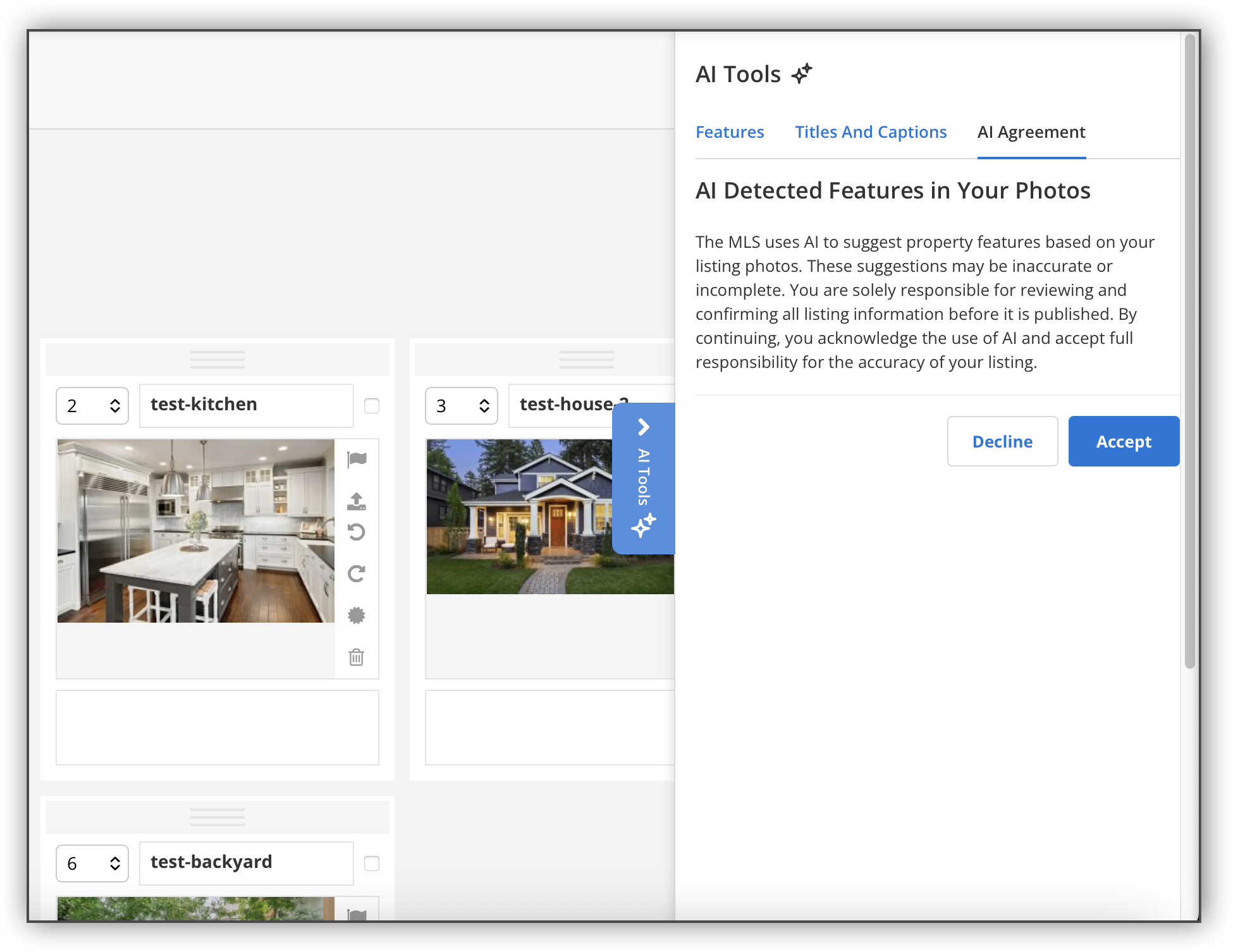
When the photo upload has completed, the AI Tools panel opens and displays the AI agreement. This agreement states that while AI has been used to generate photo feature data, you are still responsible for confirming that the data is correct. Click Accept to continue.
Note
You can go back and review the AI agreement at any point by clicking the AI Agreement tab in the AI Tools panel. If you click Decline in the AI Agreement but change your mind later, you can go back to the AI Agreement tab and click Accept.
A panel on the right side lists the features that were detected from the photos, with checkboxes next to each feature. All checkboxes are selected by default.
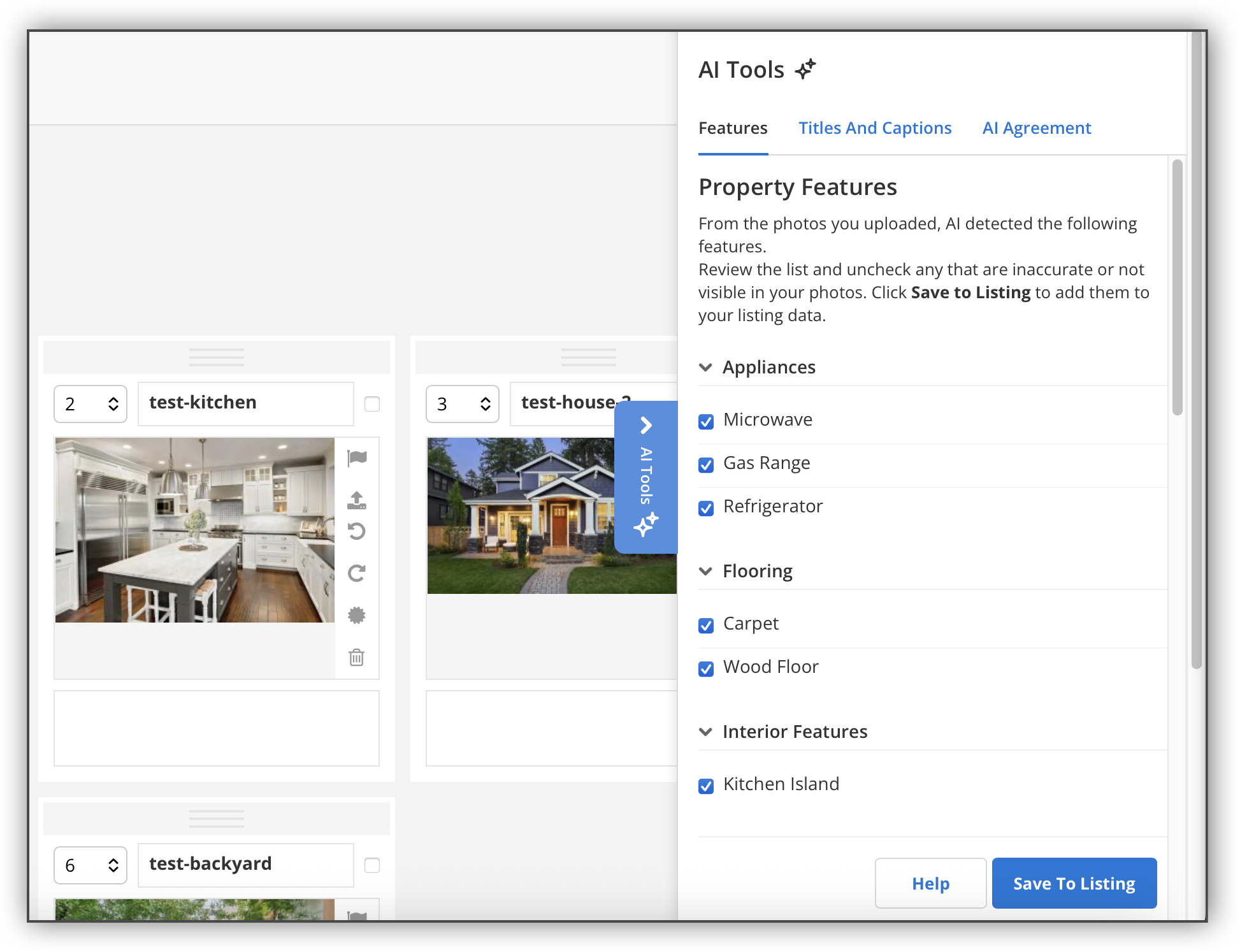
Review the features that were detected, and deselect the checkboxes next to any features that are incorrect. Each feature is grouped by category, which correspond to the detail fields set by your MLS. At the bottom of the list, you may see a “Search Tag Only” category. This category lists AI-detected features that do not have a corresponding field in your MLS. The features in this category can still be saved with your listing and can eventually be searchable by others in Flexmls.
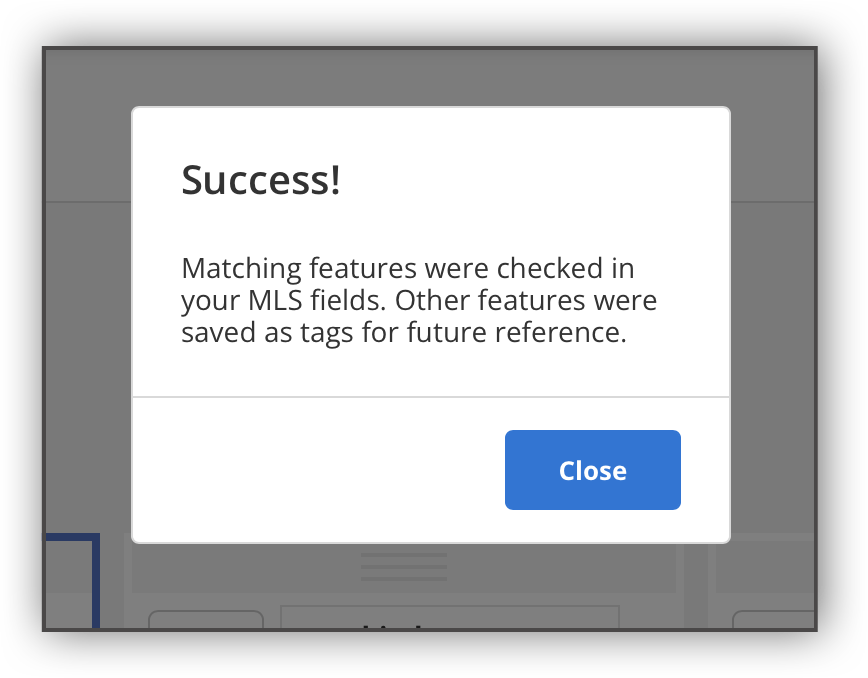
Once you have finished reviewing the data and making any changes to your selections, click Save to Listing. A confirmation message displays, indicating that your selections from the AI photo detection have been auto-populated in the Detail Fields section of the listing input form.
 |
If you have already entered data in any of the detail fields, any AI-detected feature selections you have made and saved to your listing will overwrite the data that has already been entered. You can still go back and re-edit any of the data in those fields.
Note
You can only run the AI tool once for any given listing.
If you want to use the AI tool for multiple listings, you will need to accept the AI Agreement each time you add a listing.
When you click Accept, the listing history will show that the listing agent accepted the AI Agreement.
The AI Agreement language may vary depending on your MLS.
For more information about the other features available with Auto Assistant+, refer to the following help pages: