Import Zillow Media into Flexmls
If your MLS participates, you can import your Zillow media into Flexmls in one step.
Navigate to the listing overview page or the media page on the Zillow Workspace website. Click Send to MLS.
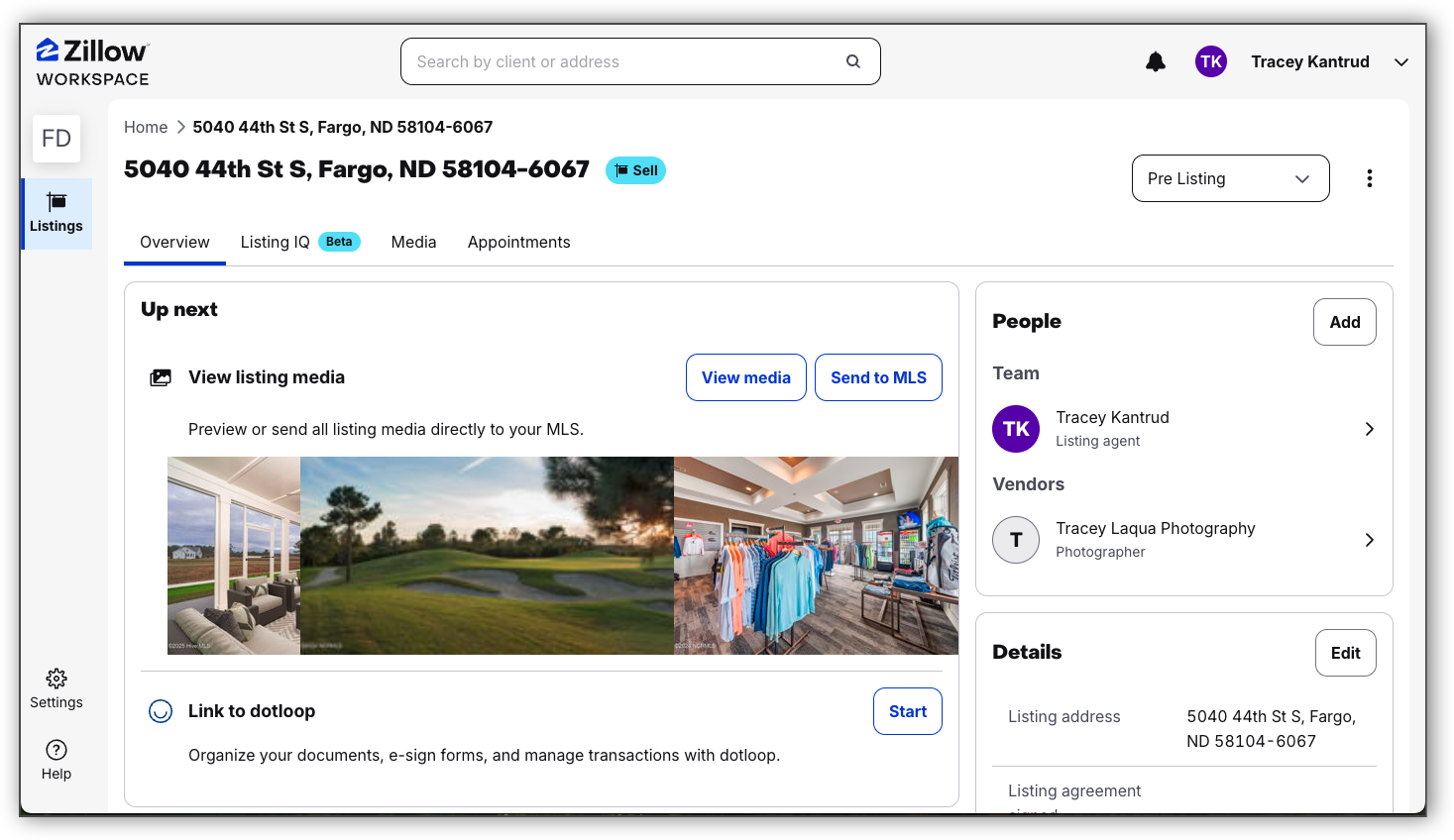
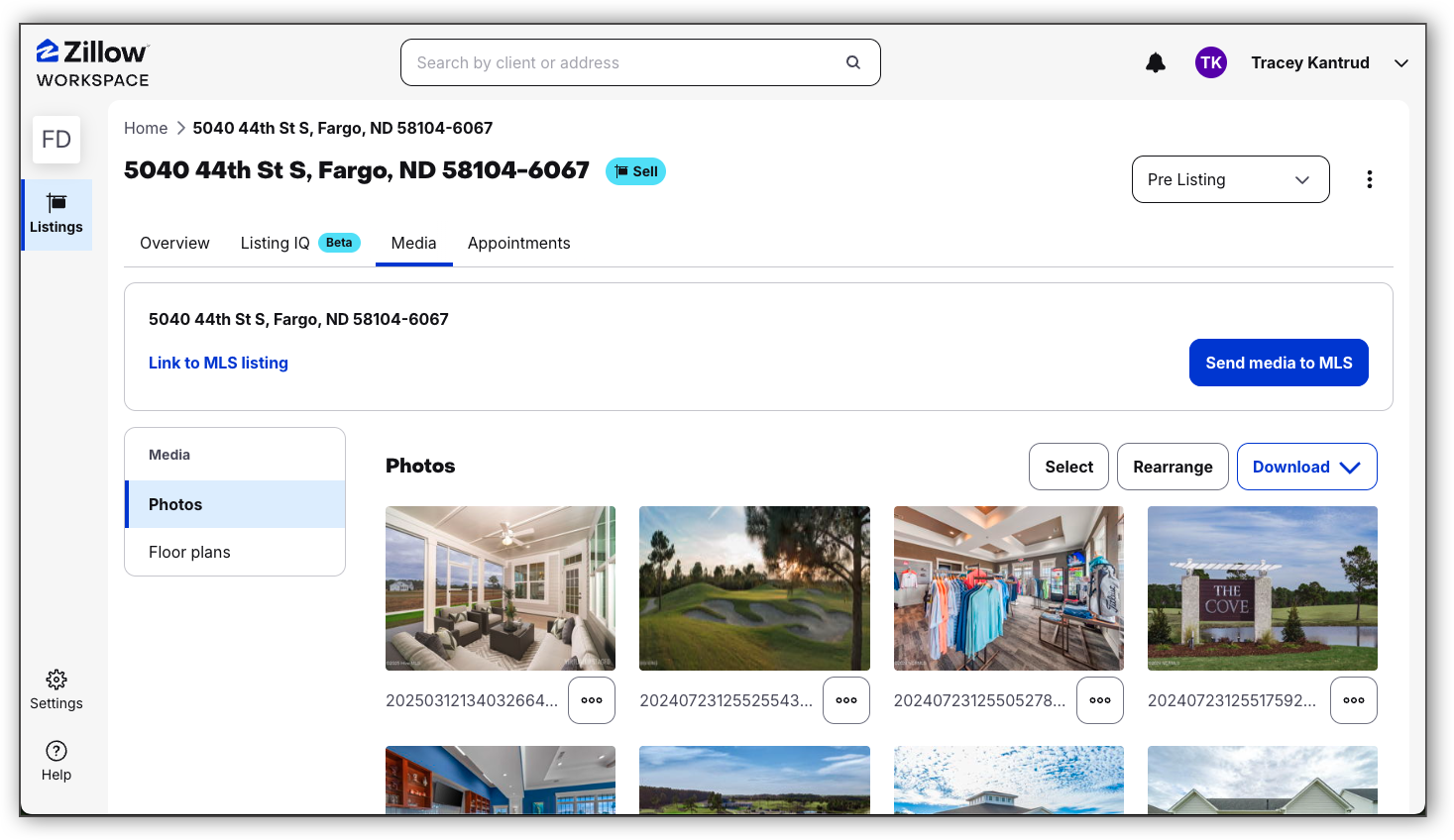
Select the media you want to import, and click Send Media to MLS.
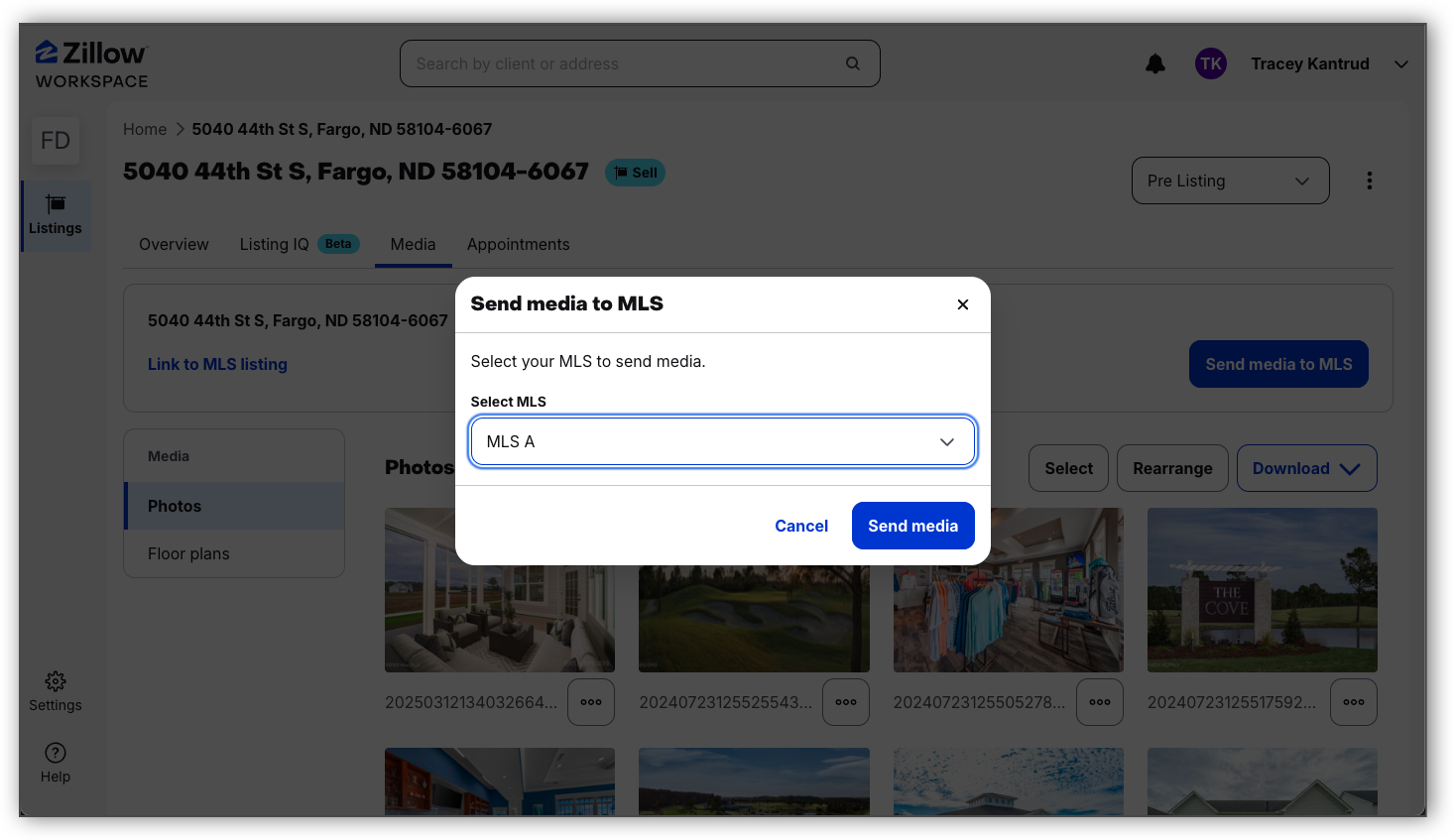
If you are connected to multiple MLSs in Zillow, select the MLS where you want to send your media, and click Send Media.
Open Flexmls. If you are not already logged into Flexmls, you will be required to log in and authenticate your account.
Once you are logged into Flexmls, the Import Options page will load.
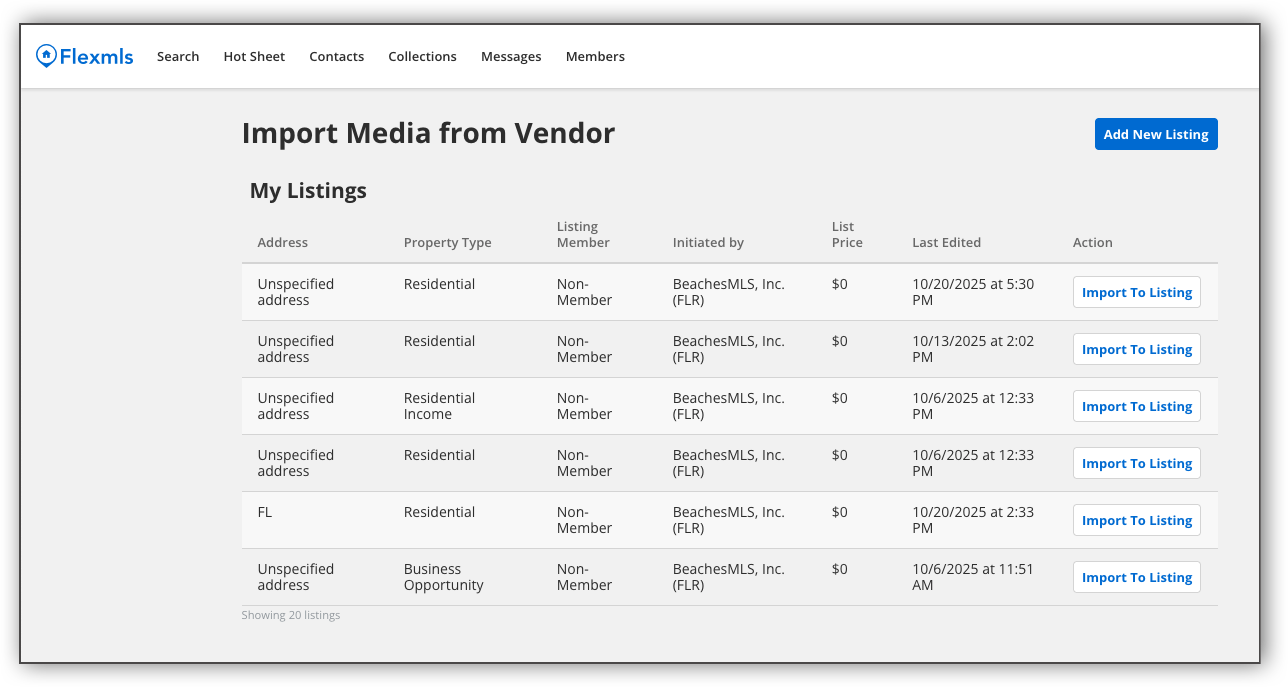
The Import Options page displays a list of all the available incomplete listings that you can edit. In this page, you can either choose the incomplete listing where you want to import the media, or you can import the media into a new listing.
To import the media into an incomplete listing, find the incomplete listing that you want, and click Import to Listing. From there, you are prompted to confirm your media import. Check the box labeled Media (From Vendor) and click Finish. When you click Finish, you are taken to the media section of the Incomplete Listing page for that listing, where you can make further modifications to your listing media. For more information on adding or changing listing media, refer to the Add or Change Listing Media help page.
To import your media into a new listing, click Add New Listing. Selecting Add New Listing will prompt you to start the listing entry process. For more information about adding a new listing, refer to the Add a Listing with Auto Assistant help page and the Add a Listing help page.