Listing Detail Page (Mobile)
When you tap on a listing in the search results on the Flexmls mobile website or in the Flexmls app, the listing detail page displays. Use the details page to view the full listing information, share a listing, add a listing to a listing collection, and more.
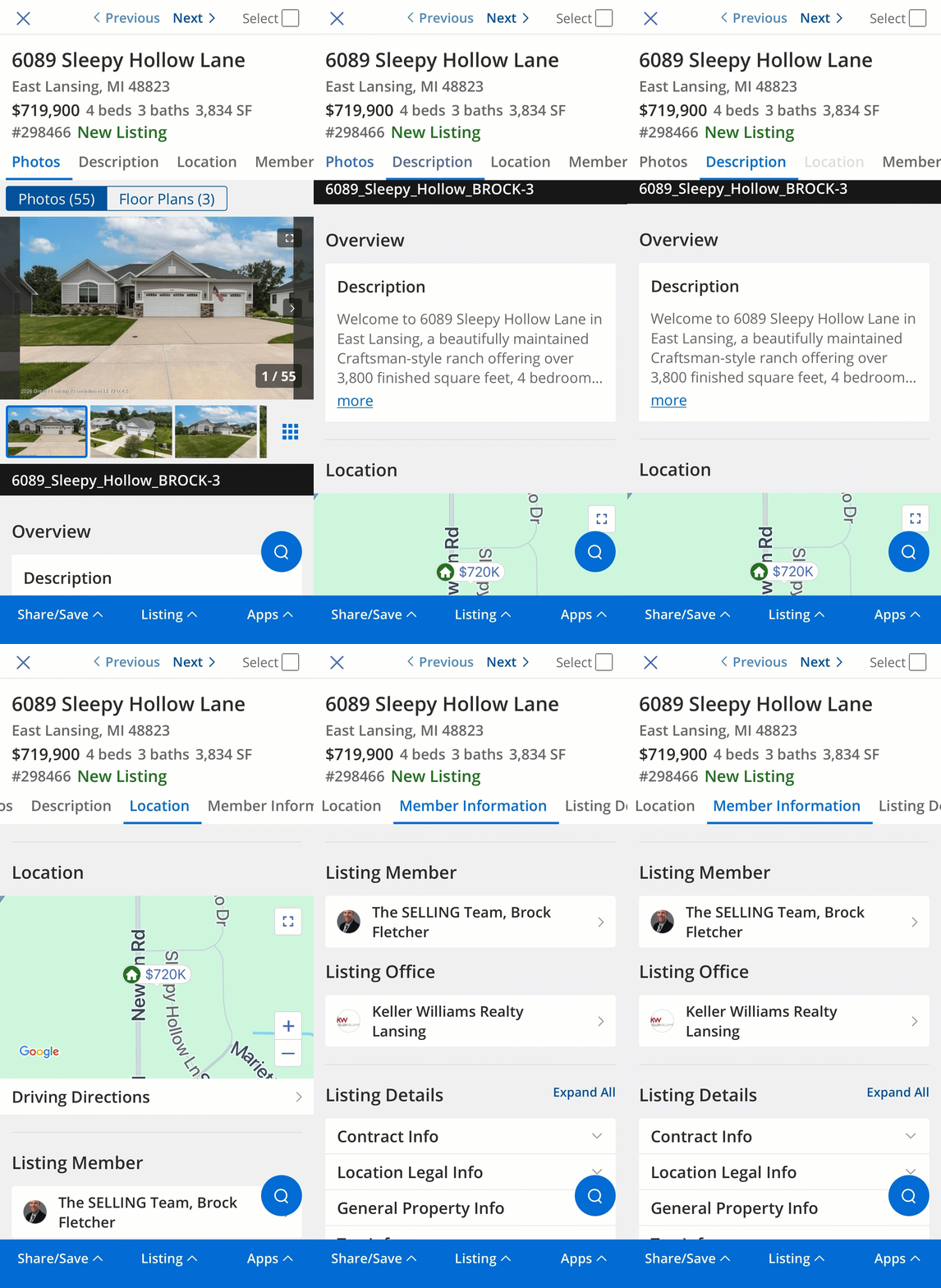 |
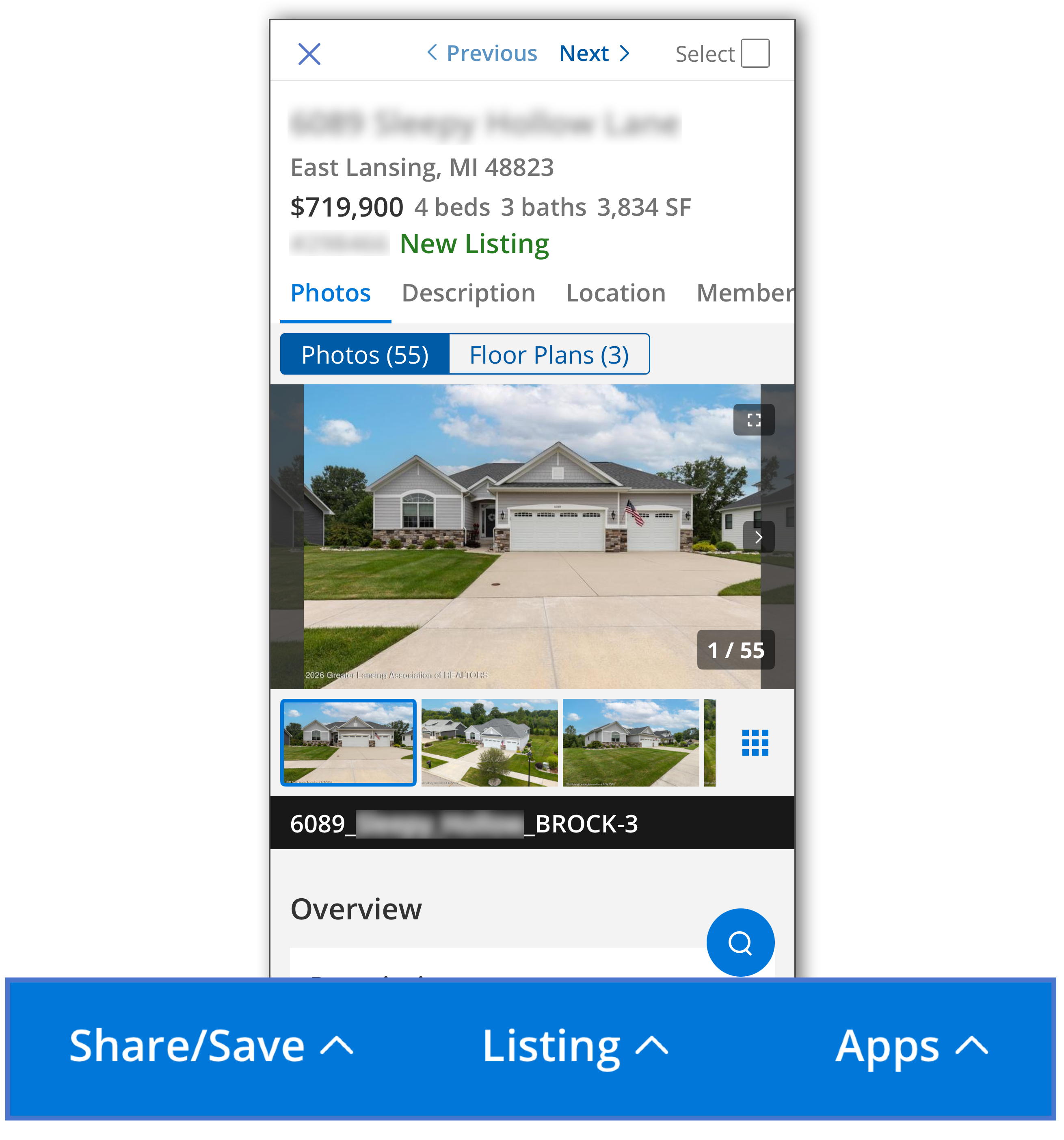
Basic information about the listing, such as the address, square footage, MLS number, price, and primary listing photo are displayed at the top of the details page. Other information, such as the listing description, location, media, and member information are accessible via the ribbon. Tap an item on the ribbon to jump to that section in the listing detail page.
At the bottom of the listing detail page is a blue action bar, where you can take actions such as sharing a listing, saving a listing, copying a listing URL, viewing showing info, reporting a listing error, taking action with a third-party application, and more. This action bar remains on the screen as you scroll through the listing detail page. For more information on actions you can take from the blue action bar, refer to the Listing Details Page Actions (Mobile) help page.
From the listing details page, you can search and view the following information.
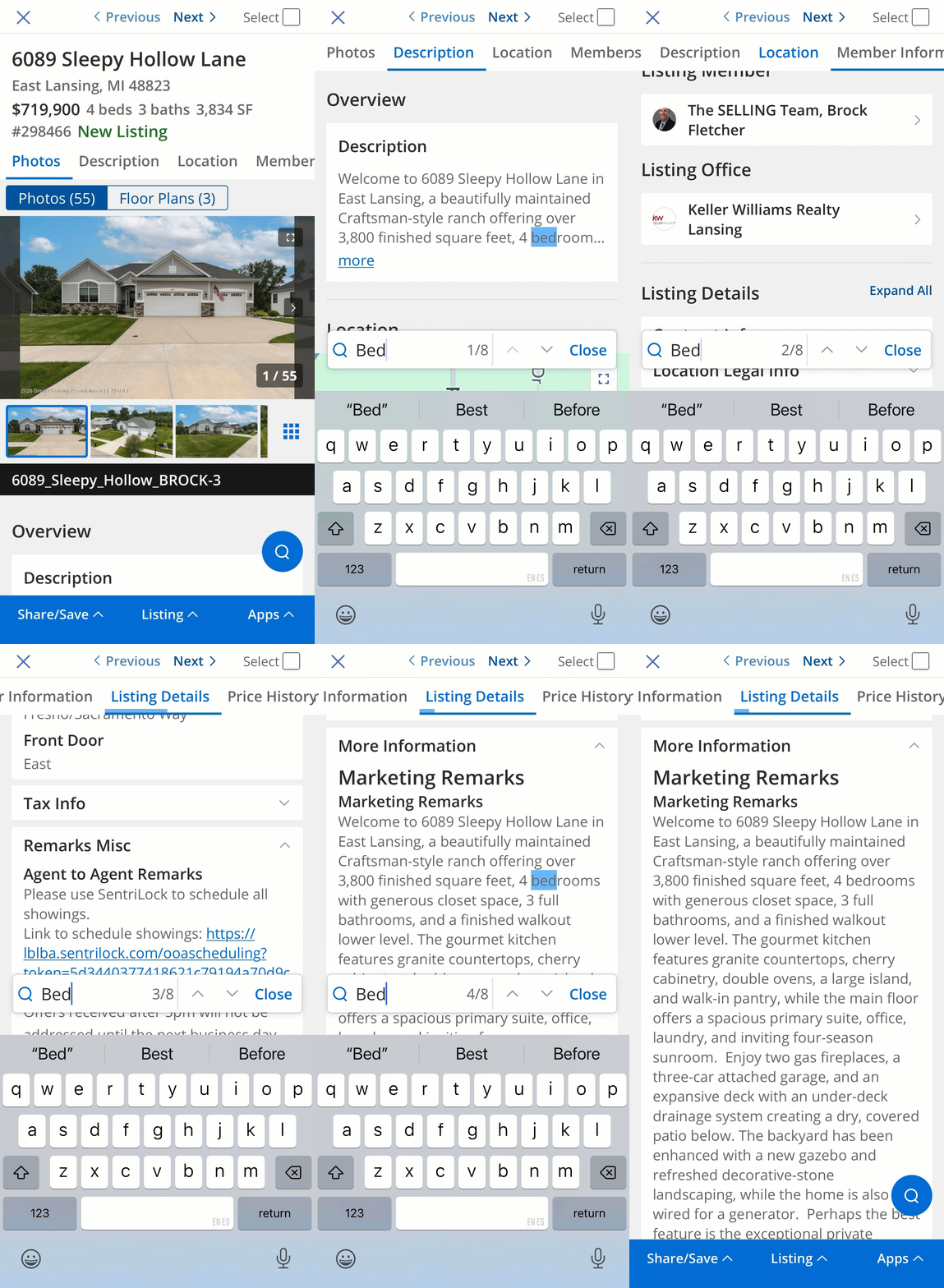 |
Use the search tool to search for a specific listing field, field data, or term. Tap the magnifying glass icon and type in a search term. The number of search results displays in the search bar, and each instance of your search term is highlighted on the page. Use the arrows to jump to the next or previous instance of your search term. Tap Close to close the search bar.
Navigate to the Location section of the listing detail page to view the listing’s location on a map. Tap Driving Directions to open driving directions in Apple Maps or Google Maps.
 |
Navigate to the Photos section to view listing media, including photos, videos, virtual tours, and floor plans. Under the photos section, you can view all listing media by category. Tap a category, such as Floor Plans, to view that media for the listing. Each category shows the number of items in that media category; for example, if a listing contains three floor plan images, the Floor Plan category will display a "(3)." Use the arrows or swipe the screen to view all the listing media. In the Photos tab, you can also scroll through the carousel to jump to a specific photo, or tap the grid icon to view all the photos.
Tap the name of the listing member or listing office to view contact information. If you are using a phone, you can tap the phone icon on the contact's details page to call the agent. If the listing agent’s mobile number is available, you can tap the message icon to send a text message.
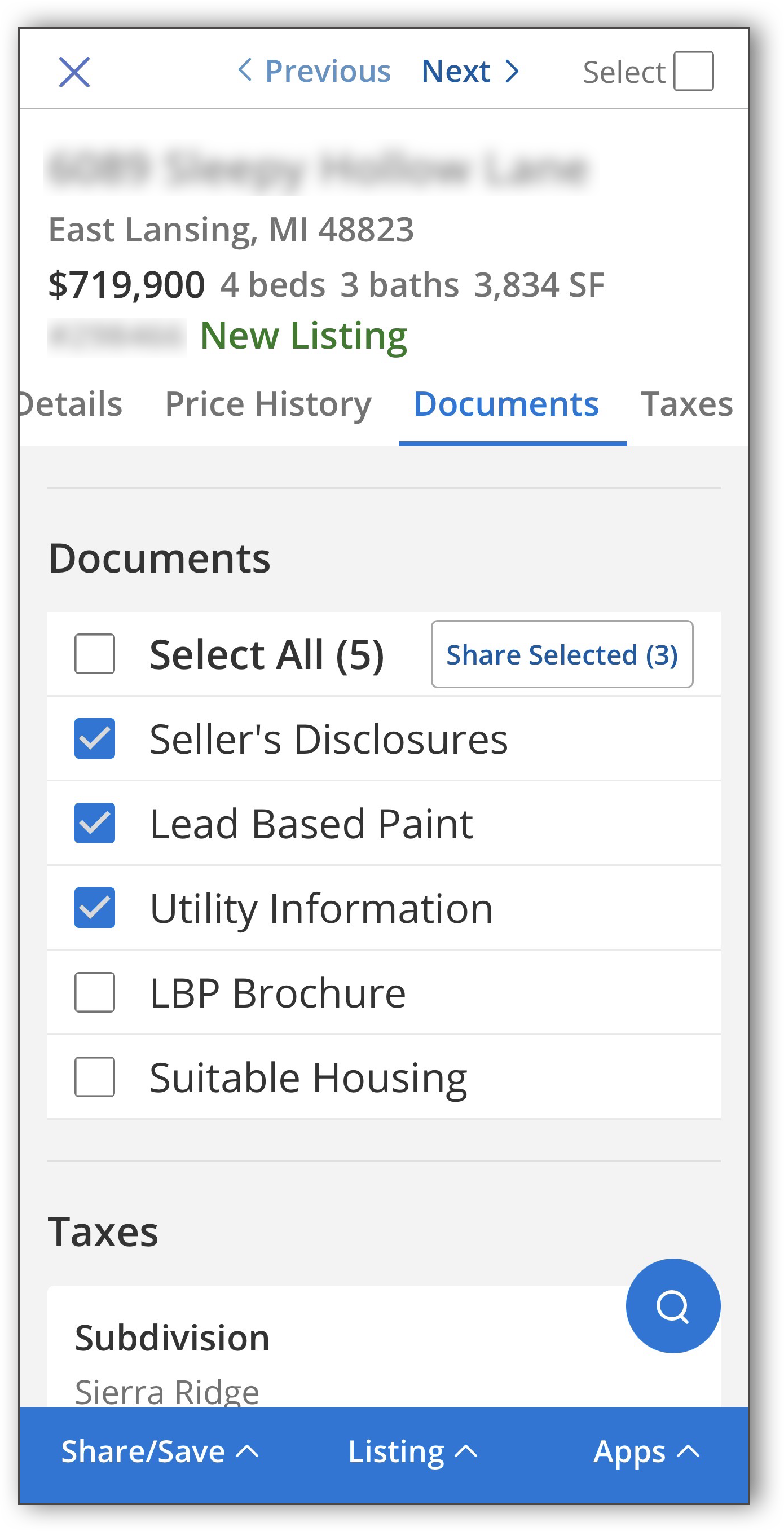 |
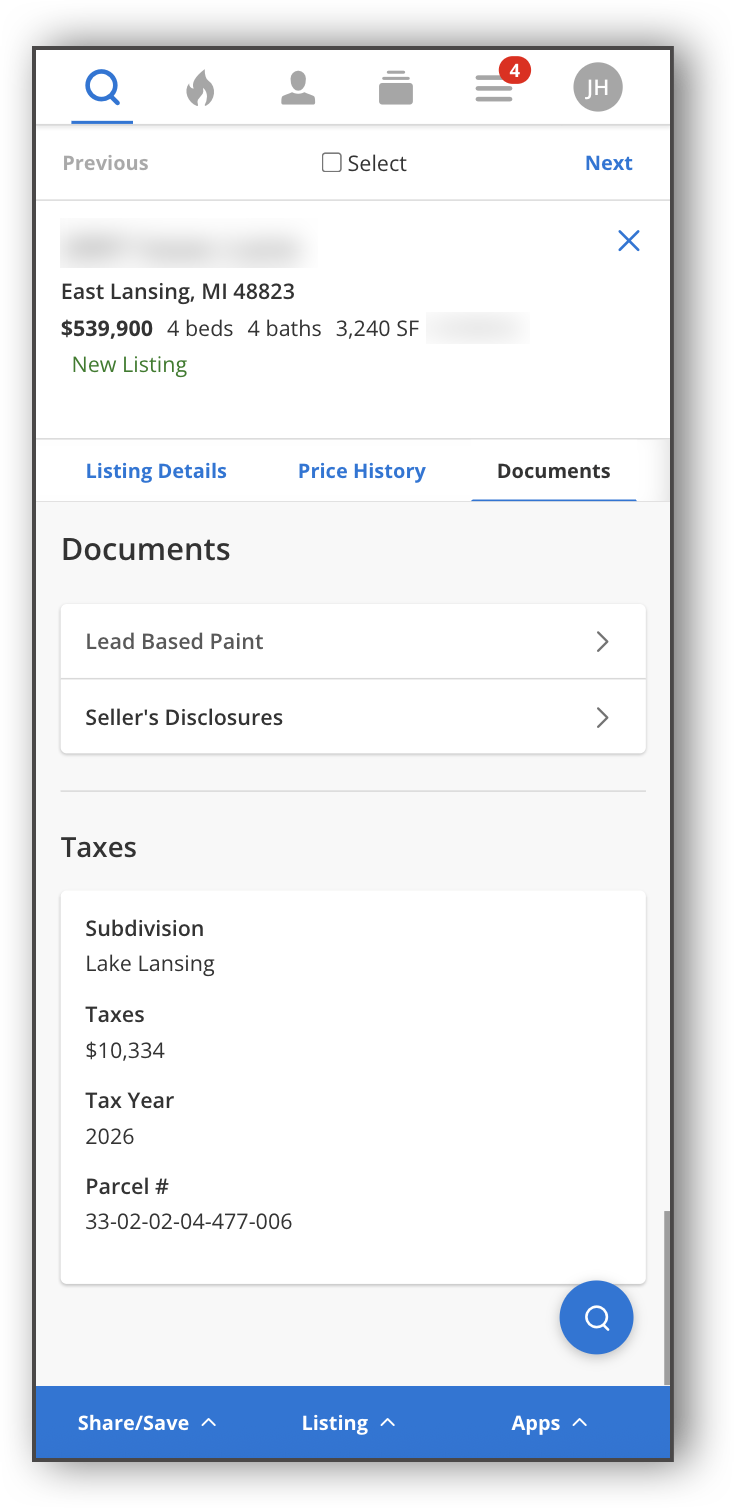
Navigate to the Documents section to view and/or share documents. Use the checkboxes to select the documents you’d like to share, and tap Share Selected. From here, you can share the documents with your contacts via text message or any other app you would like.
Note
The option to select and share multiple documents is only available on iOS.
For Android and mobile web users, select a document and click the download icon to save it to your phone. From there, you can share the document via email, text message, or any other app you would like.
 |
 |
From the listing details page, you can take actions on a listing. Refer to the Listing Details Page Actions (Mobile) help page for more information.