Listing Details Page Actions (Mobile)
At the bottom of the listing detail page is a blue action bar, where you can take actions such as sharing a listing, saving a listing, copying a listing URL, viewing showing info, reporting a listing error, taking action with a third-party application, and more. This action bar remains on the screen as you scroll through the listing detail page.
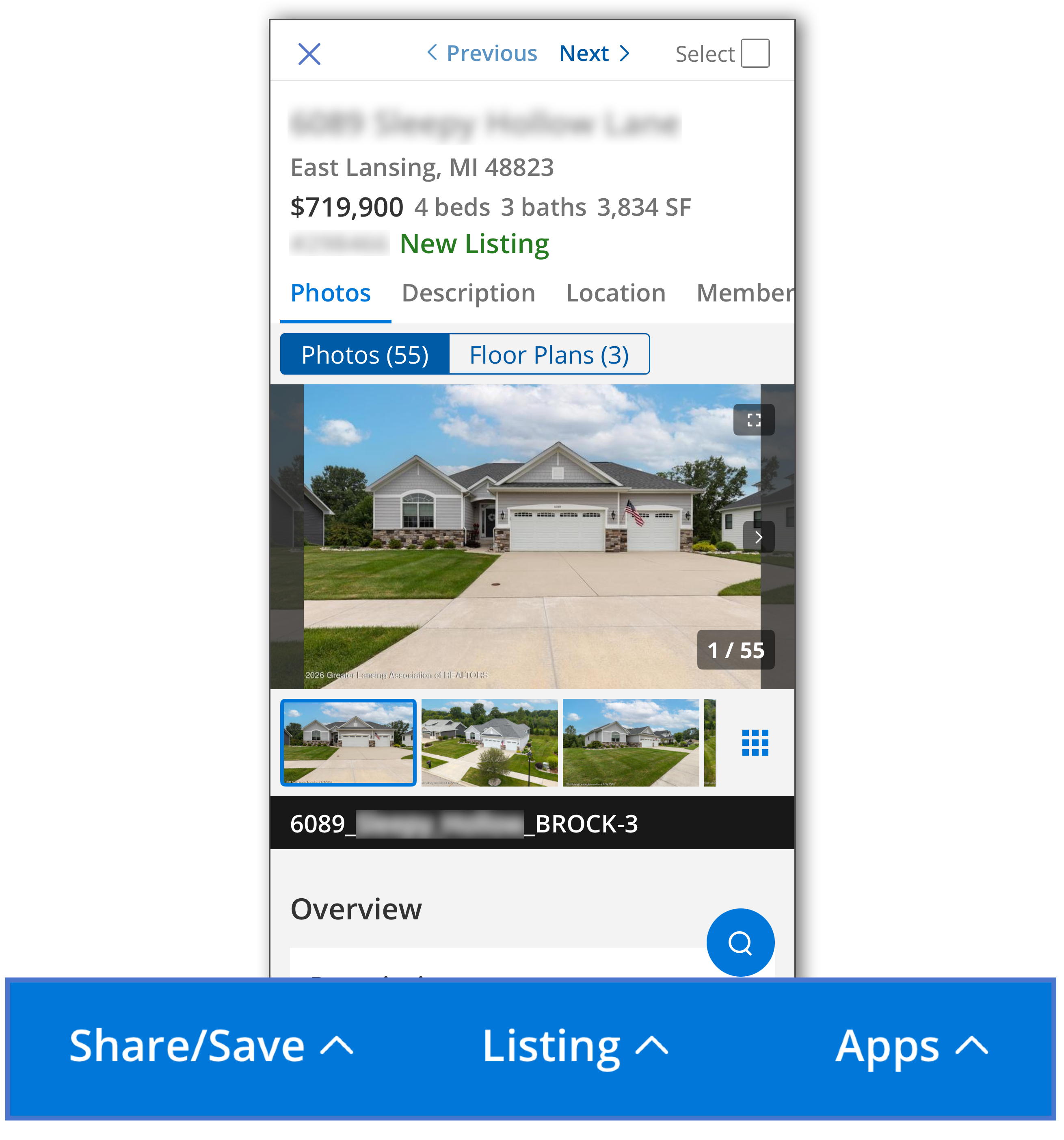 |
You can take the following actions on a listing from blue action bar on the listing detail page.
Select a Listing
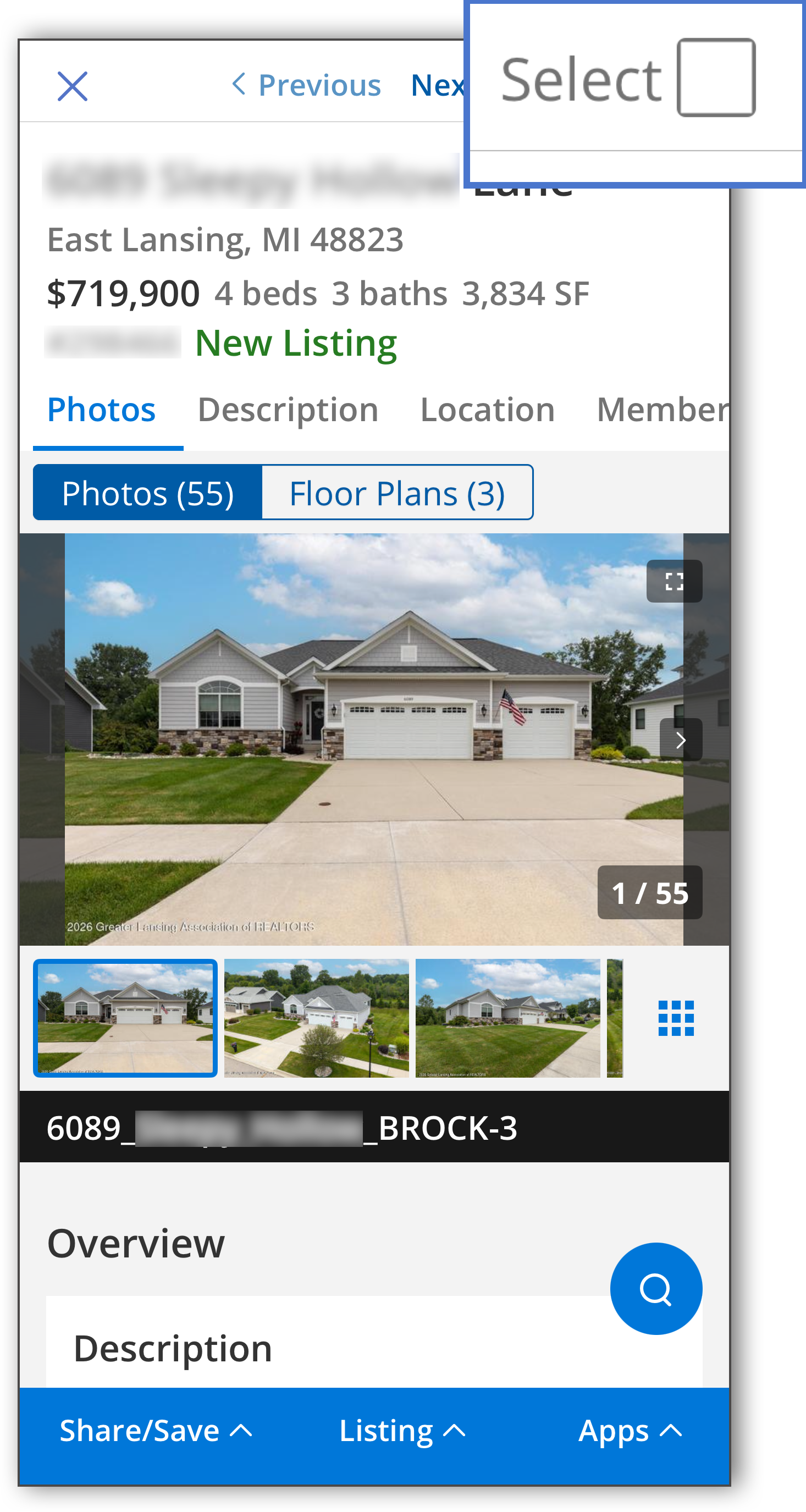 |
Select the listing to set it aside for further action. Use the checkbox at the top of the listing detail page to select a listing. When you select listings, a number will be displayed on the Listing Collections icon in the main menu. This indicates the number of listings you have selected. When you are done selecting listings, you can view the Selected collection and recommend, share, or hide the selected listings, or add the selected listings to a collection.
Share, Save, or Recommend a Listing
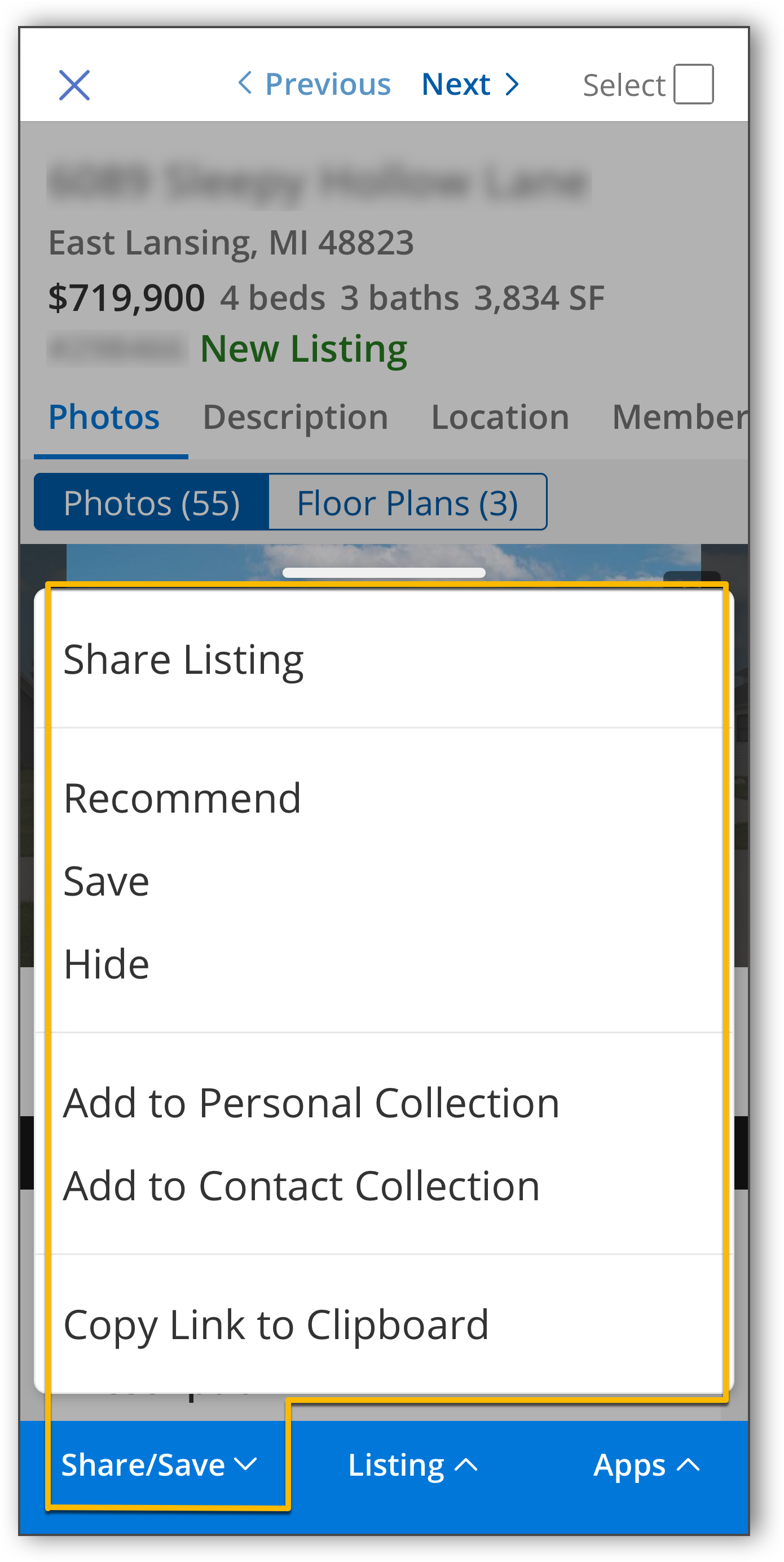 |
The following actions are available under the Share/Save section in the blue action bar:
Share Listing
Recommend
Save
Hide
Add to Personal Collection
Add to Contact Collection
Copy Link to Clipboard
To share a listing, tap Share/Save in the blue action bar at the bottom of the page. Then, tap Share Listing. Select or add a contact, type a message to accompany the link, and then select the sharing method to use.
To save a listing to a contact. Tap Share/Save, then tap Save and select a contact.
You can also hide a listing from a contact. To do so, tap Share/Save, and tap Hide. Then, select a contact to hide the listing from.
To recommend a listing, tap Share/Save. Then, tap Recommend, and select a contact.
You can add a listing to either your personal collection or a contact collection. To do so, tap Share/Save, then tap Add to Personal Collection or Add to Contact Collection. Select a collection (or create a new one), or select a contact.
You can also copy the listing link to your clipboard, and paste the link in your texts, emails, or any other app where you’d like to share it. To copy the listing link, tap Share/Save, and then tap Copy Link to Clipboard.
Listing
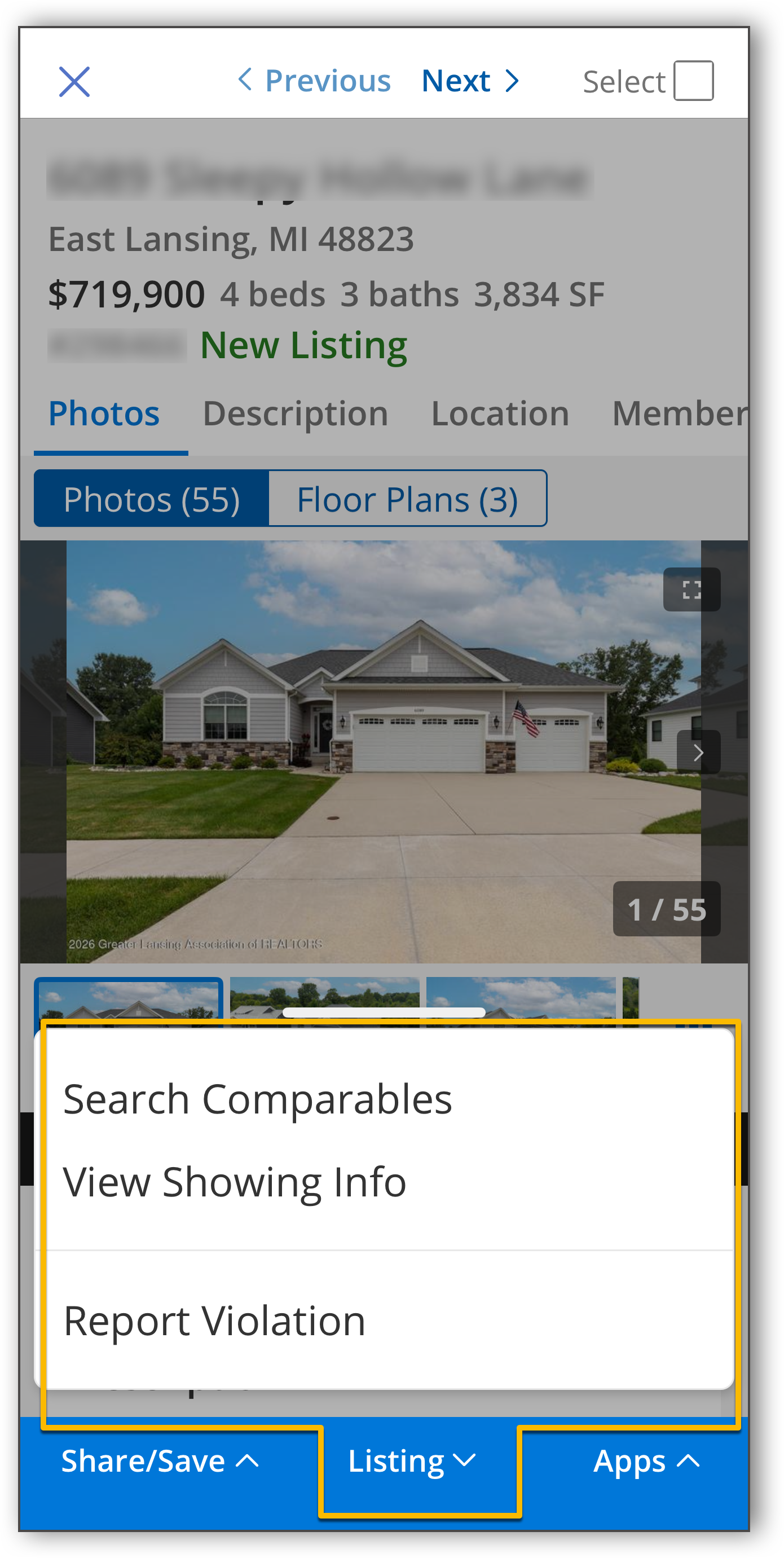 |
You can take the following actions under the Listing section in the blue action bar:
Search Comparables
View Showing Info
Report Violation
To search comparables, tap Listing and then tap Search Comparables. A list of comparables displays. Tap Back to return to the original listing detail page.
Tap Listing, and then tap View Showing Info to view contact information for the listing member/office, showing instructions, private remarks, and other details related to showing the listing.
To report a listing violation or error, tap Listing, and then tap Report Violation. Enter the error or violation, and tap Send. For more information, see Report a Listing Error.
Apps
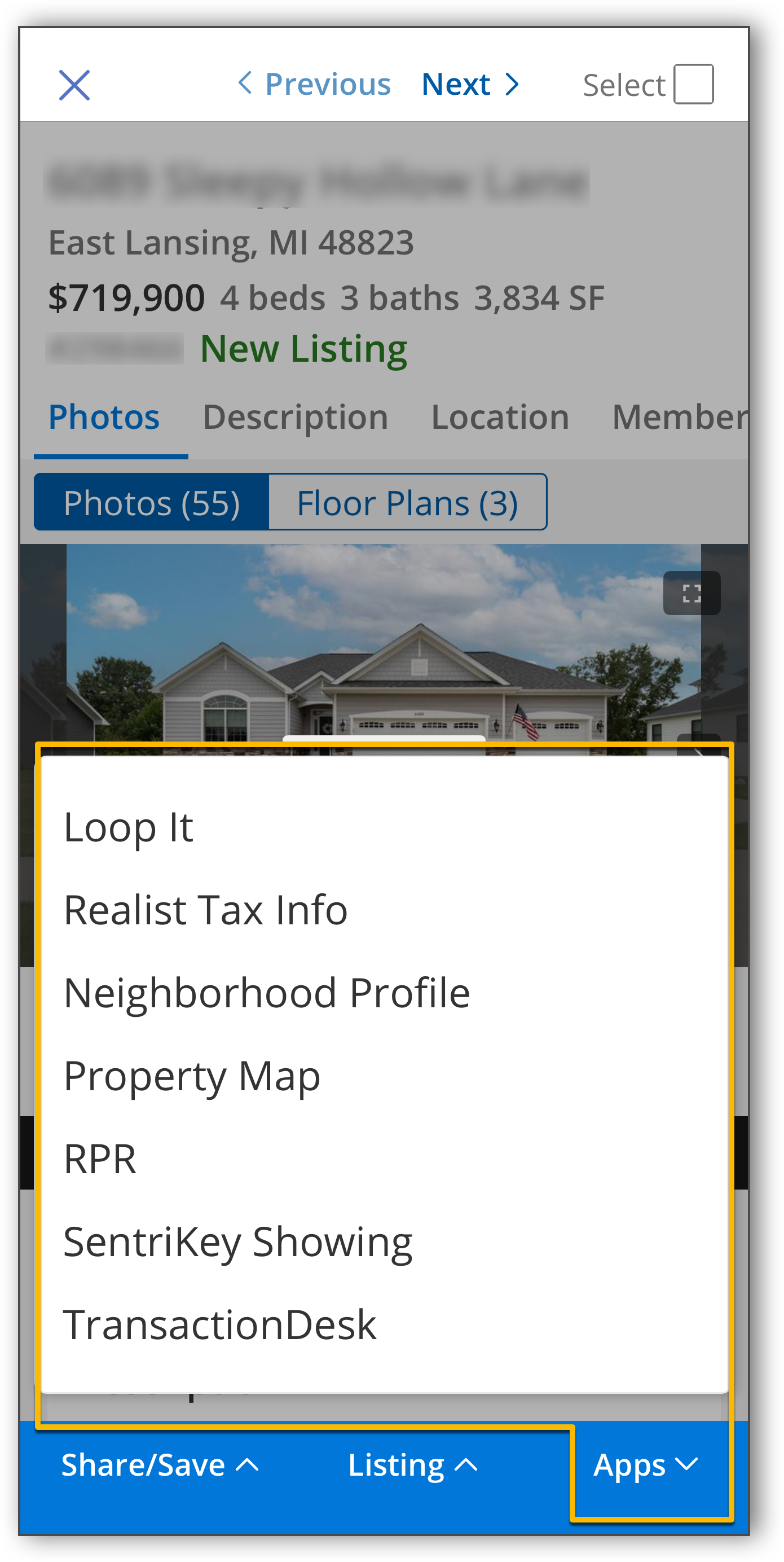 |
The apps section of the blue action bar is where you can find third-party applications and integrations. To take action with a third-party app or integration, tap Apps, then select the third-party application you want.