Create a Banner Message
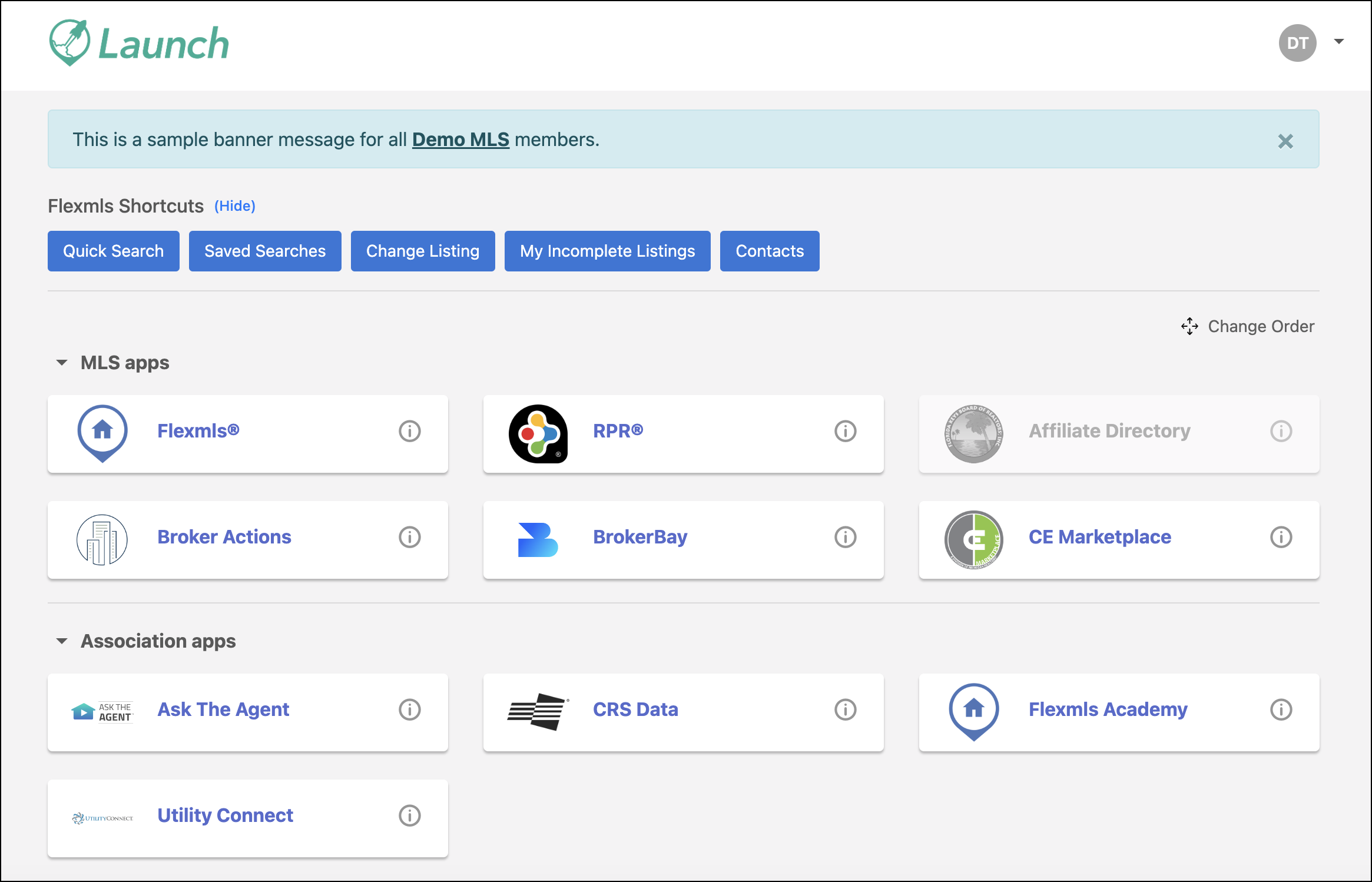
In the Launch dashboard, you have the option to create a banner style notification, allowing you to post a message to your members without interrupting their daily workflow with a pop-up. You can use this messaging option if you have an urgent or critical announcement you want your members to see, as the banner will stay on the dashboard until the expiration date you choose.
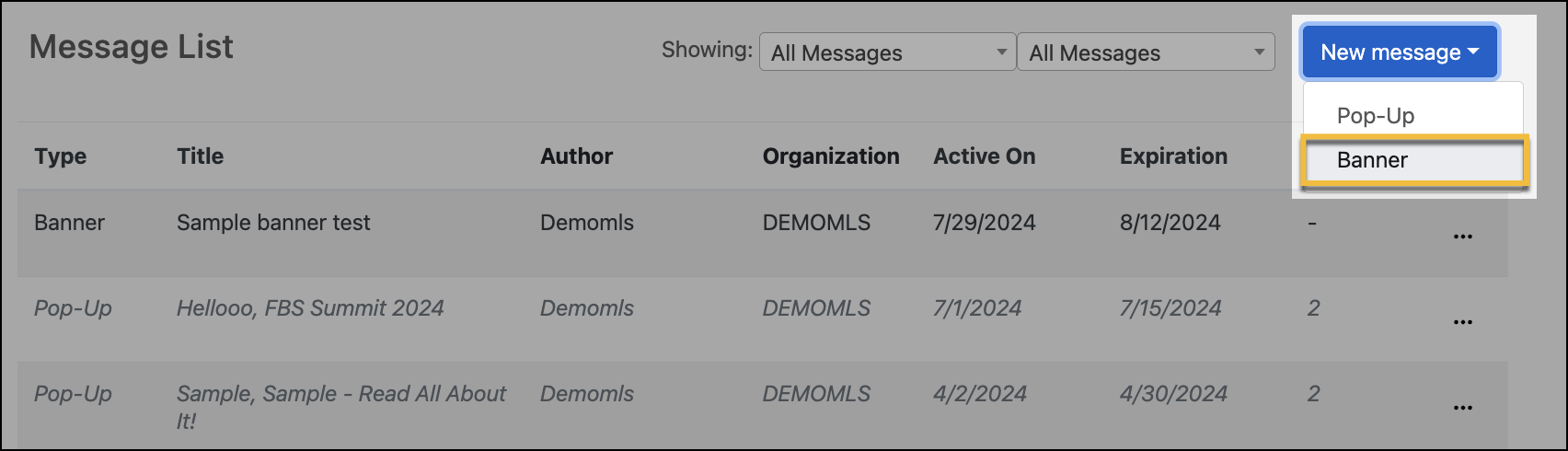
To create a banner message, click New Message, and select Banner in the dropdown menu.
Enter the title and text for your banner message. When creating a banner message, you can customize the font style and color, as well as add links.
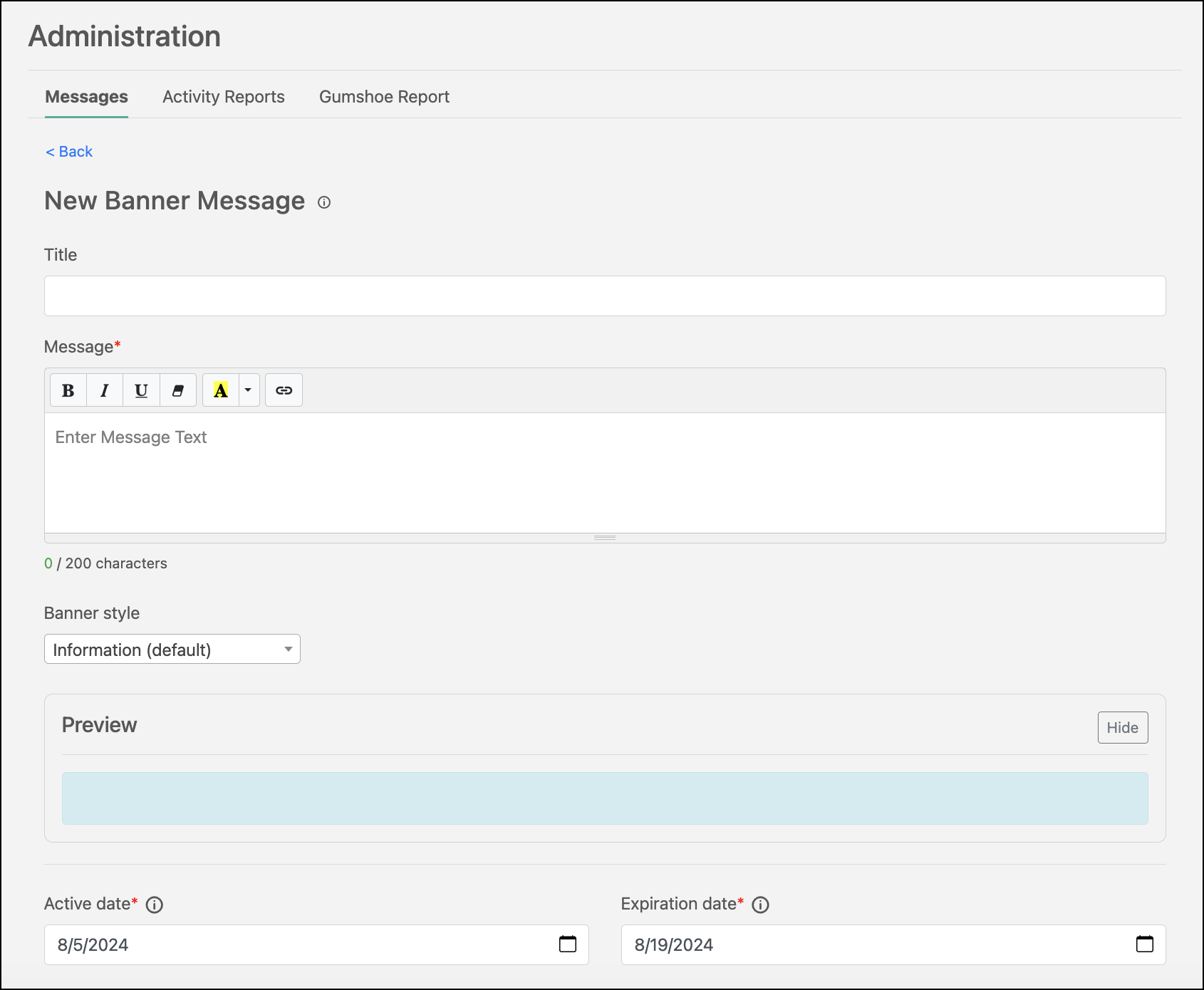
Under the Banner Style section, use the dropdown menu to select what kind of banner message you want to post. Each banner message type displays in a different color, which you can preview in the Preview section beneath the Banner Style section. The banner message options include the following:
Information (selected by default)
Alert
Warning
Success
Neutral
Light
Dark
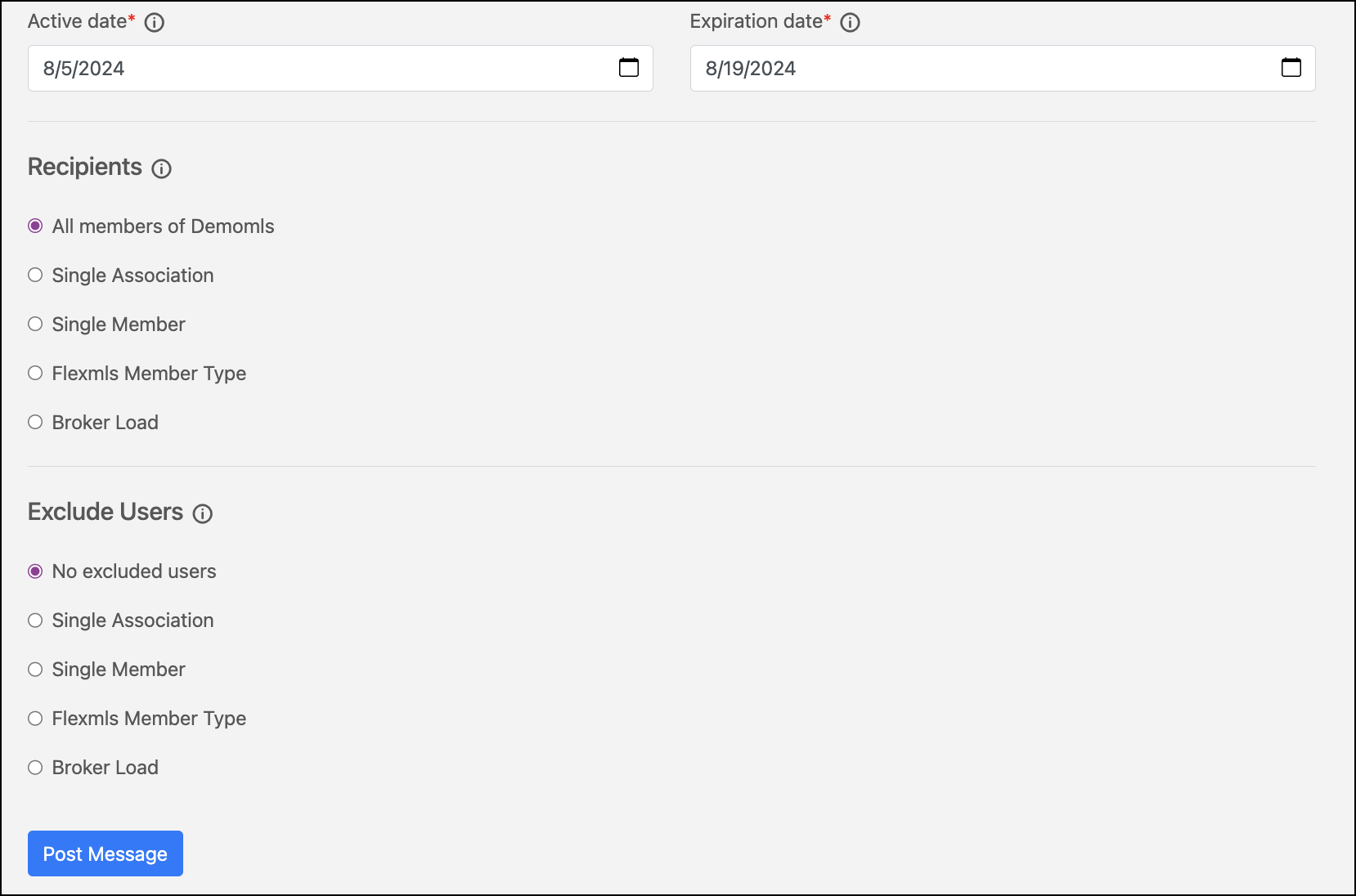
Select an Active Date and an Expiration Date to dictate when your message goes live and when it disappears. Once you are finished creating your banner message, you can click Post Message to publish the banner message to your members.
The banner message displays below the page header and above any dashboard tiles or advertisements. It does not require nor track acknowledgement. Members are able to hide the banner message once they’ve seen it, but it will reappear if the page is refreshed or if they log out and then log back in.