Message Board and Links
Click Logon Message under General on the Admin menu to create the content that appears in the Message Board and MLS Links dashboard gadgets. For more information about the Message Board and MLS Links gadgets, see The Flexmls Dashboard (Admin).
To upload files so they can be linked in a dashboard gadget, see Link to a File in an MLS Message.
Create or Modify a Message on the Message Board
Click Add New to create a new message or select an existing message from the list on the left.
If you are creating a new message, type a name in the Name field. Be sure to check the Primary option to show the message on the MLS dashboard. If you want members to be able to display this message in a Message Board gadget on their custom dashboards, click Selectable by Members.
Enter message text in the Message window at the right. Use the text editing options at the top of the message to change the color and weight of the text, or to add links or images.
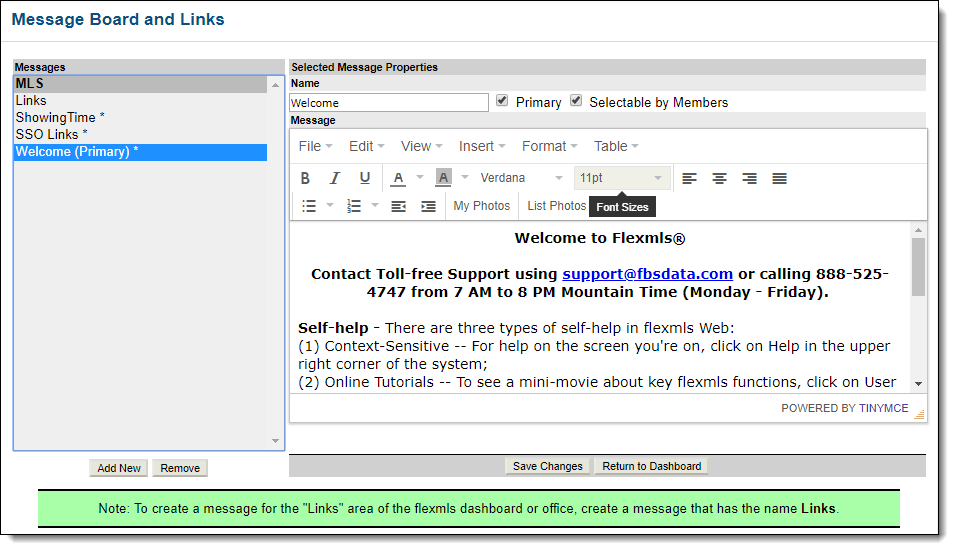
Click Save Changes.
Create or Modify MLS Links
Use a message called Links to maintain a list of links that can be accessed directly from the Flexmls dashboard. If your MLS includes multiple associations, you can have a different list of links for each association.
Click Add New to create a new message or select an existing message from the list on the left.
If you are creating a new message, type Links in the Name field.
In the message area on the right side of the page, click the Insert button, then click Link.
On the Insert Link page, enter the URL and the text to display for the link. We recommend using a descriptive title, such as County Tax Records.
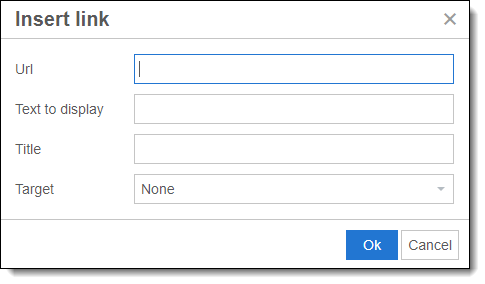
Click OK to insert the link.
When you are finished adding links, click Save Changes to save the message.