The Flexmls Dashboard (Admin)
A dashboard is generally the first page your members see when they log on to Flexmls. The MLS administrator can customize the MLS dashboard, create additional dashboards, and set the default dashboard for members who have not set their own.
For information about what members can do with their dashboards, see Dashboards on the Flexmls help website.
The MLS Dashboard
By default, Flexmls includes an MLS dashboard for MLS-wide information. The MLS dashboard is automatically available to all members, and only the MLS administrator can modify its content. Changes that you make to the MLS dashboard will appear for all members.
The Message Board gadget and MLS Links gadget are typically displayed on the MLS dashboard, and their content is controlled by the MLS administrator.
Message Board Gadget
The Message Board gadget displays MLS messages. The MLS administrator controls which messages are available, but members can add the gadget to their own customized dashboard pages.
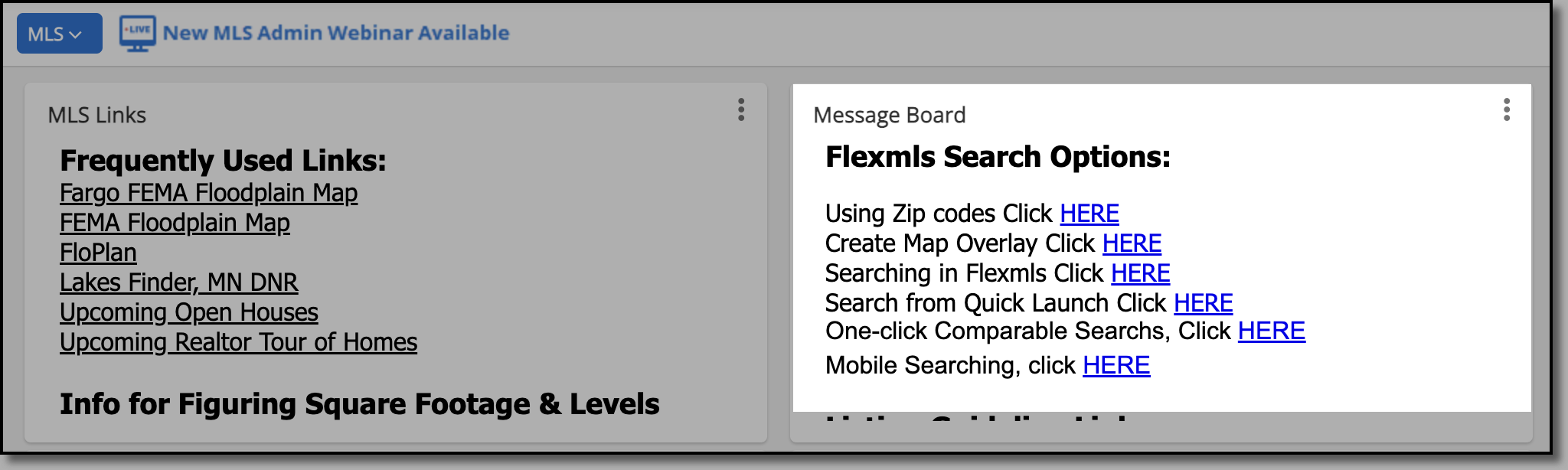
You and your members can add multiple message board gadgets that show different messages. Use the gadget settings to customize the gadget label, gadget height, and the message displayed.
To create messages that can be displayed in the MLS message board gadget, see Message Board and Links.
MLS Links Gadget
The MLS Links gadget displays a list of links. The MLS administrator controls which links are available, but members can add the gadget to their own customized dashboard pages. If your MLS includes multiple associations, you can set up a Links gadget for each association.
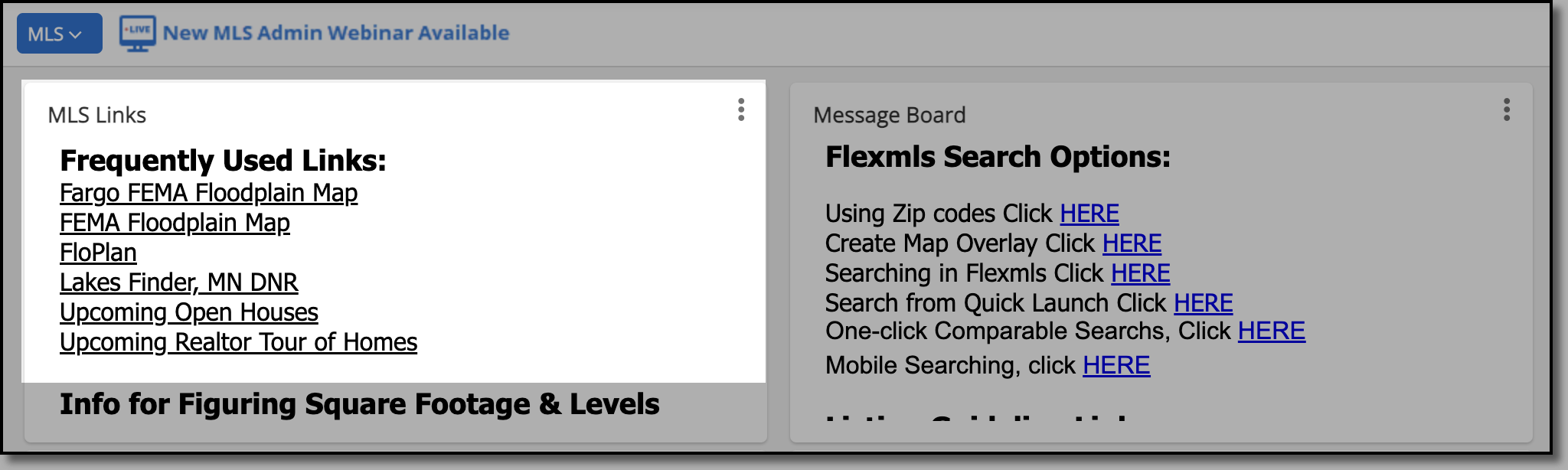
You and your members can use the gadget settings to select which links to show in the gadget: the links for the user's primary association or the links for a selected association.
To add links to the MLS Links gadget, see Message Board and Links.
Default Dashboards
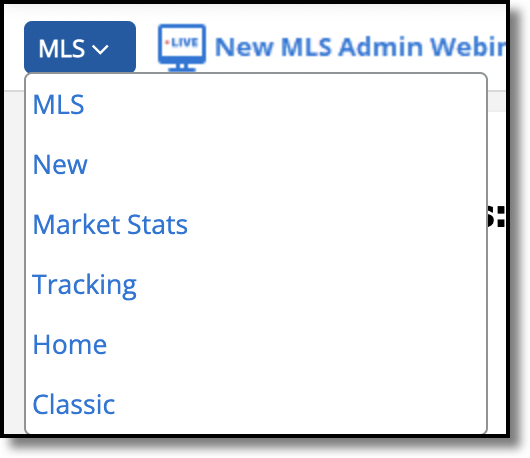
Your members can change which dashboard appears by default when they log on to Flexmls. (If allowed by your MLS, members can also choose to see Quick Search upon login instead of a dashboard.)
You can set a default dashboard for members who have not yet customized a dashboard or changed their default. To set the default dashboard, select it from the dashboard menu, then click the Customize menu and choose Make Default.
If a member has already set their default dashboard, you cannot override it.
Create and Recommend a New Dashboard Page
Members with administrative privileges for the MLS, an association, or an office can create dashboards and recommended them to members.
When you build and recommend a new dashboard, it can be displayed in the Dashboard drop-down list for all new users and for existing users who have never modified a dashboard.
Important
If a member has already customized a dashboard or set their own default dashboard, the recommended dashboard will not be displayed automatically in the dashboard drop-down list for that member. However, the member can manually add the dashboard by clicking the Customize button, clicking Add, and then selecting the new dashboard.
First, create the dashboard that you want to share with members. For more information about modifying dashboards and gadgets, see Dashboard Customization on the Flexmls help website.
While viewing the new dashboard, click Customize in the upper right corner of the page, then click Recommend Dashboard.
Type a name and description (optional) for the dashboard. Select Add this dashboard to the user's dashboard list to display this dashboard as an option for new users. Select Show this dashboard by default to make this dashboard the default for new users.
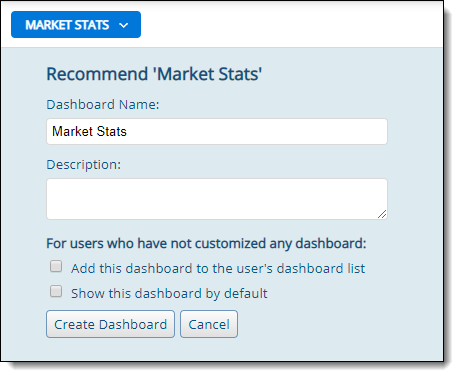
Click Create Dashboard to create the recommendation.
Once a dashboard has been recommended, the recommended version does not change. Any further changes you make to the dashboard will not change the dashboard for users.
Change or Remove a Recommended Dashboard
To remove or edit a recommended dashboard, click the Customize button and select My Recommendations. Click Edit to change a recommended dashboard or click Remove to remove a recommendation.
When you edit or remove a dashboard, the changes apply only to new users who have not modified any of their dashboards. The previously recommended dashboard will not change or be removed from the dashboard list for existing users.
The following MLS settings are related to this feature. To view or change your MLS settings, go to the MLS Settings page under General on the Admin menu.
Members with MLS broker load can recommend dashboards - When set to On, members with MLS-level brokerload have an option called Recommend Dashboard on their dashboard’s Customize menu. With this option, the user can save their current dashboard settings and layout for others to use.
Much like the MLS (root) account, users with MLS-level brokerload will see the following options when recommending a dashboard:
Add this dashboard to a user's dashboard list - Show the recommended dashboard to all users in their Dashboard menu only if the user has not customized any dashboard.
Show this dashboard by default - Force the recommended dashboard as the default dashboard for those members who have not customized their current dashboard.
Each Association edits content for its own message board and links - This setting is applicable only if multiple associations are configured in your MLS. When set to On, an administrative user can set up a member of an association to edit their association’s message board and links. When the user setting Access to message board editor is set to Yes, the member can edit message board content by using the Logon Message menu item.