Related Scroll Fields
A related scroll is a parent/child relationship between two list fields. When list fields are related, your selection in the parent field affects which options are available in the child field. For example, if you set up the City field as a parent and the Postal Code field as a child, selecting a city from the list will limit the postal codes that are available for selection.
For information about adding items to a main list field, see Add or Remove List Items (Main Fields).
Tip
The following Guided Help tours are available for this function in Flexmls. When you click on a link, an instance of Flexmls will open in a new browser tab and instruction bubbles will guide you through the process.
Before You Set Up Related Scrolls
We strongly recommend that you plan the field structure before setting up a related scroll. Creating a map of parent and child field selections beforehand will help prevent errors during setup. Be sure that your mapping process uses unique fields only once. For example, if you plan to create a relationship where County is the parent of City, do not create a relationship where City is the parent of County. Doing so will cause Flexmls to not display either list item when adding or changing listings.
Important
Once you set up a relationship between parent and child fields, each item in the parent list must have associated children. If there are no children associated with a parent item, the child field will be blank when that parent item is selected, which may prevent members from adding a listing. For example, if you set up a relationship between City and Postal Code, all cities must have at least one associated postal code for members to proceed with adding a listing. If you want to remove the relationship between fields, you must remove the relationships between all parent items and child items.
Set Up Related Scrolls
Click Related Scroll under Main Listings on the Admin menu.
Select a property type, then click Next to go to the Fields tab.
Select a parent field in the left pane and a child field in the right pane.
Note
Asterisks indicate fields that already have related scrolls. Click on a parent field with an asterisk to show the related child field at the bottom of the page. Click on a child field to show the related parent field.
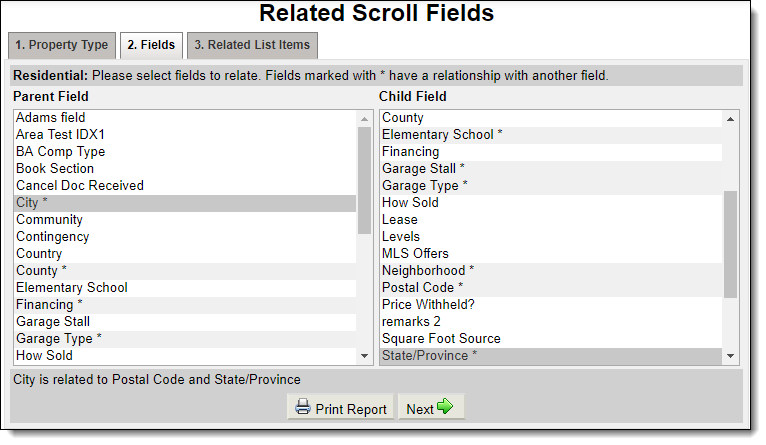
Click Next to go to the Related List Items tab.
Create relationships between parent and child list items. Select an item from the parent field, then choose the items from the child list that relate to the parent item. Hold the Control key to select multiple items.
For example, if the parent is a city, click on all the postal codes to associate with that city. During listing entry, when the city is selected, the related child items will be the only items available in the postal codes list.
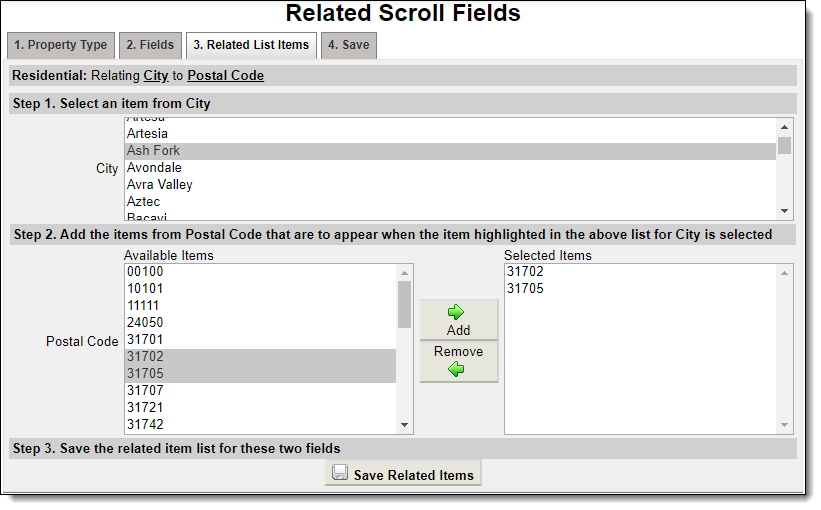
Repeat this step for all parent and child relationships.
Click Add to add the items. To remove an item, select it in the Selected Items list, and then click Remove. You can also click Add All to add all items to the Selected Items, and click Remove All to remove all items in the Selected Items list.
Click Save Related Items at the bottom of the screen to save your changes.
Note
When you click Save Related Items, the related scrolls become available to your members during listing entry. We recommend that you click the button only when you have completely finished setting up parent/child relationships.
Note
If your MLS uses related scrolls for the Rooms Tab, you can set Room Name as a Parent Field and Levels as a Child Field. This allows levels to be customized on a per room basis. For example, if you had Balcony listed as a room and did not want the level of “first floor” or “basement” available as an option for your members to select, you can customize that related scroll to exclude those choices.
To customize the levels you want selectable for each room, select Room Name as the Parent Field and Level as the Child Field. From there, you can select a room and then add the levels you want users to be able to choose from for that room. You can also remove the levels you do not want users to be able to choose from for that room.
Print a Related Scrolls Report
To review the existing relationships between list fields, you can print a report.
Click Related Scroll under Main Listings on the Admin menu.
Select a property type, then click Next to go to the Fields tab.
Click the Print Report button. Review the report onscreen or use your browser's print function to send the report to a printer.