Superusing in Flexmls
Superusing allows a member to work on another member’s behalf without sharing login information. We recommend granting superuser access to maintain an accurate history of who performed listing changes.
For example, an assistant can be set up to superuse as one or more members of an office. The assistant would log in using their own username and password, then click the profile button to assume the identity of another member. The assistant could then perform all functions as if they were the other user.
When a user superuses as someone else, the profile button shows the initials of both parties. In the following illustration, Melissa Trainer is superusing as Flex Trainer. This means that Melissa has access to view and change everything that Flex does, including saved searches, contacts, and listings.
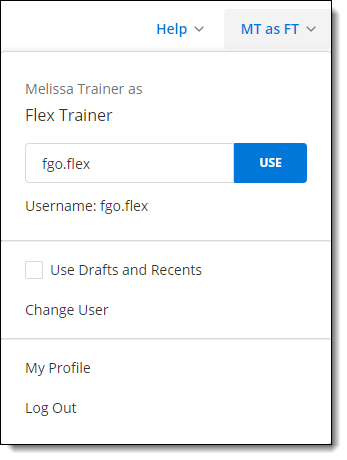
When you superuse as another user, you remain logged in as that user until you change to another username (either your own or another member’s). In the above example, if Melissa were to log out of Flexmls while superusing, the next time she logged in, she would still be superusing as Flex.
To change members, type a new username in the text box and click Use, or click the Change User option.
Why Set Up Superusers?
Superusing might be set up to handle the following situations:
MLS staff need administrator rights for the MLS
An assistant needs to log in as the broker
A member needs to add or change listings as another user
A user needs to print listings with someone else's contact information
A user needs to add or change saved searches for another user
A user needs to add or change contacts for another user
A member needs to approve and reject listings on behalf of the MLS
Set Up a Superuser
Use the following instructions to give superuser access to a user.
Click Change User under Users on the Admin menu.
Search for the user account that you want to grant superuser access to.
Select the user account and click the Edit button.
Click the Superuser tab and select This user has superuser capabilities.
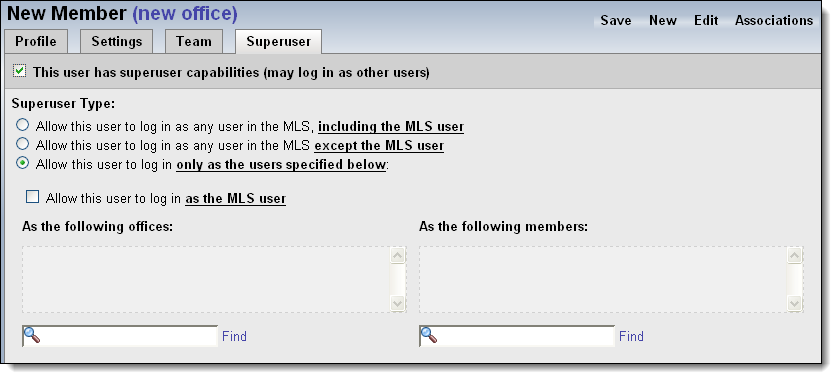
Select one of the following superuser types:
Allow this member to log in as any user in the MLS, including the MLS user - This option allows the user to log in as any active member of the MLS, including the MLS-level user. If this option is selected, the user can superuse as any active office or member in the MLS. This option should be selected only for users who are authorized to make decisions and changes for the entire MLS.
Allow this member to log in as any user in the MLS, except the MLS user - This option allows the user to log in as any active member of the MLS, but not the MLS-level user.
Allow this user to log in as any user in Association - If your MLS contains multiple associations, you can allow a user to superuse as any member of a selected association.
Allow this user to log in only as the users specified below - Use this option to specify individual offices or members that the user can assume the identity of.
Add All Members - To allow a user to superuse as any member of an office, add the office to the list, then click on the office name. Click Add All Members to automatically add the members of the office to the superuser's list rather than granting access to each user individually.
Brokerload Override - By default, the superuser has the permissions of the office/member account they are logged in as. To allow the superuser's permissions to override the permissions of the office or member, click Brokerload Override. For example, if the superuser has a brokerload of None, and they superuse as a user with Member brokerload, the superuser will not gain the ability to add listings when superusing.
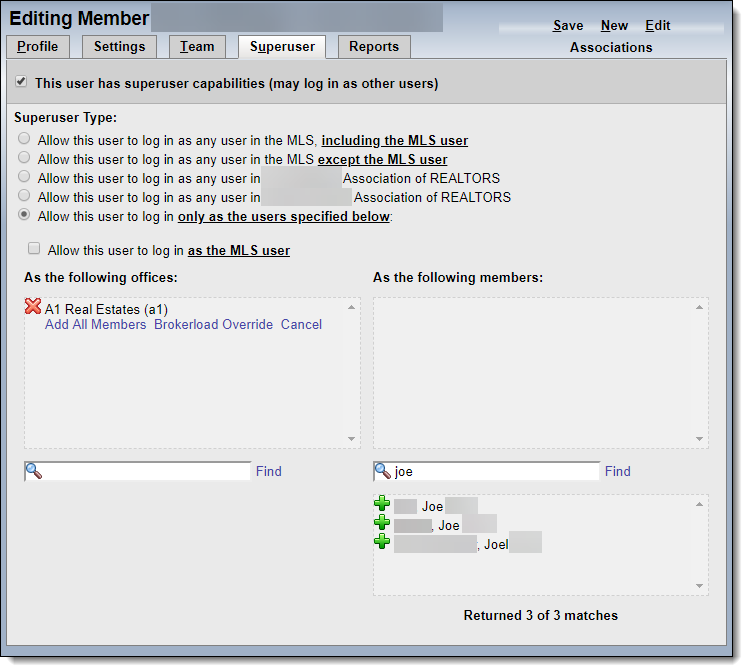
Allow this user to log in as the MLS user - This option allows the user to log in as the MLS-level user account in addition to other usernames specified.
When you are finished making changes, click the Save link in the upper right corner of the page.
Monitor Superuser Access to Flexmls
Run the Superuser Report to identify all users who have permission to log on as other users in Flexmls. Review this report periodically to make sure that superuser access has been granted appropriately. For more information, see Superuser Report.