Transfer a Team
Use the following procedures to transfer a team to a different office. It is important to follow the transfer process below to ensure that team history remains intact after the transfer.
Transfer the Team
First, use the Office/Member Search page to locate the record for the team that you are transferring. For more information about searching, see Find (Office/Member Search).
On the Office/Member Search page, click on the name of the team that you want to transfer.
Click the Edit Team button at the bottom of the profile page for the team.
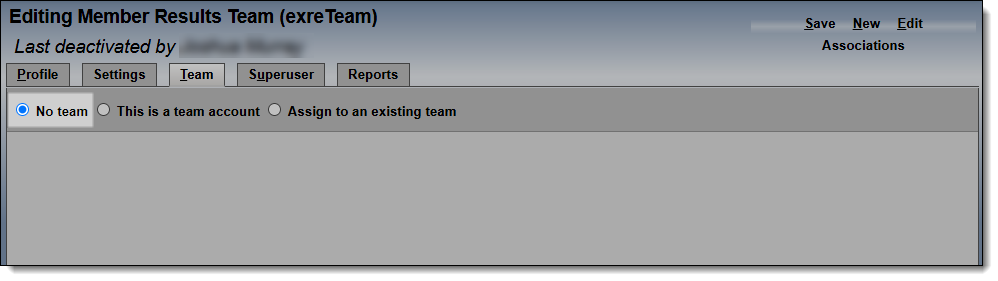
On the Editing Team Member Account page, click the Team tab.
Note
If necessary, make a note of team member names before proceeding. Team members will be removed from the team account in the next step.
Select No Team. This will revert the team account to a regular user account and remove the association with team members. Click Save.
Click the Profile tab. Next to the Office field, click Transfer this member to a different office.
On the Change Office page, find the destination office. Type at least three characters of the office name and then click Find.
Click the name of the destination office and then click Finish.
A warning prompt will appear, informing you that the user's listings will not be transferred. Click the OK button to continue. The Edit Member page will be displayed again, and the new office name will be displayed on the page.
Click the Save button at the top of the Edit Member page. If you do not click Save, the user will not be transferred.
Transfer Team Members
After the team has been transferred, you can transfer the team members using a similar process. For more information, see Transfer a Member to a Different Office.
Make a Team Account and Assign Members
Locate the team account again and open it in Edit mode.
Click the Team tab.
Select the radio button marked This is a team account.
Select members from the list and click Add to add them to the team. Team members display in a box at the right.
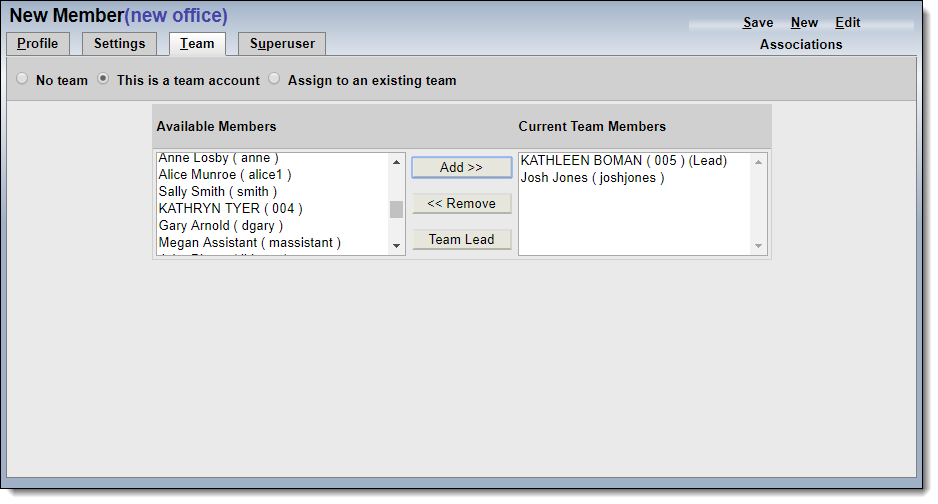
Click Save to save the team.
Transfer Listings
After the team has been transferred to the new office, you can transfer any listings. For more information, see Transfer Listings.