Teams in Flexmls
Teams are set up as users in Flexmls. Use the options under Users on the Admin menu to manage teams.
Note
Because a team account is a separate entity from an agent, when searching listings or rosters, you must search for the team account independently. The team account will not be found by searching for team members.
Some agents prefer to pool their contacts and searches into the team account because they find it easier to manage contacts in a single account. One problem with this approach is that Flexmls does not allow concurrent logins on an account. To work around this, we recommend setting up the team members to be able to superuse as the team. For more information about setting up superuser access, see Superusing in Flexmls.
The MLS administrator can enable teams by using the following MLS settings. To view or change your MLS settings, go to the MLS Settings page under General on the Admin menu.
Miscellaneous Settings
Team Support - When set to On, teams can be created. The Team section will be displayed in Office/Member Search and the Team tab will be displayed when adding or editing a user.
Teams Settings
Allow Offices and Companies to manage teams - By default, only the MLS root account can manage teams. If this setting is On, office and company accounts also have access to the Create Team and Team Management options. This option enables offices and companies to assign their members to teams.
Require all teams to have a Team Lead - When set to On, all teams are required to have a team lead. The Team Lead button also becomes available on the Team tab when setting up or assigning a team. If set to Off, the button will not be displayed and a team lead will be not be required.
Require all team members to belong to the same Office rather than to the same Company - If set to On, only members who belong to the same office are available when assigning members to a team on the Team tab. If set to Off, you can add anyone who belongs to the same company.
Searching for team listings shows - This setting controls which listings are displayed for a team in an Office/Member search. The following options are available:
Just the listings for the team account: Only the listings for the team account will be displayed. Dashboard counts will reflect only team account listings, and the My Listings link will show only team account listings.
Both the team account and the team member listings: Listings for both the team account and individual members of the team will be displayed. The search query includes all applicable team members and displays all member listings. Dashboard counts will show all team members’ listings. The My Listings link will show team account listings and the team members’ listings.
Contact Management Settings
Allow Reverse Prospecting of Team listings by team members - When set to On, the members of a team can run reverse prospecting on listings where their team is the listing agent. When set to Off, team listings are not included in reverse prospecting for members of the team.
Create a Team Account (MLS Login)
The first step in setting up a team is to create a new user account that will act as the team account. Log on as the MLS root user for full team setup functionality.
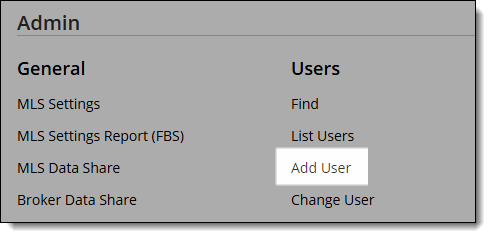
To set up a team login, click Add User.
Create a username and password for the team account. Because the account is intended to represent a group of agents, we recommend that you name it accordingly.
Assign the user to an office. You must associate the user with an office before setting it up as a team.
Click the Team tab.
Select the radio button marked This is a team account.
Add members to the team. Members of the selected office will appear in the Available Members list. Select members from the list and click Add to add them to the team. Team members display in a box at the right. To remove a member from the team, click on the member name and click Remove.
If team leads are required in your MLS, the first member added is the team lead by default. To designate a different user as the team lead, select the user and click the Team Lead button.
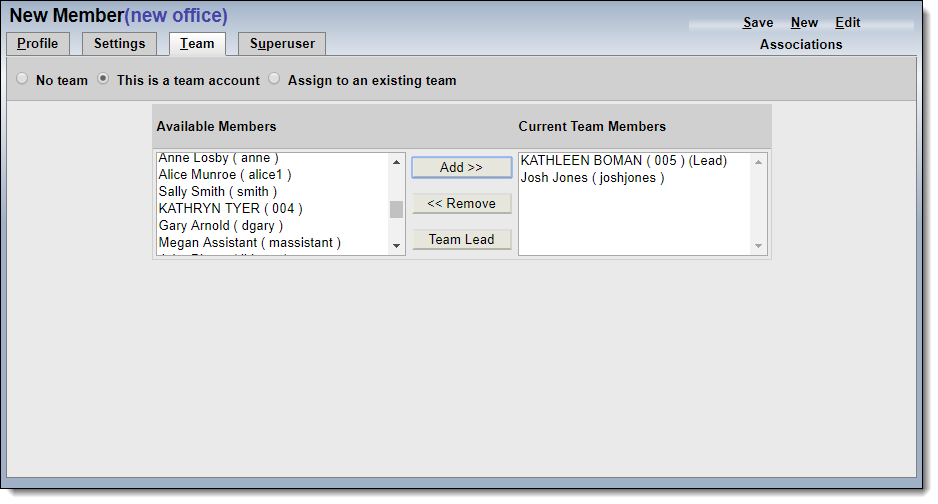
Click Save to save the new team.
Create a Team Account (Office/Company Login)
If your MLS allows office and company logins to manage teams, team options will appear on the Admin menu when you are logged on as an office or company.
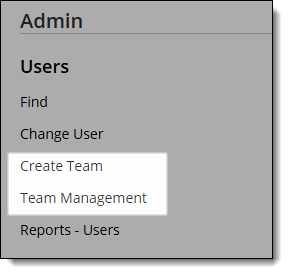
When signed in as an office or company with team editing privileges, click Create Team under Admin on the menu.
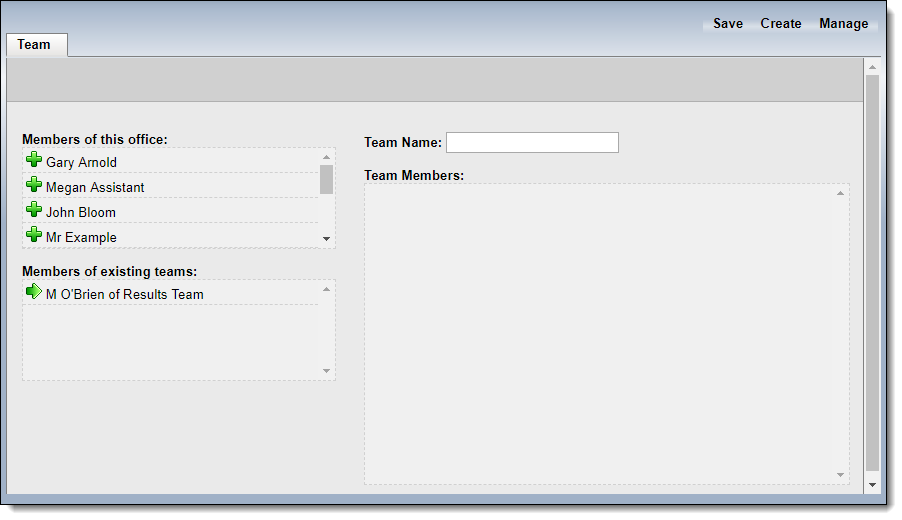
Enter a name for the team. Because the account is intended to represent a group of agents, we recommend that you name it accordingly.
Add members to the team. Members of the office or company are displayed in the lists on the left. Click on a member name to add the member to the team.
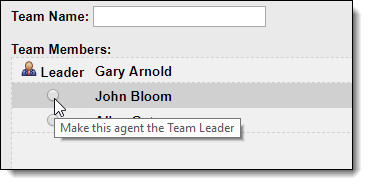
If team leads are required in your MLS, the first member added is the team lead by default. To designate a different user as the team lead, click on the radio button to the left of the member name.
Click Save to finish.