Set a Search as Default
When you apply your search filters and enter your search criteria, you can select the Set As Default Search option to save that specific search as your default search any time you search. This option is different from saving a search template because in addition to saving specific fields, you can also save field data. So, for example, not only can you select the ZIP code field to always be visible in your search template; you can also specify that ZIP code 12345 always be selected as part of your search.
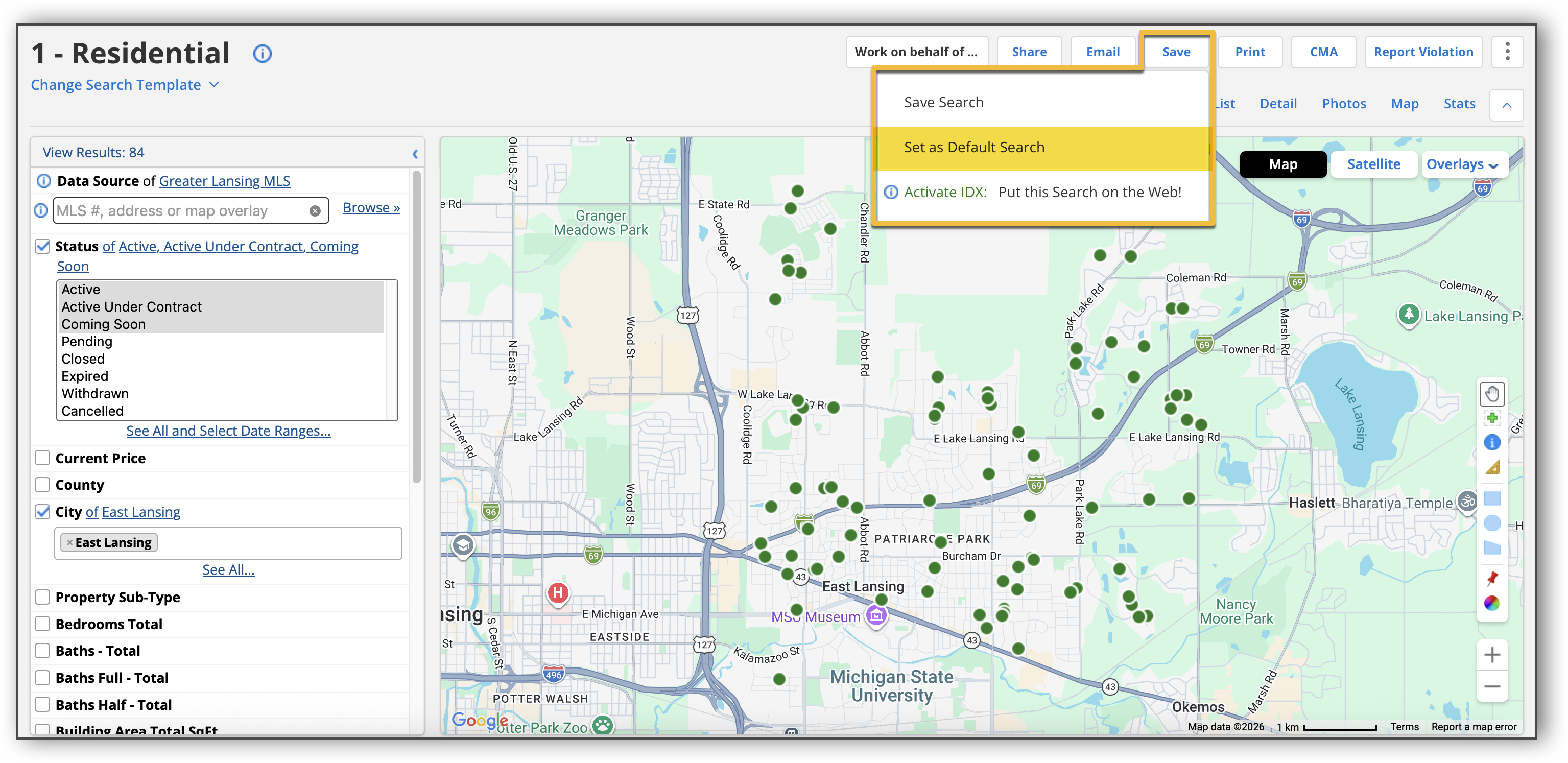
To save a search as your default search, go to Save > Set as Default Search.
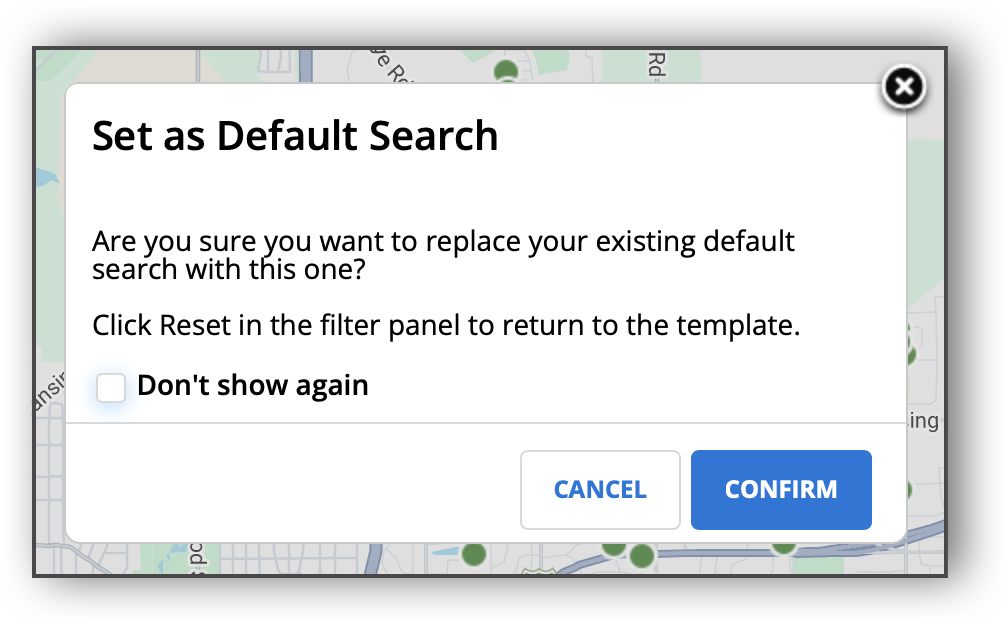
Click Confirm. You can also select the Don’t Show Again checkbox if you do not want to see the prompt again the next time you set a default search. Once you click Confirm, a message at the top of the screen indicates that that search has been saved as your default search.
If you set a default search and then change search templates, your saved search filters will remain. Only search fields that do not apply to a search template will be dropped.
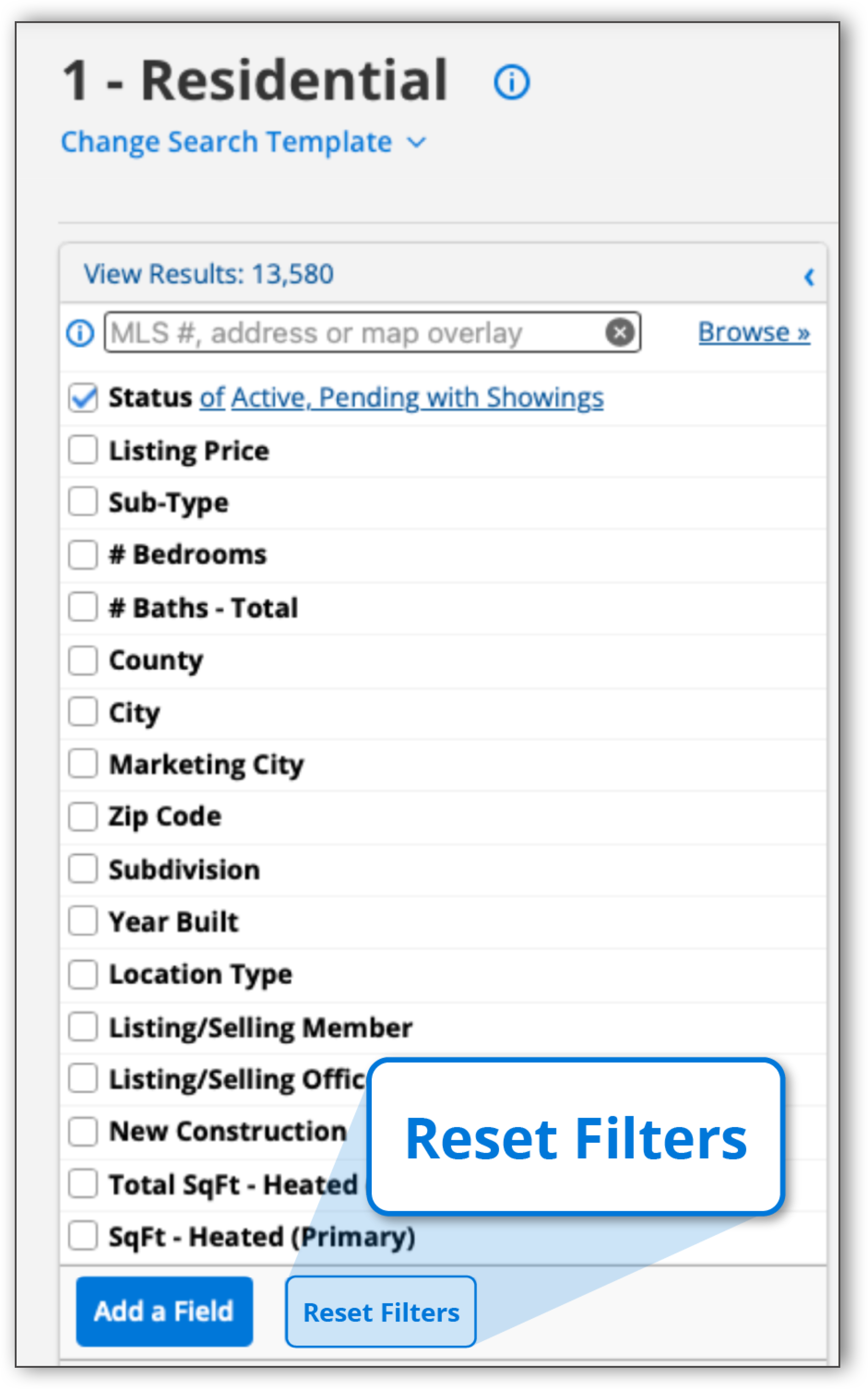
The Reset Filters button allows you to reset all search filters and create a new search that you can save as the default search. If you want to make any changes to the search you have set as the default search, you can click Reset Filters to clear all applied filters. Then, select new search criteria, and set your new search as the default.
 |
Any saved pre-filtered search on desktop will automatically be carried over and applied on mobile. The Set As Default Search button is also available in your Actions panel on the iOS and Android app, as well as Flexmls mobile web.
To learn how to set a search as default, you can also view the short tip video below: