Office and Company Accounts
Office accounts are set up as users in Flexmls. Click Add User under Users on the Admin menu to create an office account. By default, the Add User page shows the options for creating a new member. To create an office account instead, click the (new office) link at the top of the page. You must create an office account before creating the associated members.
Many of the settings that are available for individual user accounts are also available for office accounts. For more information about the options on the New Office page, see Add a Flexmls User.
The following settings appear only if you are adding an office account.
Settings Tab
The following options on the Settings tab are available only if you are working with an office account.
Office Type - If necessary, select a member type for the office. For more information, see Member Types.
Office Members Can Make Status Changes - Select whether the users in the office can make status changes to listings. This setting appears only if the MLS setting For each office, allow status changes to be enabled or disabled for all members with an office-wide setting is set to On.
Office Members Can Make Price Changes - Select whether the users in the office can make price changes to listings. This setting appears only if the MLS setting For each office, allow price changes to be enabled or disabled for all members with an office-wide setting is set to On.
Company Tab
A company office is used to compile statistics and manage listings for a group of offices. For example, to grant access to add or change listings in multiple offices without making the member a superuser, you can create a company and give the member Company-level brokerload (or partial brokerload using the Company option). For more information, see Brokerload.
Important
No members should be assigned directly to a company office account.
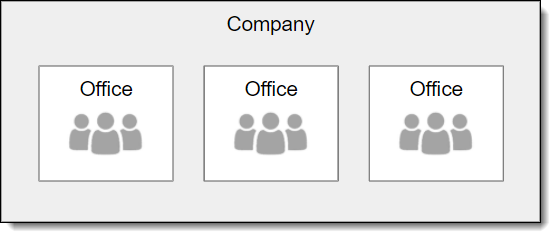
The Company tab is available only if you are working with an office account. Use the Company tab to designate whether the office is a company (parent) office or a child office.
Child office - If the office is a child office, select this option and select the parent company that the office belongs to. You cannot add an office to more than one company.
Company office - If the office is a company office, select this option and then select the offices that are under its control.
Neither - Select this option if the office is not a parent or child of another office.