Add a Listing with New Listing Maintenance
Refer to the video tutorial and instructions below to add a new listing.
Note
If you are adding a comp listing, refer to the Add a Comp Listing with New Listing Maintenance help page.
To start adding a standard listing, navigate to the main menu and select Add Listing under Add/Change on the menu.
If your MLS participates in Auto Assistant, you are prompted to enter the required listing details in the Auto Assistant window that pops up. Once you complete the Auto Assistant steps, you are automatically taken to the listing input form where you can review any autofilled fields and continue entering listing data into the form.
Note
For details on adding a listing using Auto Assistant, refer to the Add a Listing with Auto Assistant help page.
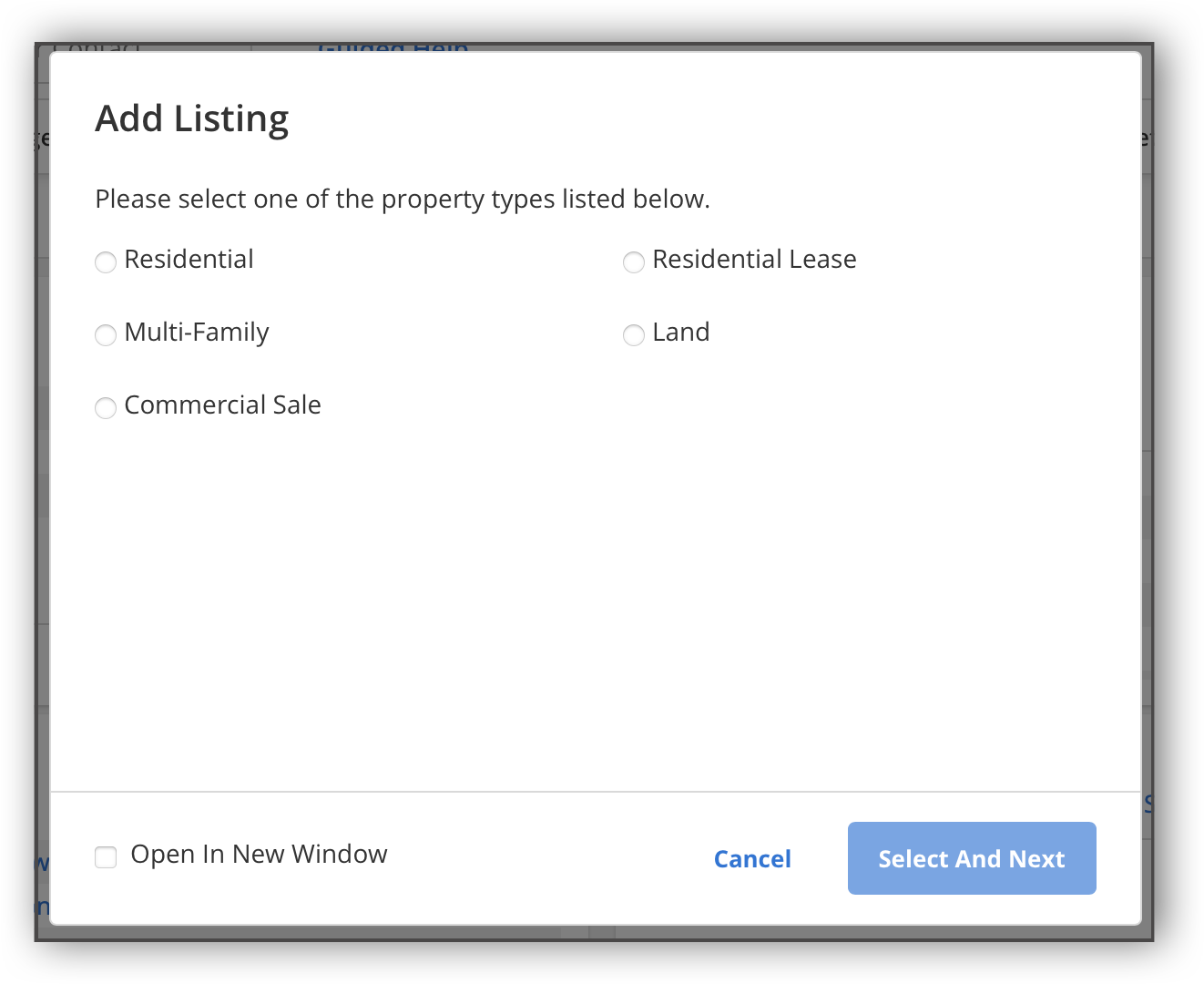
If your MLS does not participate in Auto Assistant, after clicking Add Listing, you are prompted to select a property type in the pop-up window that appears. Click Select and Next.
Tip
The following Guided Help tour is available for this function in Flexmls. When you click on a link, an instance of Flexmls will open in a new browser tab and instruction bubbles will guide you through the process.
Note
For a video walkthrough on how to add a listing, refer to the Adding a Listing training video.
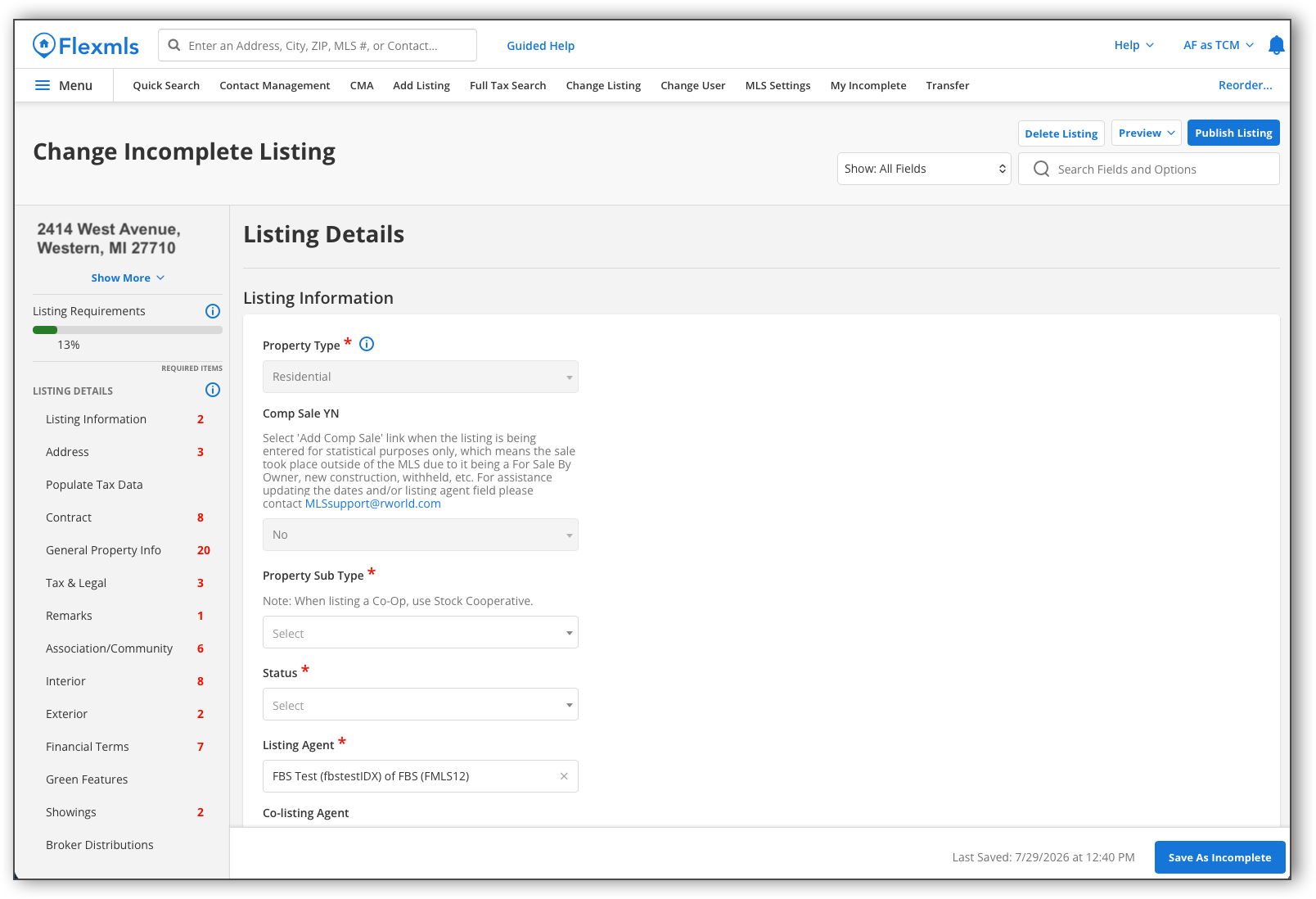
After you a select a property type, the listing input form loads. You can use the navigation menu on the left side of the page to jump to specific sections of the listing input form. A progress bar shows how much of the listing input form is left to complete before you can publish your listing. Numbers next to each subsection indicate how many required fields are left to complete in that subsection. If you have completed all the required fields in a subsection, a green checkmark will display next to it.
Note
If you are an office administrator or broker, the Broker Distribution subsection will only display once a Listing Member has been selected.
The top right corner of the page contains the action buttons for your listing: Delete Listing, Preview Listing, and Publish Listing.
Use the dropdown menu at the bottom of the page to change which fields are displayed: All Fields, Required Fields Only, Incomplete Required Fields. All Fields displays all fields, regardless of whether they are required or whether they have been completed. Required Fields Only displays only required fields, regardless of whether they have been completed. Incomplete Required Fields displays only fields that are required and that have not been completed. Before you publish a listing, you can filter by Incomplete Required Fields to check which required fields have not been completed.
Use the search bar to search for terms or fields in the listing input form. Type in a field or term in the search bar. Any terms that match your search will be highlighted. Use the arrows to jump to different instances of your search term until you find what you are looking for.
Note that whatever filter you have selected in the dropdown dictates what results display when you search with the search bar. For example, if you have filtered the listing input form to only display incomplete required fields, only those incomplete required fields will be included in your search results.
Note
If your MLS allows, you can set your listing as a parent or child listing. For information on how to do so, refer to the Parent/Child Listings for New Listing Maintenance Users help page.
Note
If your MLS participates, you can use Auto Assistant+ to autofill parts of your listing input form. To learn about how you can autofill Detail fields by uploading listing photos, refer to the Auto Assistant+: AI-Detected Features from Photos help page. To learn about entering AI-generated public remarks, refer to the Auto Assistant+: AI-Generated Remarks help page.
Complete the fields under each section of the listing input form. Required fields are marked with an asterisk.
Note
If your MLS participates in Auto Assistant+, you can choose to have the Detail Fields autofilled when you upload listing photos. For more information, refer to the Auto Assistant+: AI-Detected Features from Photos help page.
Click the following links for more detailed information on the listing input form sections.
While you are entering listing information, you can also add media to your listing, such as photos, floor plans, videos/virtual tours, and documents. You can add listing media at any point during the listing entry process. If you are an office administrator or broker, you must assign a Listing Member before you can add media to the listing.
If your MLS participates in Auto Assistant+, you can choose to have the Detail Fields autofilled when you upload listing photos. For more information, refer to the Auto Assistant+: AI-Detected Features from Photos help page.
Note
Generally, preliminary listing data must entered first before adding media for this listing.
Refer to the following pages for information on adding media to a listing, including photos, documents, videos, and virtual tours.
If you are not ready to publish the listing to the MLS, you can save it as an incomplete listing. Click the Save as Incomplete button on the bottom right. This button stores the listing data you have entered but does not exit the page automatically. If you do exit this page, your incomplete listing can be accessed from the My Incomplete page. Refer to the Incomplete Listings for New Listing Maintenance Users help page for information on how to access and edit incomplete listings.
You can preview the listing input form in two ways: as a report or as a PDF.
To preview your listing input form as a report, click Preview and then select Report from the dropdown. In the Report page, make your selections and click Preview.
To view or download a PDF of your listing input form with your completed fields, click Preview and then select Input Form in the dropdown. You can save or print this PDF.
If your MLS participates, you can upload input forms to TransactionDesk straight from the Add Listing, Change Incomplete Listing, or Change Listing page. For more information, refer to the Input Form Upload help page.
Once you are finished entering all your listing information and adding media, you can click Publish Listing at the top right.
To make changes to a listing that has already been published, go to the Change a Listing with New Listing Maintenance help page.
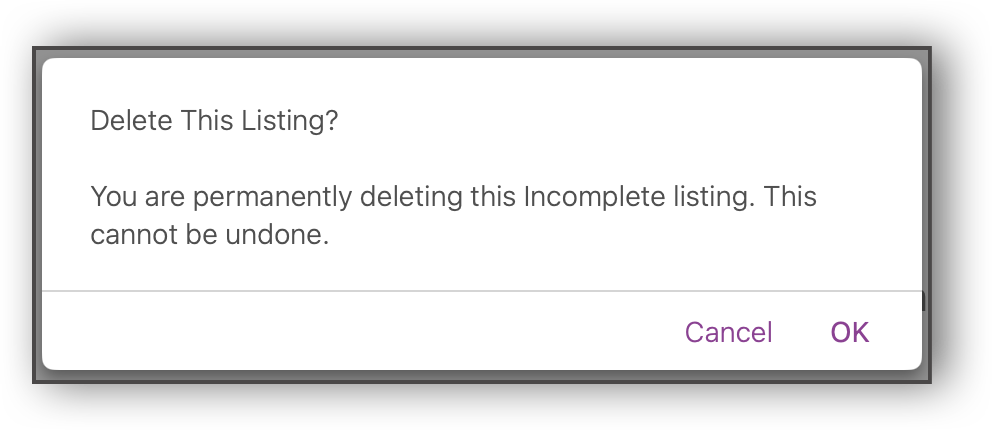
If you want to delete your listing, click the Delete Listing button at the top right. If you click the Delete Listing button, you will receive a prompt asking you to confirm that you want to delete the listing.